Applies to: All Employees, Team Leaders/Managers and HR/Customer Administrators
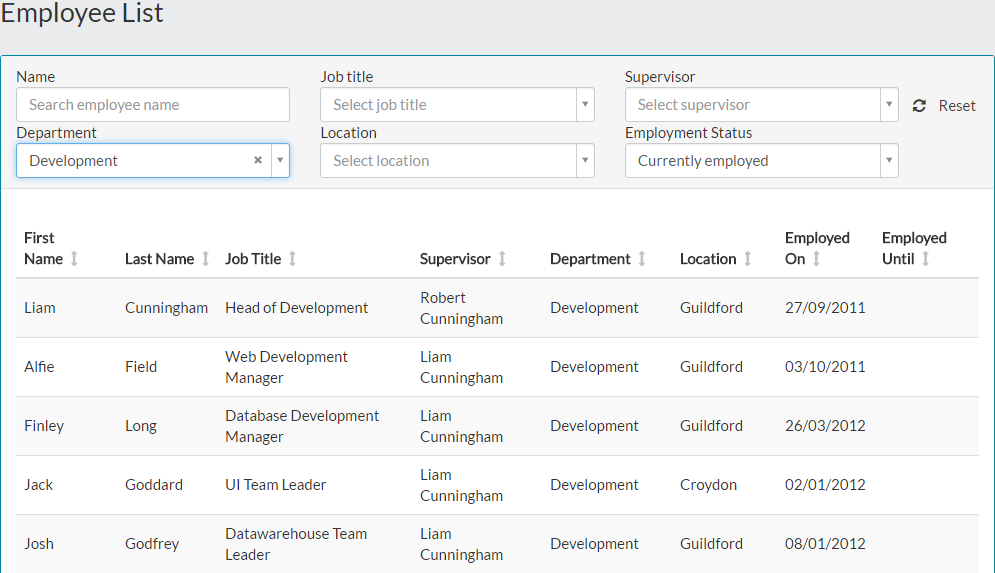
The Employees table within MyPeople, by default shows a list of all currently employed staff within your organisation. You can however, filter the table to show employees within certain departments or locations, or who have a particular job title or supervisor. You can also view previous employees, who are no longer employed.
For all employees, this option can be used to find other employees within your organisation and obtain business related information, such as contact details, location and who their manager is. Assuming the employee has updated their profile photo, it can help you put a face to the name.
For managers and administrators, you can select an employee from the list, if you’re looking to add their goals or edit their details.
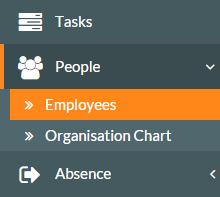
- To access the employee list, click on People and then Employees on the side menu.

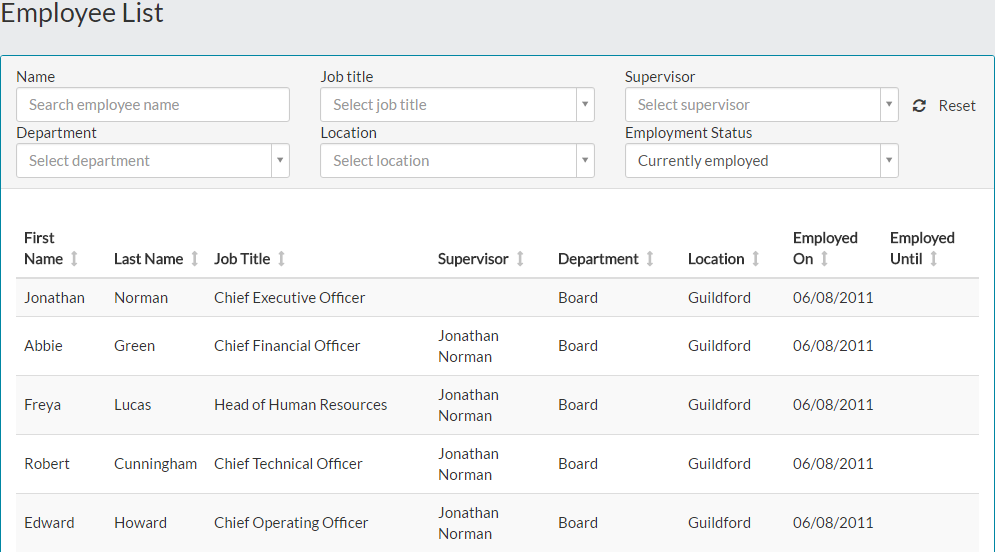
- The Employee List table will be displayed, showing by default - all active employees within your organisation.

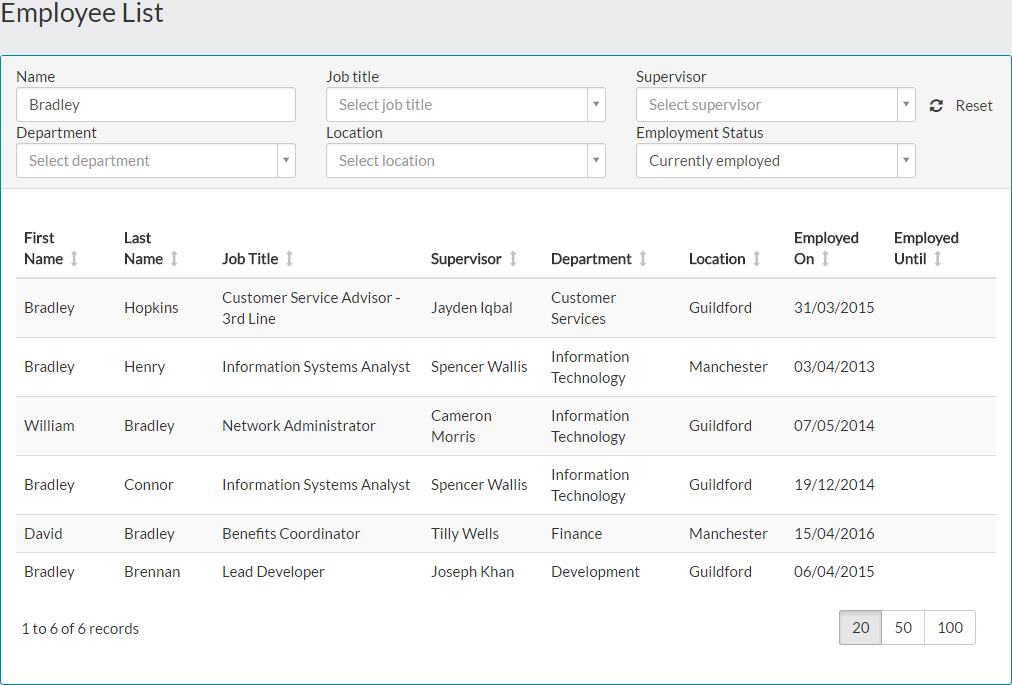
- Using the table filter controls, you could search for an employee by name, by entering part or all of their name in to the search field. The table will be updated automatically, to show only the results matching your search criteria.

- You could also use the drop-down menu on the other filters, to show employees within a certain department or location, who have a particular job title or who are managed by a certain supervisor
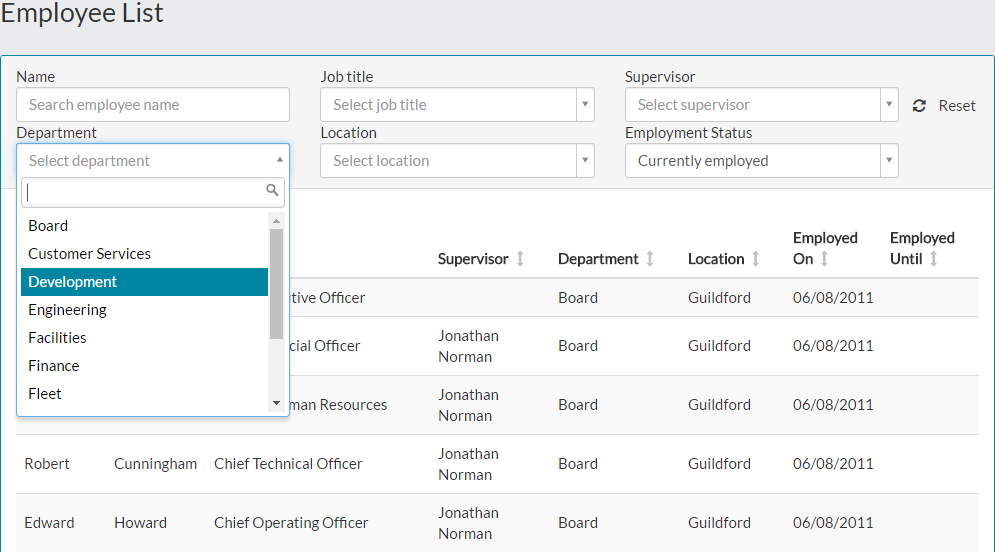

- Using one of the filter drop-down menus, the table is updated to show any matching employees accordingly.

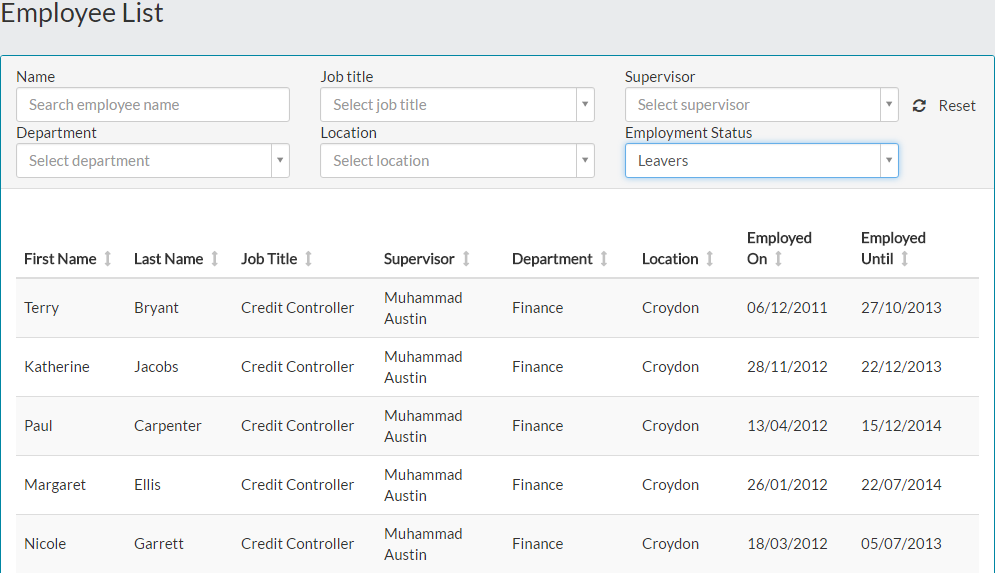
- Finally, if you’re an HR administrator, you may wish to see a list of past employees. Using the Employment Status drop-down menu filter, you can change this to Leavers and the table will be updated to show anyone who has previously been employed.

- Clicking on an employee from any filtered table of results, will load their employee record, similar to the example below.

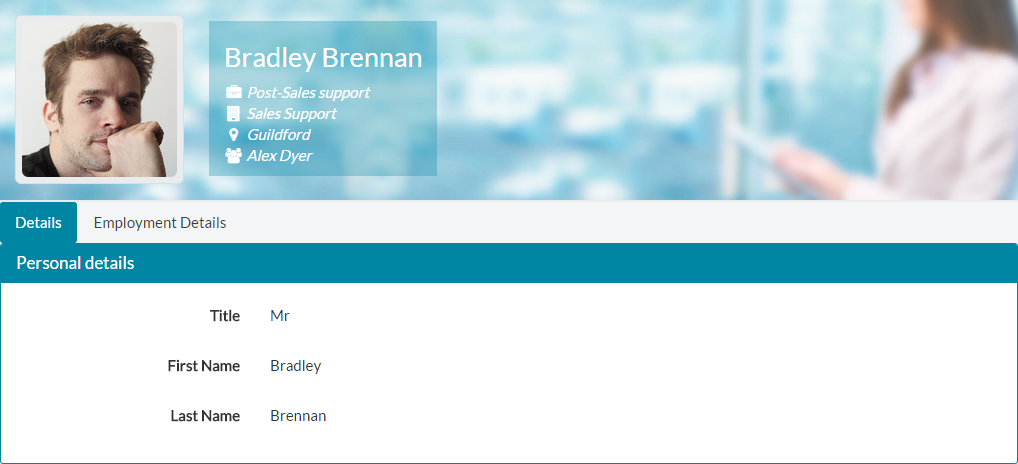
- Based on your own role/permissions within MyPeople, you may only see a limited view of the employee record, as shown in the example above.
- Managers and HR/Customer administrators will be able to view more details for employees within their teams and within the organisation. They can then continue to edit an employee record via this route.
- The employee record can be viewed using either this route, the Employee Search function on the side menu, or by selecting the employee from within the Organisation Chart.
- For further information on editing an employee record and searching for an employee, either by using Employee Search or the Organisation Chart, please refer to the related articles below.
Was this article helpful?
That’s Great!
Thank you for your feedback
Sorry! We couldn't be helpful
Thank you for your feedback
Feedback sent
We appreciate your effort and will try to fix the article