Applies to: HR/Customer Administrators
At certain times, you may need to edit an employee record. This could be something such as, marital status has changed or a promotion to another job title.
- To edit an employee, you’ll need to first locate and view their employee record.
- You can locate an employee record, by either using the People side menu, followed by the Employees sub-menu.
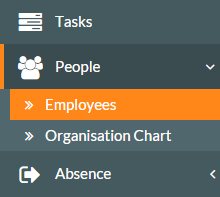

- Clicking Employees will display the Employee list, similar to the example below.

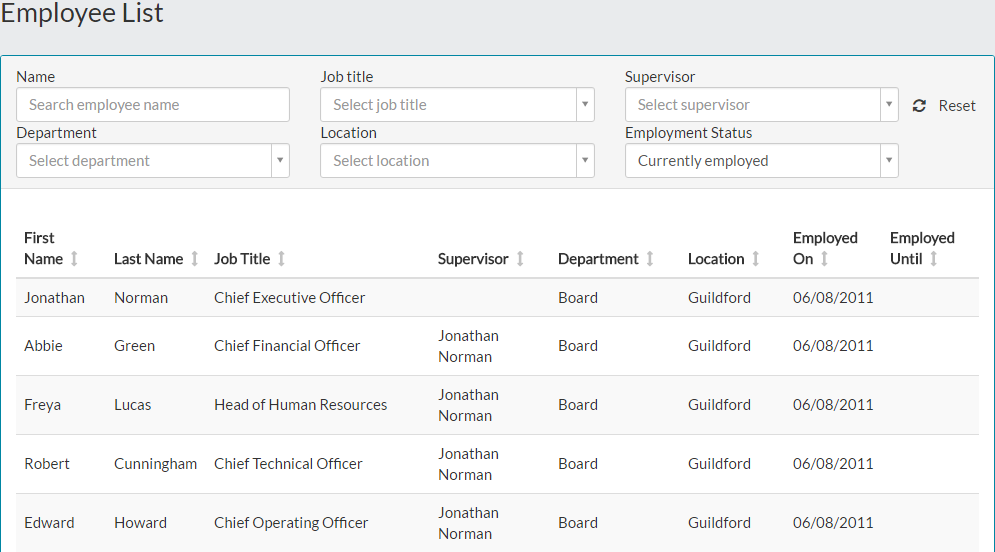
- From the Employee List, you can search for an employee record by name or use the filter controls to find the employee record you need to edit.
- Using employee search, enter the name of the employee you wish to locate.


- Select them from the drop-down, by clicking their name.
- Using either method and clicking on the employee name, either in the Employee List or from the search results, will display their employee record.


- The employee record will look similar to your own ‘My Details’ page.
- There are two edit styles associated with editing an employee record. These are either editing a section of information such as Personal Details, or editing a row of information such as medical, salary or contact details.
- The other way to edit tabs and sections of an employee record, is by clicking the blue edit button in the relevant section, similar to the Personal Details section in the example above.
- Clicking edit in a particular section such as Personal Details, enables the fields in that section only, for editing. Example shown below.

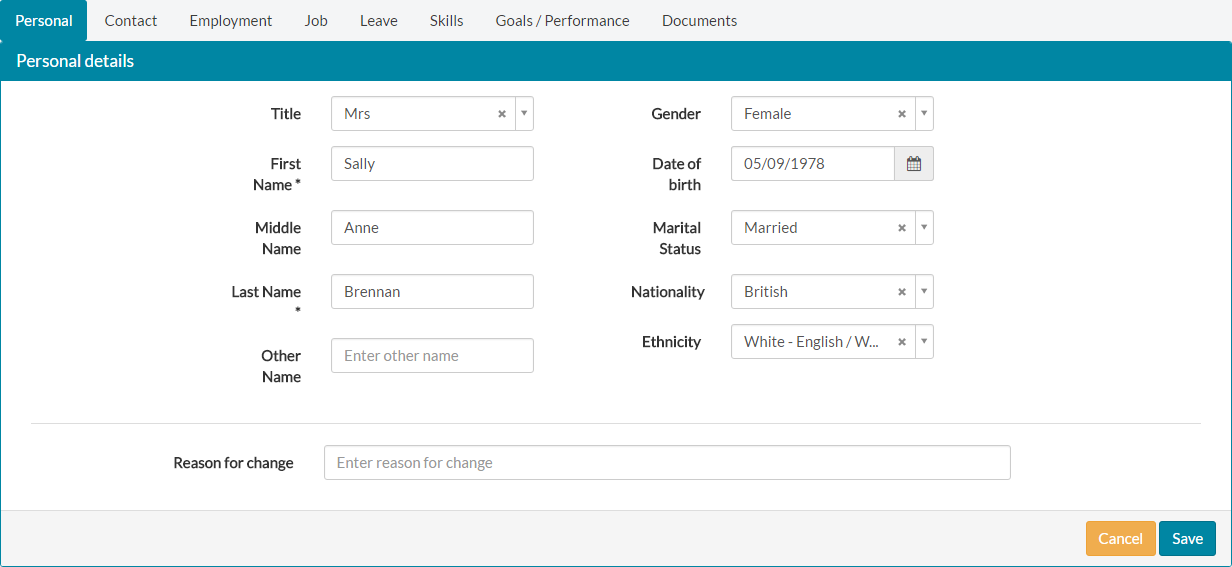
- Make the required change(s) to the employee record.
- You can give a reason for change, but this is not required. An example might be, ‘edited and changed marital status from Single to Married’.
- Click save and repeat the process on any other tabs or sections that require changes.
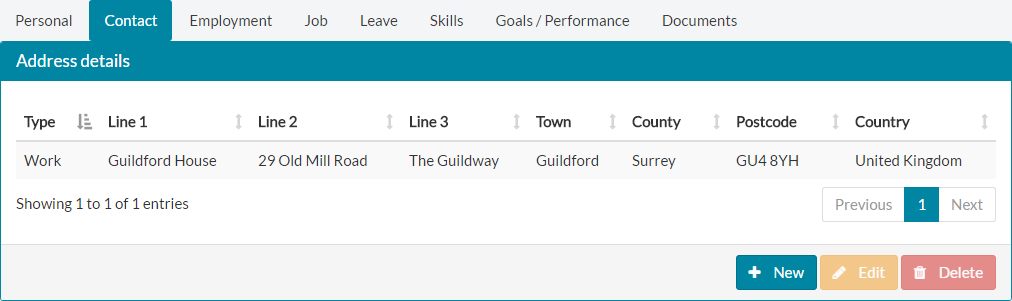
- For tables that contain data, such as Medical Details, Salary Details or the Contact tab, you can either click New or Delete, to add or remove an entry in the relevant table.
- You could also edit an existing entry, by selecting the entry in the table and clicking the edit button at the bottom of the table.


- Adding or editing a data table row, such as the selected row above, displays an on-screen form similar to the below.

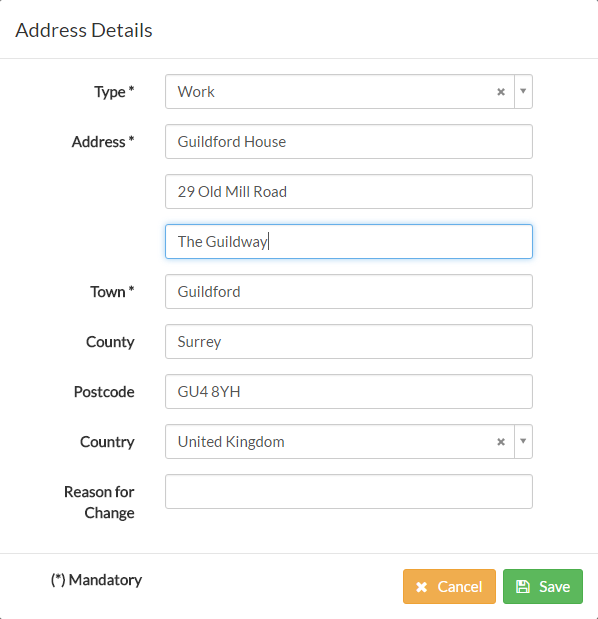
- Make the required change(s), before clicking save.
- The updated information will be displayed in the relevant table.

- Complete similar editing for any other information on the employee record.
Was this article helpful?
That’s Great!
Thank you for your feedback
Sorry! We couldn't be helpful
Thank you for your feedback
Feedback sent
We appreciate your effort and will try to fix the article