Applies to: All Employees
Performance reviews are scheduled as per your company policies and by your HR administrator or team.
Peer reviews allow for an employee to be reviewed by other employees within the organisation, such as other team members, colleagues, supervisors, or all the above. An anonymous review will be created to ensure that fair feedback is collected and collated.
Peer reviews are useful when undertaking such tasks as successions planning, talent management, or as part of disciplinary proceedings. They allow for honest, anonymous feedback to provide insight into how an employee is really doing.
Peer reviews are anonymous for most employee roles, but should you hold the following employee role, you’ll be able to ascertain certain information:
- Customer Administrator – Can see all scores and additional notes.
- Any HR administrator – Can see all scores and additional notes.
- Team Leader or Line Manager of employee being reviewed (Team Leader or Line Manager is not part of the review) – Can see anonymous scores and additional notes.
- Team Leader or Line Manager (Team Leader or Line Manager is part of review) – Can see their own scores and notes, and anonymous scores and notes for other reviewers.
There is a small caveat with the above role based views, which is that should the supervisor/line manager of the employee being reviewed hold the HR or Customer Administrator role, the view will always adopt the great permissions, so in this case, the supervisor of the employee to be reviewed, will be able to see everything. This is, all scores and additional notes, and who they were made by.
When a review has been scheduled (this could be either a standard employee and supervisor review, a supervisor only review or a peer review), you’ll either be advised, emailed internally or receive an email notification from MyPeople to complete your performance review. Additionally, you’ll see a task within MyPeople to complete the review as well.
You will receive a notification (email, task or internal communication) for any of the following review configurations, based on your role:
Role: Employee
- Employee & Supervisor Review: Notified to complete your employee review, which will be submitted to your line manager/supervisor.
- Peer Review – If you have been selected as a peer, to review another employee. This is anonymous.
Role: Line Manager / Team Leader
- Employee & Supervisor Review: Notified to complete your employee review, which will be submitted to your line manager/supervisor.
- Employee & Supervisor Review: Notified to complete the supervisor section of a completed employee review for one of, or all your team members.
- Supervisor Only Review: Notified to complete a supervisor review for one of, or all your team members.
- Peer Review: Notified if you have been selected as a peer, to review another employee. This is anonymous.
Role: Administrator
- Employee & Supervisor Review: Notified to complete your employee review, which will be submitted to your line manager/supervisor.
- Employee & Supervisor Review: Notified to complete the supervisor section of a completed employee review for one of, or all your team members.
- Supervisor Only Review: Notified to complete a supervisor review for one of, or all your team members.
- Peer Review: Notified if you have been selected as a peer, to review another employee. This is anonymous.
Completing a Peer Review
- Completing peer reviews is the same process as completing a standard employee performance review, but for guidance, we will cover the steps to complete one, below.
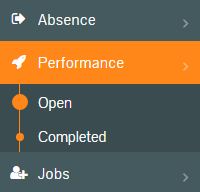
- Using one of the notifications received, or by selecting Performance from the side menu, followed by the Open sub-menu, find the review to be completed.
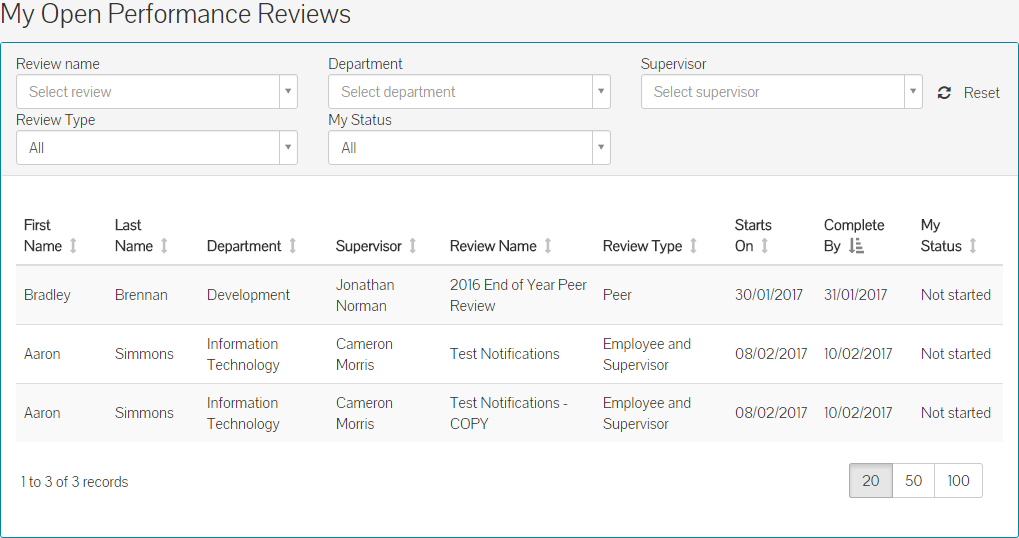
- You can see that the My Open Performance Reviews screen shows the Review Name, Review Type and the ‘Starts On’ and ‘Complete By’ dates.
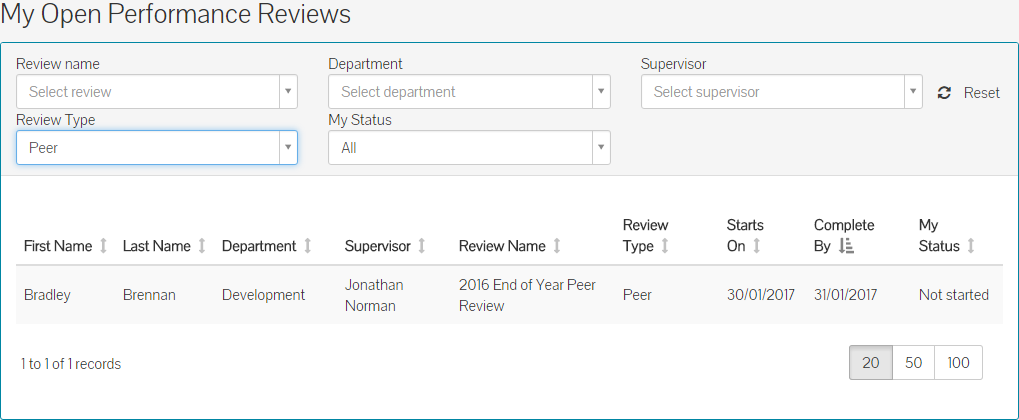
- You can use the filters of the table, to filter the table on specific review types, names or employee names. The example below has been filtered by Review Type – Peer.
- To start the review, click on the review within the table of your open performance reviews.
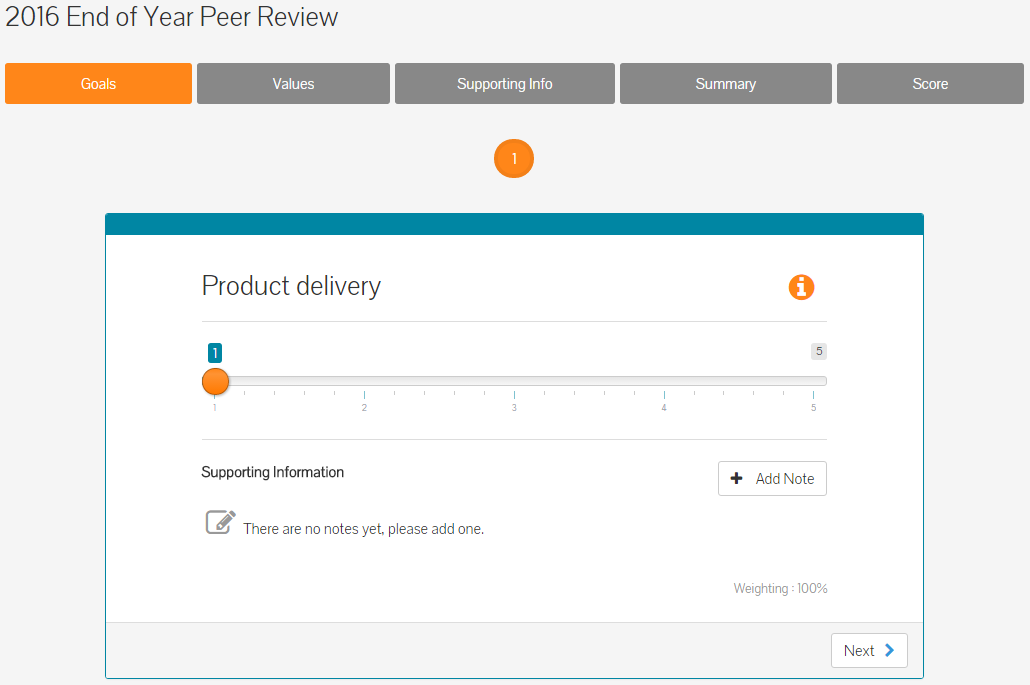
- The tabs within the review shown below, could possibly be a lot different to what you could see on reviews you are seeing, but the review structure and method of answering questions, will be similar, if not the same.
Responding to Review Questions
- Depending on how the performance review has been configured, you will see one of five methods of answering review questions.
- These methods are: Dropdown List, List, Numeric Slider, Options and Text Slider. Examples of which, are shown below.
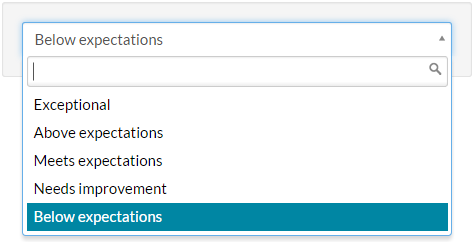 Dropdown List.
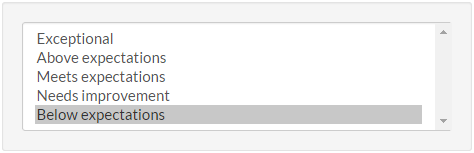 List.
List.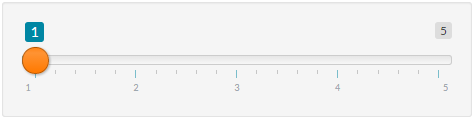 Numeric Slider.
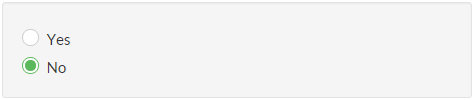 Options.
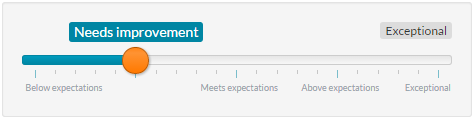 Text Slider.
Peer Review - Completing
- Using one of the response types above, you can score the first question of the performance review, based on how you feel the employee being reviewed, has performed against that question/subject.
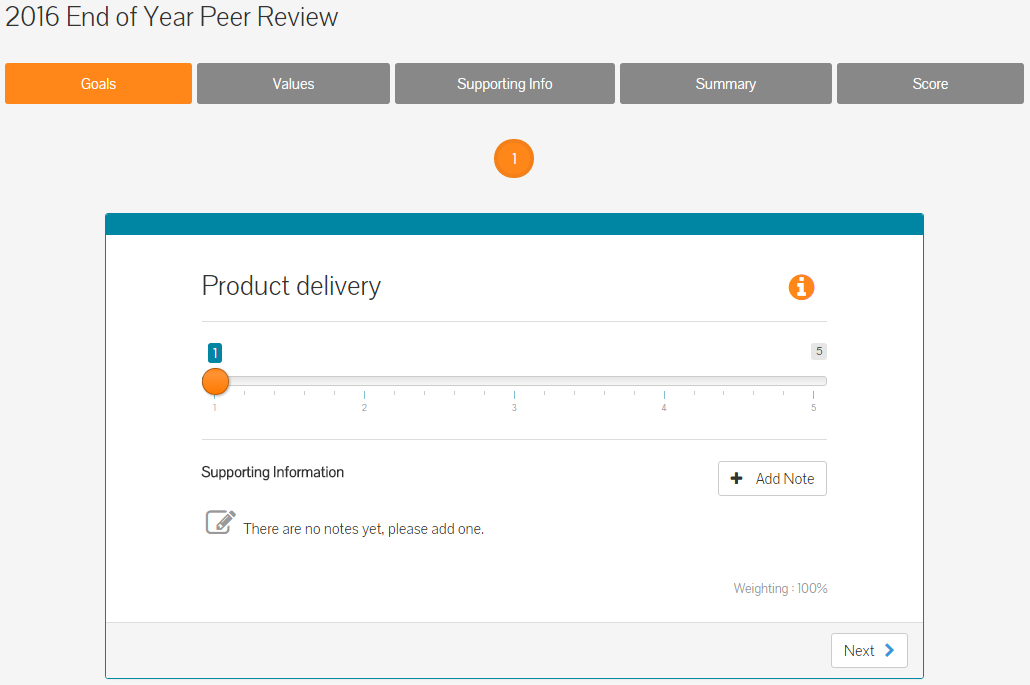
- Above you can see the name or short description of the first of five goals/questions.
- By clicking the orange and white information icon to the right, you can expand the goal to see any related or corresponding information that has been added. It could also read ‘No Description’ if nothing has been added. This will look like the below example.
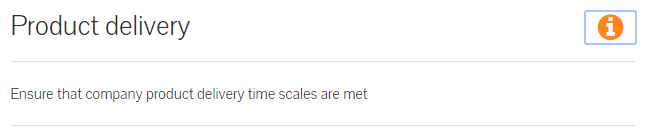
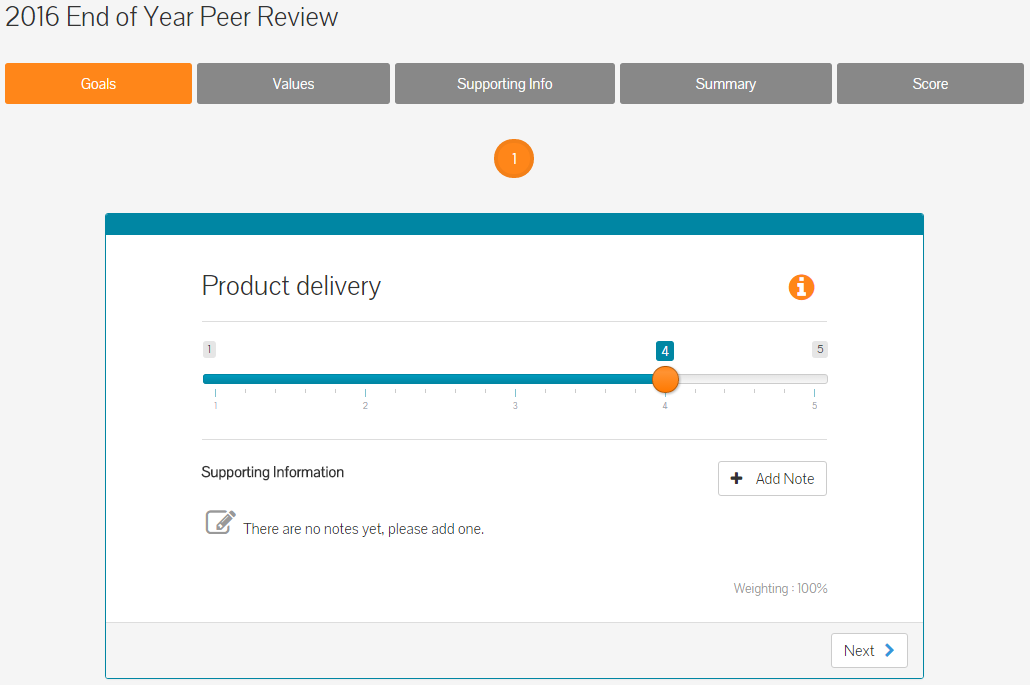
- In the example above, the ‘numeric slider’ method to review performance against a goal is being used and there are five goals to be measured against.
- Select a response to this question/goal using the slider to measure the employee’s performance against it.
- Should you be the Supervisor / Line Manager of the employee being reviewed, you have the option to see other anonymous responses per question, as you progress through the review.
- By clicking on the Other Responses option, you can see any other responses from those who have scored a question on this review, as shown below.
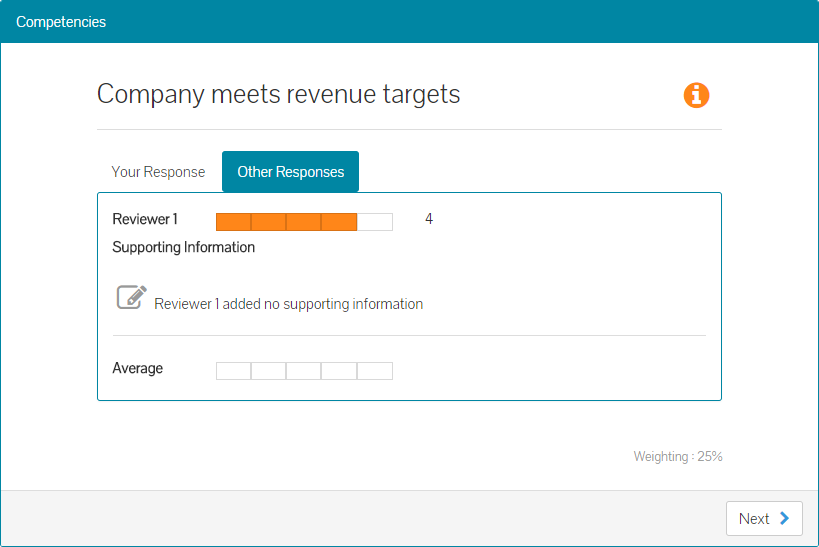
- Clicking on Your Response, will take you back to your score for this question.
- You can also choose to add a note, to explain why you have measured this question/goal the way you have. This is however, not required, unless you have been advised differently by your HR team.
- To add a note, click the ‘Add Note’ button and type it the message details if the text field that is then displayed.
- Notes have a 1000-character maximum length, but should you wish to add more than this, simply click add a note again, to add more supporting information.
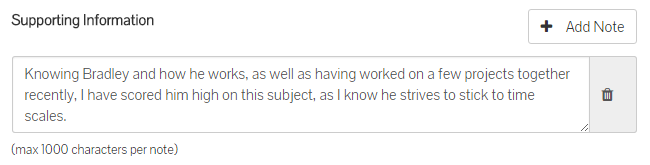
- Once you have selected your response and possibly added a note, click next to move on to the next goal and complete a similar action to measure the next question/goal.
- Clicking next on the final question/goal, will move you on to the next tab of the review.
- Each tab between the up to the Supporting Info tab, will adopt a similar approach to answering questions relating to that section, albeit with the possibility of using a different response type from the earlier list of five styles.
Supporting Info
- On the Supporting Info tab, you can add some information regarding the employee’s overall performance, why you have scored the review as you have, or anything that could help the employee’s manager or your HR team, better understand how the employee has been performing. Although this section has a 1000-character maximum, this is a good opportunity for you to provide some extra feedback about the employee.
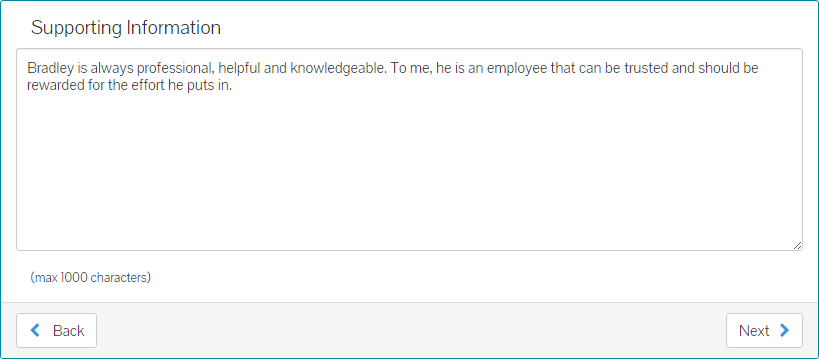
- After adding any additional supporting information, click next to move on to the summary tab.
Summary
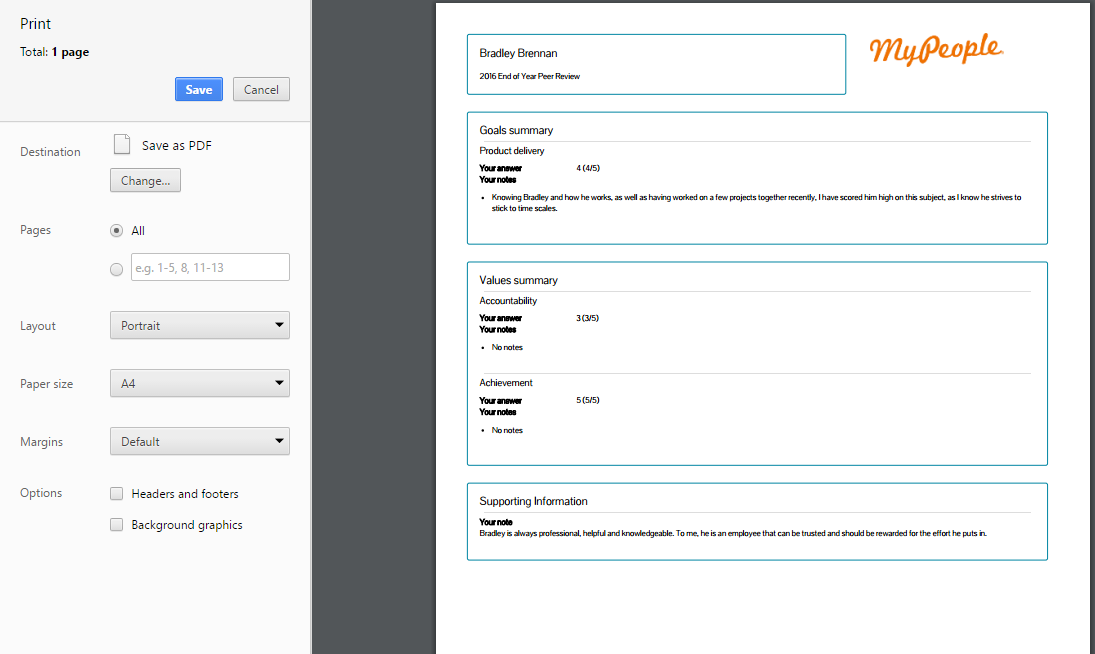
- The Summary tab will display your scores against each question/section of this review.
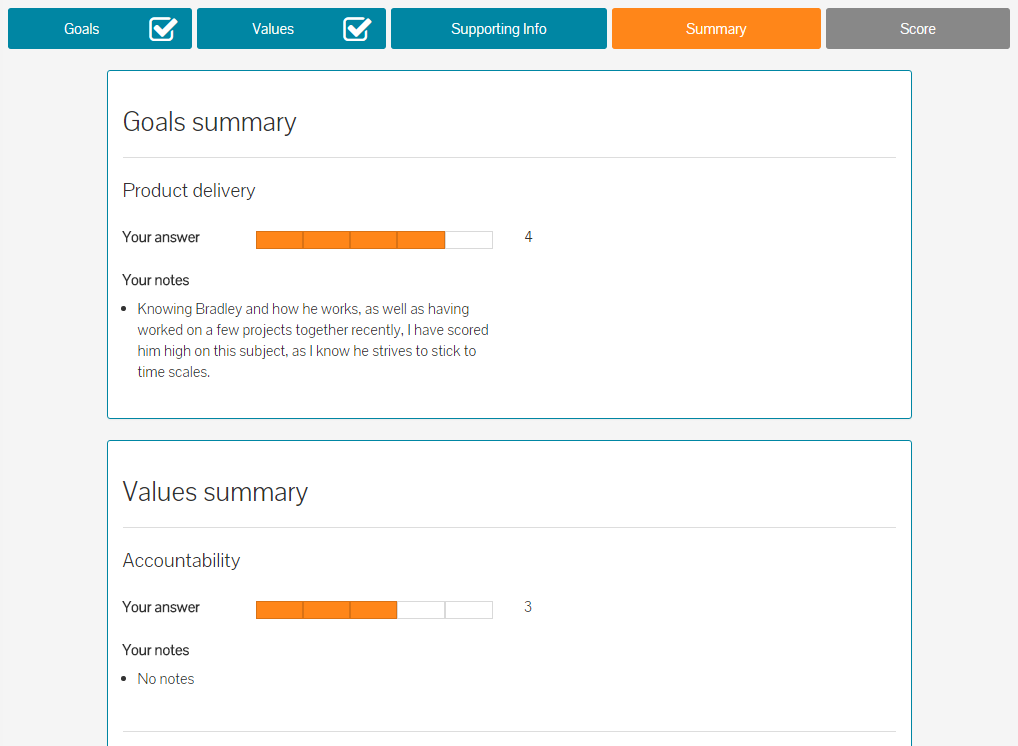
- The Summary page also shows any additional notes you have added per question, as shown above, as well as the Supporting Info you added for the overall review, if any, shown below.
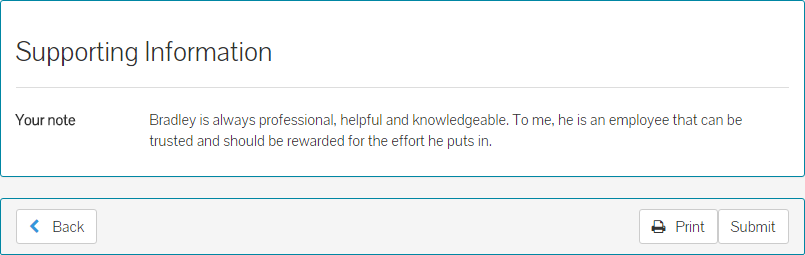
- At this stage, you can print the review, should you wish to keep a hard copy or have been asked to print this.
- Click print and this will open the printer dialogue box, for you to select the appropriate printing device to print from.
Submitting the Review
- If you need to make any changes to the review, click back at any stage before submitting and you will be able to go all the way back to the relevant question you’d like to amend.
- If you’re happy with the review, click the ‘Submit’ button, before clicking Yes on the pop-up window to confirm you wish to submit the review.
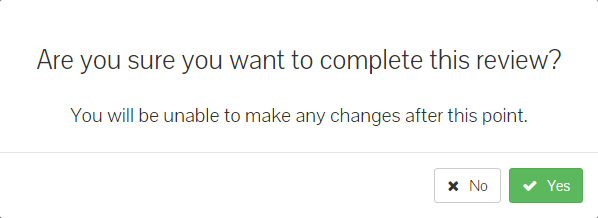
- After submitting the review, it will be moved to your completed list of reviews. However, the overall status of the review may still read as Open or In Progress, which will mean that other employees need to complete it to.
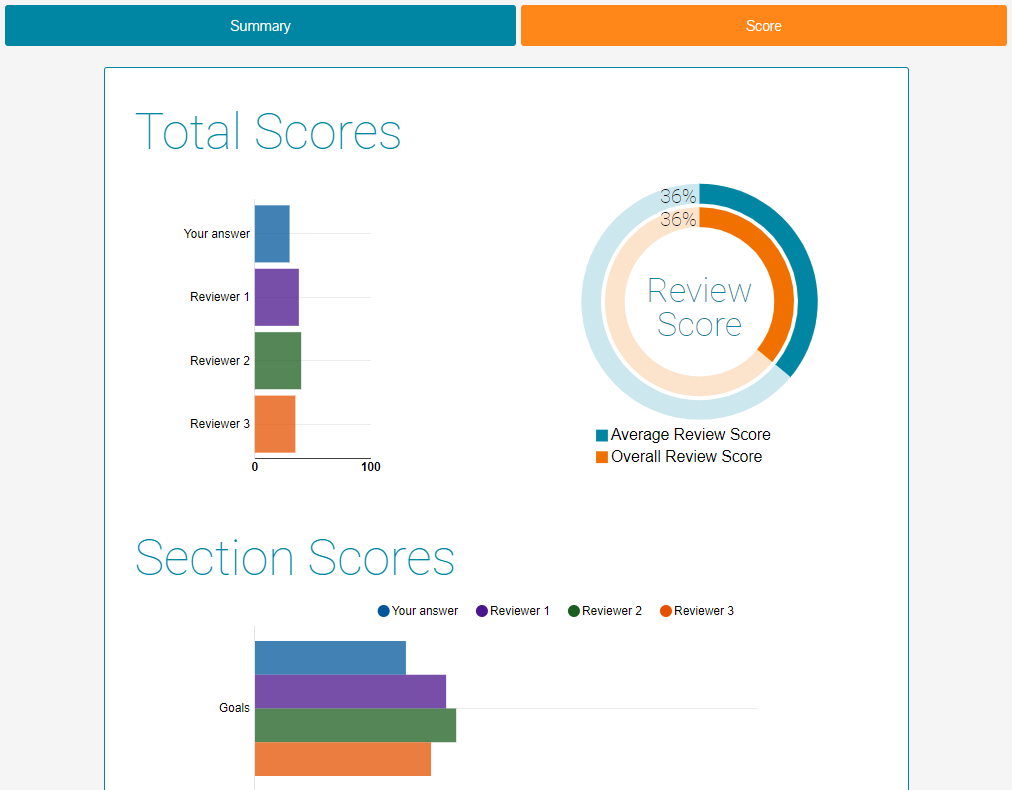
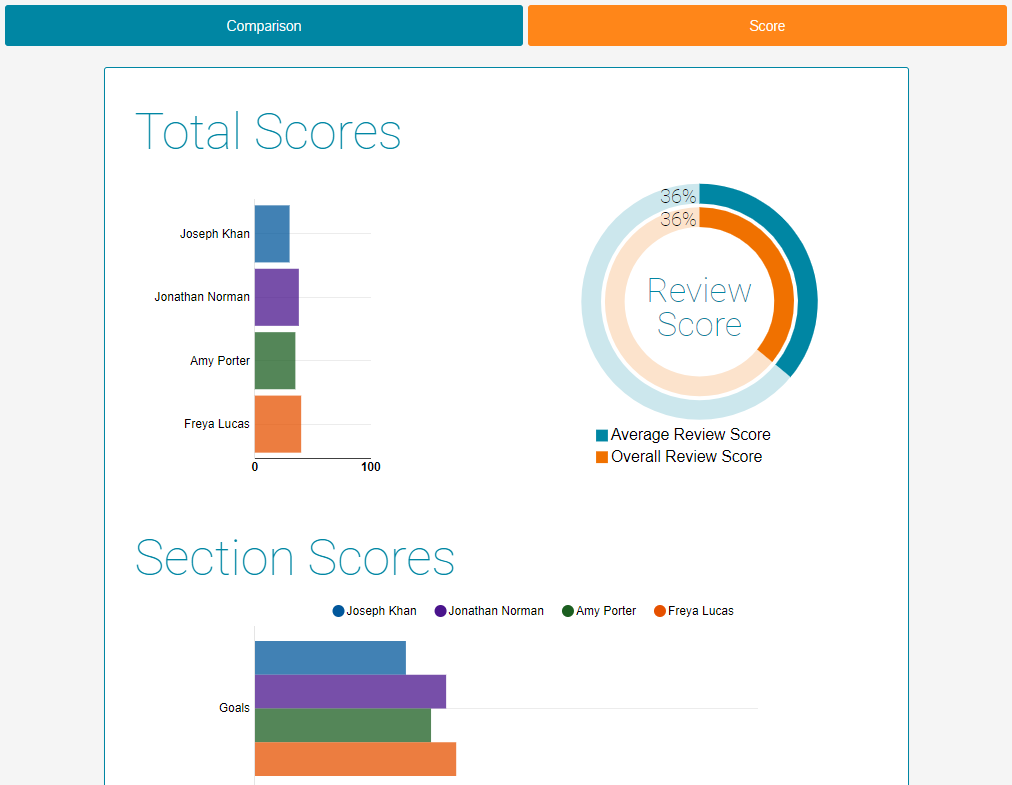
- You will also see the Score tab, after submitting the review. This is visual breakdown of each section and its corresponding score.
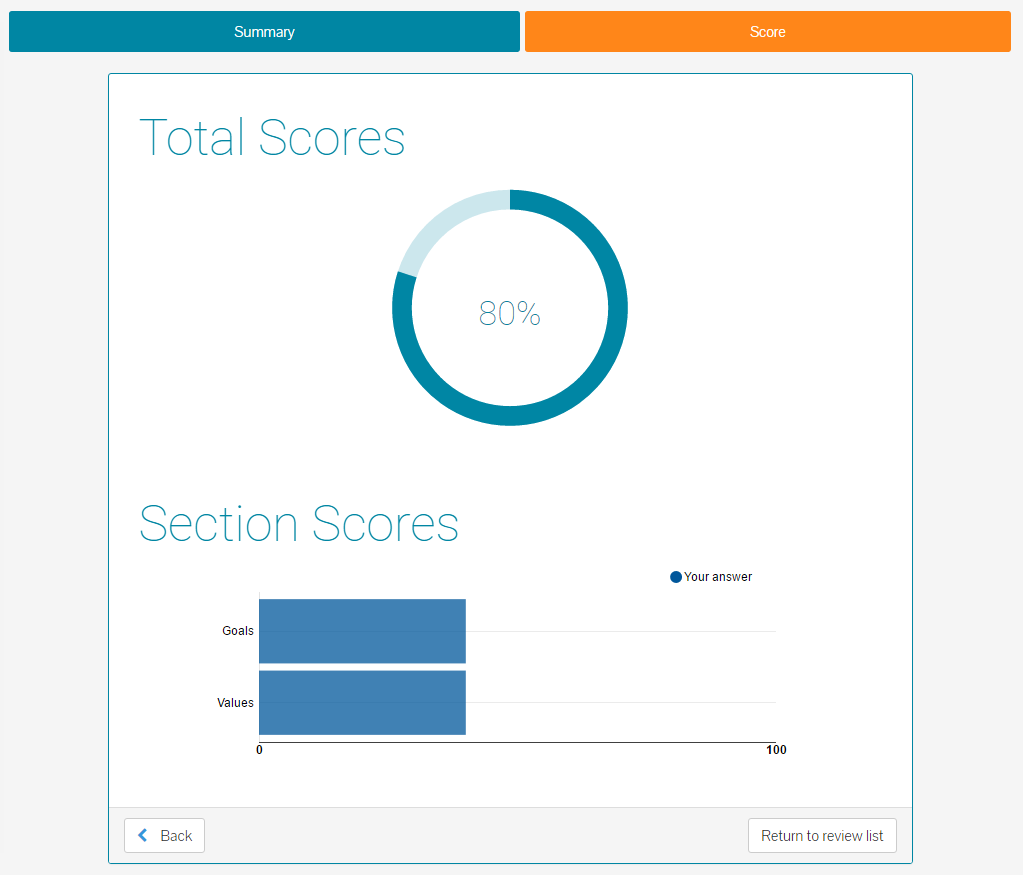
- If you’re the Supervisor / Line Manager of the employee being reviewed, you may see a slightly different score tab, showing anonymous responses from other reviewers.
- MyPeople administrators within your organisation will see all information on the score tab, including who has scored the review.
- The review is now complete and anything beyond this point, will be communicated by your line manager or HR team.
Was this article helpful?
That’s Great!
Thank you for your feedback
Sorry! We couldn't be helpful
Thank you for your feedback
Feedback sent
We appreciate your effort and will try to fix the article