Applies to: HR/Customer Administrators
Most employees will adopt the company entitlement for holiday per year, which will also use accrual rules to increase entitlement automatically. Accrual rules may also allow for carried leave.
There could however, be times when an individual employee’s entitlement might need to be adjusted. Examples might be, when they have gained a day in lieu or purchased/sold holiday.
- To adjust entitlement for an employee and whilst logged in as administrator, first find and load their employee record, either by using employee search or under the People side menu and Employees sub-menu.
- With the employee record displayed on screen, click the Leave tab for the selected employee.

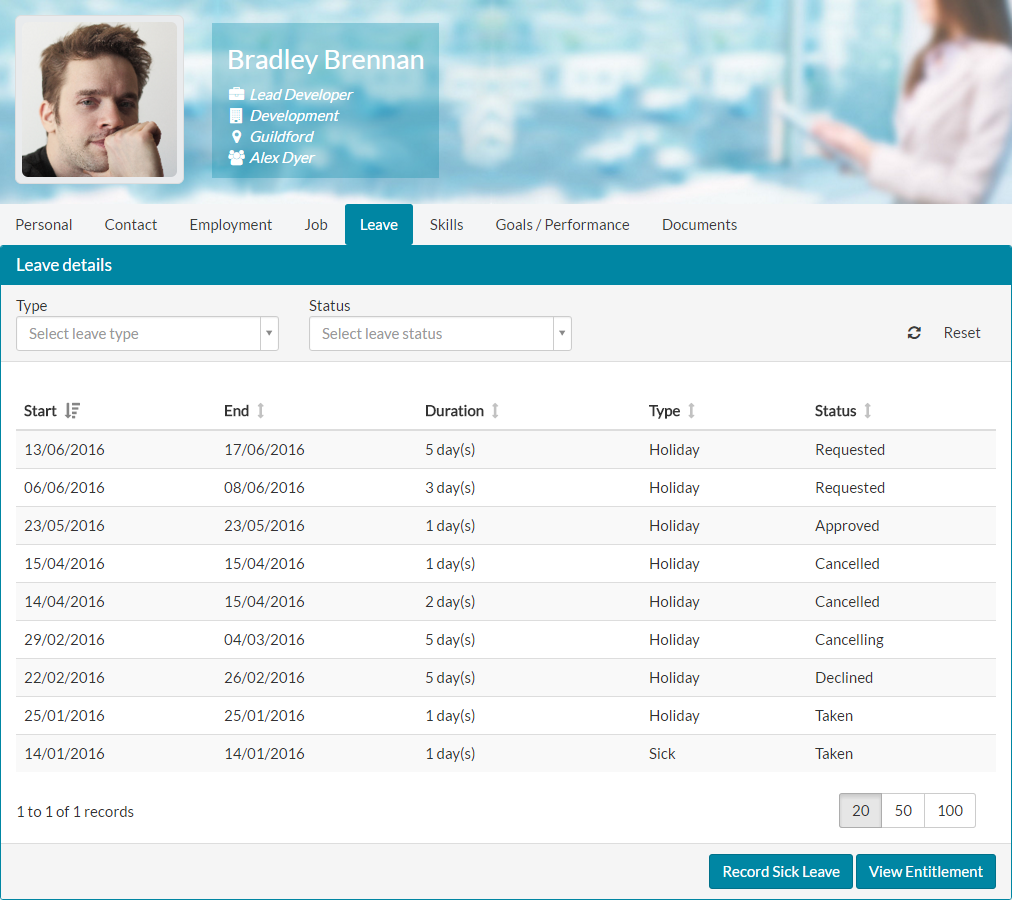
- Click View Entitlement, which displays the Employee Entitlement screen.

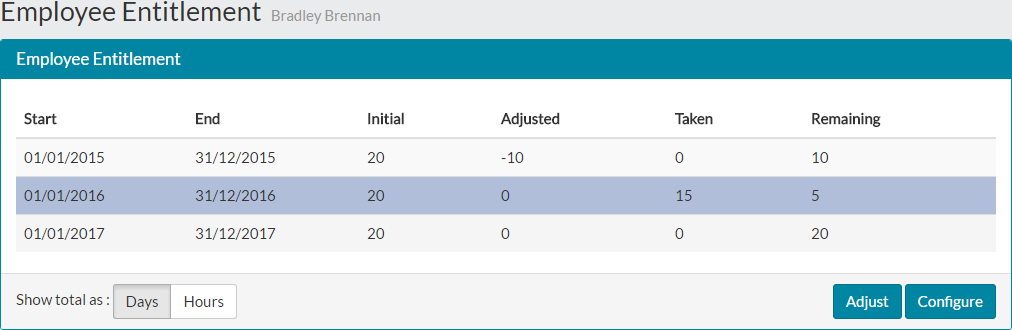
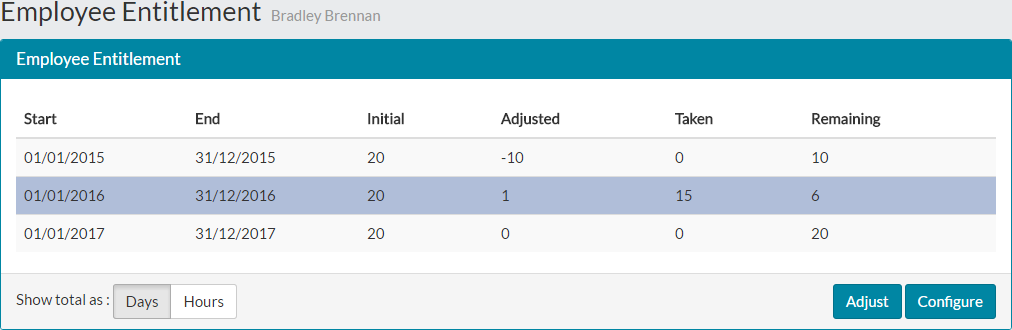
- Select the entitlement to be adjusted from the table, which will cover January 1st to December 31st, by clicking the corresponding row, as shown in the example above.
- Click adjust with the selected row highlighted and the Adjust Leave Entitlement form will be displayed.

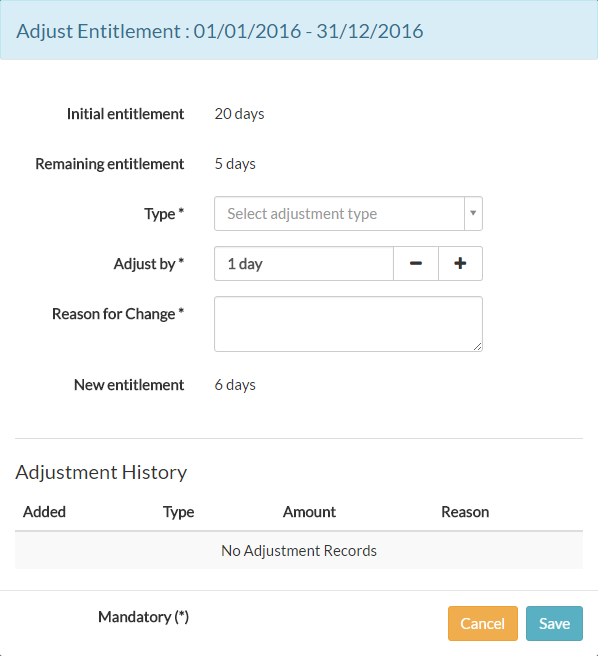
- As you can see, the form corresponds to the entitlement for the period selected.
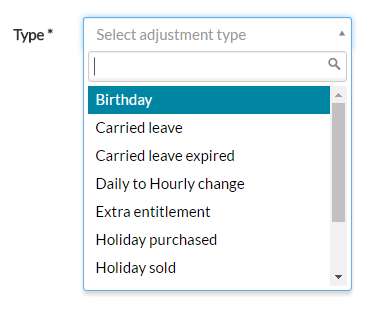
- Select a type of adjustment from the dropdown menu, which could be for holiday purchased or sold, an extra day for the employee’s Birthday or time off in lieu.

- Manually type or use the – and + controls to adjust the number of days/hours to be added or deducted.
- Add a reason for the change, which will be added to the adjustment history section below the entitlement adjustment options.
- An example of a completed adjustment is shown below.

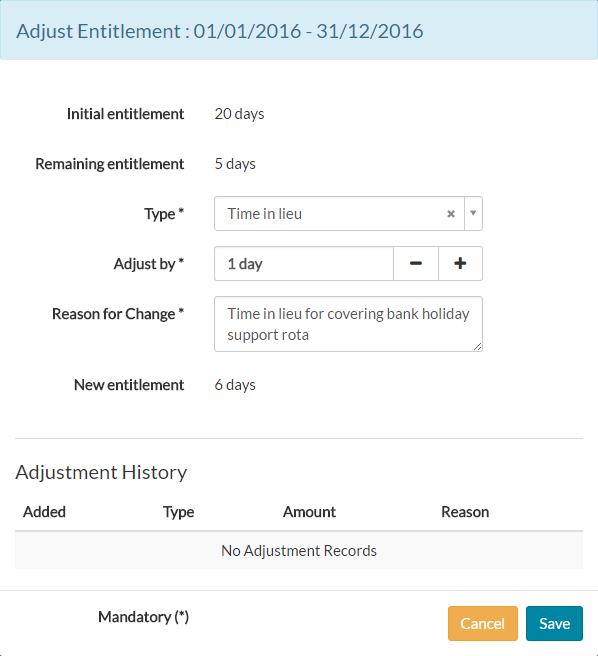
- As you can see, the updated new remaining entitlement is shown as a reference.
- Click save to add the adjustment to the employee entitlement.
- You’ll be returned to the Employee Entitlement screen, where you can see the newly adjusted remaining entitlement in the table for the entitlement period.

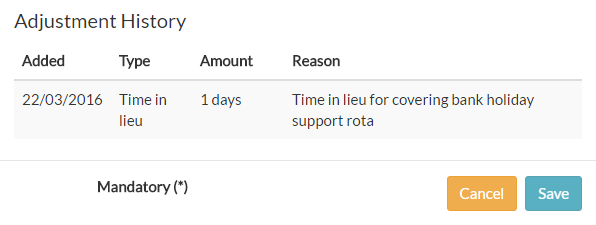
- Loading the adjustment form again by clicking adjust, shows the newly added adjustment in the Adjustment History Section.

Was this article helpful?
That’s Great!
Thank you for your feedback
Sorry! We couldn't be helpful
Thank you for your feedback
Feedback sent
We appreciate your effort and will try to fix the article