Applies to: Team Leaders/Line Managers and HR/Customer Administrators
Employee Notes allow for Managers, HR and Customer administrators to add miscellaneous notes to an employee record. The employee is unable to view the notes, as are other employees who aren’t assigned one of the roles mentioned above. A manager can only add notes to members of their team.
Notes are added, edited or deleted under the employee record for the corresponding employee, using the Notes tab and are available against all employees.
Adding Employee Notes
- To add a note to an employee record, find and open the employee record, using either the People Search on the side menu, or via the employee list or organisation chart on the People side menu.
- With the employee record displayed on screen, click the Notes tab for the selected employee.

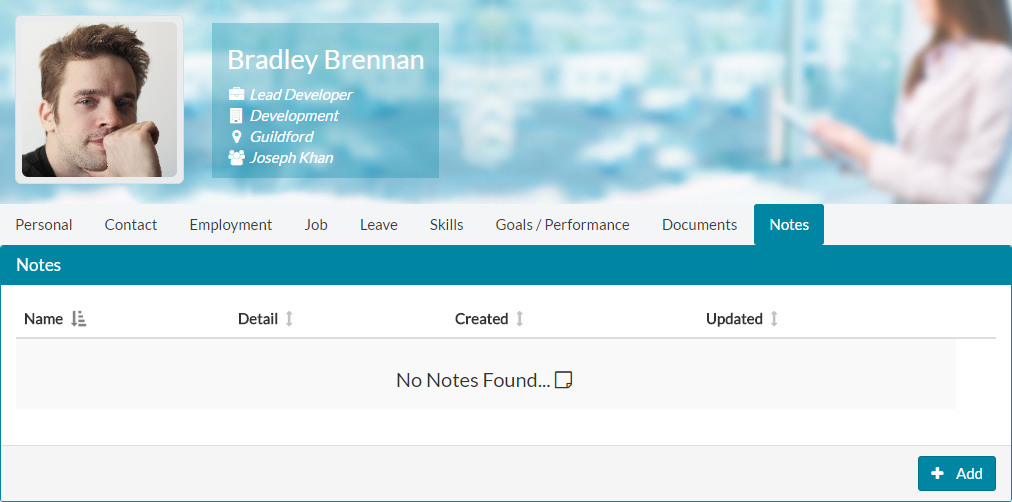
- Click add to start creating a note, which will load an on-screen form.

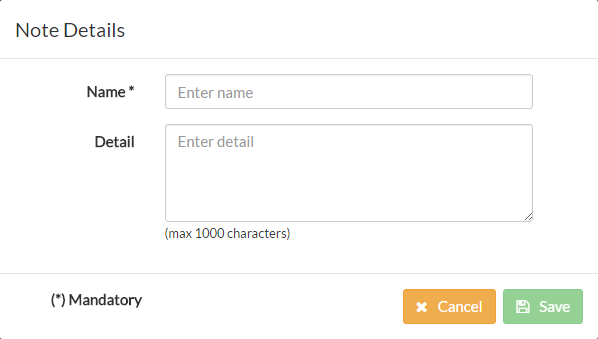
- Enter a name for the note, which is a required field.
- Enter some additional information about the note using the Detail field, but this is not required. The Detail field also has a character limit of 1000 characters.
- The note will look similar to the example below.

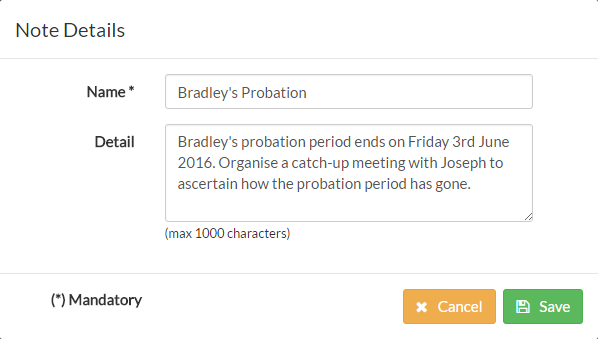
- Click save and the note will be added to the employee record.

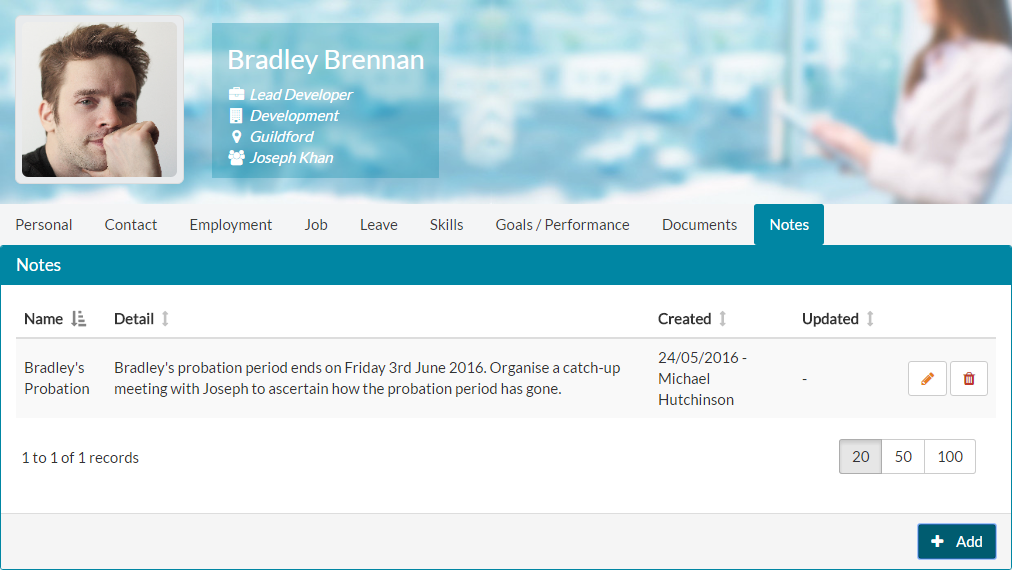
- You can see from the above example, that the note is added and it shows who created it and on what date.
Editing Employee Notes
- Employee Notes can be edited by anyone who has the required role. This could be the team leader/manager of the employee and any HR or Customer administrator. These could be their own added notes, or those added by others with the required role.
- To edit an employee’s note, find and open the employee record, using either the People Search on the side menu, or via the employee list or organisation chart on the People side menu.
- With the employee record displayed on screen, click the Notes tab for the selected employee.


- Find a note to be edited and click on the pencil icon alongside the note, which will load the on-screen Note Details form.

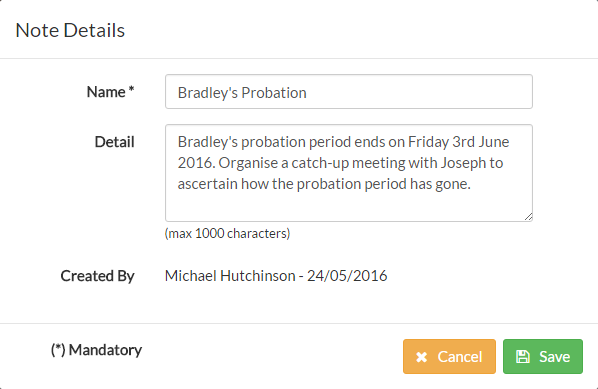
- Make the required change and click save to update the employee note.
- The employee note will be updated, as well as showing your name under the Updated column.

Deleting Employee Notes
- Employee Notes can be deleted by anyone who has the required role. This could be the team leader/manager of the employee and any HR or Customer administrator. These could be their own added notes, or those added by others with the required role.
- To delete an employee’s note, find and open the employee record, using either the People Search on the side menu, or via the employee list or organisation chart on the People side menu.
- With the employee record displayed on screen, click the Notes tab for the selected employee.

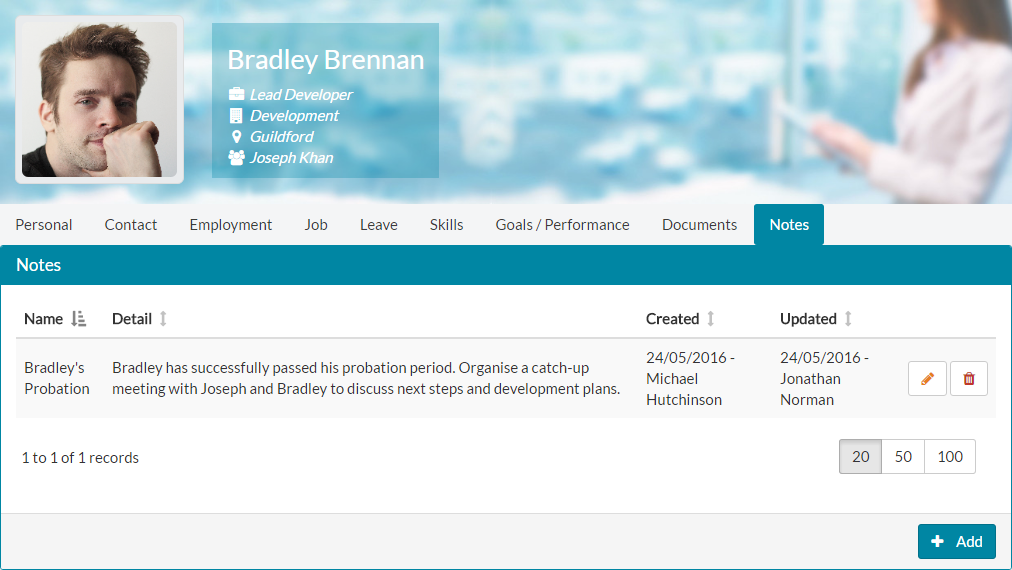
- Click the trash can icon next to the note you wish to delete and you will be asked to confirm that you wish to delete this note.

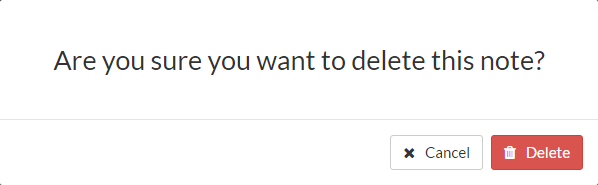
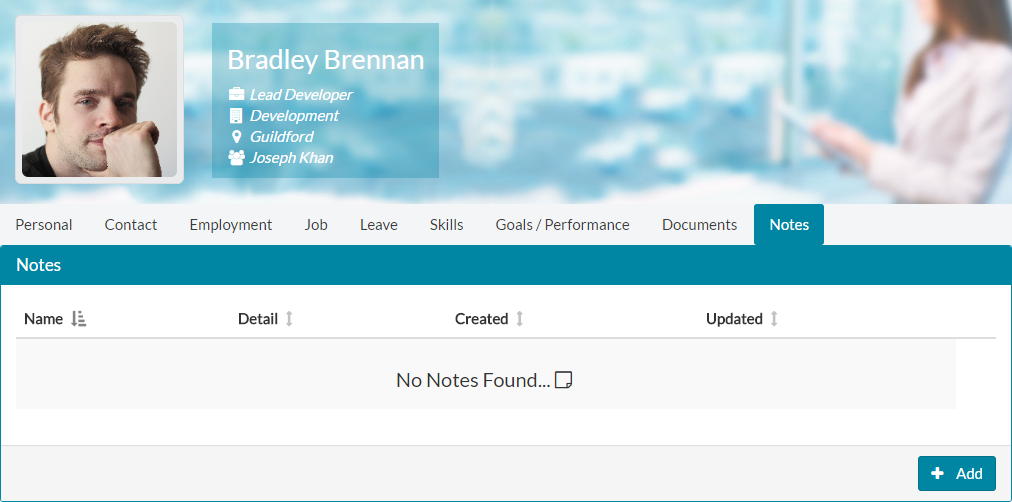
- Confirm by clicking delete and the note will be removed from the employee record.

Was this article helpful?
That’s Great!
Thank you for your feedback
Sorry! We couldn't be helpful
Thank you for your feedback
Feedback sent
We appreciate your effort and will try to fix the article