Applies to: All Employees, Team Leaders/Managers and HR/Customer Administrators
Although you can find people in other ways, such as using the Organisation Chart or the Employees option on the side menu, you can also quickly search for people within your organisation.
- On the side menu, just under your thumbnail photo and welcome message, you can see the People Search field.
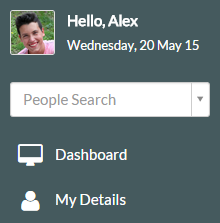

- To search for people within your organisation, click in the search box below.

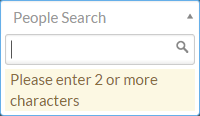
- Enter at least two characters of either the first or last names of the person you wish to find, but we recommend being more specific when searching, as only using two letters may return lots of results.

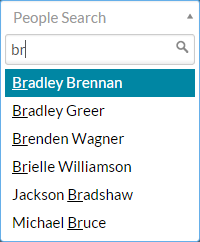
- In the example above, two characters are entered and this returns six possible results. Entering a third character reduces the results to only two, as shown below.
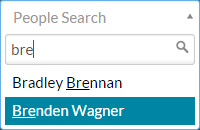

- Once you found the person you searched for, clicking on their name will take you to their employee record within the system.


- Clicking on Employment details shows a brief description of these details.

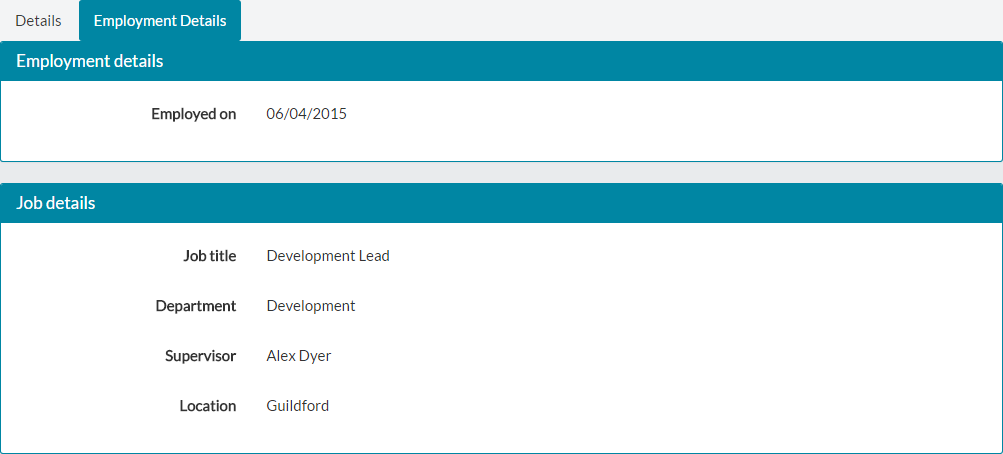
- Depending on your role, you may only be able to see basic work related information of the search for person, including business address, contact and employment information.


- For further information on editing an employee record with the required role/permissions, or searching for an employee via the organisation chart or employee list, please refer to the related articles below.
Was this article helpful?
That’s Great!
Thank you for your feedback
Sorry! We couldn't be helpful
Thank you for your feedback
Feedback sent
We appreciate your effort and will try to fix the article