Applies to: All employees, HR/Customer administrators
Documents within MyPeople could be either required documents for an employee, team or department or additional documents added by an employee.
Required documents are created and assigned to employees, teams and/or departments, whilst additional documents can be uploaded at any time, by any employee to their own employee record.
There are also company documents, which could be a staff handbook or health and safety policy.
All documents, whether they are required, company documents or additional documents added by an employee, will be available under the Documents tab of My Details, your own employee record.
They can also be viewed by all administrators of the system and your team leader/manager. Fellow employees cannot view any of your personal documents under your employee record.
Viewing Documents
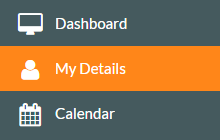
- To view any documents that are associated to your employee record, company documents that have been added or check if any required documents need uploading, whilst logged in to the system, click on My Details on the side menu.

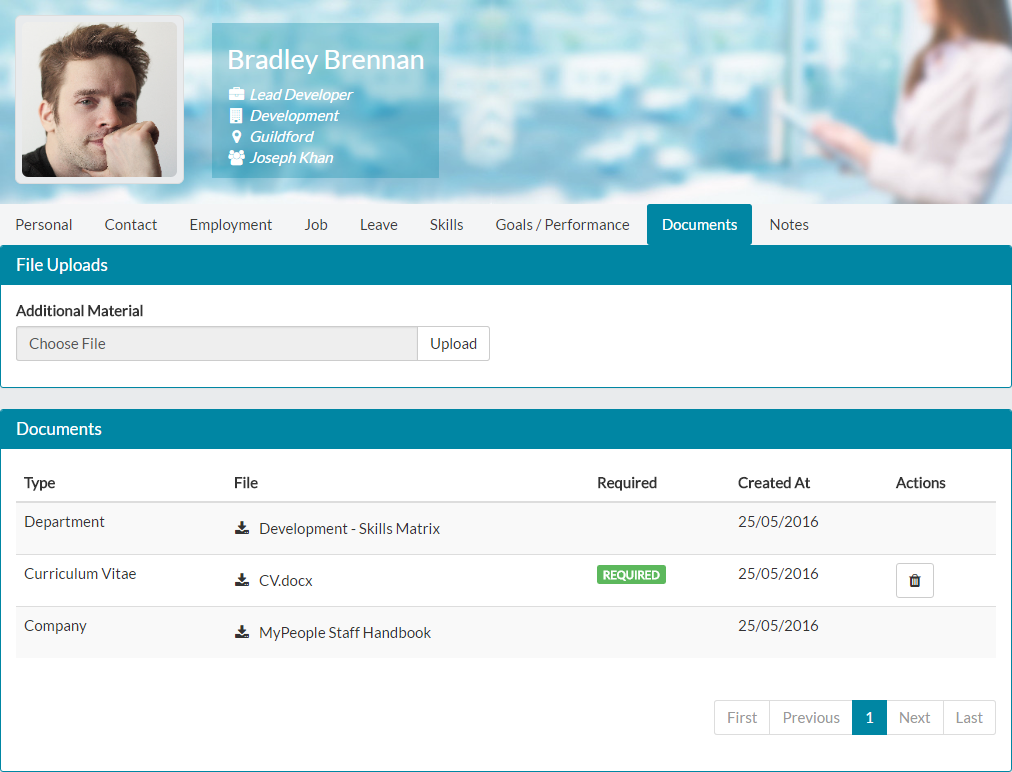
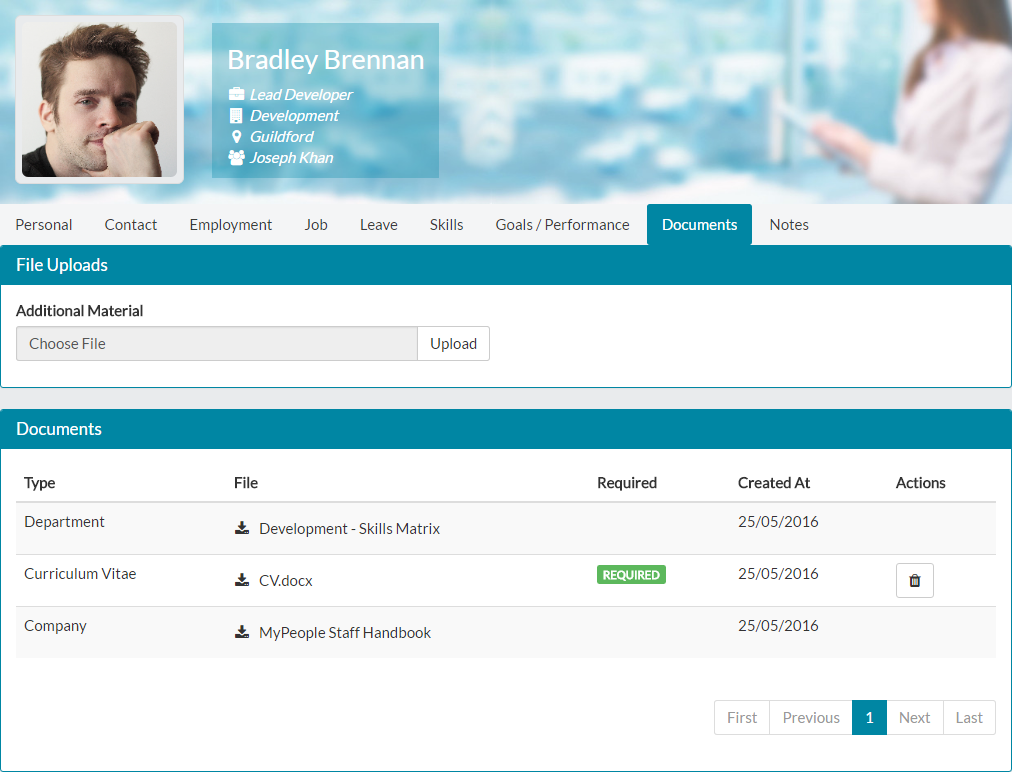
- On your employee record, click the Documents tab to display any documents currently associated to your employee record, or upload additional material documents.
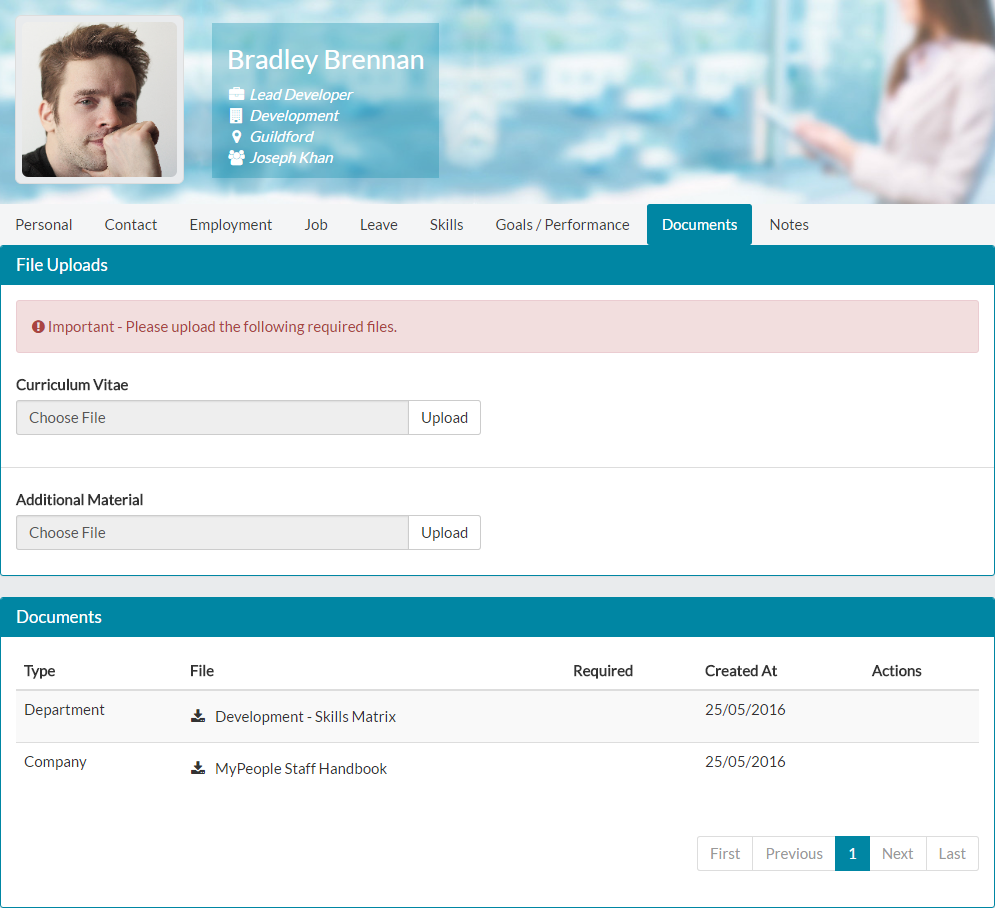

- In the example above, Bradley is required to upload his C.V, can add his own additional material documents and has departmental and company documents that he can download to view.
Company / Departmental Documents
- In the example above, two documents have been added by an administrator, which are called Development – Skills Matrix and MyPeople Staff Handbook.
- The Development – Skills Matrix has been added as a departmental document, which means anyone is the same department as Bradley, in this case Development, will have the Skills Matrix document available on their employee record.
- The MyPeople Staff Handbook is a Company document and therefore, every employee within your organisation will be able to view this document under their employee record.
Required Documents
- When viewing the Documents tab of My Details, any required documents that have been created by administrators, will be seen at the top of the File Uploads area.
- As you can see, there is an important message, stating that you need to upload this required document.
- Click on upload for the required document and select from the file from your local computer, when the Open file window is displayed, as shown below.

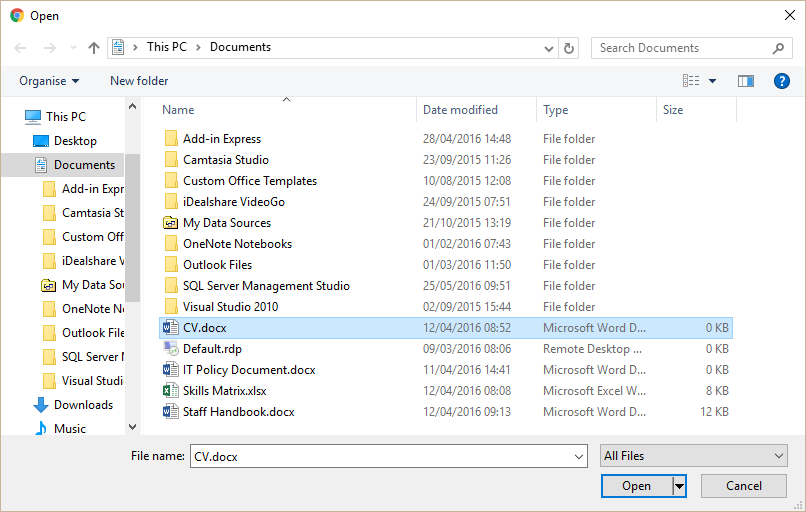
- Click return on the open button and the file will be uploaded to your employee record.

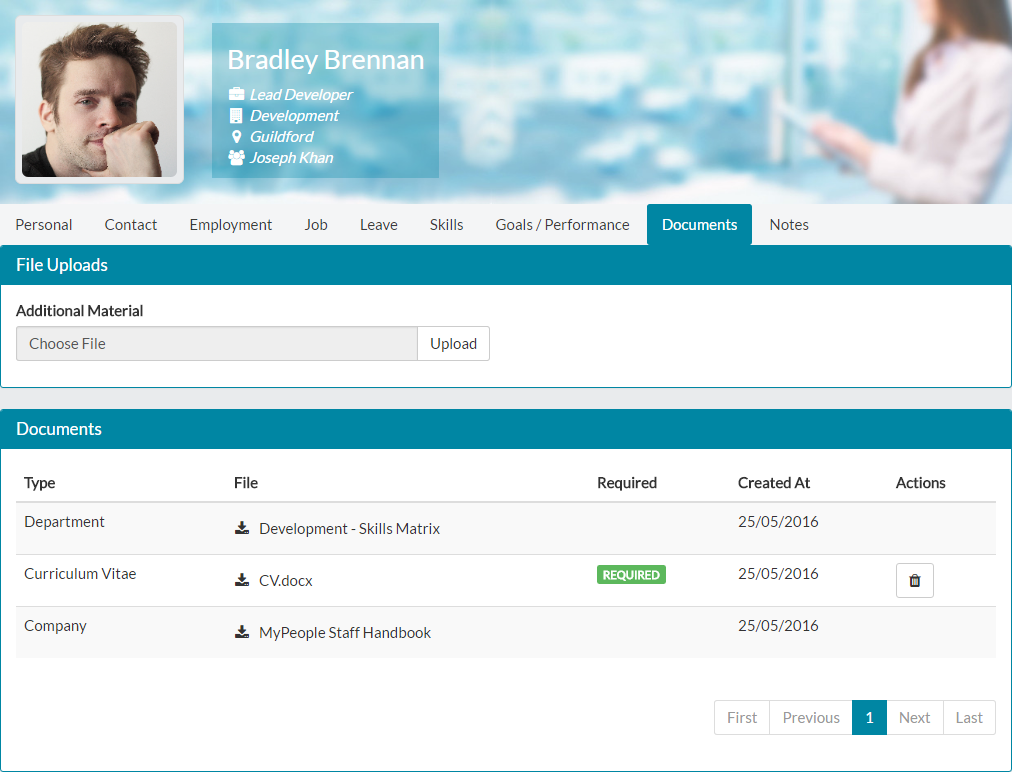
- Complete the same steps for any other required documents you’ll need to upload.
Additional Material
- You will notice that there is an Additional Material option under the File Uploads area. This allows you to upload any document relevant to your employment, department or company that you feel is good to keep on your employee record, but hasn’t been captured as part of any document requirements.
- For example, you could choose to upload a certification document, which could relate to a skill you have.
- Click upload next to the Additional Material section and choose the file from your local computer, when prompted by the Open file window.

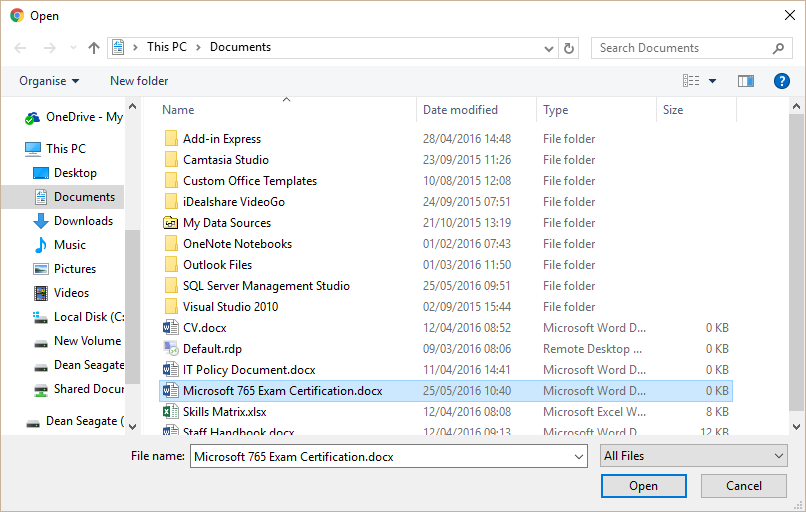
- Press return or click open on the window and the file will be uploaded to your employee record.

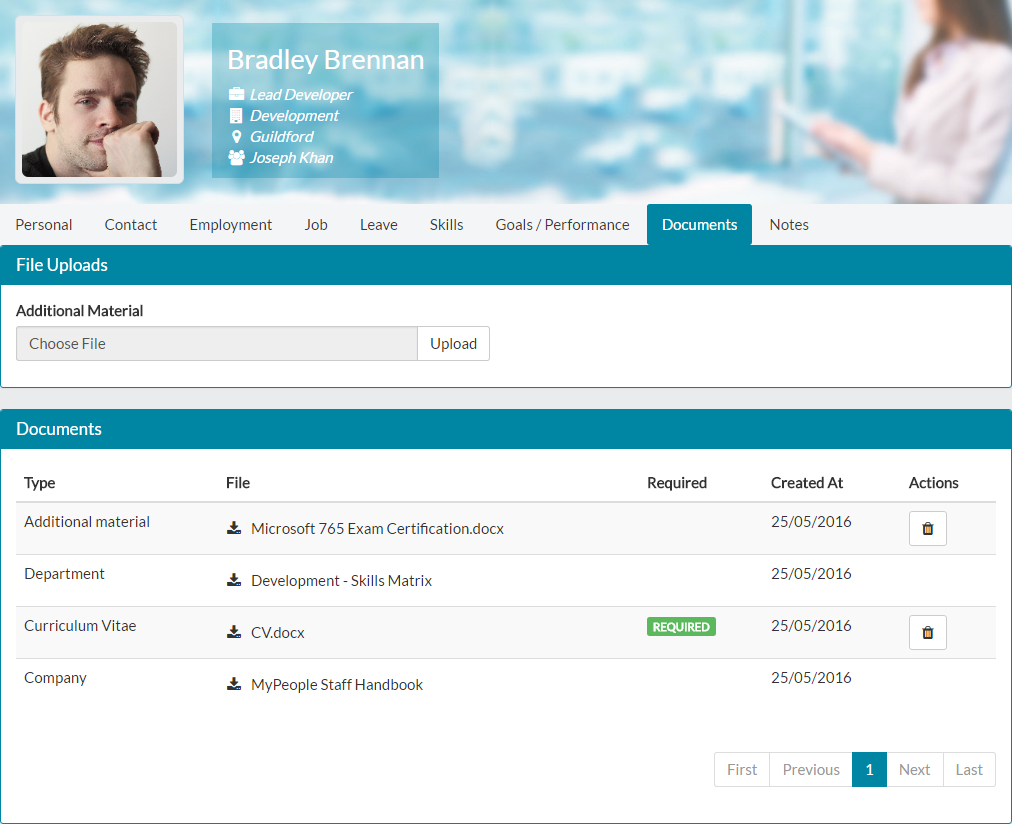
- As you can see, it has been uploaded and added as additional material.
Downloading Documents
- Any documents under your employee record, can be download to your local computer for you to review or to possibly edit and re-upload.
- To download a document, click on the download icon next to the file name, which will open a Save As dialog window, for you to save to a relevant location on your local computer.

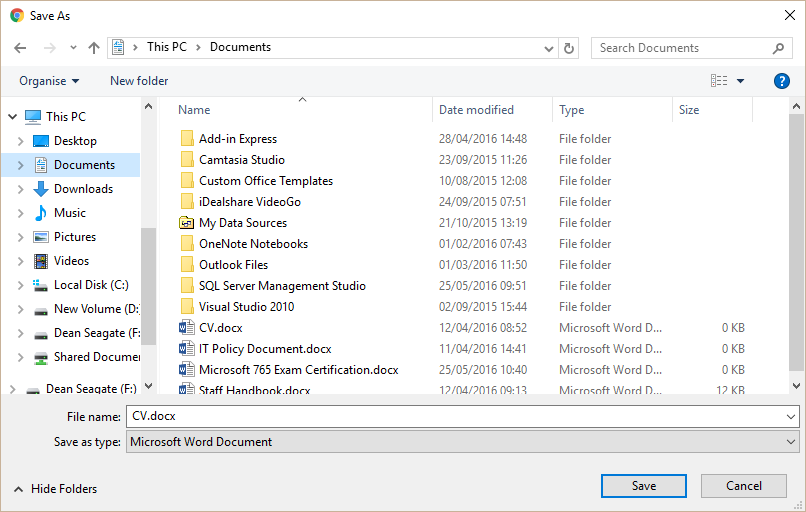
- Press return or click Save and the file will be saved to your local computer, in the location specified. You can then open the document to review.
Deleting Documents
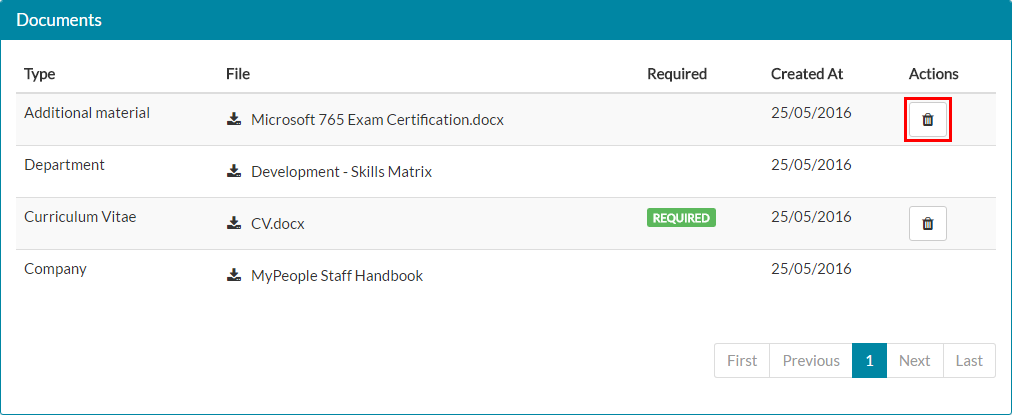
- Documents you have added as additional material, or uploaded as a required document can be deleted.
- Required documents will still be shown as required on your employee record, so deleting the document will mean that a replacement will need to be added.
- Company or Department documents cannot be deleted.
- To delete a document, click on the trash can icon next to the document.

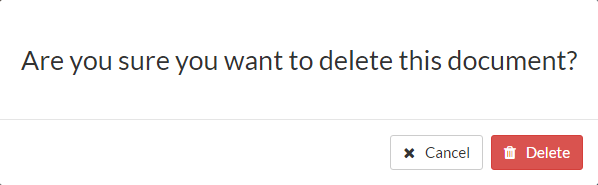
- Click delete on the on-screen confirmation when prompted.

- The document will then be removed from your list of documents.

Was this article helpful?
That’s Great!
Thank you for your feedback
Sorry! We couldn't be helpful
Thank you for your feedback
Feedback sent
We appreciate your effort and will try to fix the article