Applies to: All Employees, Team Leaders/Managers and HR/Customer Administrators
The organisation chart within MyPeople, shows a top-down view of all your company employees and how staff are linked.
If your organisation is quite large, you can view the Org chart by employee, select how many levels of employees you wish to see and even change the orientation to see it from left to right or vice versa, rather than top-down.
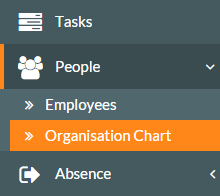
- To access the organisation chart, click on People and then Organisation Chart on the side menu.

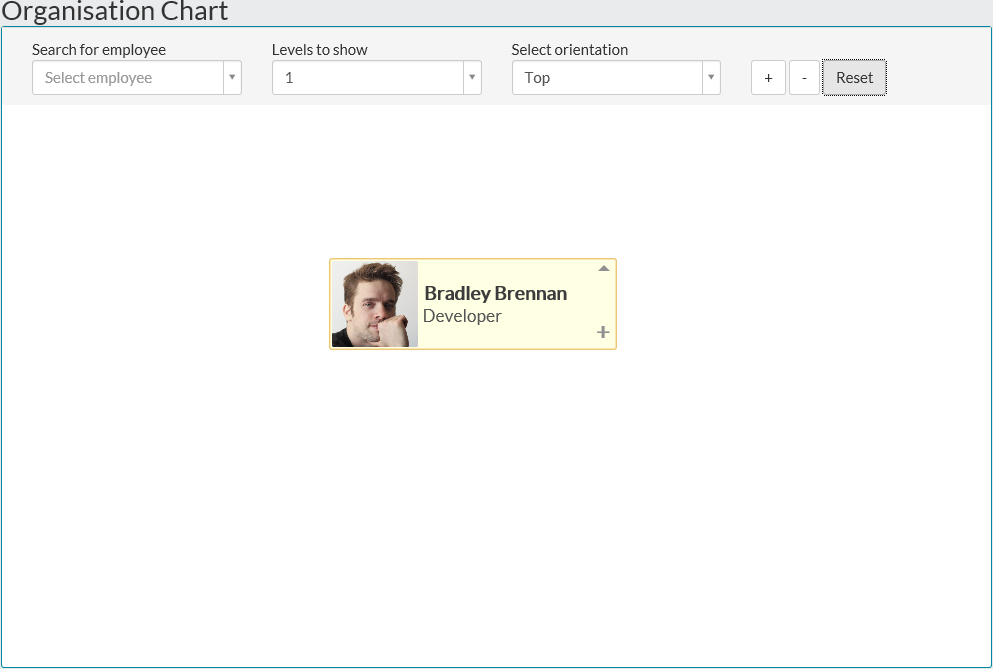
- Initially the organisation chart will load showing your record.

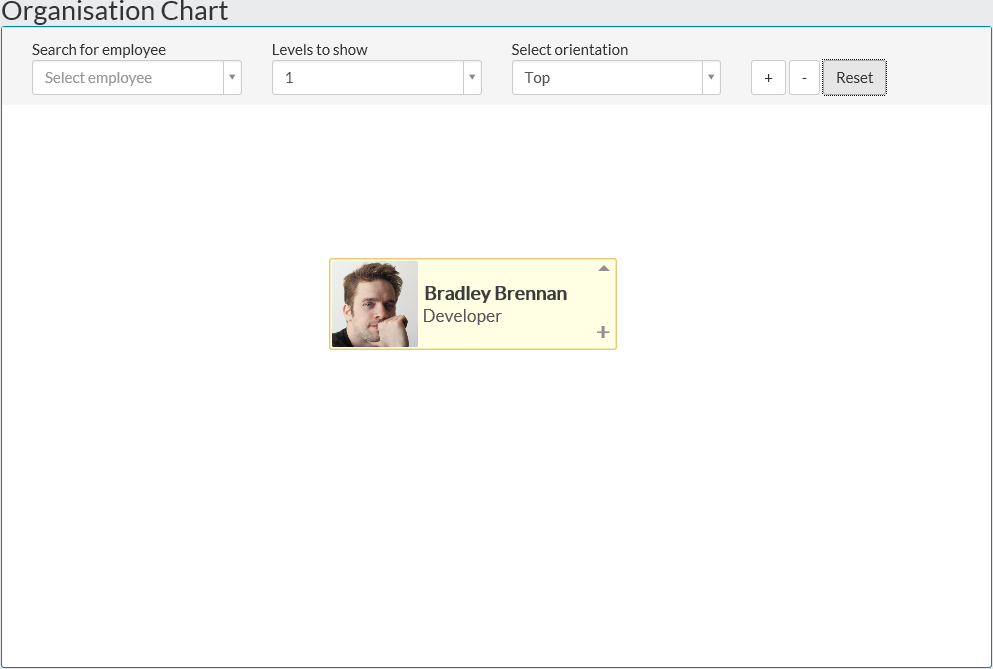
Search
- You can search for an employee to view on the Organisation Chart, by entering a few of or all of the letters of their name.
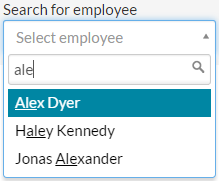

- Clicking the employee name will show them on the organisation chart.


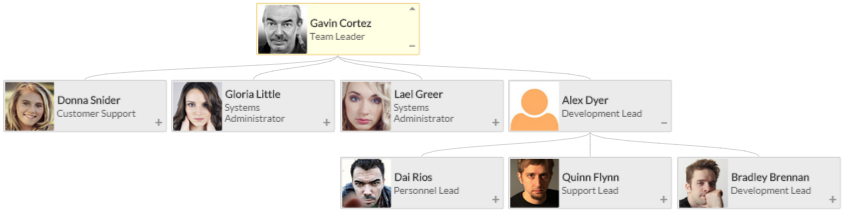
- Clicking the upward arrow, will display the employee above Alex in the hierarchy.

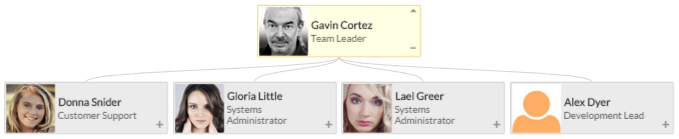
- Clicking the + symbol on the bottom of Alex’s panel, will display direct reports of Alex as well.

Levels to Show
- With your search for employee displayed, you can choose to show 1 to 5 levels. This is a top down view from the employee you have searched for.


- Showing two levels, displays the organisation chart in a similar way to the example below.
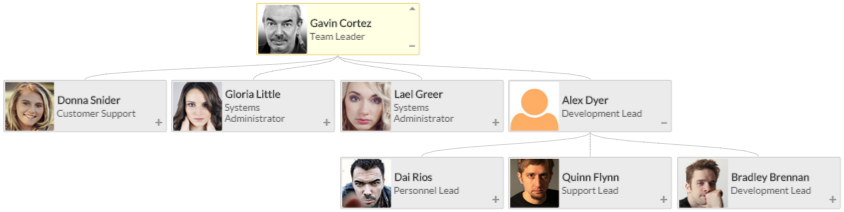
- You could change the ‘Levels to show’ option from two to three, which if possible would show another level of employees. This is assuming Dai, Quinn or Bradley have direct reports in this example.
Orientation
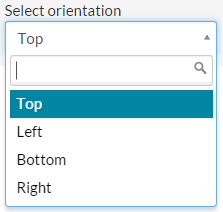
- You could also opt to change the orientation, if you find it easier to read from left to right, or vice versa.
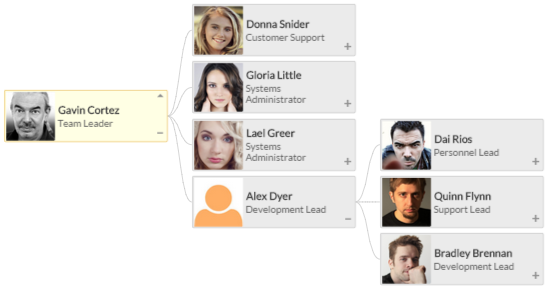
- With the same search results on screen select the orientation drop-down menu and choose either left or right.

- The organisation chart is displayed using the selected orientation.

Other Controls
- On the control bar of the organisation chart, there are some additional controls.

- The + and – icons allow you to zoom in and out of the organisation chart.
- The reset button allows you at any point, to start back at the beginning, which will be your own organisation chart panel, whilst resetting all other controls.
- Finally, the organisation chart adopts some other controls, which are:
- Zoom in and out, using your mouse wheel
- When the hand icon below is displayed, you can click and hold your left mouse button and drag the organisation chart in different ways, to view other parts of the chart.


- Clicking on an employee panel, will display their employee record, similar to My Details.
Was this article helpful?
That’s Great!
Thank you for your feedback
Sorry! We couldn't be helpful
Thank you for your feedback
Feedback sent
We appreciate your effort and will try to fix the article