Applies to: HR/Customer Administrators
Holiday entitlement rules are set for the company and apply to all employees. However, individual adjustments can be made to an employee’s entitlement, under the edit mode on their employee record.
To set the holiday entitlement and accrual rules for your organisation, you must be an administrator of the system.
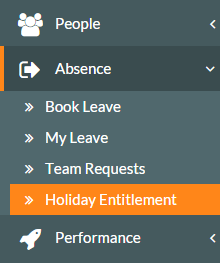
- Click Absence on the side menu and then Holiday Entitlement.

- The entitlement administration screen will be displayed, which will look similar to the following.

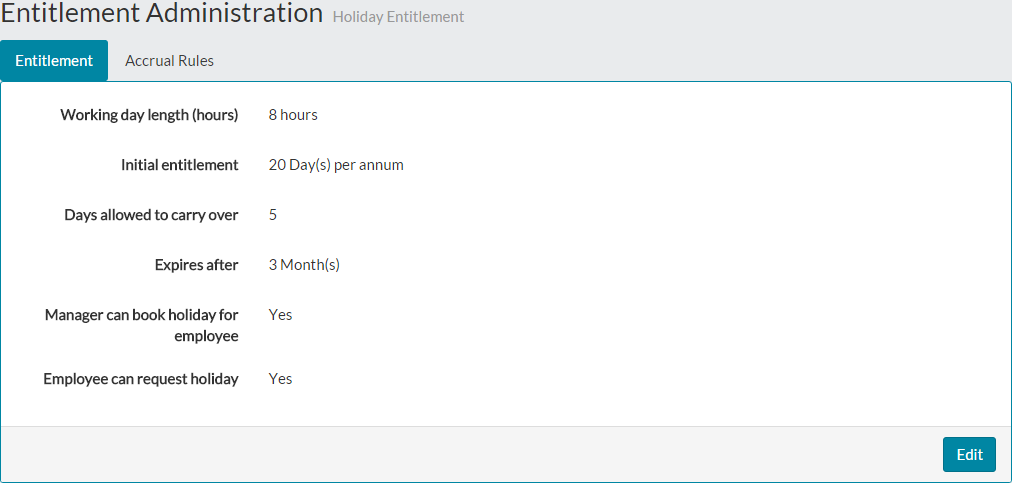
- There are two tabs under entitlement administration, which are entitlement and accrual rules.
Entitlement
- On the entitlement tab, you can set your organisation working day length in hours, the default initial entitlement applied to joiners, configure carried leave details and amend what employees and managers can do.
- These fields will be set at default amounts when you first use MyPeople, so we recommend that you check and/or amend them at your earliest convenience.
- Click the blue edit button on the entitlement page, which will open the page and fields for editing.

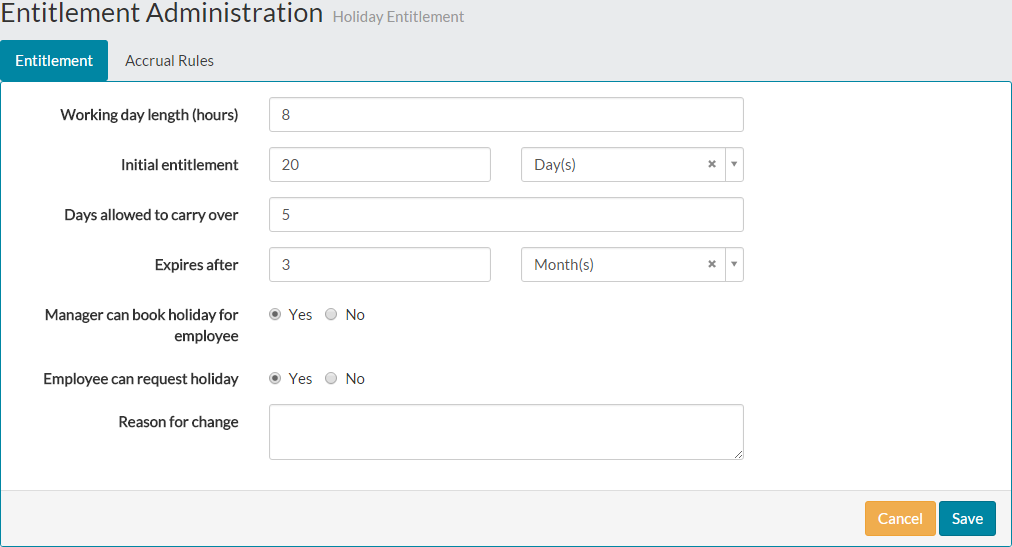
- Within edit mode on the entitlement tab, you can configure your global organisation entitlement settings.
- Working day length (hours) – used as part of hourly leave bookings if used, but also a reference to your average organisation working day length.
- Initial entitlement - populated by 20 Day(s) in the above example, you can amend the default entitlement given to joiners. Manually type the number or click the box and use the up and down arrows to select the number you require. You can also change the Day(s) drop-down to weeks if required. An example of the field with the up and down arrows is shown below.


- Days allowed to carry over – The number of days an employee can carry over from their previous years’ entitlement.
- Expires after – The entitlement carried over from the previous years’ entitlement, will be valid up to and expire on this period after the start of your leave year.
- Also, you can select yes or no for the manager can book holiday for an employee field. This allows for a manager of an employee to book holiday on their behalf, which might be useful if emergency holiday is taken for example.
- You can also select whether employees can request holiday from their initial entitlement, by selecting yes or no.
- There is also a free text section called ‘Reason for change’, where you can add notes as to the changes you have made for audit purposes.
- After making any changes on the entitlement tab, click the blue save button, to be returned to the standard view mode of the entitlement tab.
Accrual Rules
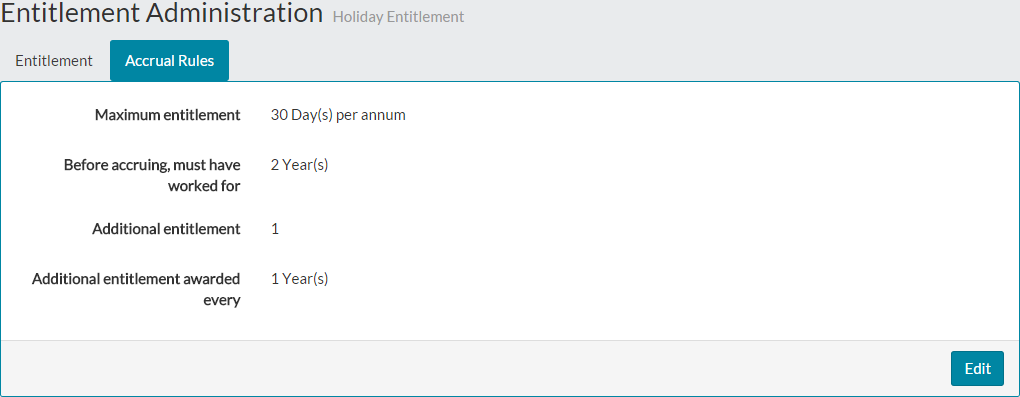
- On the accrual rules tab, you can set the maximum entitlement for employees and your company accrual rules.
- To amend these rules, click the blue edit button at the bottom of the accrual rules screen.

- After clicking edit, the fields are all open for you to make the required changes.

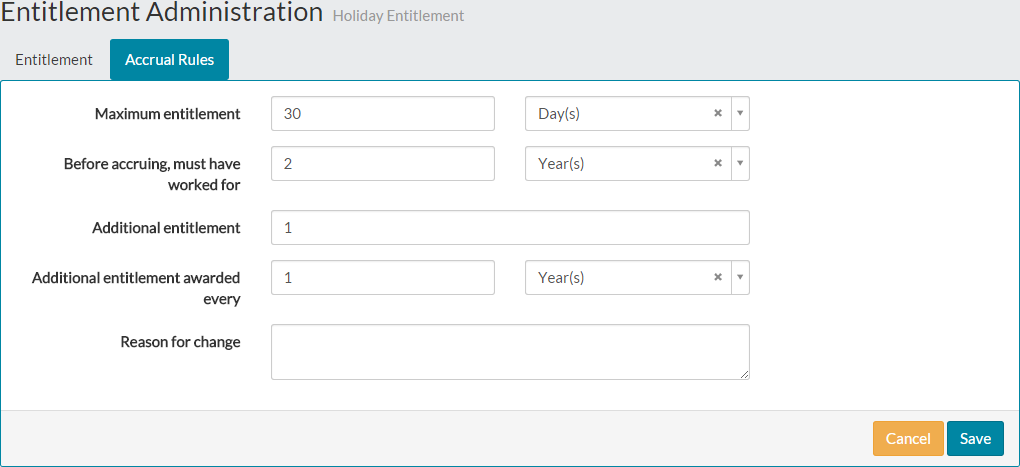
- Each field in the example above, which is populated by a number can either be changed by entering the required value manually or by clicking the field to show the manual up and down arrow selection elements. An example of this is shown below.

- The fields on the accrual screen are:
- Maximum entitlement – The initial entitlement for the company, plus additional entitlement awarded per your accrual rules below to this maximum number.
- Before accruing, must have worked for – The number of day(s), week(s), month(s) or year(s) an employee must be employed, before being awarded additional entitlement, as per your accrual rules here.
- Additional entitlement – The number of additional entitlement in days added to an employee’s initial entitlement, after meeting the accrual rules.
- Additional entitlement awarded every – Additional entitlement is allocated after this period. For example, if you set this to one year and an employee has been with your company another year, they will receive an additional days leave.
- There is also a free text section called ‘Reason for change’, where you can add notes as to the changes you have made for audit purposes.
- After making any changes on the entitlement tab, click save.
Was this article helpful?
That’s Great!
Thank you for your feedback
Sorry! We couldn't be helpful
Thank you for your feedback
Feedback sent
We appreciate your effort and will try to fix the article