Applies to: All Employees, Team Leaders/Managers and HR/Customer Administrators
Adding a profile photo to your employee record, will help your colleagues put a face to the name and make your employee record more personal. Your profile photo will be visible to other employees, who look at your basic employee record and view the organisation chart.
We therefore recommend that your use a professional photo, in accordance with your organisation policies and guidelines.
- To update your photo, click on your name on the portal top bar.
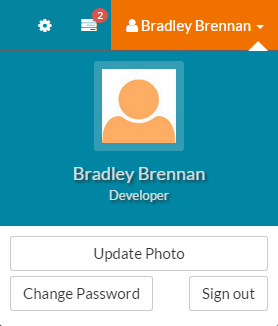

- Click Update Photo, which will load the Update Profile Photo page.

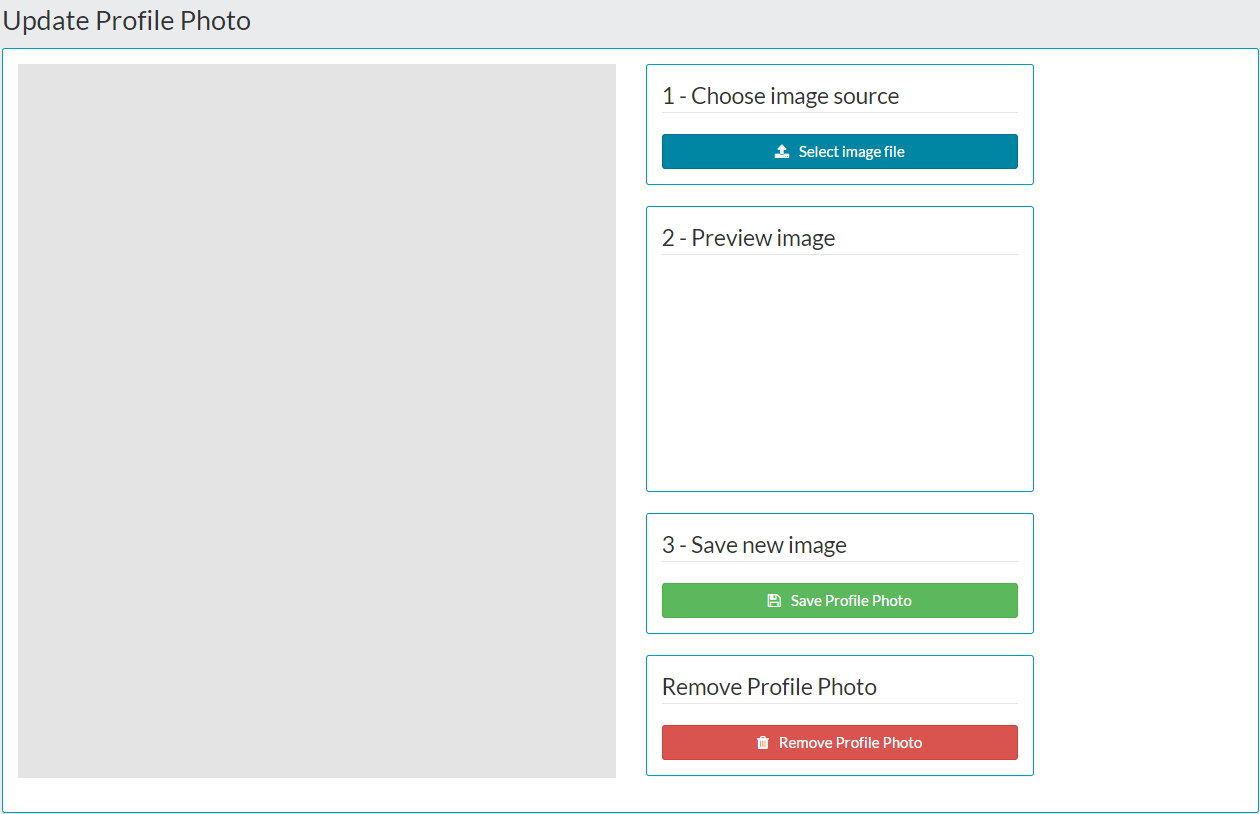
- The first step is to select an image file from your local computer or USB drive.
- Click ‘Select Image File’, which opens the windows open file menu on your local computer.

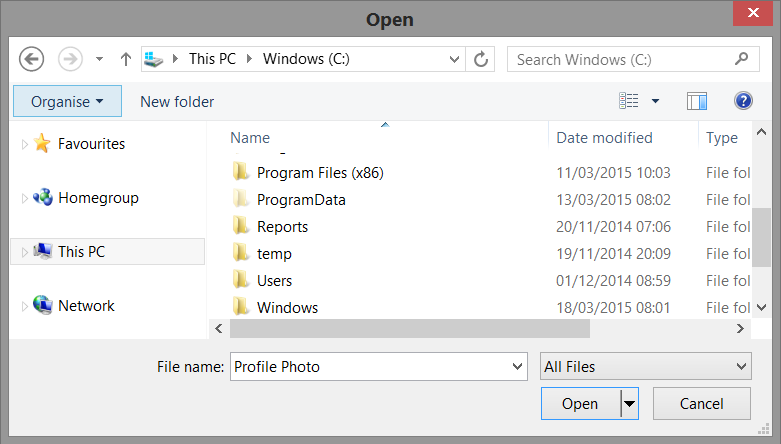
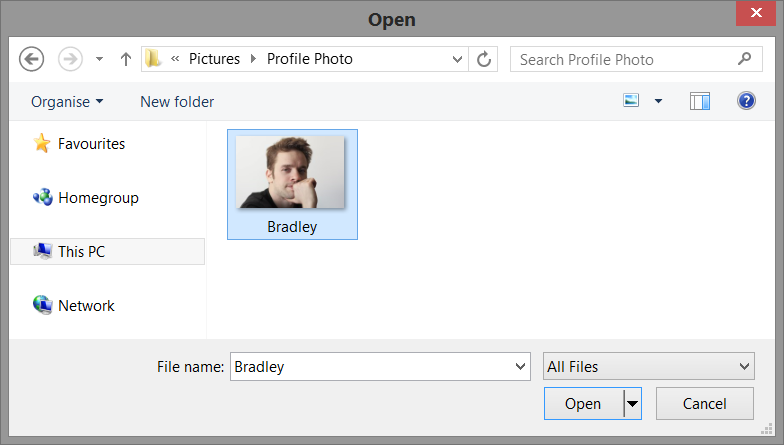
- Browse to the location where you photo is saved on your local computer.
- There is no size requirement of the file, but try to avoid using really small images of yourself as these could appear stretched and blurry within the portal.
- Once you have located your photo in windows explorer, select the file and click open.

- Your selected photo will initially be loaded in to the portal.

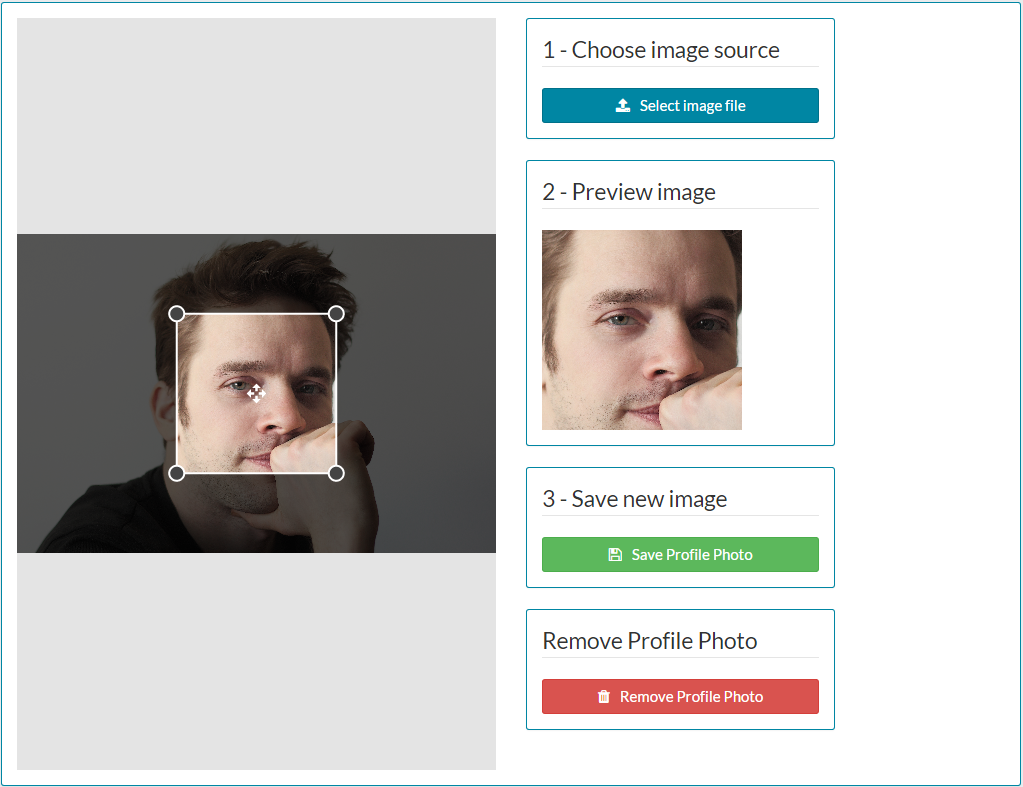
- As you can see, there is a square cropping box on the main image. This can be adjusted to be smaller or larger, as well as being re-positioned on your image.
 - Click and hold, to drag each corner in or out, to make the cropping square smaller or larger.
 - Click and hold, to drag and re-position the cropping square over your photo.
- Examples of an increased and re-positioned cropping square on the image above, are shown below.

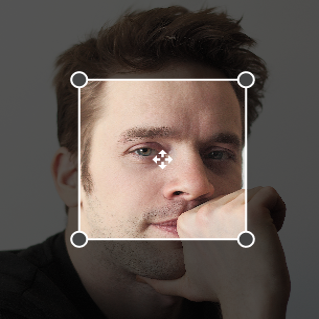 Default cropping square size and position.
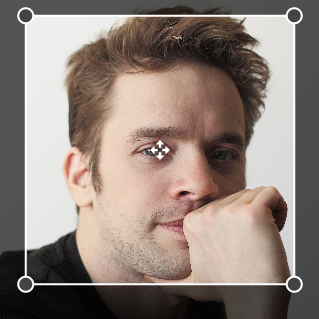 Increased cropping square size.
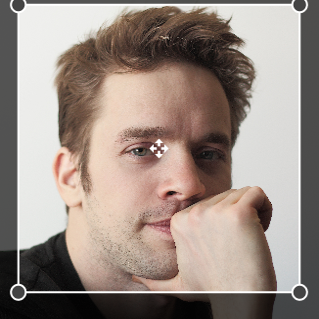 Increased and re-positioned cropping square.
 - As you adjust the cropping square size and position, you will noticed that there is a preview box, to show you the end result. The preview box will change as you change the cropping area.

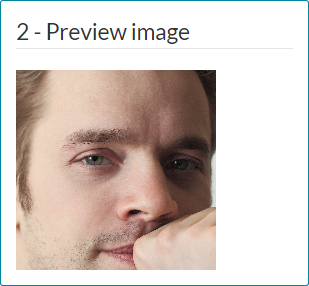 Default preview with original cropping square size and position.
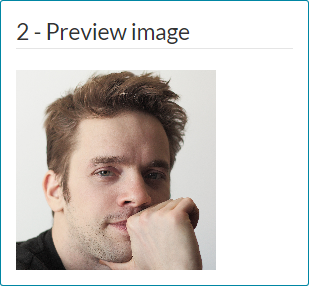 Preview after increased and re-positioned cropping square. This is how the photo will appear across the portal.
 - Once you have cropped your photo and the preview looks good, click Save Profile Photo. An on-screen notification will confirm your photo has been updated, before returning you to the dashboard.
- Your new profile photo is now available against your employee record and displayed in the following places.

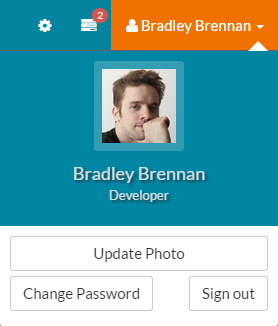 Top bar – user menu.
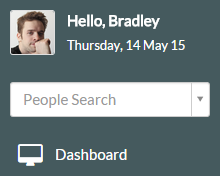 Side menu.
 My Details / Employee Record.
 Organisation chart.
Was this article helpful?
That’s Great!
Thank you for your feedback
Sorry! We couldn't be helpful
Thank you for your feedback
Feedback sent
We appreciate your effort and will try to fix the article