Applies to: HR/Customer Administrators
Performance reviews are normally associated to your company values, should you have them in place.
You can add, edit or remove company values from within MyPeople and then these can be used to when adding sections/questions to a performance review configuration.
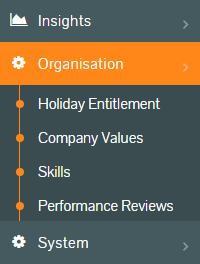
- To create, amend or remove company values, logged in as an administrator, first click Organisation from the side menu, followed by the Company Values sub-menu.
- The Company Values page will be displayed.
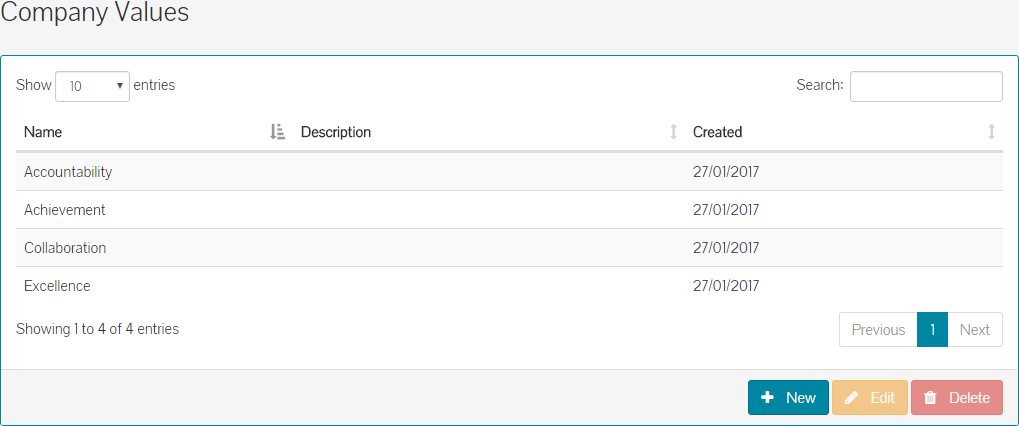
- Under the Values tab, you’ll be able to add new, edit and delete values.
- To add a new value, click the New button and the Value Details form will be displayed.

- Enter the name of your new company value. You can also add a description, but this is not required. In the example above, the name has been entered.
- Click save and your new company value will show in the table of company values.
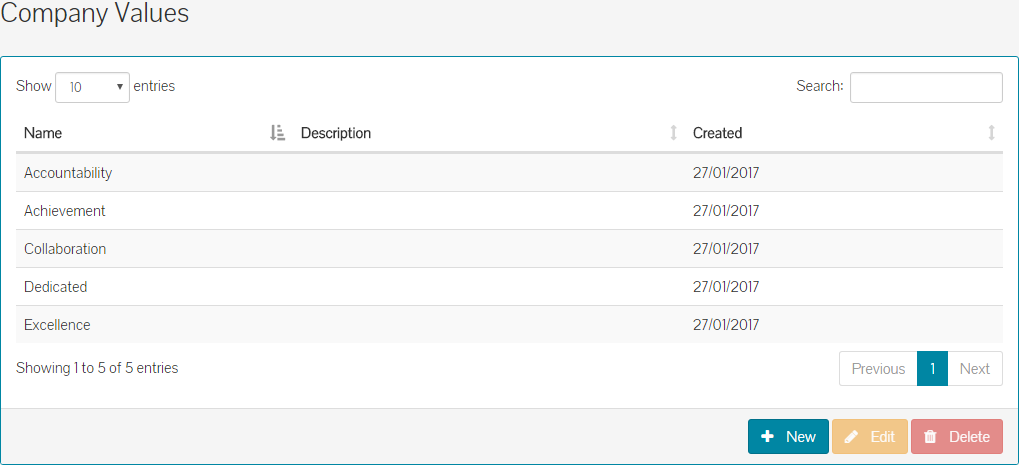
- To edit a value, select the row in the table, which highlights it blue as shown above. Click edit and the Value Details form will be displayed again.

- Make the required change and possible add a reason for the change, as shown in the example above. Click save.
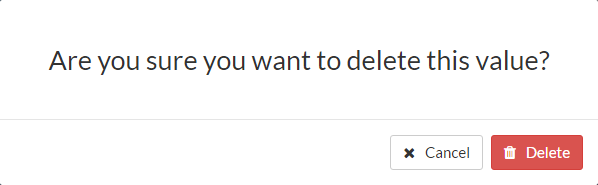
- Lastly, you could need to delete a value. In that situation, simply click and select the value in the table above and click delete.
- You’ll be asked to confirm the deletion from the system.
- Any new or amended values, can be linked to when configuring a performance review and review questions.
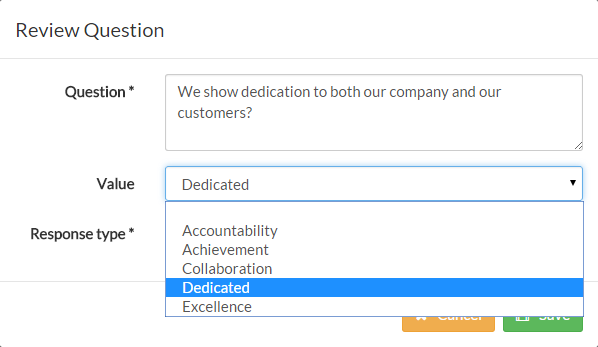
- As you can see, the example company value of Dedicated that was created above, is now available in the Value drop-down field and the question relates to this value.
Was this article helpful?
That’s Great!
Thank you for your feedback
Sorry! We couldn't be helpful
Thank you for your feedback
Feedback sent
We appreciate your effort and will try to fix the article