Applies to: All Employees, Team Leaders/Managers and HR/Customer Administrators
After logging in for the first time, it might be a good idea to get familiar with MyPeople, the layout and how certain elements work. The below article is a brief overview of those elements and some of the controls used.
Top Bar
Once logged in, you will notice that there are three main sections of the portal. These three sections are: Top Bar, Side Menu and Dashboard area.

 Top Bar
- On the top bar, you can use the toggle button next to the MyPeople logo, to show or hide the side menu.
- On the right hand side of the top bar, you’ll find task notifications, a help icon that links to our help and support portal and your name, which has a sub-menu allowing you to update your photo, change your password or log out of the system.
Side Menu
- The side menu, will contain quick access to all of the relevant areas of the system you’ll be using, from booking leave, to viewing your personal information and completing performance reviews.

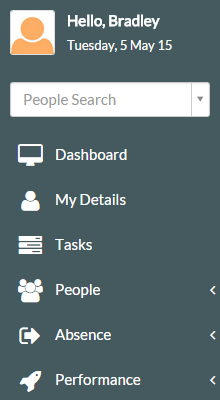 Side Menu
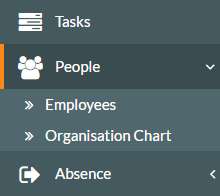
 - Some side menu items have sub-menus. For example, clicking on People will display sub-menus of Organisation Chart and Employees as shown in the example below.

Dashboard
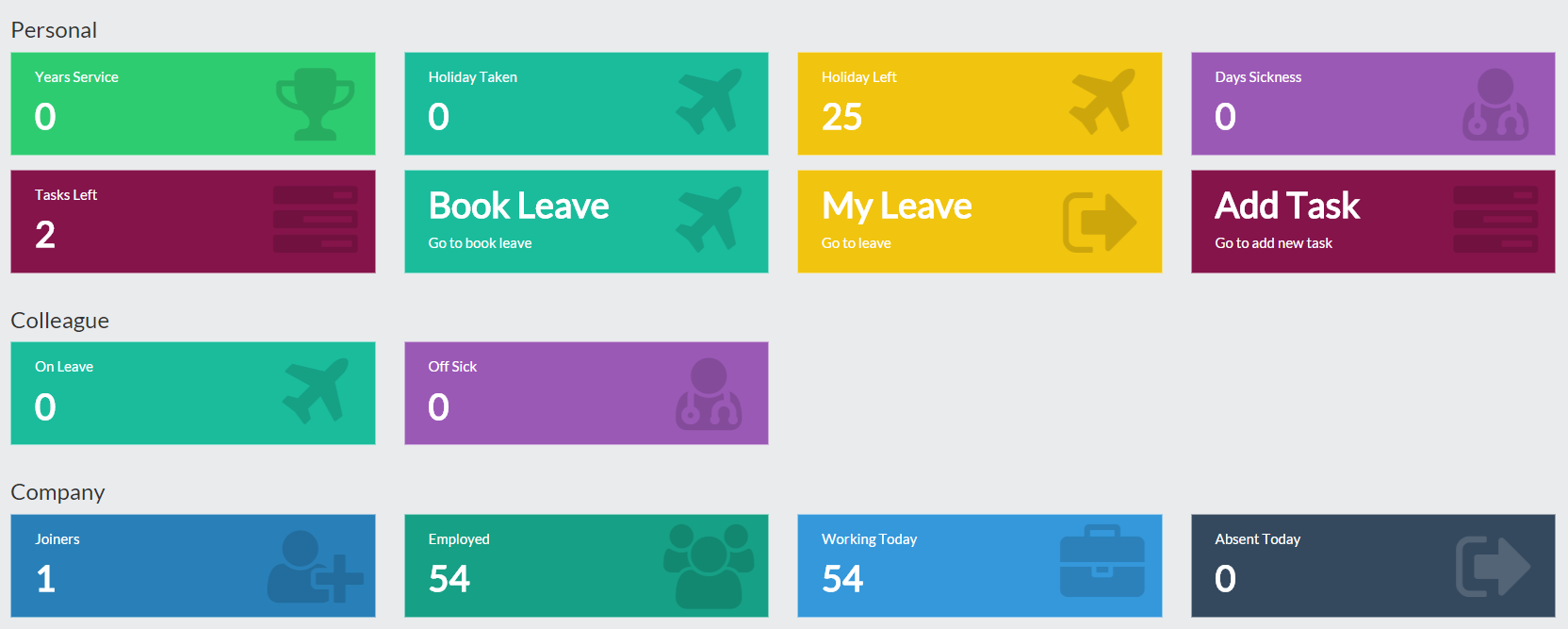
- The dashboard comprises of many different dashboard panels, from Booking Leave, to showing holiday left and taken, to showing information about your colleagues and company.

 Dashboard
 - Dashboard panels can be considered as short-cuts to the information you need or processes that you need to carry out, such as booking leave.
- Clicking a dashboard panel will take you to the required part of the system, which could be a report, table of information or process to complete.
Tables and Filters
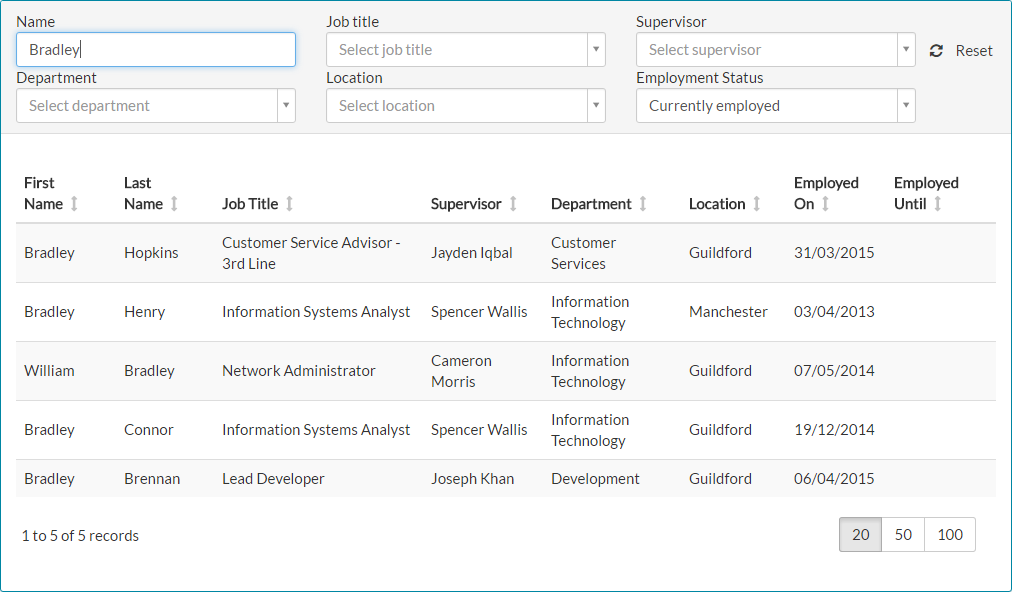
- In the example table below, you can search the table on employee name, by typing two or more letters of the name.

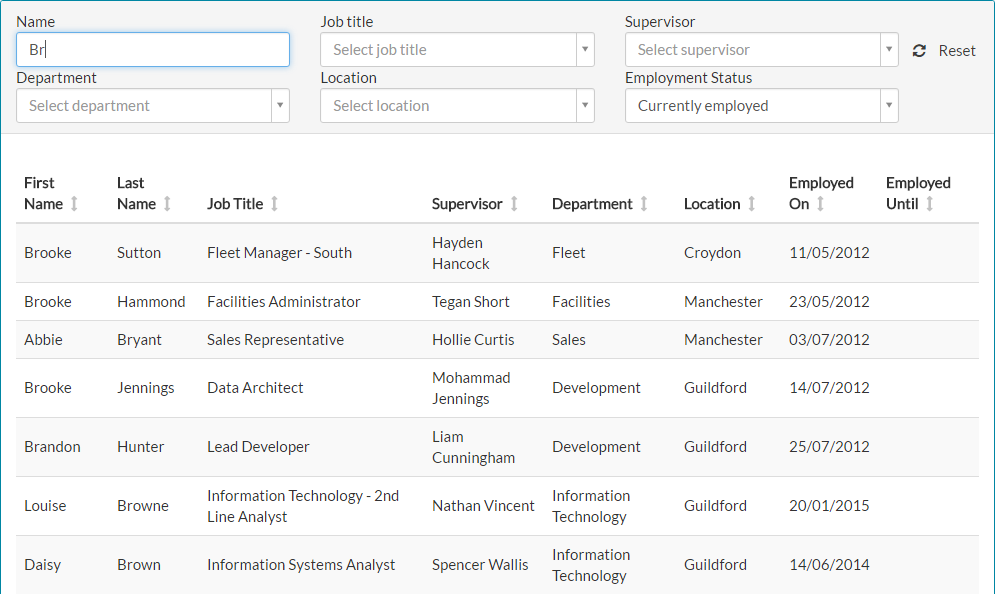
- Being slightly more specific by searching for more of a particular name, filters the table and eventually shows less results.

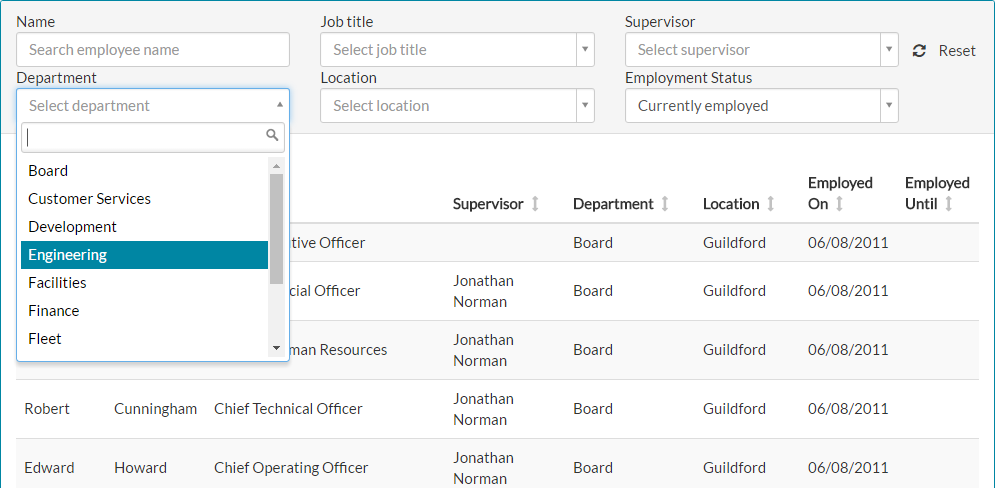
- You could choose to use the filter controls against the table, which are in the form of a drop-down menu whereby you can select the relevant filter from those available. In the below example the table can be filtered on Job title, Supervisor, Department, Location or Employment status, with Department being used to find and filter by that department.

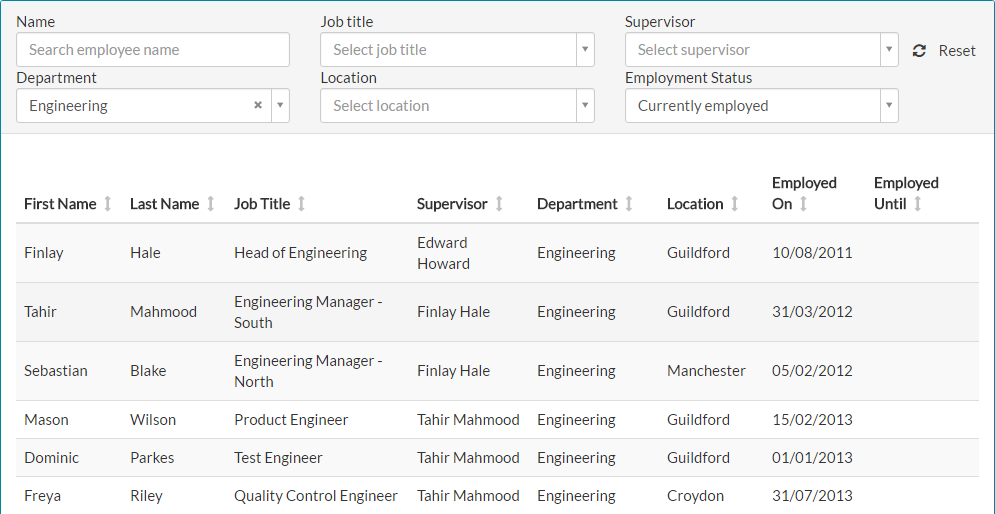
- After selecting the department to filter against, the table is updated with the corresponding information.

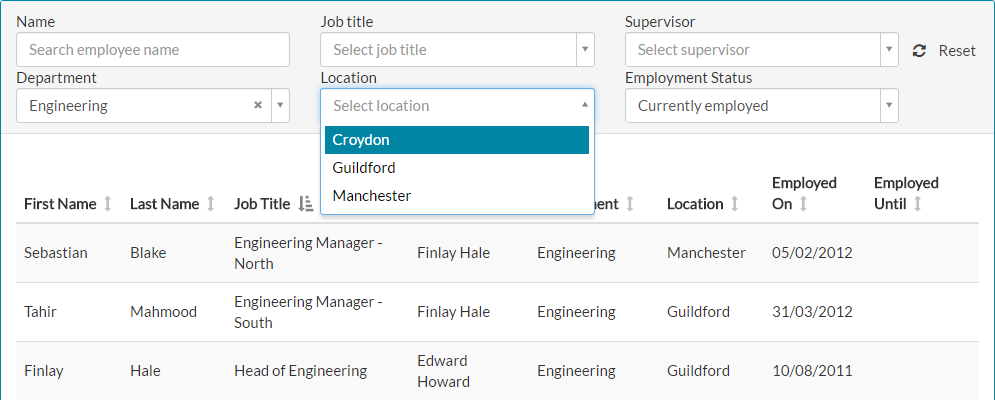
- You could also choose to filter on more than one column. With the previously selected Engineering filter applied, you could then choose to filter by Location as well.

- After selecting the location filter, on top of the department filter, the table is updated with the corresponding information.

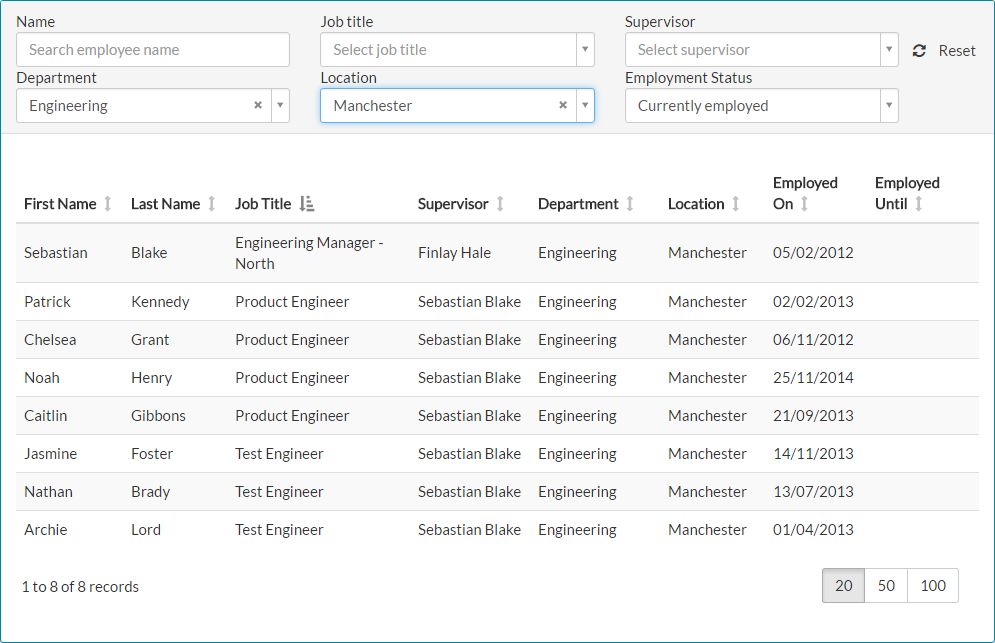
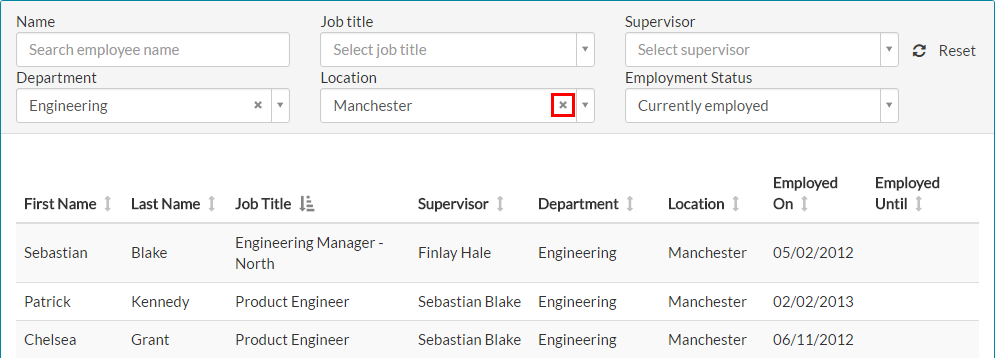
- You can remove the filters one by one, by clicking the x on the filter control.

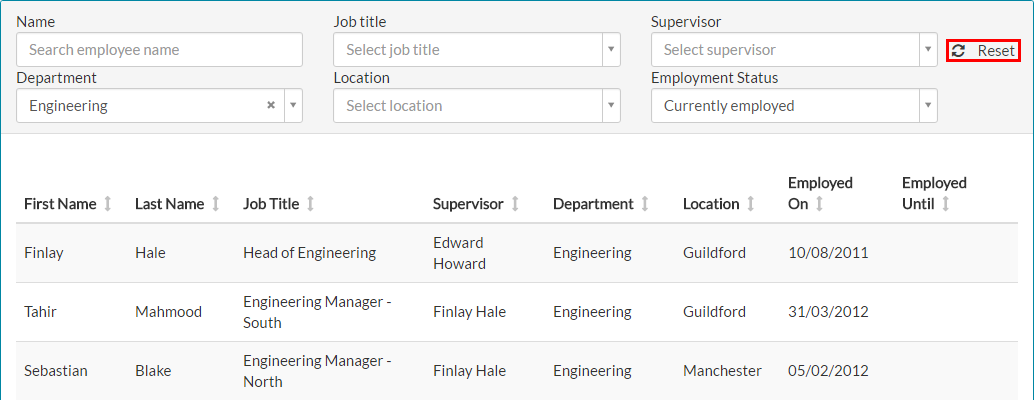
- You can also reset all filters, by clicking on the reset button.

- Lastly, depending on the number of results returned in a table, which may or may not be filtered, you can change the number of results per page, using the controls shown below.

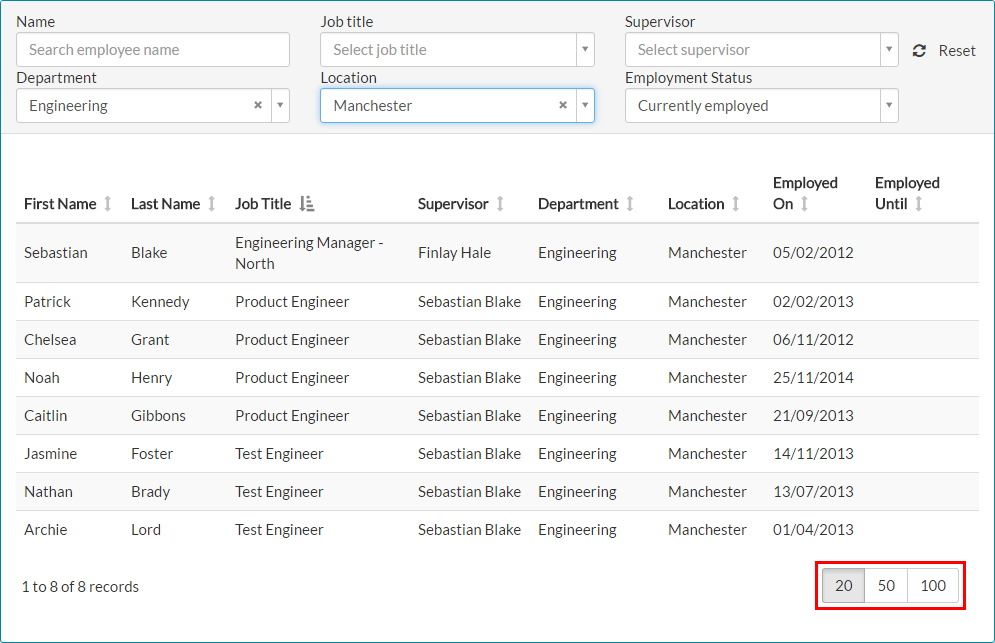
- You can change the number of results shown per page, from 20, to 50 or 100.
Calendar / Date Entry Fields
Within MyPeople, there are times where you’ll need to enter dates, which could be for booking leave or if you’re a member of the HR team, when completing joiner and leaver wizards.
- Calendar fields can be used in one of two ways.
- You can manually enter the date, in the DD/MM/YYYY format as shown in the example below.


- Alternatively, you can select the date by clicking the calendar icon on similar fields to the above example.


- Clicking the calendar icon, will open the calendar pop-out, whereby you can select the date from the calendar.
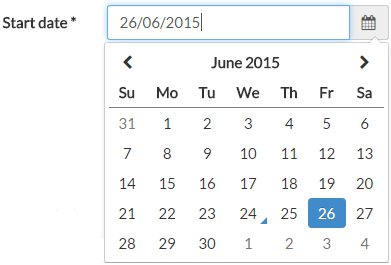

- Clicking the June 2015 section on the pop-out, will allow you to select a different month in 2015.
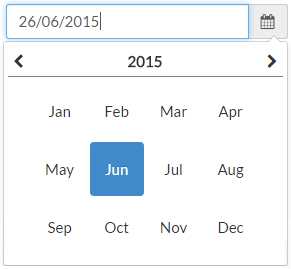

- Clicking 2015 this time, will then allow you to select a different year.
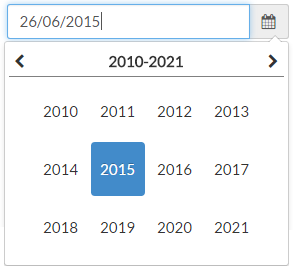

- You can also use the left and right facing arrows, to browse to a different month and year, but this could be timely if you’re going back a long time.
Drop-down Menus
Drop-down menus are heavily used through MyPeople, from selecting ‘Start of day’ or ‘Midday’ when booking holiday, to choosing an employee title if you’re an administrator completing a joiner wizard.
Some drop-down fields also allow you to enter some letters or a word, to return only results that contain those values.
- One example of a drop-down menu is shown below.
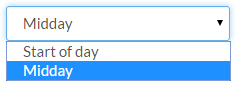

- With the example drop-down menu above, you can only select a pre-defined value.
- Another example of a drop-down menu shown below, is one you can type in to.
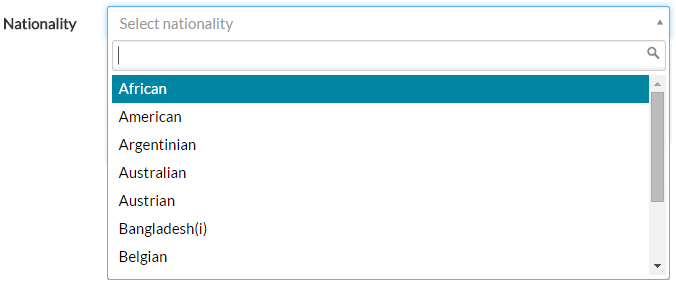

- Initially, you can scroll through the values of the drop-down menu and find the value you want to use.
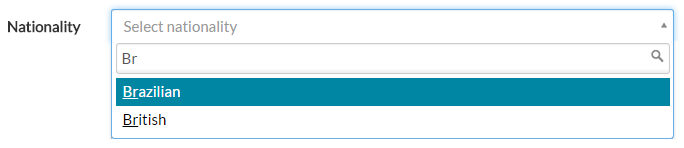
- You can however, also start typing one or more letters of the value required and the drop-down menu will only display values that match the letters/words you type.

Free Text Fields and Formatting
- Some areas of the system include a free text field, whereby you can type corresponding information related to the task.
- For example, when requesting holiday leave, you have an opportunity to provide some notes for your manager using a free text field, as shown below.


- The example above is a plain text field, with no formatting.
- In other areas of the system, such as adding your own or employee goals, some formatting controls are available.

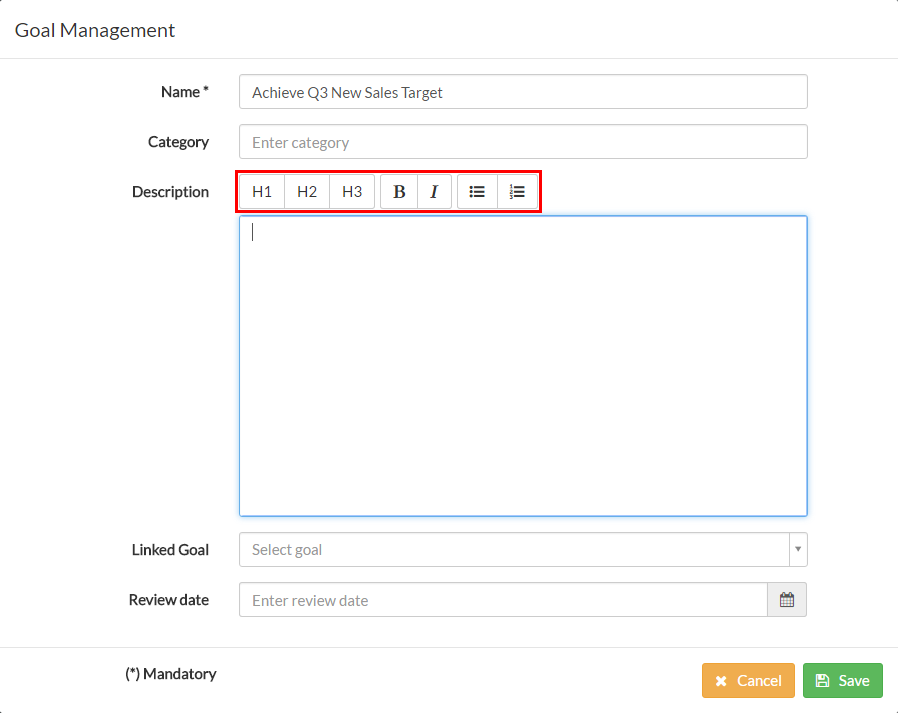
- Using some of the formatting controls, we can change the look of text that has been entered.

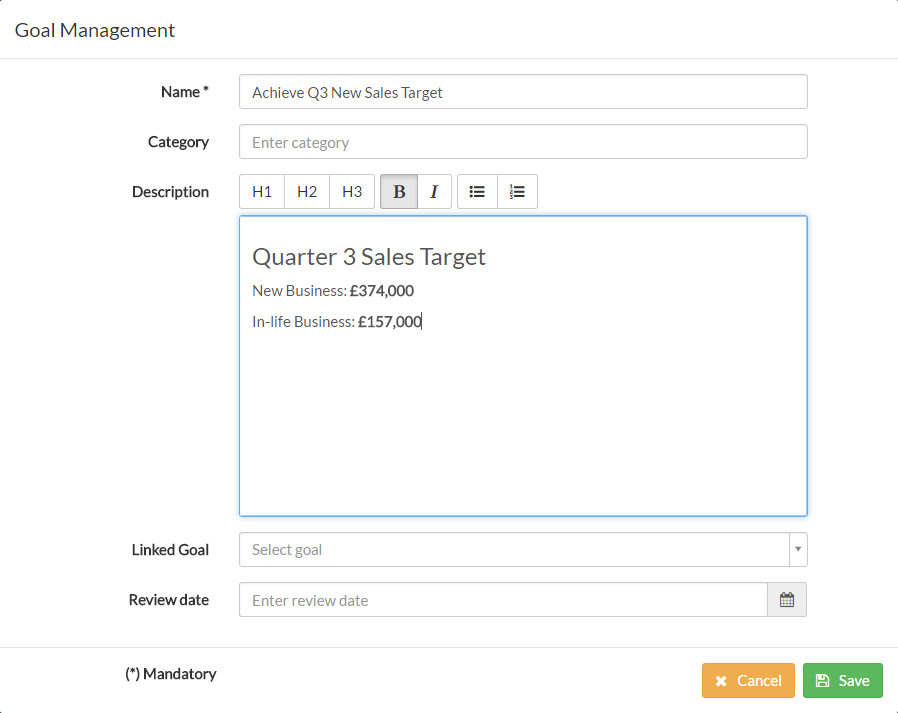
- In this example, Quarter 3 Sales Target has been formatted as a H1 heading and the monetary amounts for the targets have been formatted as bold.
Was this article helpful?
That’s Great!
Thank you for your feedback
Sorry! We couldn't be helpful
Thank you for your feedback
Feedback sent
We appreciate your effort and will try to fix the article