Applies to: HR/Customers Administrators
MyPeople user accounts are tied to employees, allowing them to log in and allowing administrators to manage accounts and de-activate users if an employee is leaving.
They also allow administrators to change the role of an employee, from employee to manager, or even HR/customer administrator.
Lastly, they allow administrators to send password resets to employees, as well as auditing the last log in time and employment status.
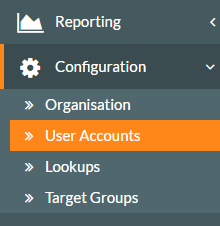
- To view user accounts as an administrator, click on the Configuration side menu, followed by the User Accounts sub-menu.

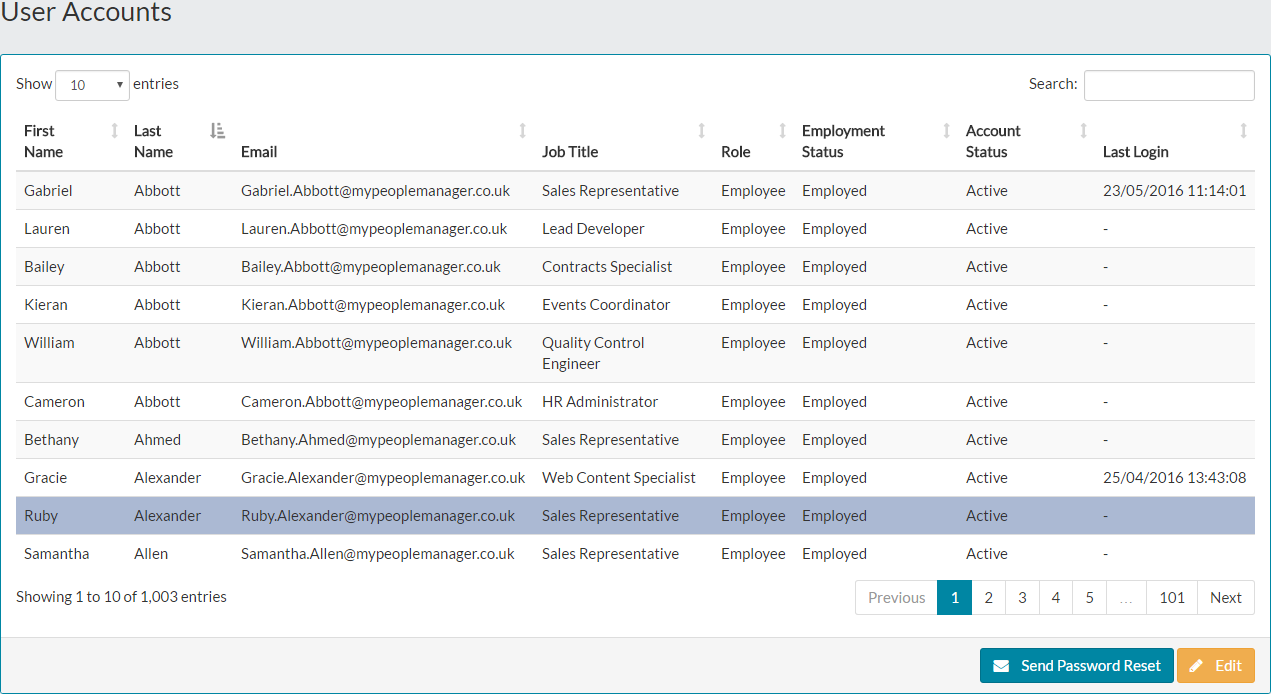
- The User Accounts page will be displayed, showing a table of accounts for current employees. You can also see when each employee last logged in to MyPeople for audit purposes.

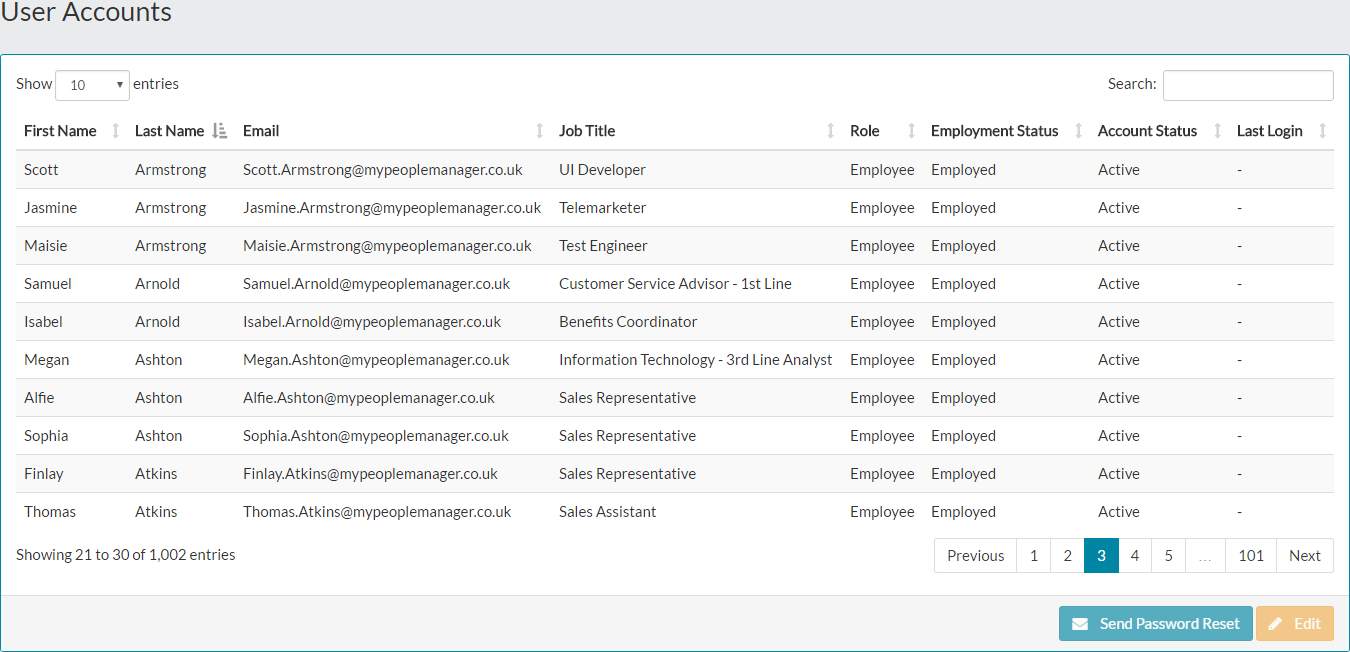
- As you can see in the example above, each of your current employees have an account.
- You have two options on the user accounts screen. These are to Send Password Reset to an employee, or Edit an employee user account.
- Sending a password reset is covered in more detail in the related articles section at the bottom of this page.
- To use either option, first select the user from the user accounts table. You can search for an employee or use the pagination controls to move between pages of user accounts.
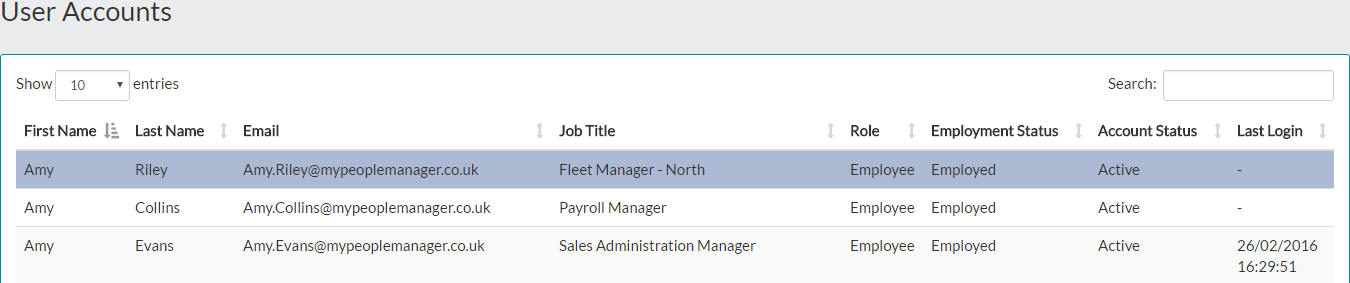
- Once you have selected the employee in the table as shown below, click edit.

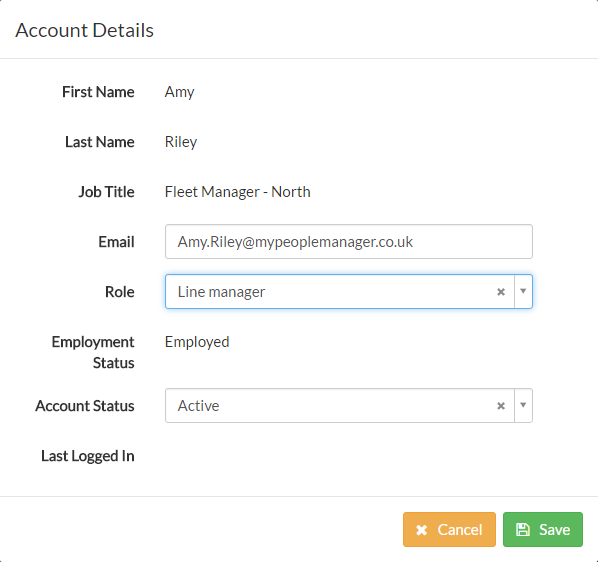
- After clicking edit, the edit user account form will be displayed on screen.

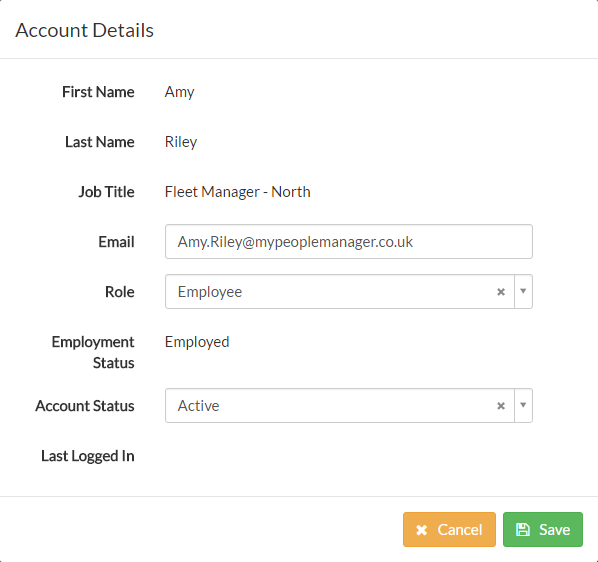
- You may need to change the email address Amy logs in with. The email address used here will receive email notifications from the modules within MyPeople. Examples of this are leave request/approval, performance reviews and document notifications.
- Amy may have had her role changed, which you would do in situations such as an employee being promoted to a manager and then has a team of reports.
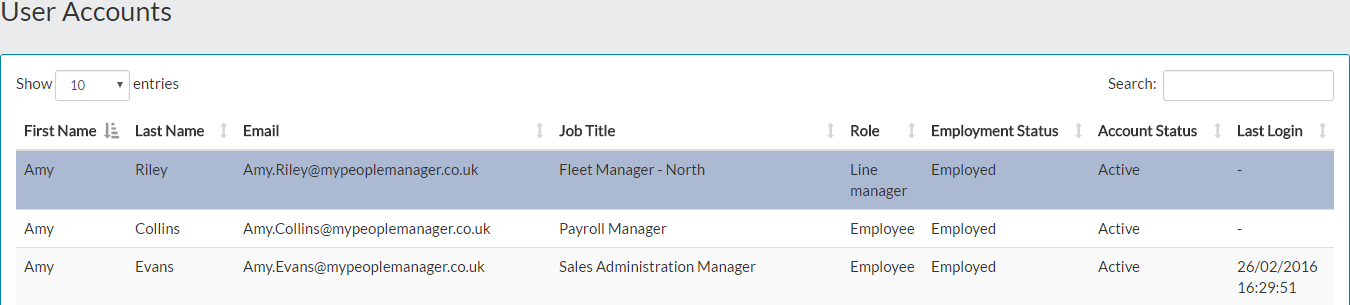
- Make the required changes and click save. In this example, Amy’s role has changed from Employee to Line Manager.

- The updated change is then shown in the table of user accounts, as well as enabling Amy to take on manager permissions and tasks, when logging in to MyPeople.

Disabled and Locked User Accounts
- There might be times when you need to restrict access for a specific employee and prevent them logging in. Changing the user account status from active to disabled, will achieve this.
- Select the user account you need to prevent from accessing the system and click edit.

- On the User Account details page, using the drop-down menu for account status, change this to disabled.

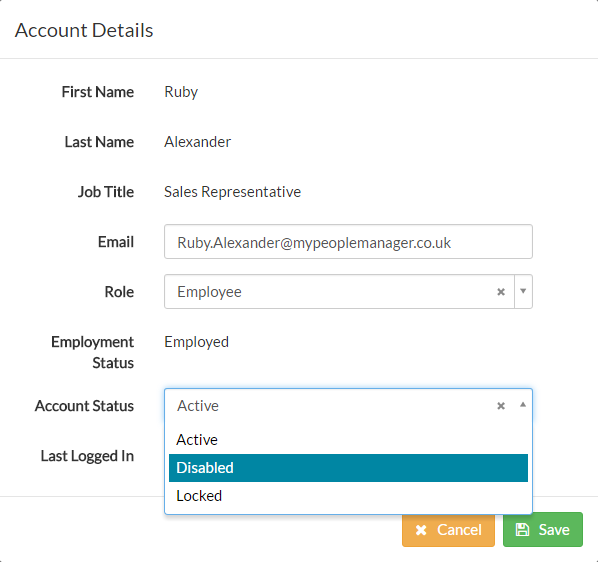
- Click save and the user account will be updated with a status of disabled, no longer allowing the user to log in to MyPeople.
- Disable or locking an account, does not stop notifications by email being sent to the user in question.
Was this article helpful?
That’s Great!
Thank you for your feedback
Sorry! We couldn't be helpful
Thank you for your feedback
Feedback sent
We appreciate your effort and will try to fix the article