Applies to: All Employees, Team Leaders/Managers and HR/Customer Administrators
Dashboard panels can be quickly reorganised, so you can have your most commonly used panels at the start of each dashboard section.
- In this example, the Add Task panel will be moved to the top of the personal panels, using the steps below.
- To reorganise dashboard panels, firstly open the panel catalogue by clicking the cog icon on the portal top bar.


- With the panel catalogue open, ensure that you are currently viewing the My Panels menu.

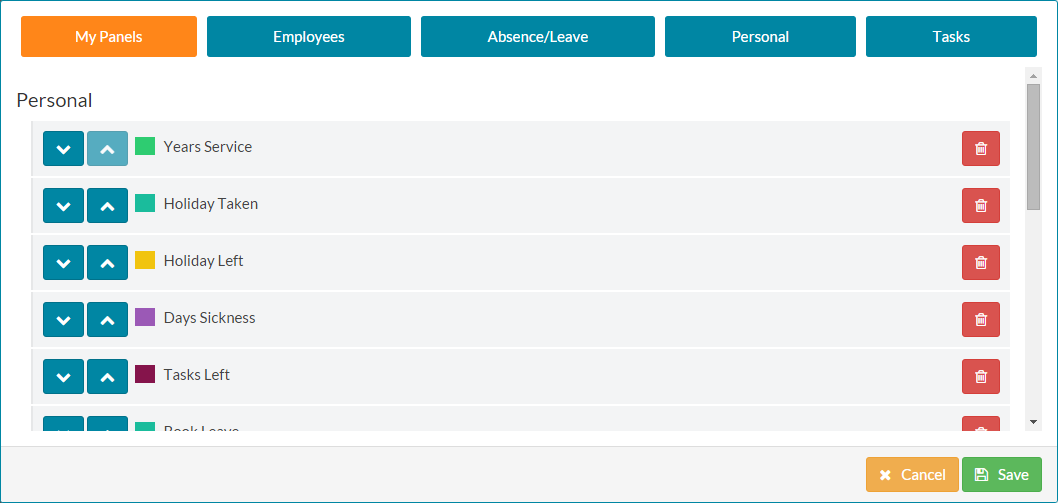
- As you can see, before moving the ‘Add Task’ panel to the top of the panel catalogue list, the dashboard order corresponds with the catalogue order.


- You will notice that each panel in the panel catalogue, has up and down arrows beside it. These are the controls to use to move the chosen panel(s) to create a new order on your dashboard.
- Scroll down if needed on the panel catalogue window, to find the Add Task panel.

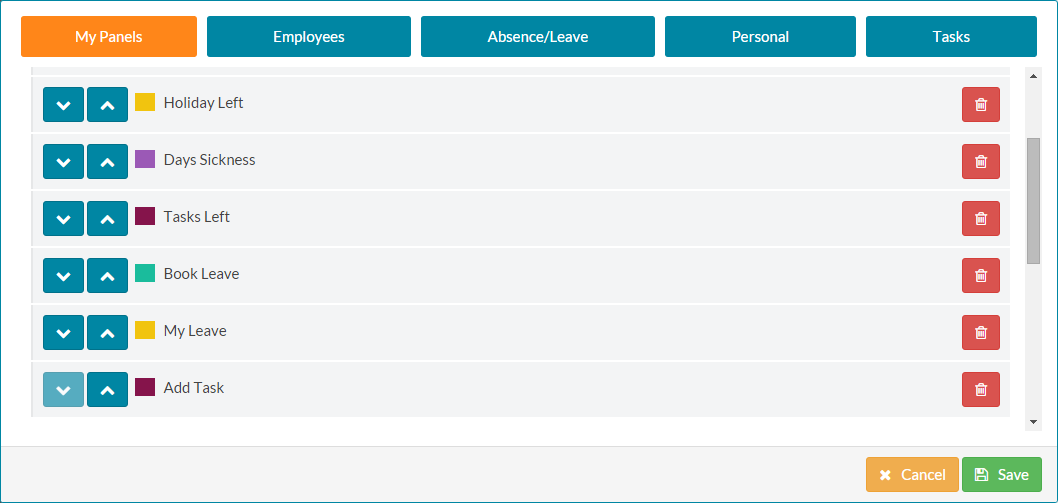
- Click the up arrow next to the Add Task panel several times until it appears at the top (or in the position required) of your panel catalogue window.
- The Add Task panel is now at the top of the personal panels.

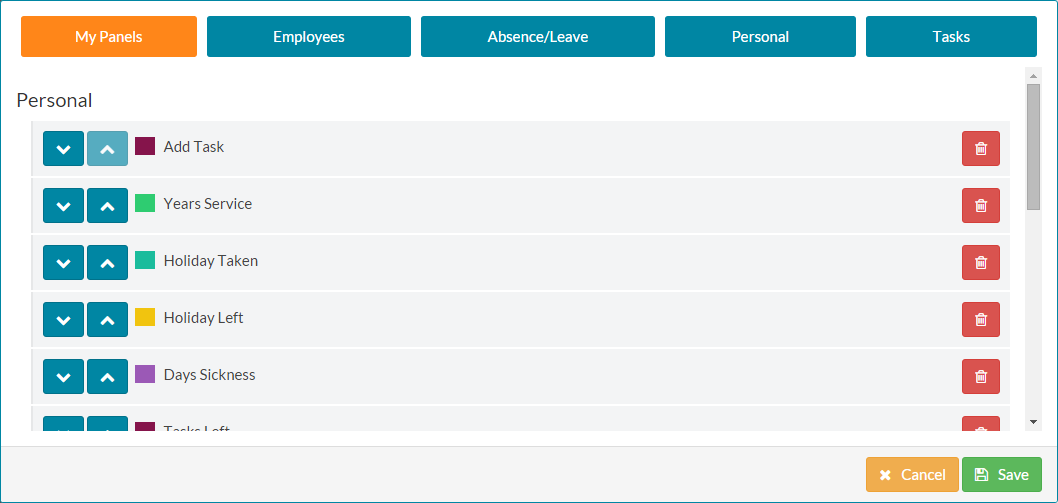
- Finally, click the save button at the bottom of the panel catalogue. The panel catalogue will close and you’ll be returned to the dashboard. Alternatively, click cancel to return to your dashboard without making any changes.
- The dashboard corresponds to the order of the panel catalogue and displays it as the first panel in the personal section.


- Complete the process for any panels you wish to re-organise. This also applies to Colleague, Team and Company dashboard sections.
- Adding and removing dashboard panels, is covered in greater detail in the related articles below.
Was this article helpful?
That’s Great!
Thank you for your feedback
Sorry! We couldn't be helpful
Thank you for your feedback
Feedback sent
We appreciate your effort and will try to fix the article