Applies to: All Employees, Team Leaders/Managers and HR/Customer Administrators
The MyPeople dashboard, is your home page of the system. It uses dashboard panels, which can be added, removed and re-organised for your own personal look and feel.
- Once you have logged in to MyPeople, you will be presented with your dashboard.
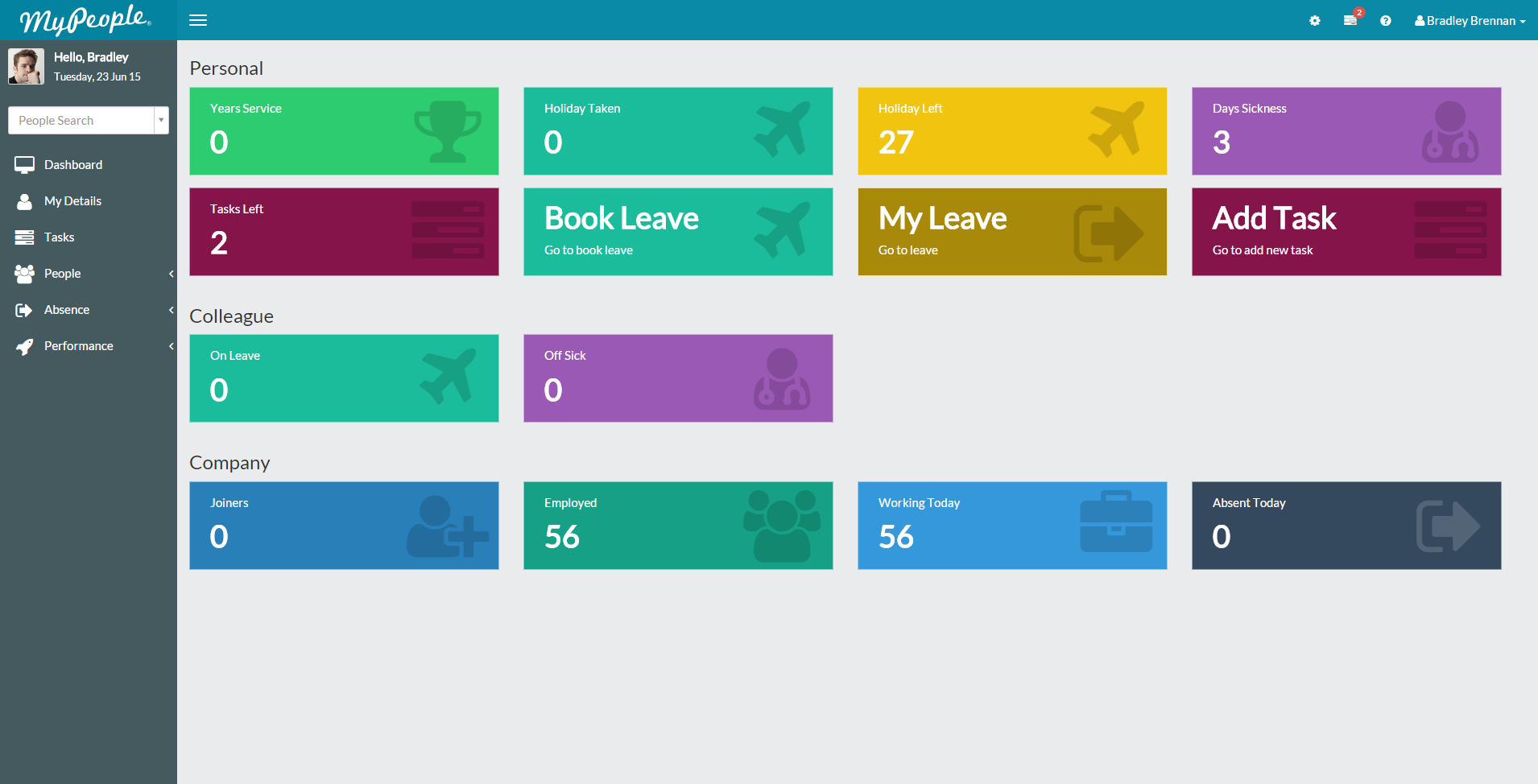

- At any given time, you can return to the dashboard by clicking ‘Dashboard’ from the side menu.
- The dashboard is customisable, by adding, removing or reorganising the dashboard panels.
- Dashboard panels relate to certain tasks or reports of information, such as booking leave or viewing your tasks.
- The dashboard will be separated in to panel categories. For example, any panels relating to you will sit under the Personal category.
- Likewise, the same is true for Colleague, Team and Company panels, which are role specific. For example, only managers of teams, will see the Team category and corresponding panels.
Dashboard Panels
Dashboard panels are clickable on-screen buttons, that give an easy route to specific actions or information within MyPeople.
- Dashboard panels look similar to the two examples below.




- Panels allow for quick and easy access to the information that you require, simply by viewing the brief information displayed on the panel, or by clicking the panel.
- Panels available to you, will vary depending on your employee role within your organisation and MyPeople. For example, HR/Customer Administrators will be able to see/add the Joiner and Leaver panels, but for employees or managers, these will not be visible. Panels are listed and controlled from the Panel catalogue, which can be accessed by clicking the cog icon shown below, when you’re viewing your dashboard.


- The accessed panel catalogue will look similar to the below.

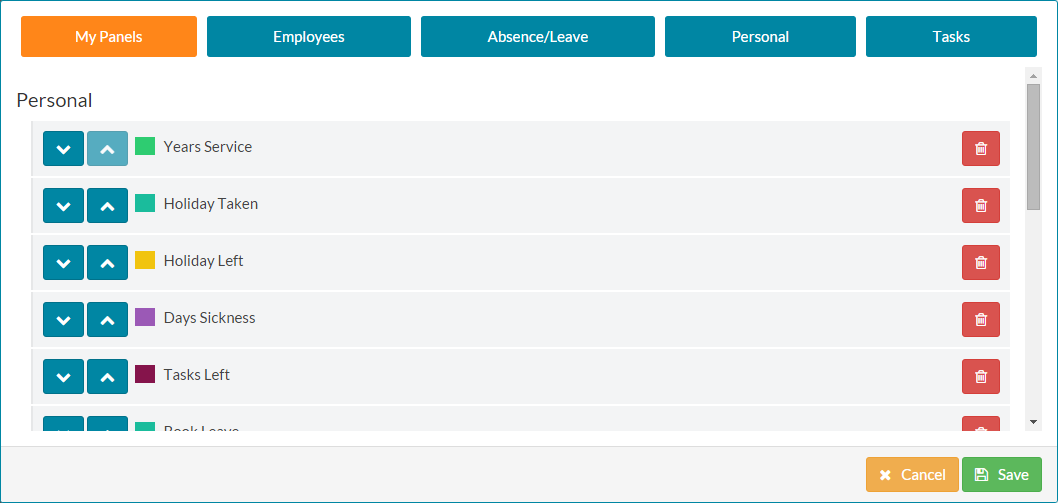
- Panels can be added, removed and reorganised on your dashboard and are split between Personal, Colleague, Team, and Company.
Was this article helpful?
That’s Great!
Thank you for your feedback
Sorry! We couldn't be helpful
Thank you for your feedback
Feedback sent
We appreciate your effort and will try to fix the article