Applies to: All Employees, Team Leaders/Managers and HR/Customer Administrators
Dashboard panels can also be removed at any time, allowing you to customise your dashboard further.
- In this example, we’ll remove the Add Task panel from the dashboard, using the steps below.
- To remove dashboard panels, firstly open the panel catalogue by clicking the cog icon on the portal top bar.


- With the panel catalogue open, ensure that you are currently viewing the My Panels menu.

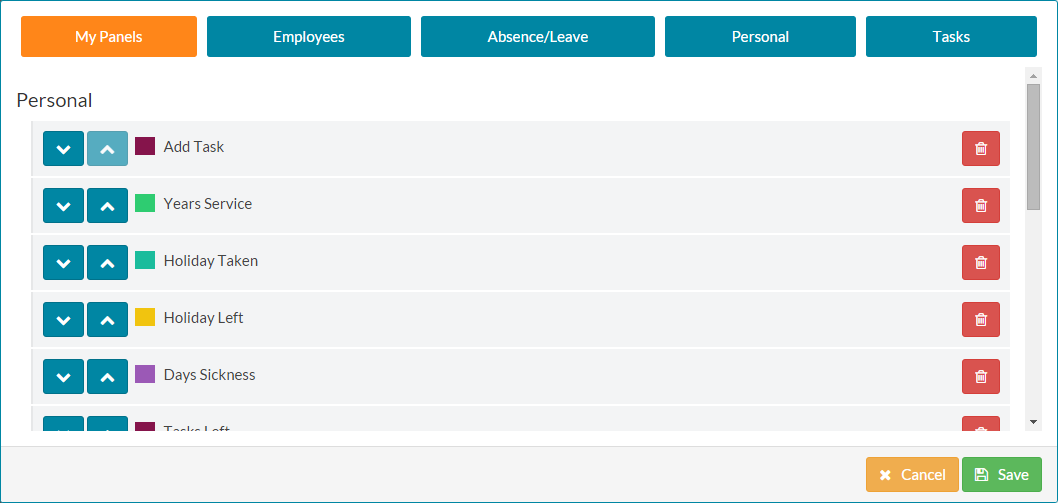
- As you can see, before removing the Add Task panel it appears on the dashboard under the personal section.


- You will notice that each panel in the panel catalogue has a trash can icon to the far right.
- Click the trash can icon next to the panel you wish to remove from your dashboard.
- The panel will be removed from the list of panels in the panel catalogue.

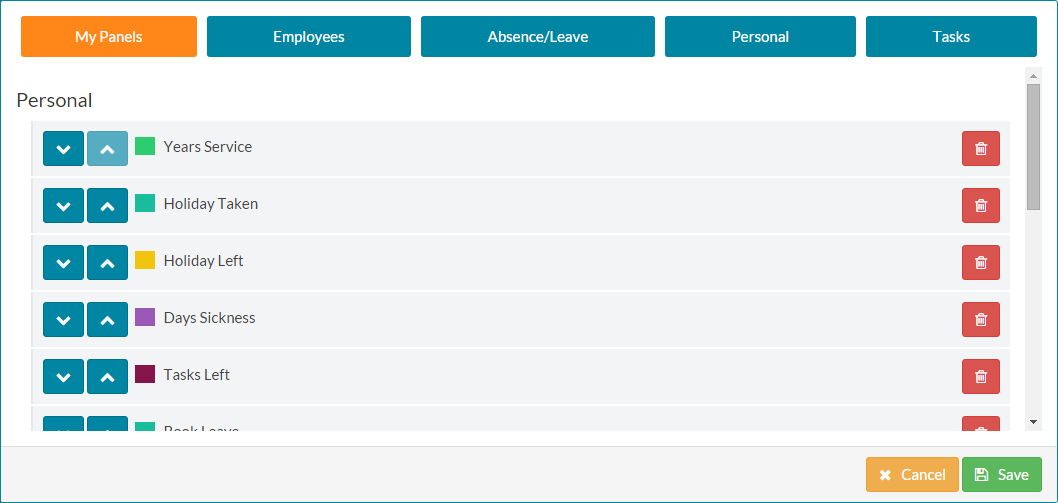
- Finally, click the save button at the bottom of the panel catalogue. The panel catalogue will close and you’ll be returned to the dashboard. Alternatively, click cancel to return to your dashboard without making any changes.
- The dashboard shows that the Add Task panel has now been removed from the personal section.


Was this article helpful?
That’s Great!
Thank you for your feedback
Sorry! We couldn't be helpful
Thank you for your feedback
Feedback sent
We appreciate your effort and will try to fix the article