Applies to: All Employees, Team Leaders/Managers and HR/Customer Administrators
You can add, remove and re-organise panels on your dashboard at any time. You may like to organise the panels to have your more commonly used panels at the start of the dashboard view or remove panels that are not commonly used.
- Ensuring you’re on the dashboard, from the top bar click on the cog icon shown below.


- The panel catalogue will open on screen, as shown below.

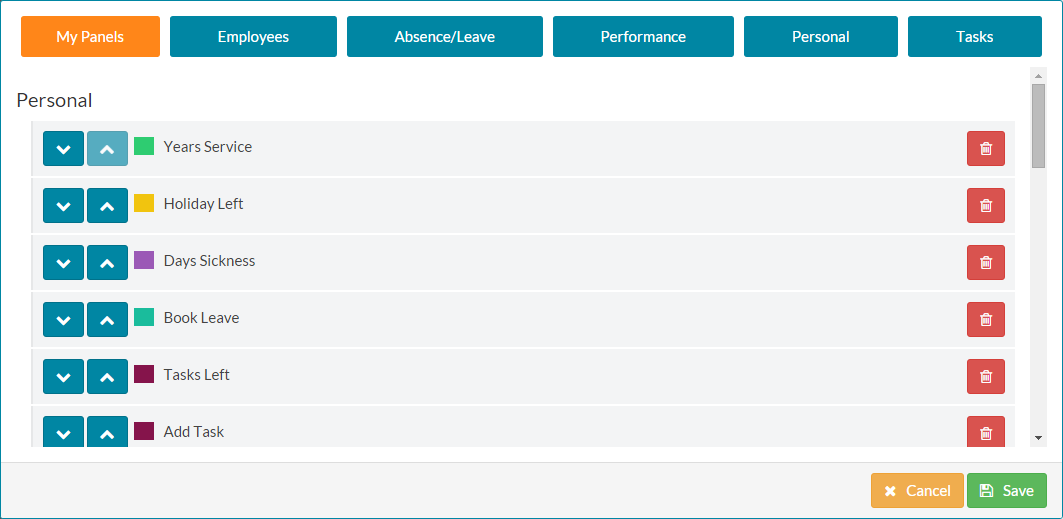
- The default view of Your Panels shows the panels you already have available on your dashboard.
- The Employees, Absence/Leave, Personal and Tasks menu items will show panels relating to those subjects that can be added.
- In this article, the Company – Joiners panel will be added to the dashboard, as it isn't currently selected.
- Click on the Employees menu option on the panel catalogue, which will show available panels relating to employees.

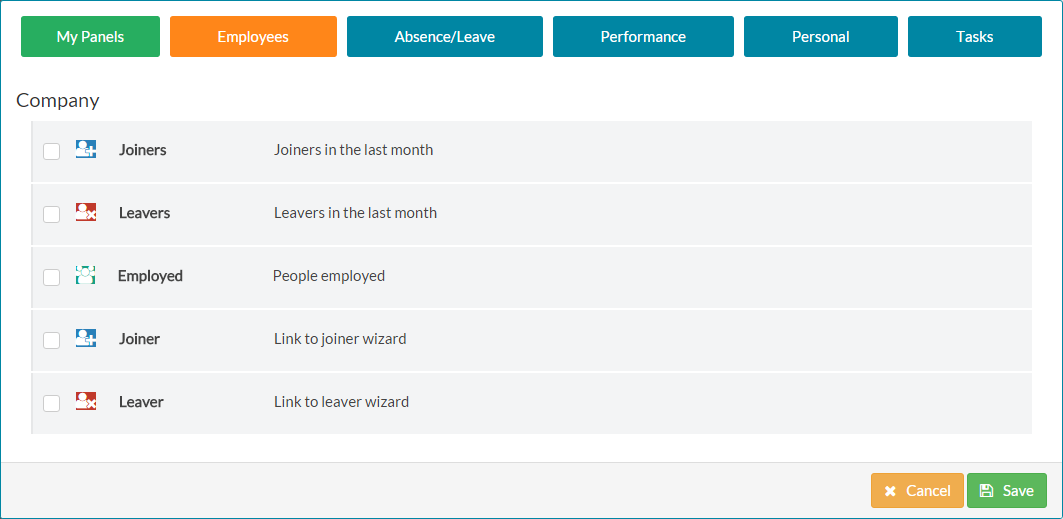
- Under the Company category, Joiners is not selected.
- Check the box next to this panel name to select it.

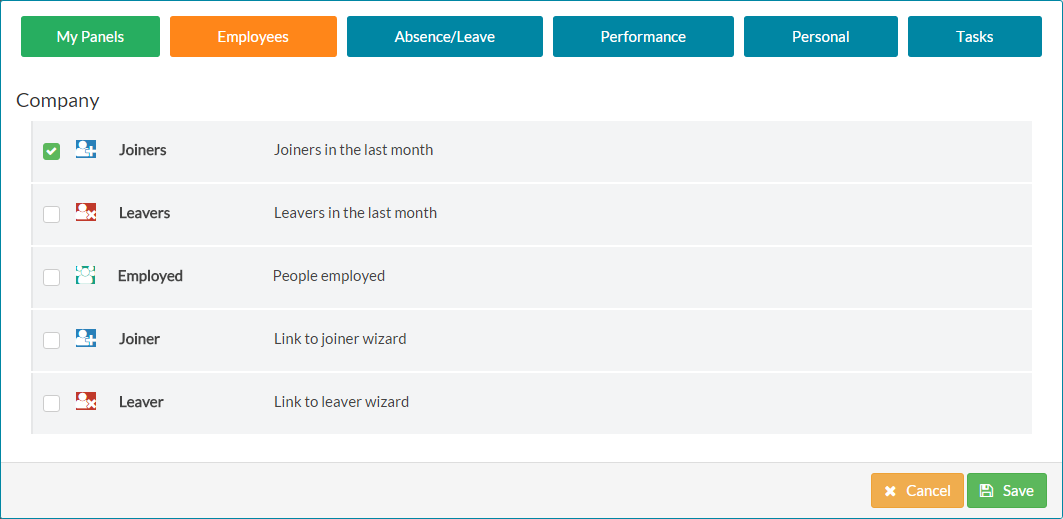
- At the bottom of the panel catalogue, click the blue save button. If you decide against adding the new panel at this time, click the grey cancel button.

- The panel catalogue will close and your dashboard will be displayed, including the newly added panel. As you can see, the Joiners panel has been added under the Company dashboard category.


Was this article helpful?
That’s Great!
Thank you for your feedback
Sorry! We couldn't be helpful
Thank you for your feedback
Feedback sent
We appreciate your effort and will try to fix the article