Applies to: HR/Customer Administrators
If an employee is having difficulty logging in to MyPeople and has not been able to use another method of generating a new password, they may at times ask you as an administrator, to reset their password.
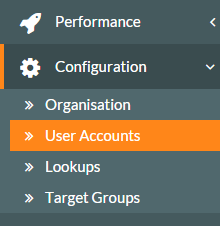
- To generate a password reset request for an employee, log in to MyPeople as an administrator and from the side menu, click System and then User Accounts, which will load the User Accounts screen.

- On the User Accounts screen, find the employee requiring a password reset request and highlight them in the table, by clicking their name.

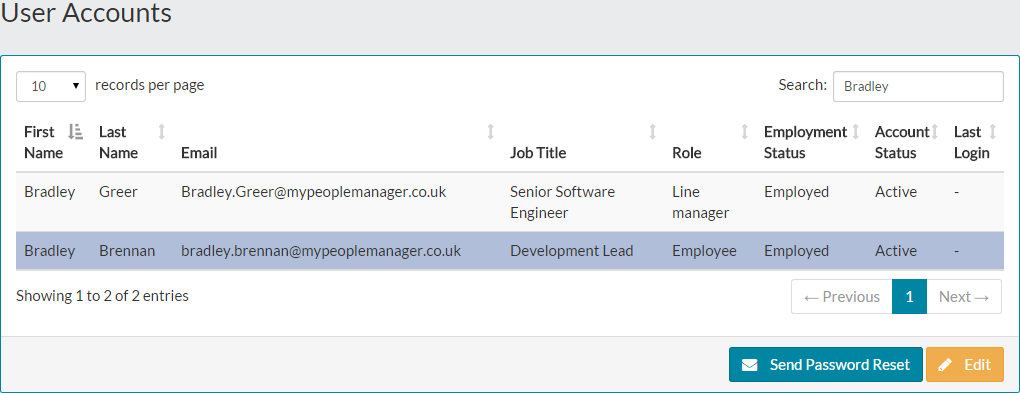
- Ensuring the requesting employee is highlighted, click on the blue ‘Send Password Reset’ button.
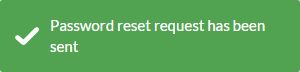
- On on-screen notification will be displayed to you, to confirm success of the password reset request.

- At this stage, the requesting employee will receive an email shortly after this process, which will contain a link similar to the one below, whereby they can reset their password.


Was this article helpful?
That’s Great!
Thank you for your feedback
Sorry! We couldn't be helpful
Thank you for your feedback
Feedback sent
We appreciate your effort and will try to fix the article