Applies to: All Employees, Team Leaders/Managers and HR/Customer Administrators
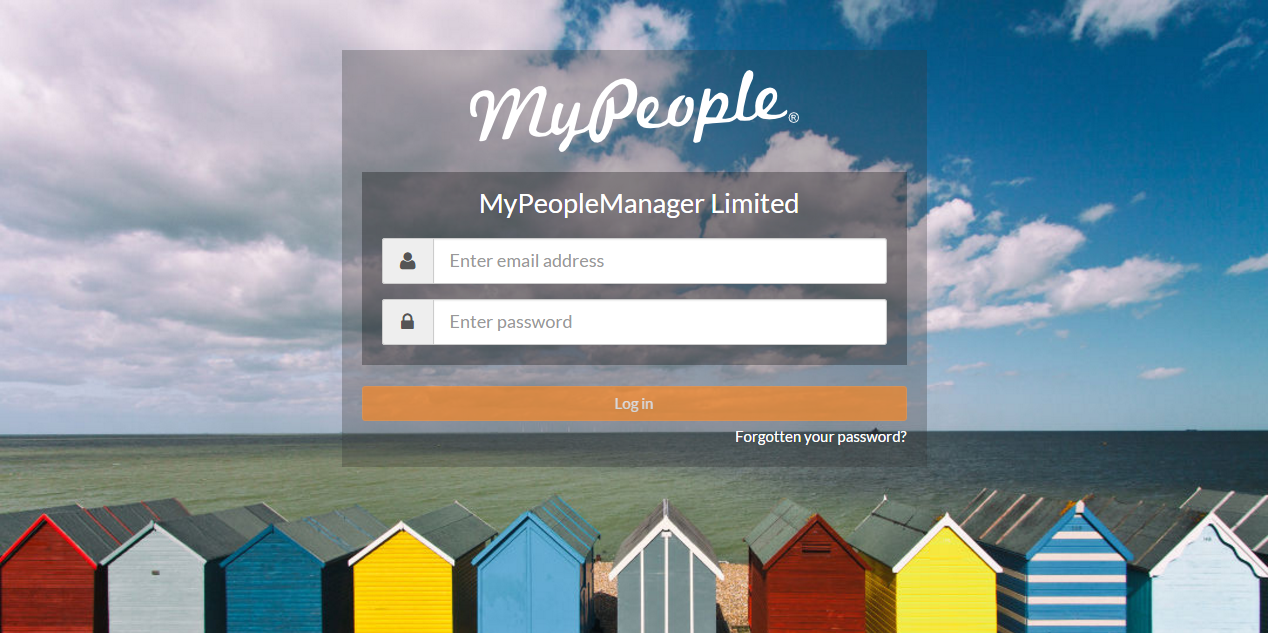
- If you have forgotten your password or your password appears to not be working, from the MyPeople log in screen - click the ‘Forgotten your password?’ link under the Log in button.

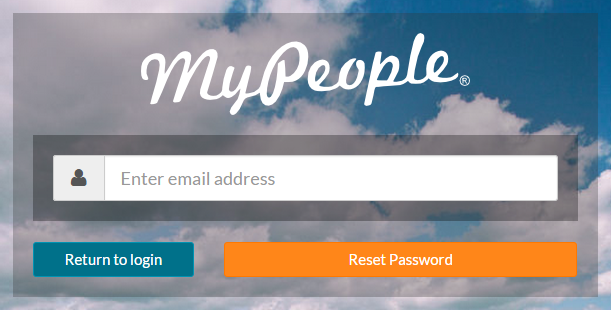
- The password reset screen will be displayed, whereby you can enter your corporate email address and click the orange ‘Reset Password’ button to generate a new password reset.

- Shortly after, an email will be sent to the corporate email address you entered above, which will contain a link to reset your password. The email link will look similar to the one shown below.


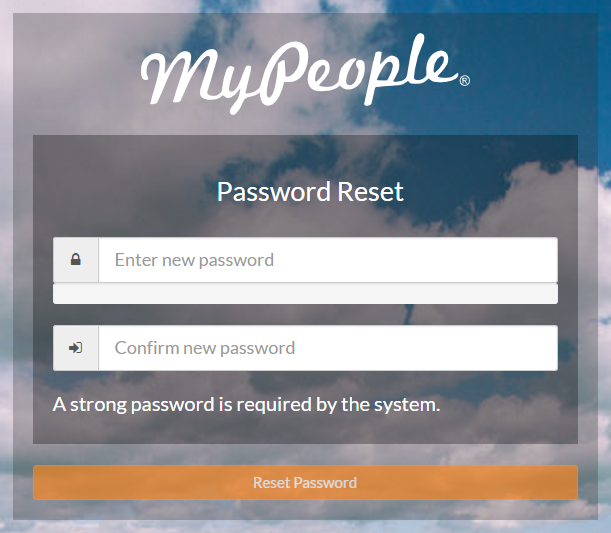
- Clicking the link received, takes you to the password reset screen shown below.

- Enter your corporate email address.
- Enter a new secure password. By default, MyPeople only allows for the use of strong and very strong passwords. This is indicated by the password strength indicator bar.
- As you enter your password, you will notice that the strength indicator bar changes as your enter more characters.




- Enter your strong or very strong password again, in the confirm password field.
- Click the orange ‘Reset Password’ button, which will direct you back to the MyPeople log in screen. Using your newly created password, log in as normal to use the portal.
Was this article helpful?
That’s Great!
Thank you for your feedback
Sorry! We couldn't be helpful
Thank you for your feedback
Feedback sent
We appreciate your effort and will try to fix the article