Applies to: All Employees
Performance reviews are scheduled as per your company policies and by your HR administrator or team.
Peer reviews allow for an employee to be reviewed by other employees within the organisation, such as other team members, colleagues, supervisors, or all the above. An anonymous review will be created to ensure that fair feedback is collected and collated.
Peer reviews are useful when undertaking such tasks as succession planning, talent management, or as part of disciplinary proceedings. They allow for honest, anonymous feedback to provide insight into how an employee is really doing.
Peer reviews are anonymous for most employee roles, but should you hold the following employee role, you’ll be able to ascertain certain information:
- Customer Administrator – Can see all scores and additional notes.
- Any HR administrator – Can see all scores and additional notes.
- Team Leader or Line Manager of employee being reviewed (Team Leader or Line Manager is not part of the review) – Can see anonymous scores and additional notes.
- Team Leader or Line Manager (Team Leader or Line Manager is part of review) – Can see their own scores and notes, and anonymous scores and notes for other reviewers.
There is a small caveat with the above role based views, which is that should the supervisor/line manager of the employee being reviewed hold the HR or Customer Administrator role, the view will always adopt the great permissions, so in this case, the supervisor of the employee to be reviewed, will be able to see everything. This is, all scores and additional notes, and who they were made by.
When a peer review has been completed by everyone, the information can then be used to provide detail as to how the employee reviewed, has been performing. This could be in the event of succession planning, talent management or disciplinary proceedings.
Peer Review Visibility
- As mentioned above, visibility of the peer review will be restricted, depending on your role within the system or review process.
- Detailed below, is a list of each role and the visibility of the review, they have:
- Employee (being reviewed) - As the employee being reviewed in a peer review, there is no way of knowing or seeing, that this review has taken place. This is unless, you have been advised of the process, your Team Leader / Line Manager / Supervisor has shown you their review (if included as a peer) or your HR team / administrator, has also shown you the review as part of a follow up process.
- Employee, also holding the HR or Customer Administrator role (being reviewed) – There could be a time where the employee reviewed, also holds the HR or Customer administrator role. In this scenario, the employee can see an anonymous breakdown of all review scores and additional notes.
- Employee (not part of the review) – Employee’s not included in the peer review process, have no visibility of the review at all.
- Employee (peer reviewer) – Included as a peer to review another employee and whilst holding the employee role within the system, you can review your own scores and additional notes on each question, or section.
- Team Leader or Line Manager (not part of the review) – As the team leader or line manager for the reviewed employee, you can view an anonymous breakdown of review scores and additional notes on each question, or section.
- Team Leader or Line Manager of Employee, also holding the HR or Customer Administrator role (not part of the review) – You could be a line manager of a reviewed employee, but also hold the HR or Customer administrator role within the system. In this scenario, your higher permissions will override the lower permissions, meaning you will be able to see all review scores and additional comments.
- Team Leader or Line Manager (peer reviewer) – As one of the peer’s in this review, you can see your own scores and additional notes on each question, or section, as well as an anonymous breakdown of other scores and additional notes on each question, or section, by other peers’.
- Team Leader or Line Manager of Employee, also holding the HR or Customer Administrator role (peer reviewer) – You could be a line manager of a reviewed employee, but also hold the HR or Customer administrator role within the system. In this scenario, your higher permissions will override the lower permissions, meaning you will be able to see all review scores and additional comments, including your own.
- HR Administrator (not part of the review) – As an HR administrator, you can view all reviews scores and additional notes on each question, or section.
- HR Administrator (peer reviewer) – As an HR administrator, you can view all reviews scores and additional notes on each question, or section, including your own.
- Customer Administrator (not part of the review) - As a Customer administrator, you can view all reviews scores and additional notes on each question, or section.
- Customer Administrator (peer reviewer) - As a Customer administrator, you can view all reviews scores and additional notes on each question, or section, including your own.
Accessing Completed Peer Reviews
- Depending on your role within the system, accessing completed peer reviews, could be slightly different.
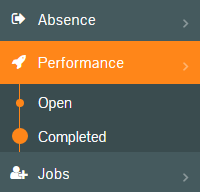
- For employees who were a peer reviewer, you can access completed peer reviews by using the Performance side menu, followed by the Completed sub-menu.
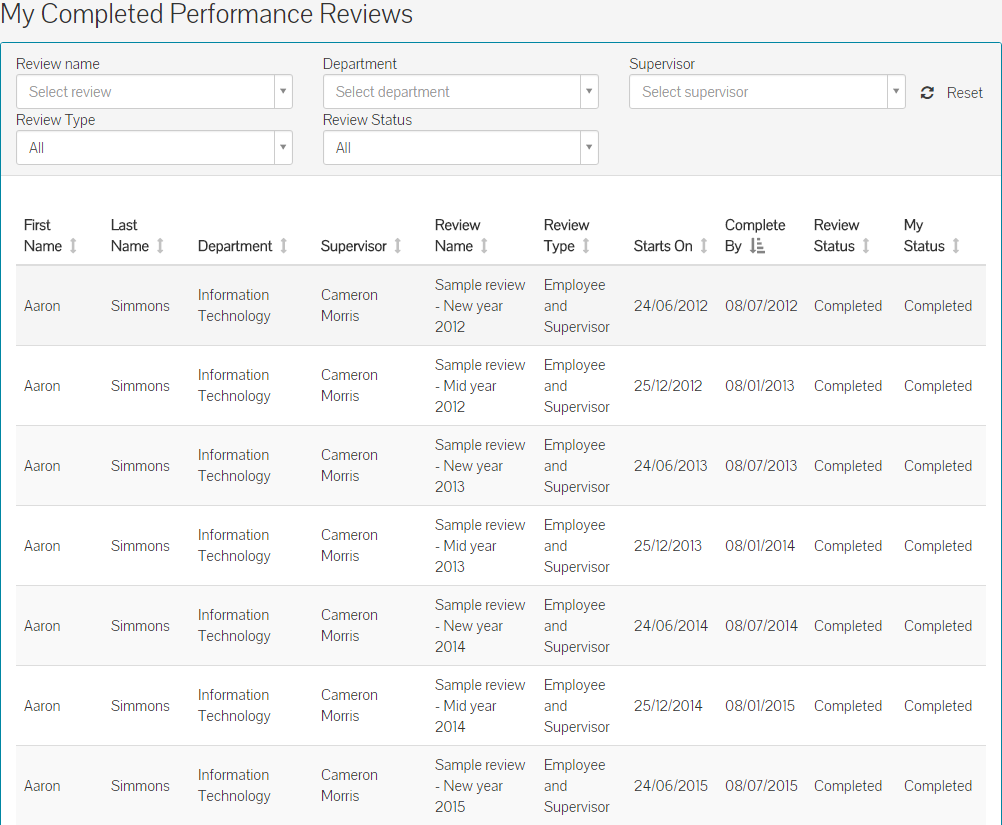
- You can see that the My Open Performance Reviews screen shows the Review Name, Review Type and the ‘Starts On’ and ‘Complete By’ dates, for all completed reviews.
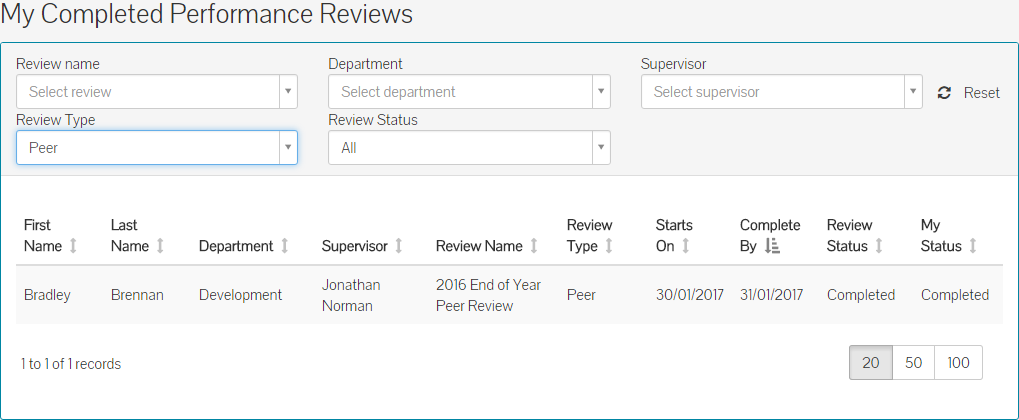
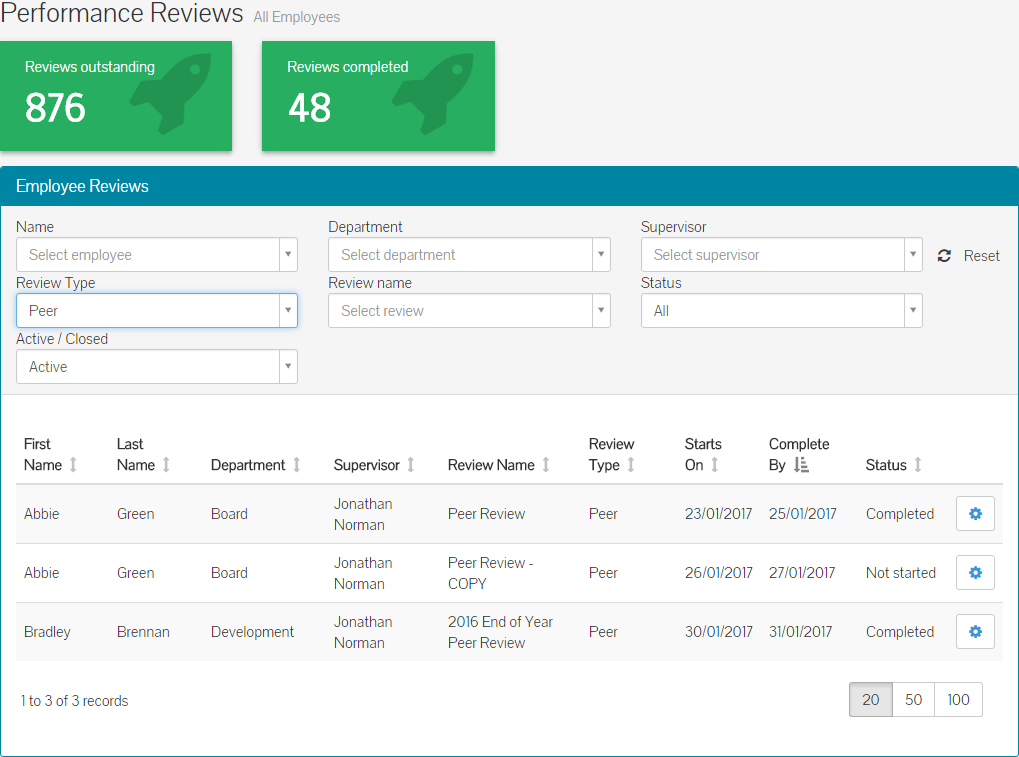
- You can use the filters of the table, to filter the table on specific review types, names or employee names. The example below has been filtered by Review Type – Peer.
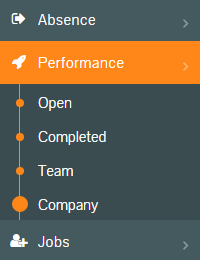
- For employees who hold the HR or Customer administrator role, you could use the steps above to find a peer review, assuming you were a peer and have completed the review, but if you were not included as a peer, you can use the Company sub-menu under the Performance side menu.
- As you have full visibility to all performance reviews in the company, the Performance Reviews – All Employees screen could be quite long.
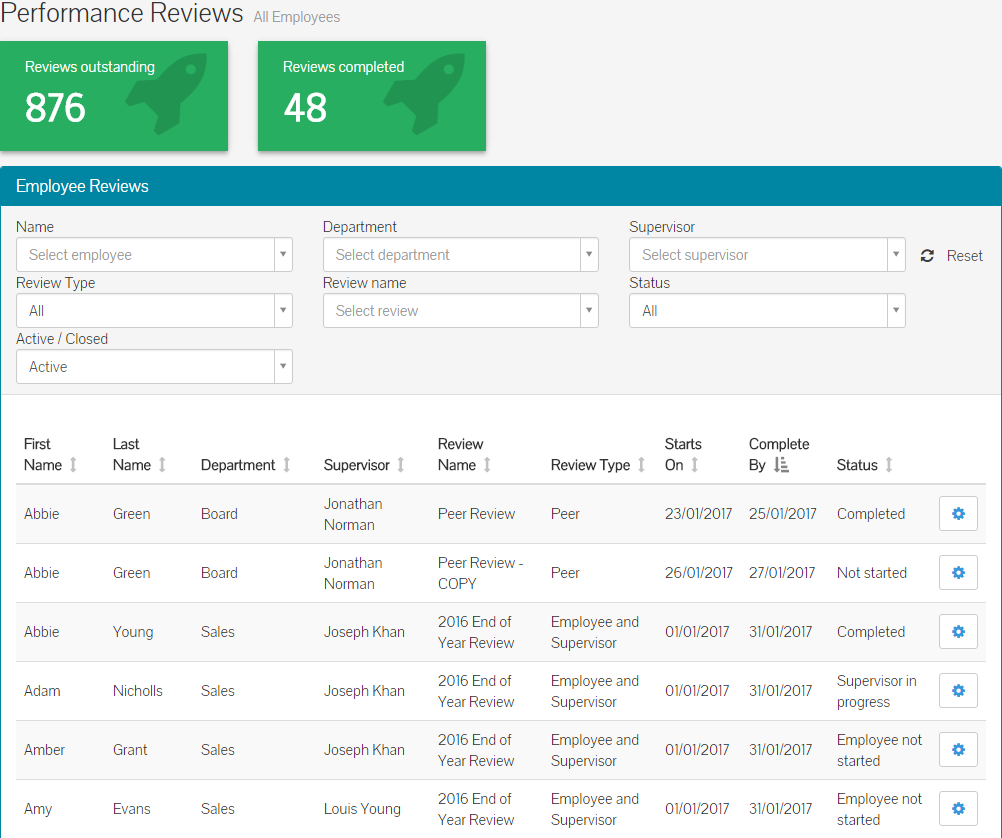
- You can use the filters of the table, to filter the table on specific review types, names or employee names. The example below has been filtered by Review Type – Peer.
Viewing Review Scores
- After clicking the peer review you have found via one of the above methods, the review will be loaded on screen, showing the Comparison and Score pages.
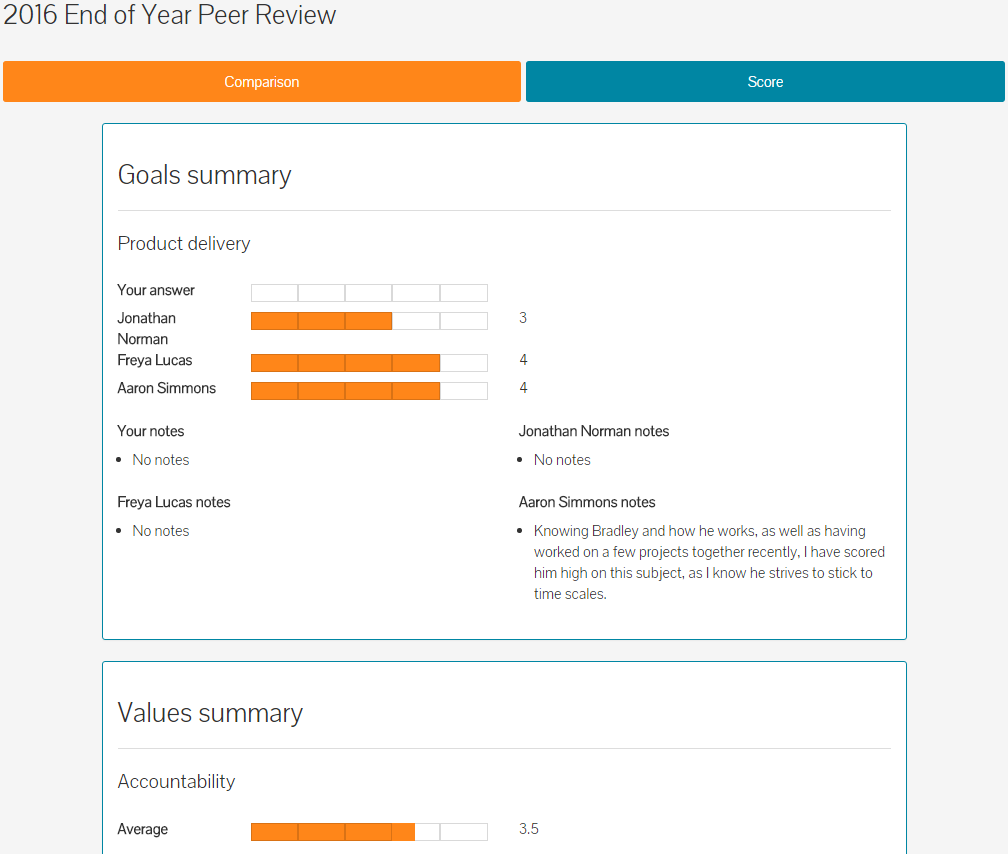
- The view you see, will be different based on your involvement in the review and/or the role you hold within the system.
- The above example has been accessed by a HR administrator, who was not part of the peer review process.
- The example below has been accessed by the Team Leader / Line Manager of the reviewed employee, but the Team Leader / Line Manager was not part of the review process.
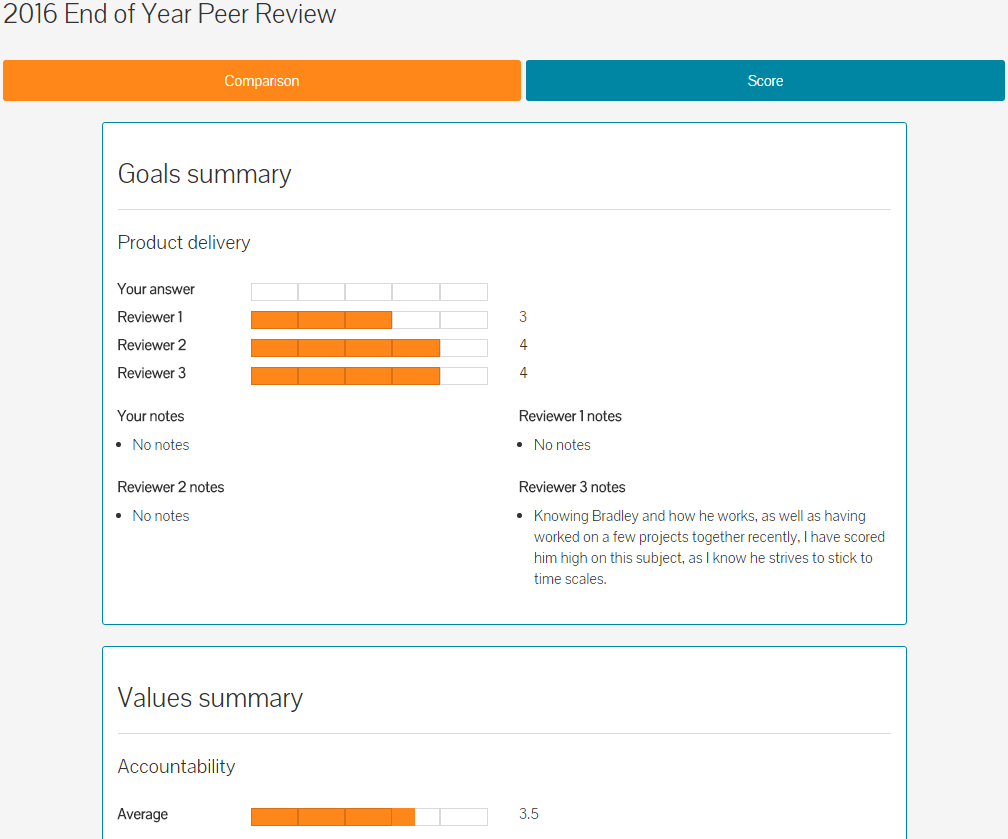
- As you can see, all scores and comments of the review, are completely anonymous.
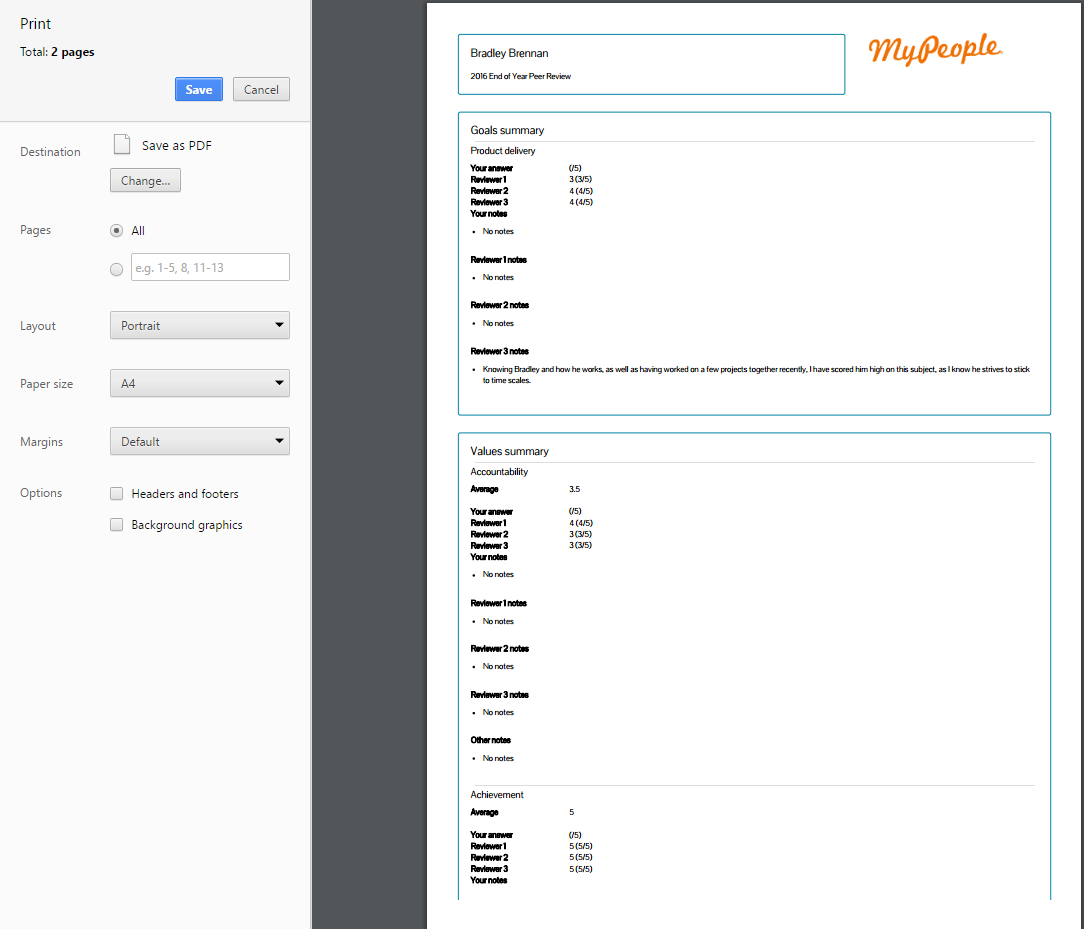
- From the Comparison tab, you could also choose to print the comparison page to keep a hard copy, or if you have been asked to.
- Click print and this will open the printer dialogue box, for you to select the appropriate printing device to print from.
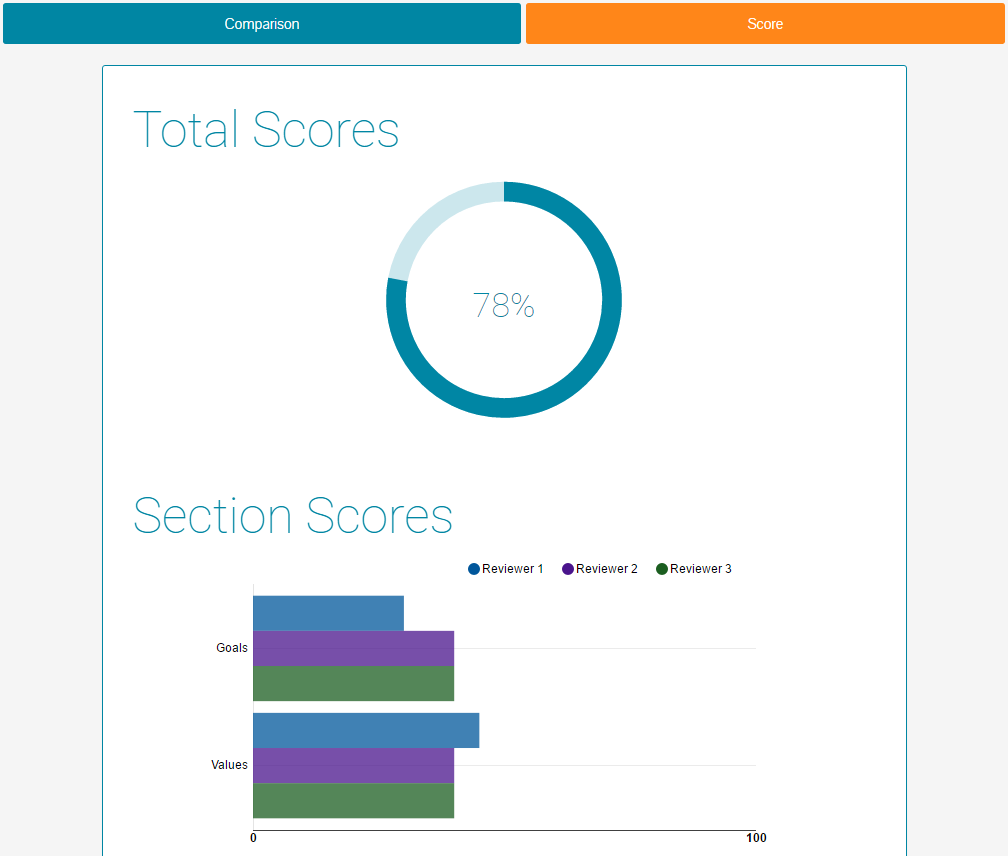
- Clicking on the score tab in a review, gives the overall score of the review, as well as a breakdown of each section score.
Peer Review Insights
- Under the Insights menu, you can use Insight levels, such as Employee or Company, to review details about an employee or review.
- In the example below, a peer review has been select under the Company Insights menu, and this shows an average total score and section score, and even more Insight charts to show the average scores amongst the peers. This could lead to decisions you make about the employee, training and development programmes and so on.
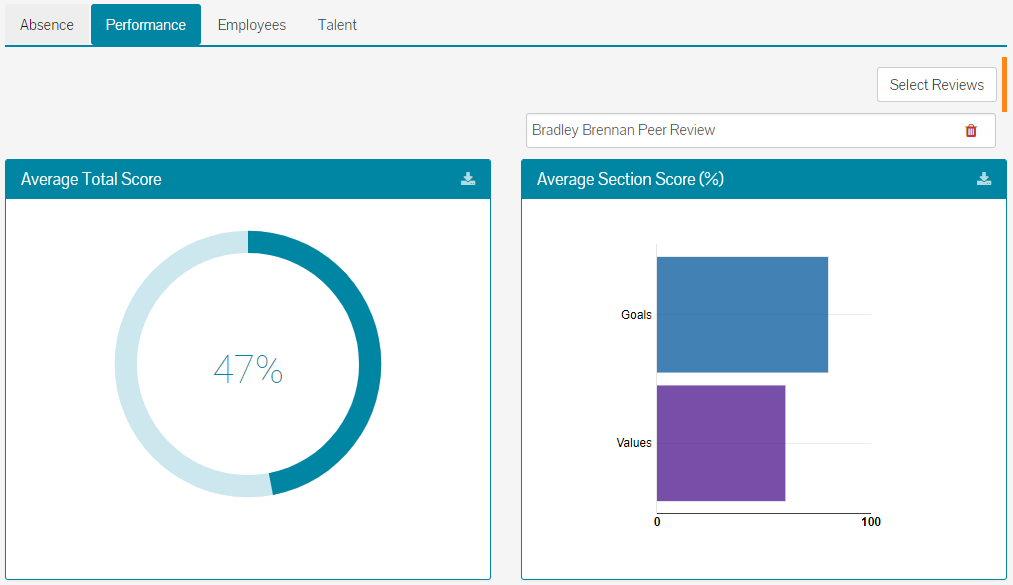
- As you can see, Bradley Brennan’s Peer Performance Review has been selected and shows average total, and average section scores by percentage.
- Other Insight charts for this review, show that Bradley meets expectations, which suggest he is doing well enough as a steady employee, but maybe not hitting the higher levels of performance.
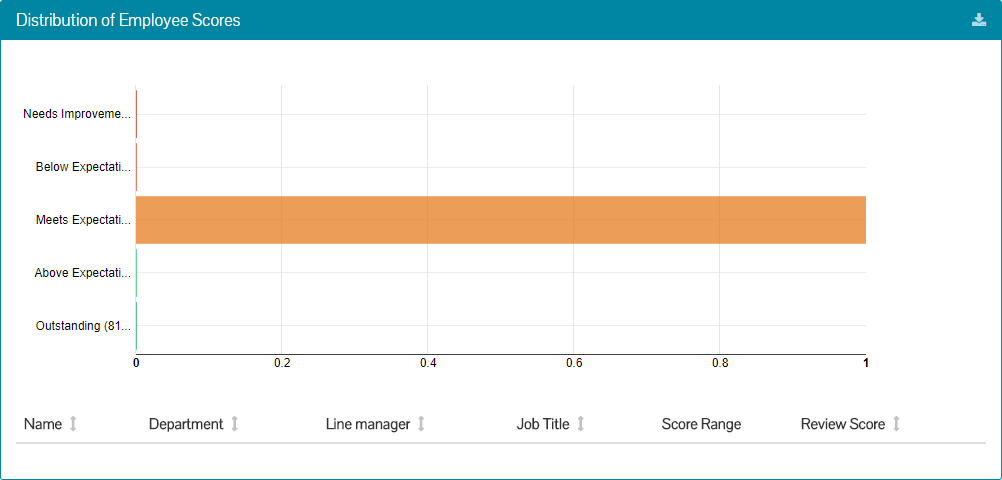
- Couple this with information regarding Bradley’s performance over standard performance reviews, and it should help you ascertain as to how well Bradley is performing in his current role.
- Peer reviews are extremely useful in gathering information from other members of staff, when considering certain decisions or plans for an employee.
Was this article helpful?
That’s Great!
Thank you for your feedback
Sorry! We couldn't be helpful
Thank you for your feedback
Feedback sent
We appreciate your effort and will try to fix the article