Applies to: HR/Customer Administrators
When a member of staff is due to leave or has left your company, a leaver wizard will need to be completed.
- Logged in as an administrator, click the Leaver – Link to leaver wizard dashboard panel.


- The leaver wizard is displayed on screen.

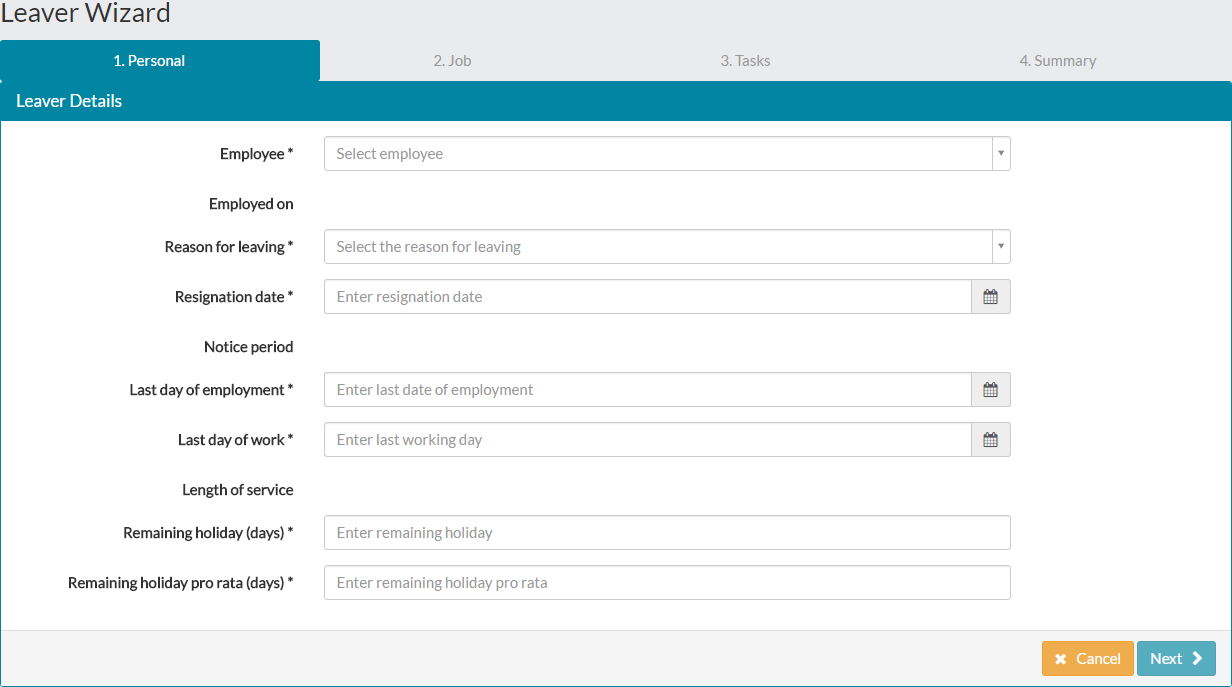
- Complete each tab of the leaver wizard, before saving and confirming the departure of the employee.
Personal
- The first step you’ll need to complete, is to select the employee leaving from the drop-down menu. This helps populate some of the fields further in to the leaver wizard.
- Clicking on the Employee drop-down menu, scroll and select the employee who is leaving. Alternatively, type a few letters of their name to reduce the results list and select them from a shortened list.

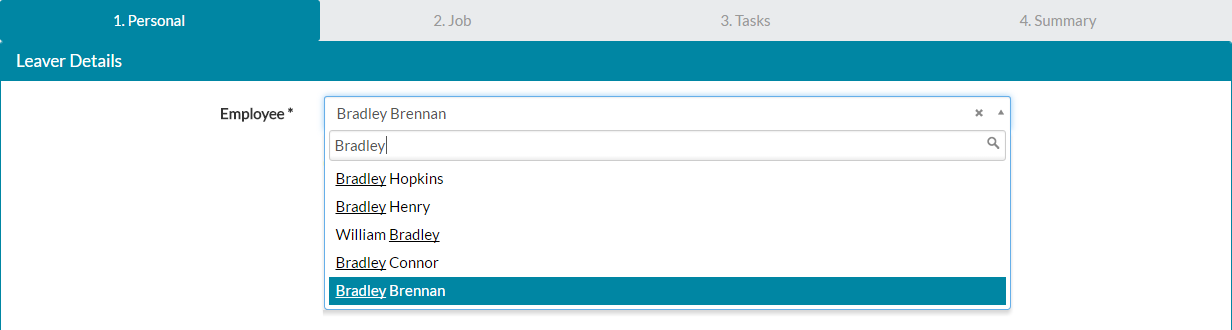
- Selecting the employee departing, pre-populates some of the information on the Personal tab of the leaver wizard. Employed on, Notice period, length of service and the two remaining holiday calculations will be populated automatically.
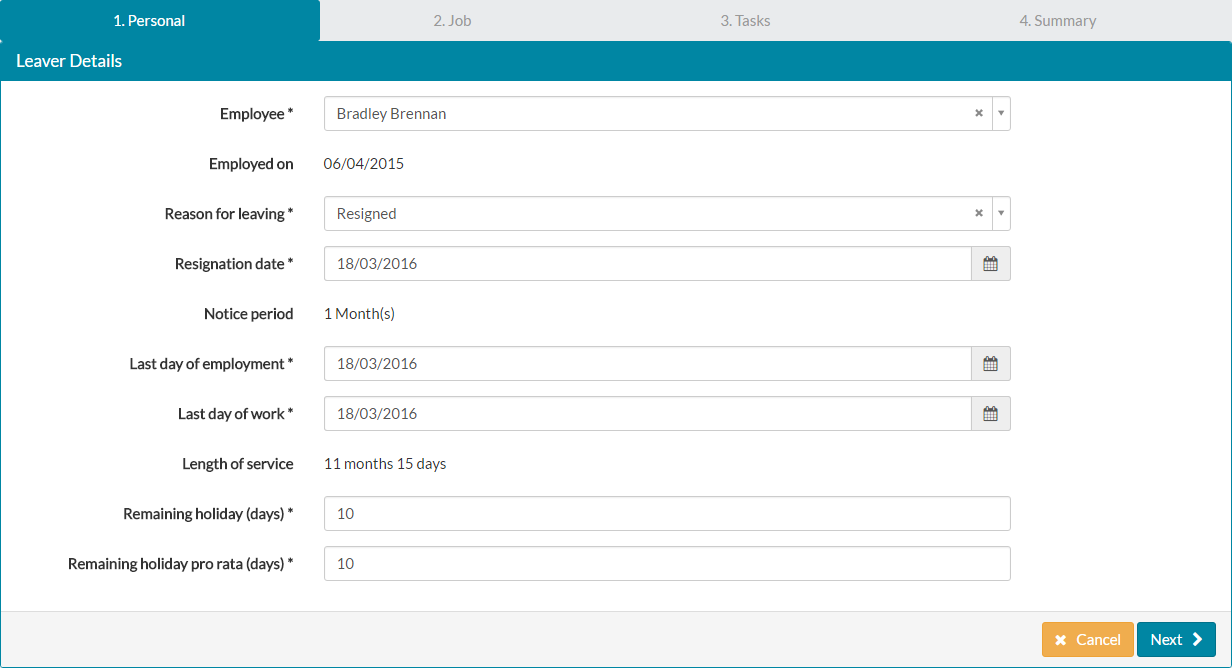

- Complete the remaining required fields, by selecting the relevant value for Reason for leaving, Resignation date, Last day of employment and Last day of work, from drop-down menus or by entering the dates. Click next to move on to the job tab.
Job
- On the Job tab, you can select to re-assign team members to another team leader/manager, should the employee departing be a team leader/manager as well.

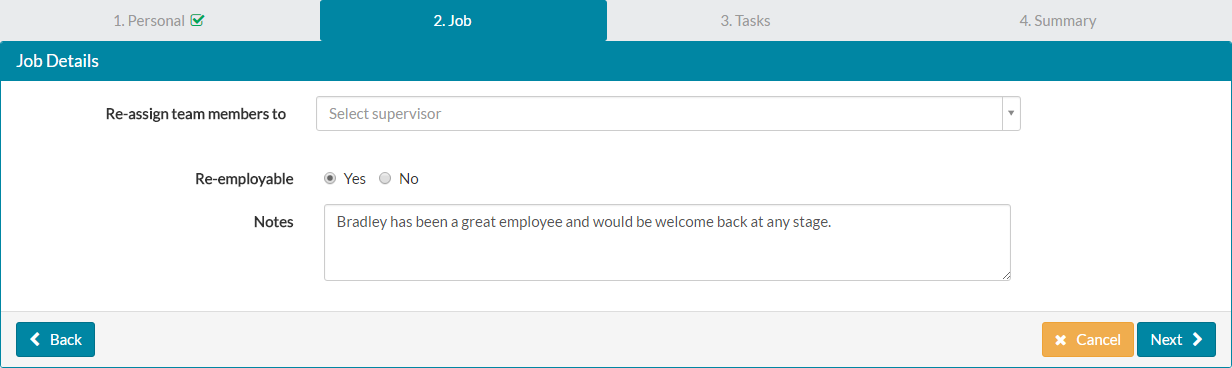
- You can also choose to state whether the employee is re-employable and add notes as to why they are, or are not. An example is shown above. Click next to move on to tasks.
Tasks
- Tasks can either be completed during the wizard or by moving past them and leaving them incomplete, they will be added to your MyPeople task list under Tasks or appear as task notifications.

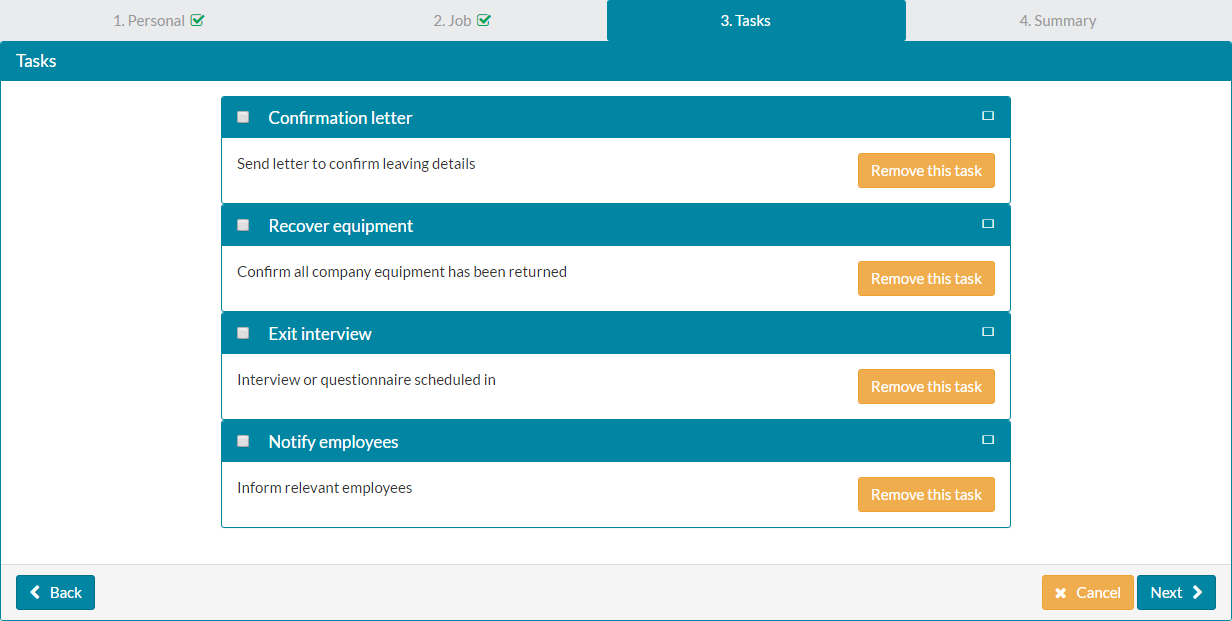
- To confirm a task as complete, click the check-box just before the task name.
- You can also remove any of the pre-defined tasks should they not be relevant, by clicking the amber ‘Remove this task’ button. Click next to move on to the Summary tab.
Summary
- The Summary tab displays some brief, but crucial information relating to the employee leaving.

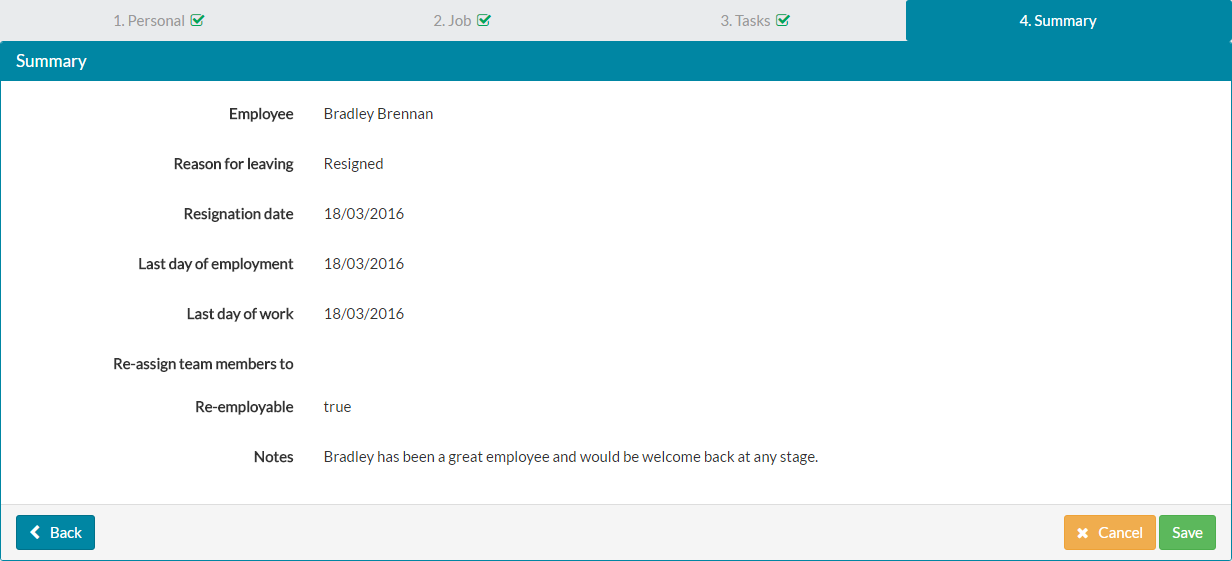
- Confirm that the information is correct.
- You can click the back button to return to the previous tab(s) and make changes to the relevant fields, if you find any information on the summary tab needs adjusting.
- To complete the leaver process, click save on the summary tab.
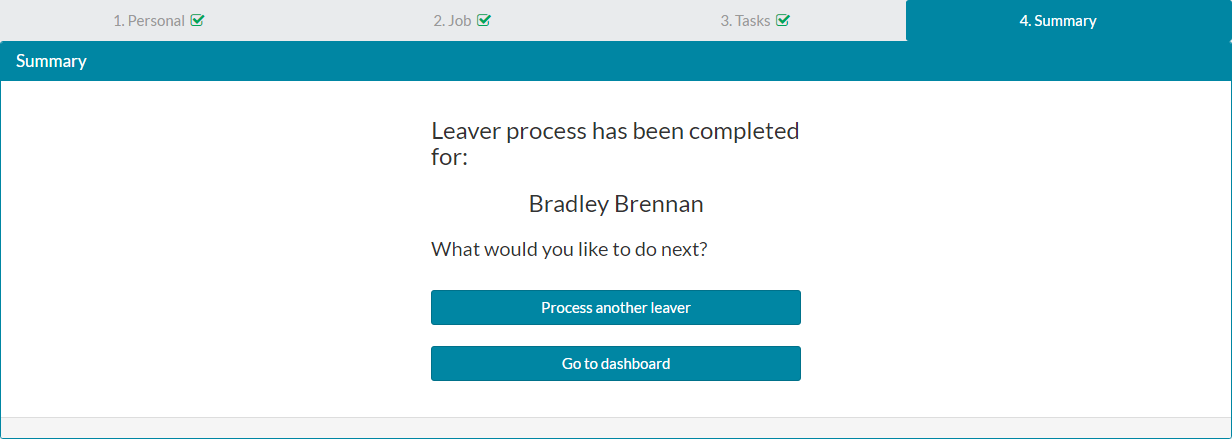
- You’ll then be shown two options to either process another leaver or go to dashboard. You could also click away to another part of the system if need be.

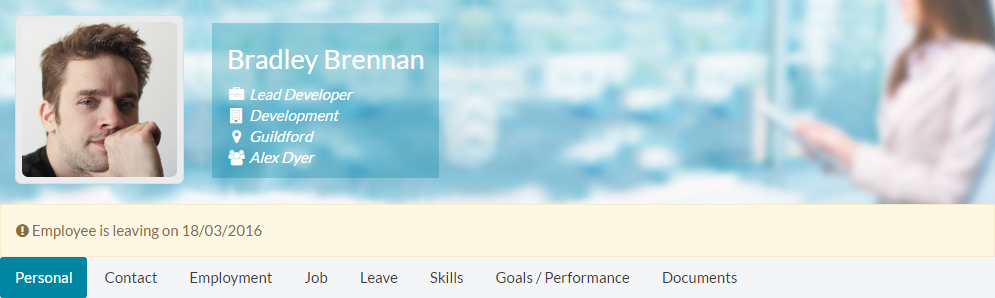
- Once a leaver wizard is complete, this is highlighted on their employee record, as shown below.

- Under the employment tab for the departing employee, a new Leaver Details section will also be added.

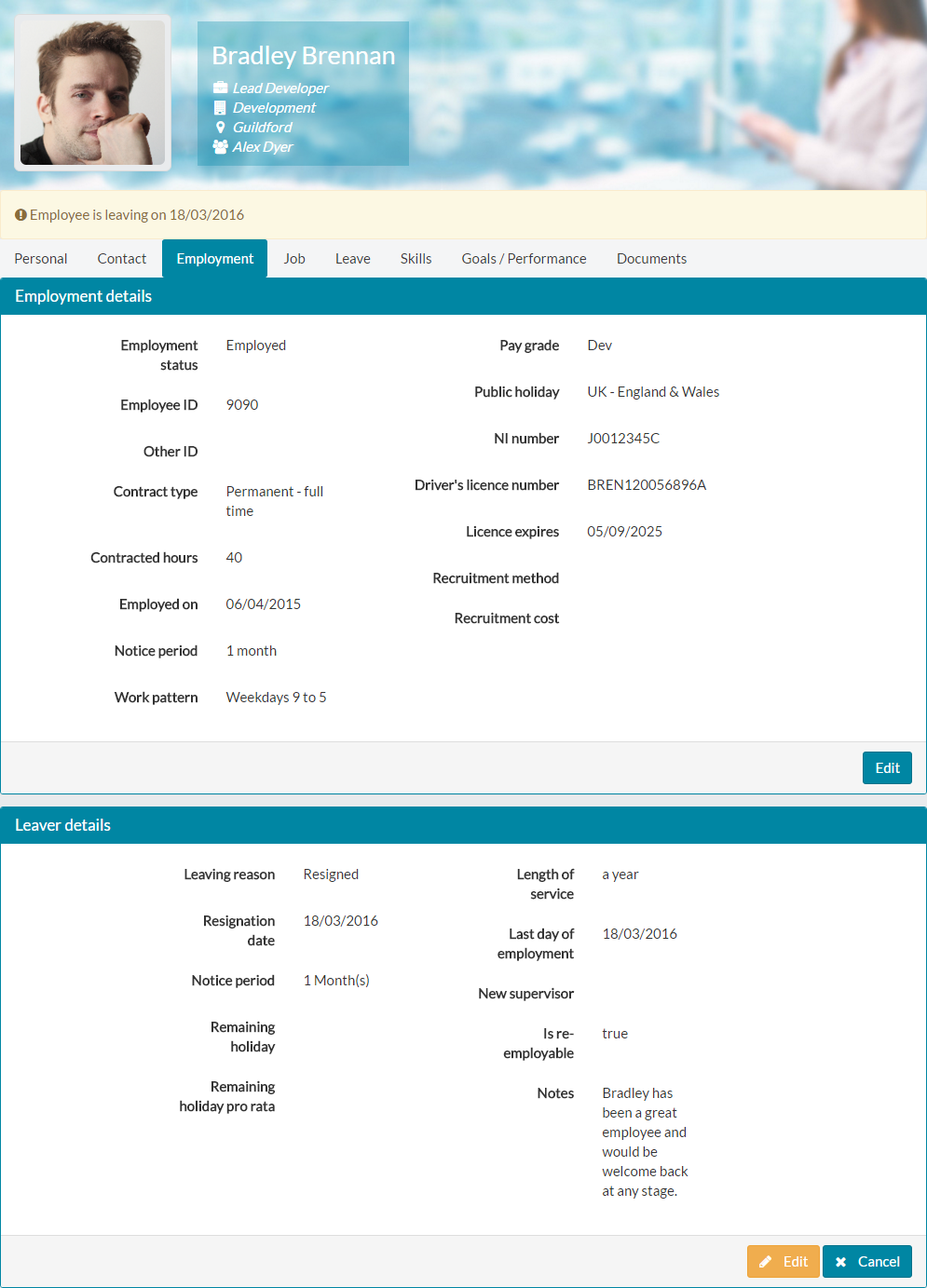
- Should you wish to amend any of the Leaver details, click edit and change any of the fields shown.
Was this article helpful?
That’s Great!
Thank you for your feedback
Sorry! We couldn't be helpful
Thank you for your feedback
Feedback sent
We appreciate your effort and will try to fix the article