Applies to: Team Leaders/Managers and HR/Customer Administrators
Occasionally, you may need to edit a goal for one of your team. This might be to update the review date, change the description or slightly alter the name of the goal.
Editing Goals
- From the employee record of your team member, select the Goals/Performance tab.
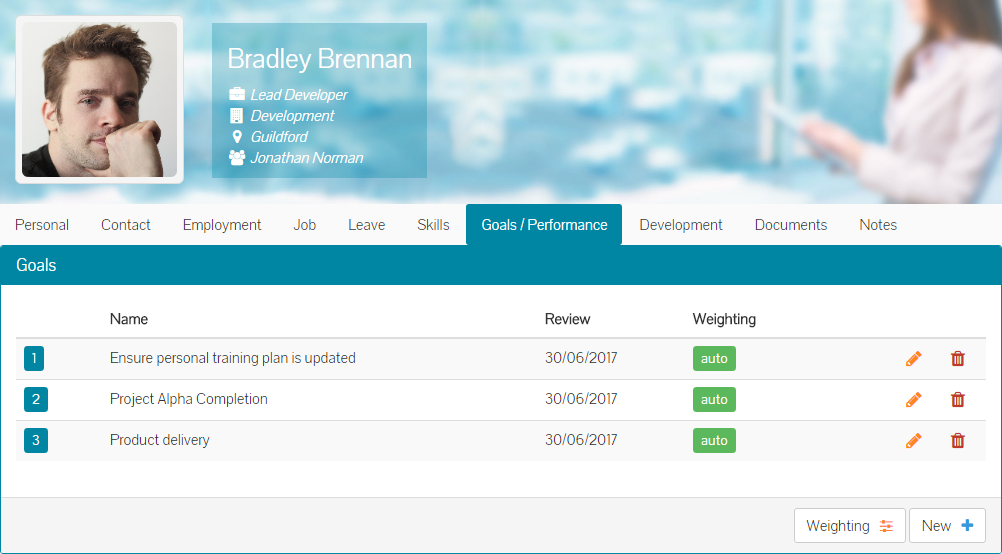
- To edit a goal, click on the orange pencil icon on the same line of the goals to be edited.
- The goal management screen is loaded, containing details of the existing goal.
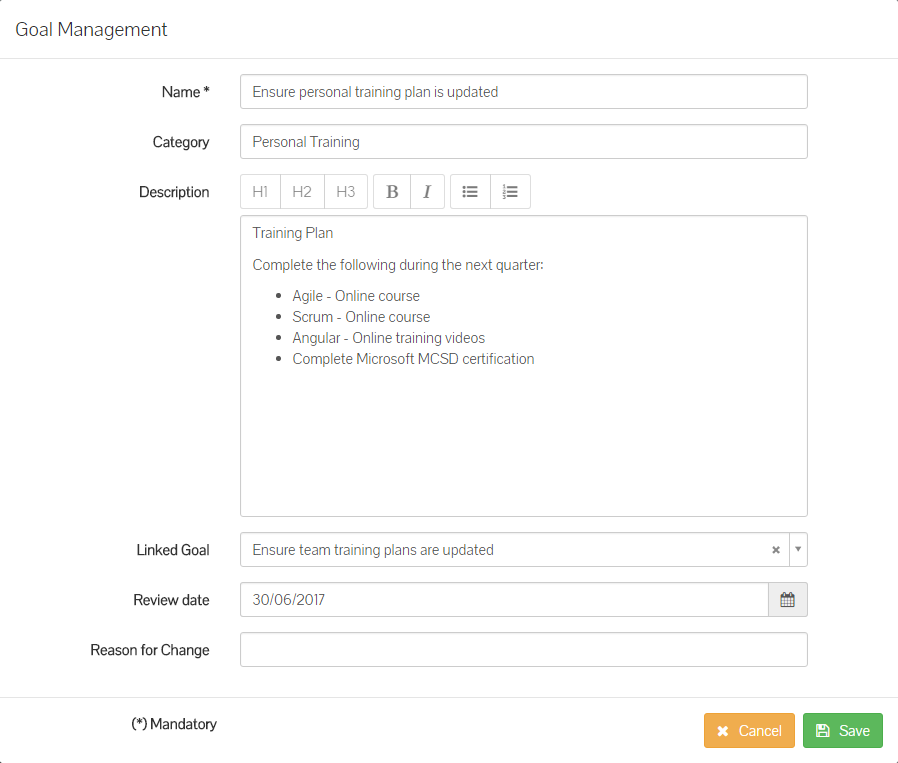
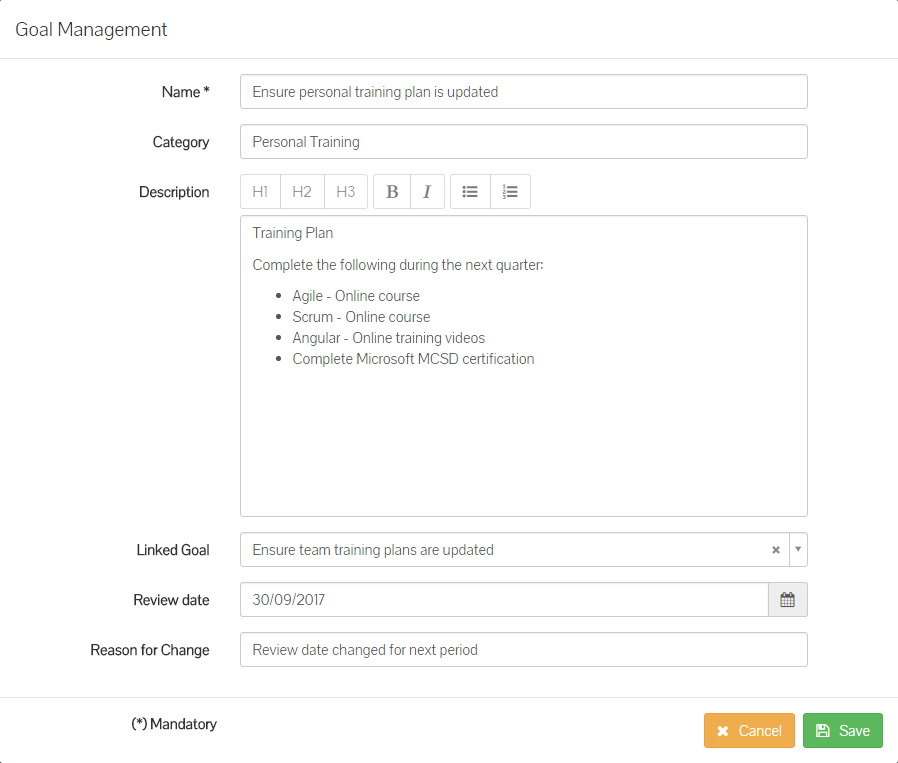
- Make the required changes and possibly add a reason for the change, although this is not required. In the example below, the review date has been changed and a reason for change has been given.
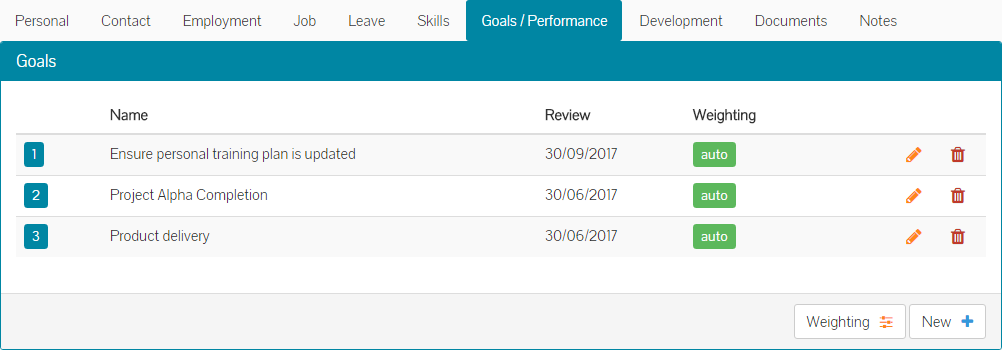
- Click save and the updated goal will show under the goals section of the employee record.
Was this article helpful?
That’s Great!
Thank you for your feedback
Sorry! We couldn't be helpful
Thank you for your feedback
Feedback sent
We appreciate your effort and will try to fix the article