Applies to: All Employees, Team Leaders/Managers and HR/Customer Administrators
- To change your password whilst logged in to MyPeople, click your name on the portal top bar to open the user menu.

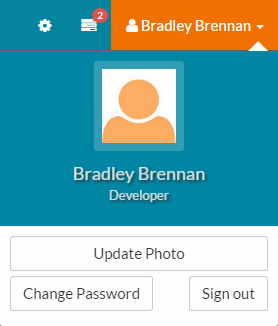
- On the user menu, click ‘Change Password’, which loads the ‘Change Password’ page.

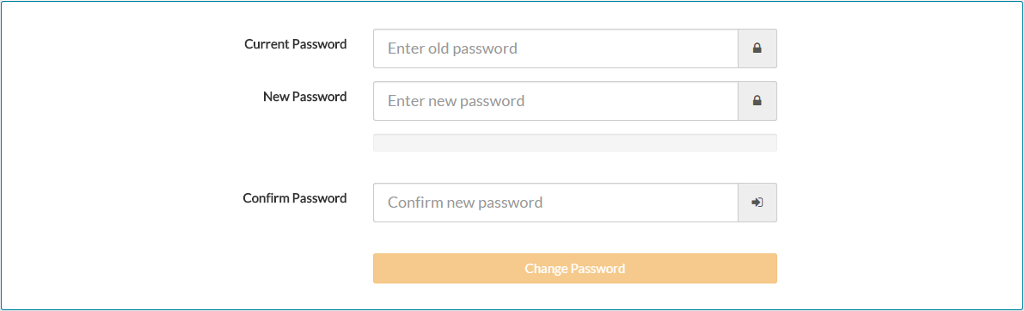
- Enter your current password
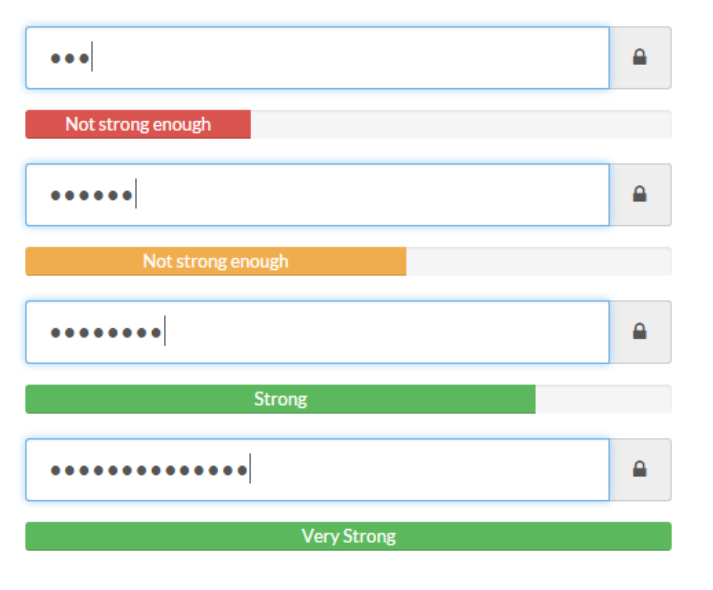
- Enter a new secure password. By default, MyPeople only allows for the use of strong and very strong passwords. This is indicated by the password strength indicator bar.
- As you enter your password, you will notice that the strength indicator bar changes as you enter more characters.


- Enter your strong or very strong password again, in the confirm password field.
- Click the change password button.
- An on-screen confirmation will be displayed, confirming your password has been changed.
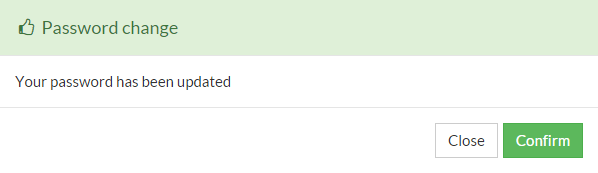

Click close or confirm and you’ll be returned to the MyPeople portal to continue using.
Was this article helpful?
That’s Great!
Thank you for your feedback
Sorry! We couldn't be helpful
Thank you for your feedback
Feedback sent
We appreciate your effort and will try to fix the article