Applies to: All Employees, Team Leaders/Managers and HR/Customer Administrators
Automatic system tasks will be generated from time to time, which will relate to tasks that your organisation require you to complete. These could be to notify you to complete your performance review, to return your signed employee contract if you’re new starter or approving leave requests for team members, should you be a manager/team leader.
- You will receive a notification when a task has been created, the due date of a task has been reached and possibly an email notification in some cases.
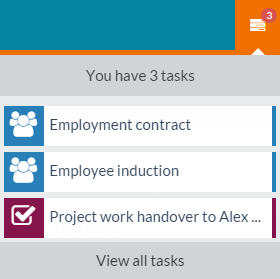
- The task notification appears on the top bar of the portal and will look similar to the following.


- As you can see, three task notifications have been received.
- Clicking on the notification icon opens the task notification sub-menu, showing you a brief summary of the tasks to be completed.

- Clicking on one of the tasks, will take you to the Task Details summary screen, which shows more information about the task.

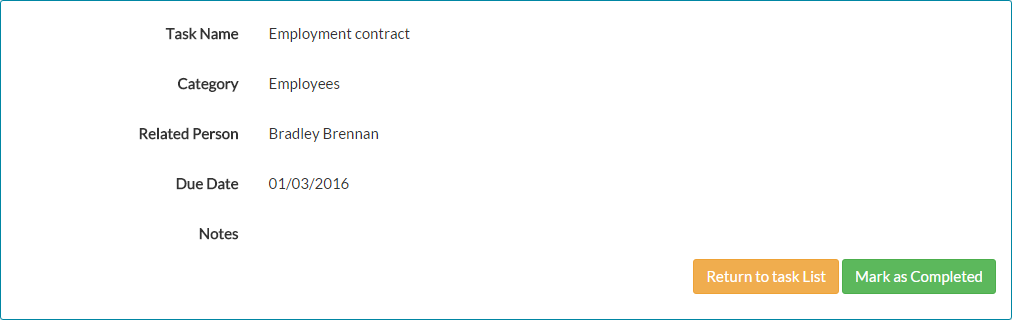
- A key thing to keep in mind here, is that the example task above requires us to complete the corresponding action, then mark the task as complete.
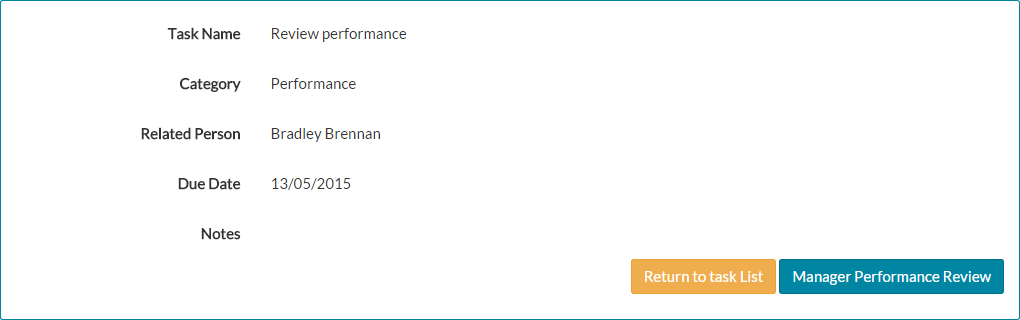
- However, some automatic tasks will have an action button that replaces the mark as completed button. For those that do, clicking the button will take you directly to the required action.
- For example, the below task requires Bradley’s manager to complete Bradley’s review. The mark as completed button has been replaced by an action button, for Bradley’s manager to start the review process quickly and easily.

- An automatic system task is marked as complete, either by marking it complete manually or by completing the corresponding action.
- Therefore, in the example above, when Bradley’s manager completes the manager performance review for Bradley, this task will be marked as complete.
- Unlike manually added tasks, automatic tasks cannot be amended or deleted from the portal, as they are used for reporting and auditing purposes.
- When an automatic task has been completed, the task notification will be removed from your notification area.
- You can view your outstanding list of tasks at any time, by clicking either Tasks on the side menu, or the Tasks Left dashboard panel.

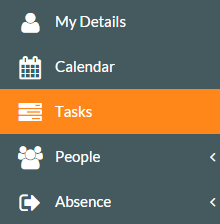 Tasks side menu
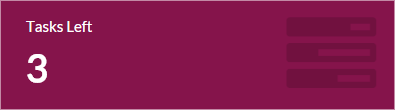 Tasks Left dashboard panel
Was this article helpful?
That’s Great!
Thank you for your feedback
Sorry! We couldn't be helpful
Thank you for your feedback
Feedback sent
We appreciate your effort and will try to fix the article