Applies to: All Employees, Team Leaders/Managers and HR/Customer Administrators
Editing a task only applies to manually added tasks. Automatically generated tasks cannot be edited.
- To edit a task, first open My Tasks by clicking either Tasks on the side menu or the Tasks left panel under the personal section of your dashboard.

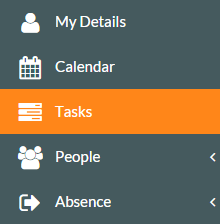 Tasks – Side Menu.
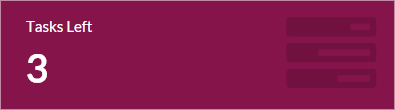 Tasks Left – Personal dashboard panel.
 - Clicking either of the two options above, will load the My Tasks page.

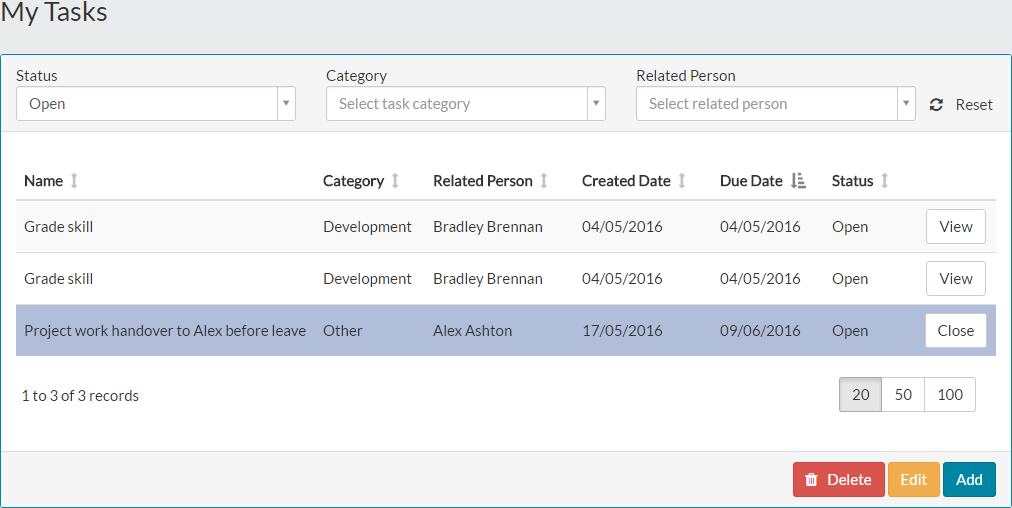
- By selecting a manually added task as shown above, click the amber edit button.
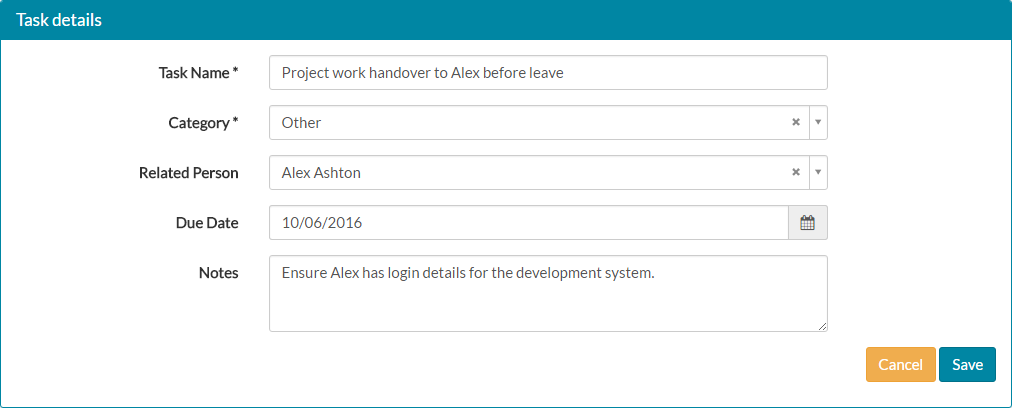
- The task details page will open, showing the task information.
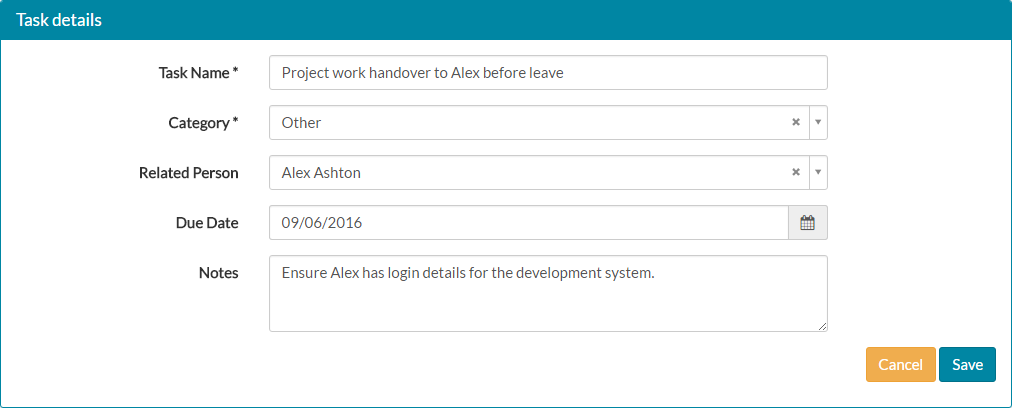

- Make the required changes and click save. In this example, the due date has been changed from 09/06/2016 to 10/06/2016.

- The changes are then updated in My Tasks, as shown below.

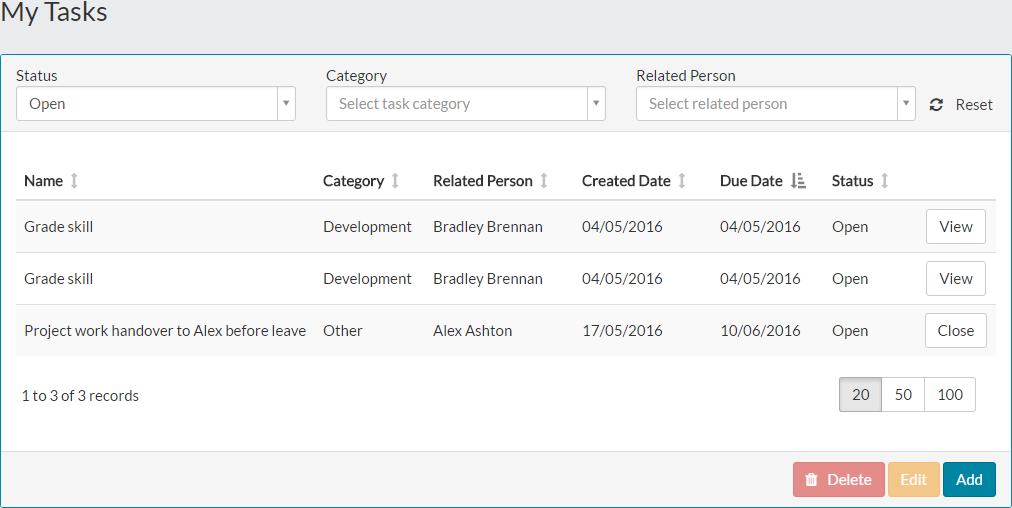
- Bradley will therefore now receive a task notification on the due date of 10/06/2016, instead of 09/06/2016.
Was this article helpful?
That’s Great!
Thank you for your feedback
Sorry! We couldn't be helpful
Thank you for your feedback
Feedback sent
We appreciate your effort and will try to fix the article