Applies to: All Employees, Team Leaders/Managers and HR/Customer Administrators
Tasks can either be set to completed manually or by completing certain actions, such as completing your performance review, or approving a leave request for a team member if you’re a manager.
Whilst the completed status of a manually added task can be changed and set to not complete, automatically generated tasks such as the examples above, cannot be changed to an incomplete status.
- To complete a task, first open My Tasks by clicking either Tasks on the side menu or the Tasks left panel under the personal section of your dashboard.

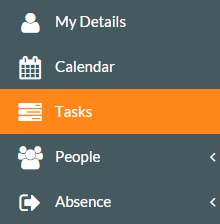 Tasks – Side Menu.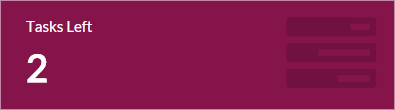

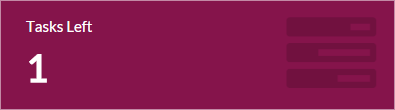
Tasks Left – Personal dashboard panel. - Clicking either of the two options above, will load the My Tasks page.

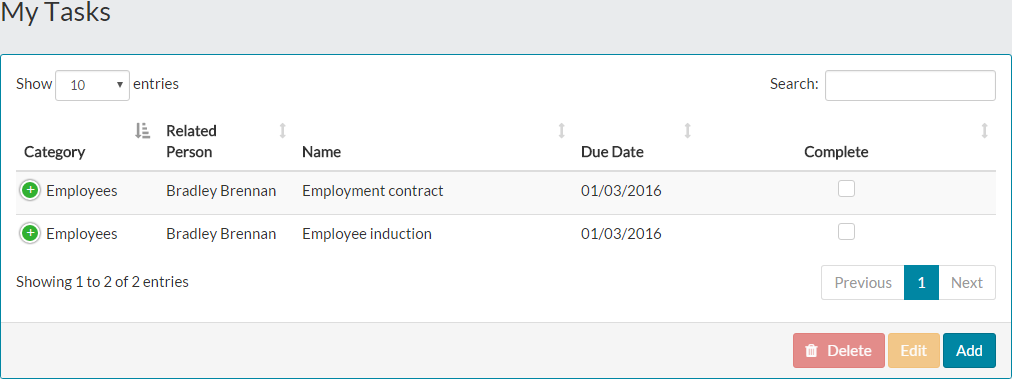
- In the example above, these two tasks are automatically generated tasks. They cannot be deleted, but can manually be marked as complete.
- Once automatic tasks are either marked completed by you or you have completed the corresponding action, you cannot mark them as incomplete again.
- To mark tasks as complete, click the check-box on each task.
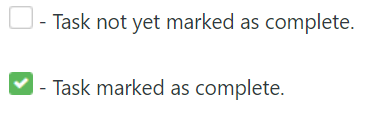
- When an automated task has been completed, either by completing the corresponding action within MyPeople and the task automatically being updated, or by marking an automatic task complete manually, like the examples above, the check-box status changes to slightly lighter version of a ticked box.


- This shows that an automatic task was complete and this completion cannot be undone.
- Once you have marked a task complete manually or the system has automatically marked a task as complete, the Tasks Left dashboard panel is updated to reflect the status change.

- Tasks such as ‘Complete performance review’ that are completed within the portal, show action buttons rather than the standard check box to mark the task complete.
- When the performance review has been completed, the action button is replaced by a task check-box and is automatically checked. This cannot be undone.

Was this article helpful?
That’s Great!
Thank you for your feedback
Sorry! We couldn't be helpful
Thank you for your feedback
Feedback sent
We appreciate your effort and will try to fix the article