Applies to: All Employees, Team Leaders/Managers and HR/Customer Administrators
Leave information for holiday, sickness, special leave and maternity/paternity is recorded and visible in a number of places.
Dashboard panels and leave pages/tables, either show highlighted snippets of information, such as holiday taken and holiday left, or show more detailed information such as dates, durations and status.
- Under the Personal section of the dashboard, you should see four panels relating to leave information.
- The Holiday Left panel below, shows you the number of days remaining from your entitlement.

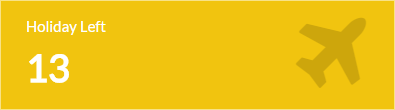
- The My Leave panel.


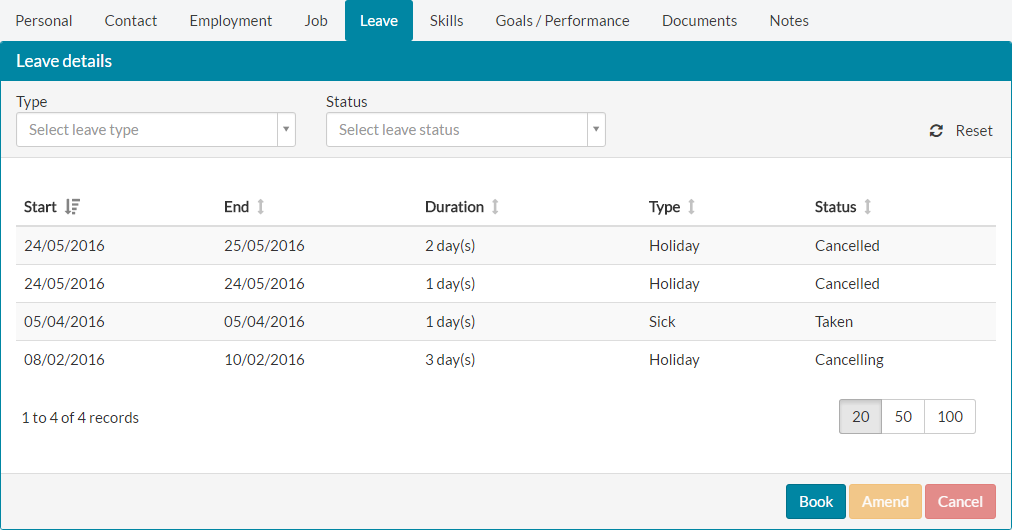
- Clicking either of the panels shown above, will take you to your table of leave, which shows all leave in any status. You can also book, amend or cancel leave from this screen.

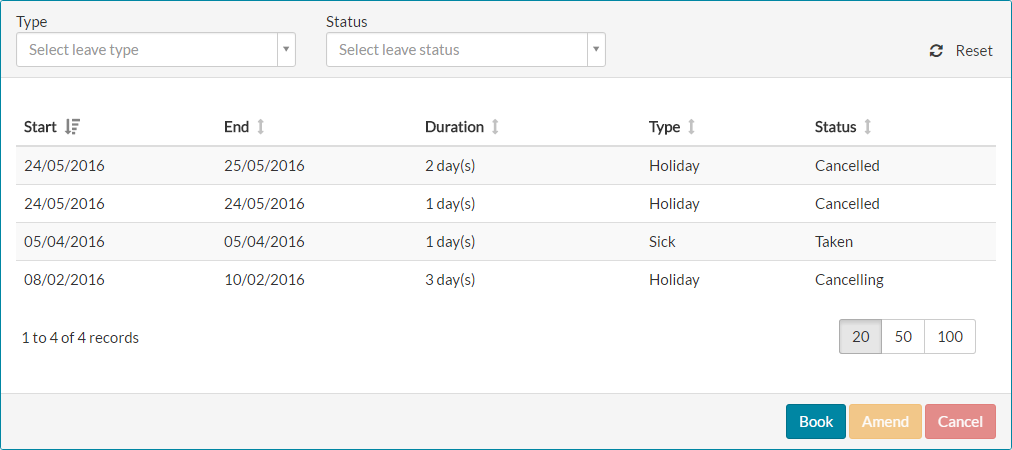
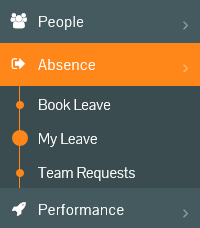
- The table of leave above can also be accessed by clicking Absence on the side menu, followed by My Leave.
- It can also be accessed form the Leave tab of My Details, accessed by clicking My Details on the side menu.

- The Holiday Taken panel below, shows the number of days from your entitlement you have taken. The value here is updated when you request leave, or it is in an approved or taken status.

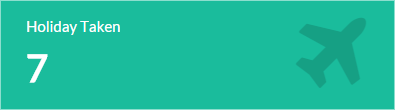
- Clicking on the Holiday Taken panel will display a report of leave taken, which is slightly different from the table above and used for system reporting.

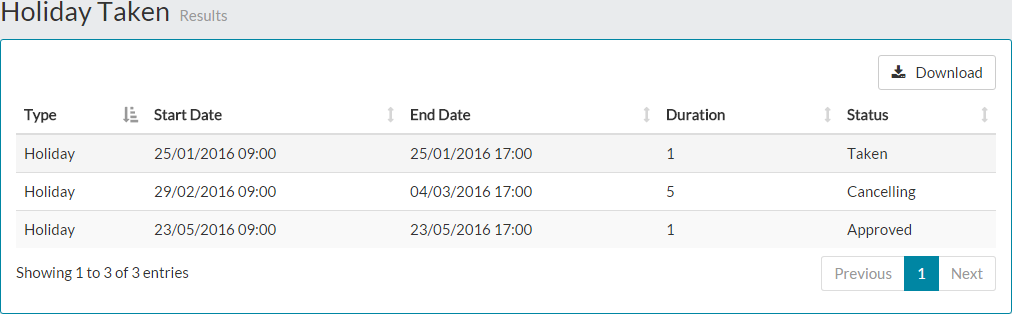
- From the Holiday Taken results screen, you can choose to download a list of your taken holiday leave, to file. Click the Download button and when prompted, choose a name and location to save the report, which will be in .CSV format.
- The Days Sickness panel shows the total number of days recorded as sick for the year.

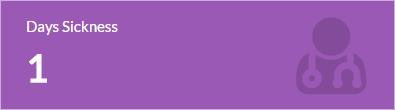
- Clicking on the Days Sickness panel will display a report of your recorded sick days.

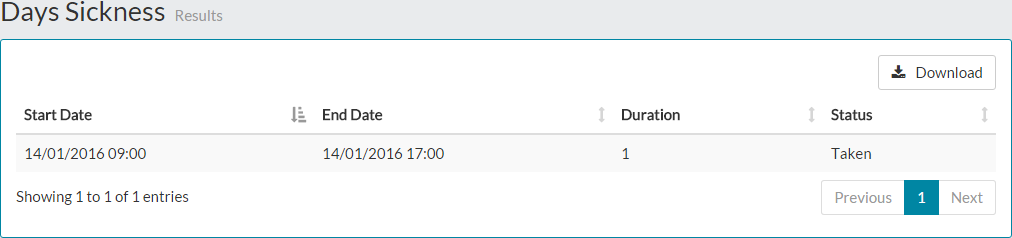
- From the Days Sickness results screen, you can choose to download a list of your taken sick leave, to file. Click the Download button and when prompted, choose a name and location to save the report, which will be in .CSV format.
Related Articles:
- Booking Leave - Holiday (Days)
- Booking Leave - Holiday (Hours)
- Booking Leave - Sickness
- Booking Leave - Special
- Booking Leave - Maternity
- Booking Leave - Paternity
- Amending Leave
- Cancelling Leave
Was this article helpful?
That’s Great!
Thank you for your feedback
Sorry! We couldn't be helpful
Thank you for your feedback
Feedback sent
We appreciate your effort and will try to fix the article