Applies to: HR/Customer administrators
Company documents could be important documents for employees to read, such as a staff handbook, health and safety policies or a data protection guide.
These company related documents, can be added under the company documents section of MyPeople and are applied to all employees under their employee record, or to employees of a selected department.
Adding Company Documents
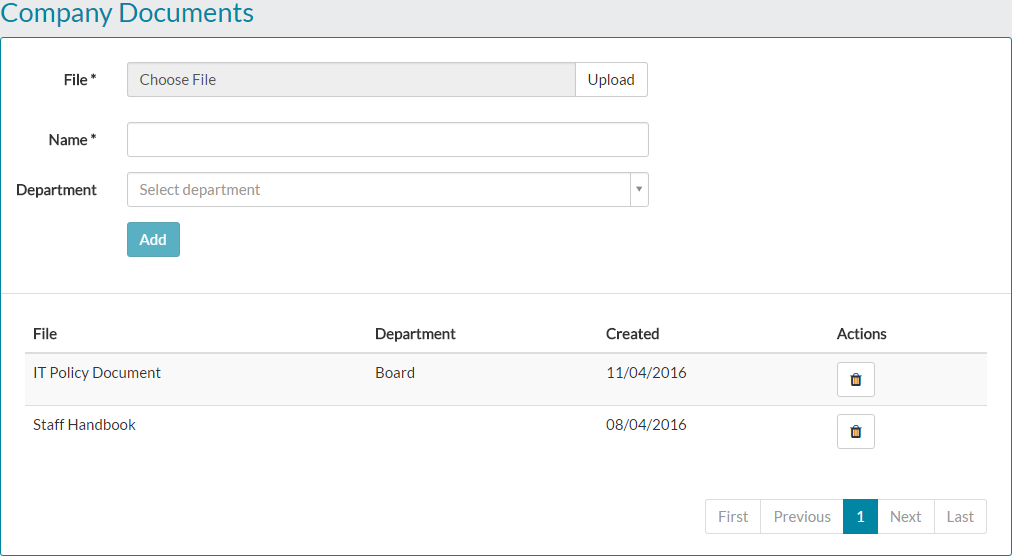
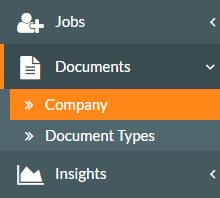
- To add a company document, click Documents on the side menu, followed by the Company sub-menu.

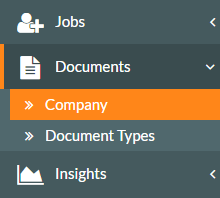
- The Company Document screen will be displayed, which may show previously added company documents.
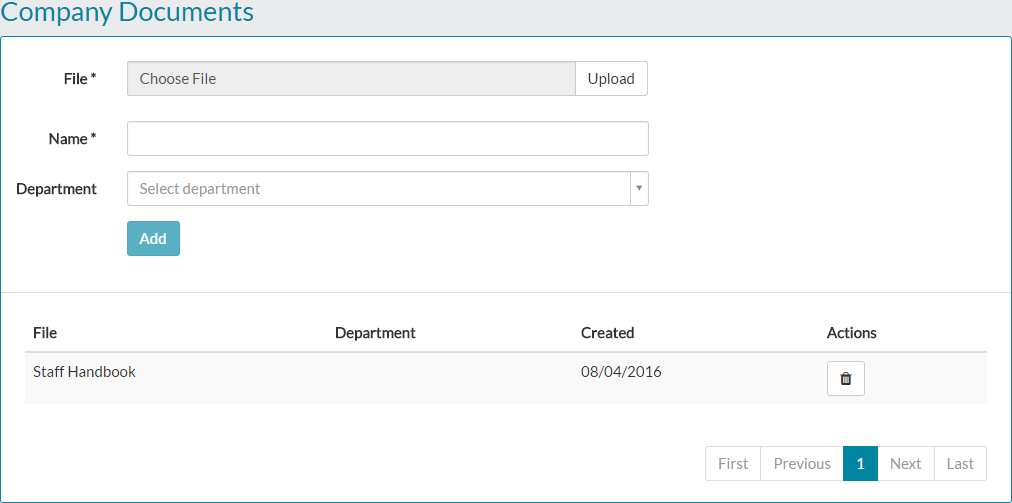

- First choose the file you wish to upload, by clicking the upload button.
- Browse to where your file is located on your computer, when the Open file dialogue box is displayed.

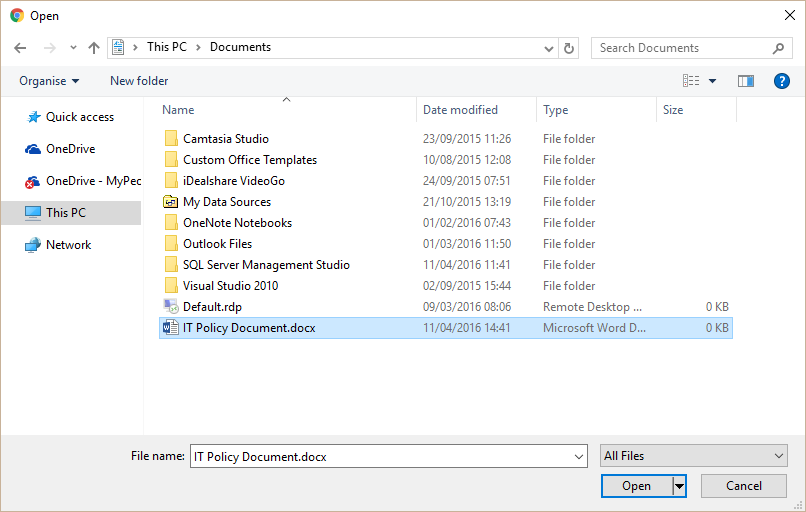
- Select the file and click open, which will temporarily upload the file to MyPeople.


- Give the document a name.
- You can then either select a department to assign this document to, which makes it available for each employee of that department or by leaving the department field blank, applies it to all employees within MyPeople.
- A completed company document addition will look similar to the example below.

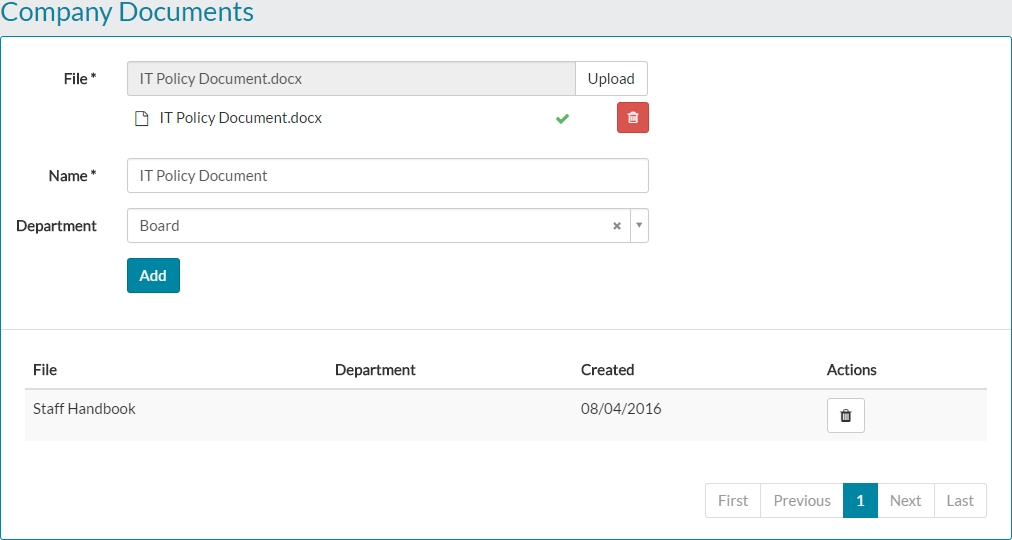
- Click add and the new document will be added to all or selected employees chosen.
- The Company Documents screen will be updated to reflect the addition of the new document.

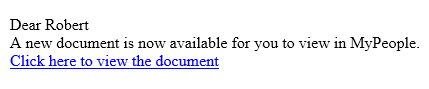
- Whether or not you have selected all employees or selected employees using the department drop-down menu, those employees will receive an email notification to advise that a new document is available within MyPeople, as shown in the example below.

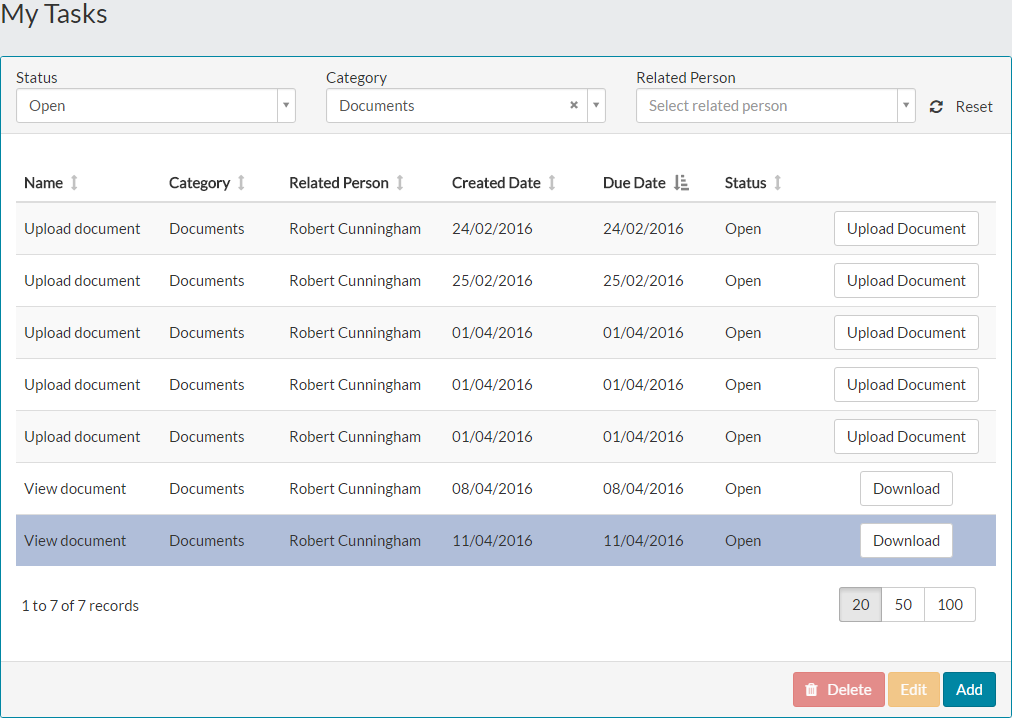
- The employee will also receive a task, to view the newly added document as shown in the example below.

- Any employee selected when adding this document, will be able to see the document under their employee record (My Details).

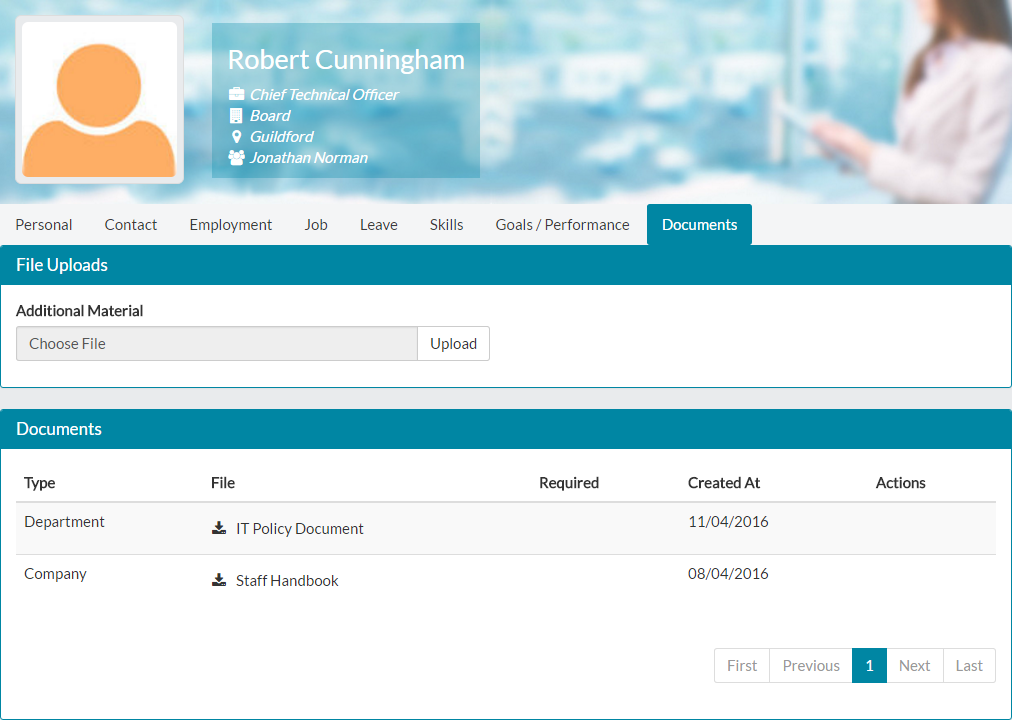
- They can download this document to view, simply by clicking on the download icon next to the file name.
Deleting Company Documents
- Should you wish to delete a company document or re-upload an updated version, click the Documents menu, followed by the Company sub-menu.
- The Company Documents screen will be displayed.
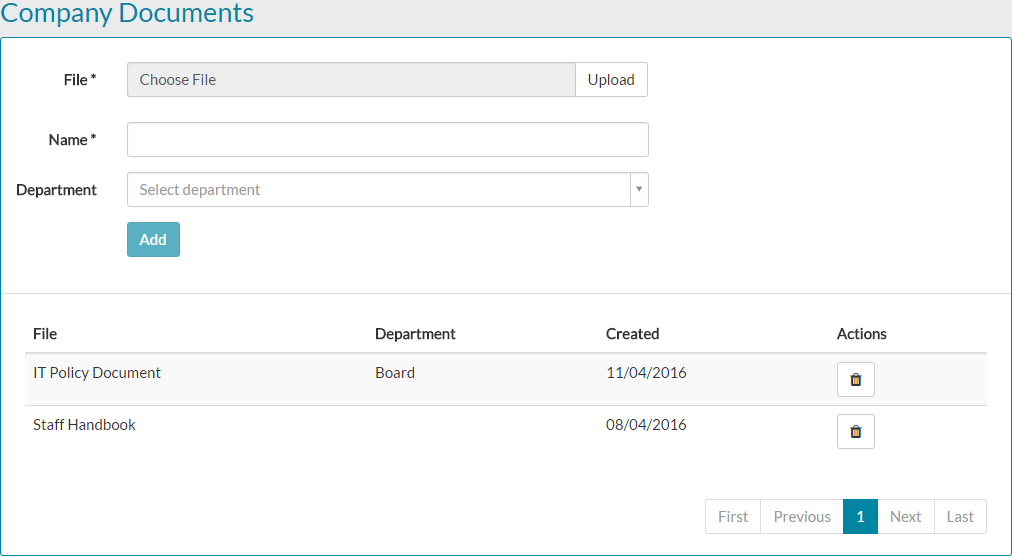
- Click on the trash can icon, next to the file you wish to delete. This removes the document from all or selected employees that were originally selected, when the file was being added.
- Similarly, follow the same process to remove an old version of a document, before using the adding company document section at the top of this article, to add an updated version.
Was this article helpful?
That’s Great!
Thank you for your feedback
Sorry! We couldn't be helpful
Thank you for your feedback
Feedback sent
We appreciate your effort and will try to fix the article