Applies to: All employees
There are two reasons you may need to upload a document to your employee record. These are; when a document type has been added by administrator and applied to all or selected employees, or when you want to add additional documents that are in relation to your employment, skills or personal information.
You can upload documents to your employee record at any time, using the additional documents area, or when a document request has been added to your record, which you’ll receive an email and task notification for.
Identifying Documents
- Under your employee record, there are three possible document upload areas, which are uploads of required documents, other document types and additional documents.
- By selecting the Documents tab of your employee record, as shown below, you can view the document upload area.

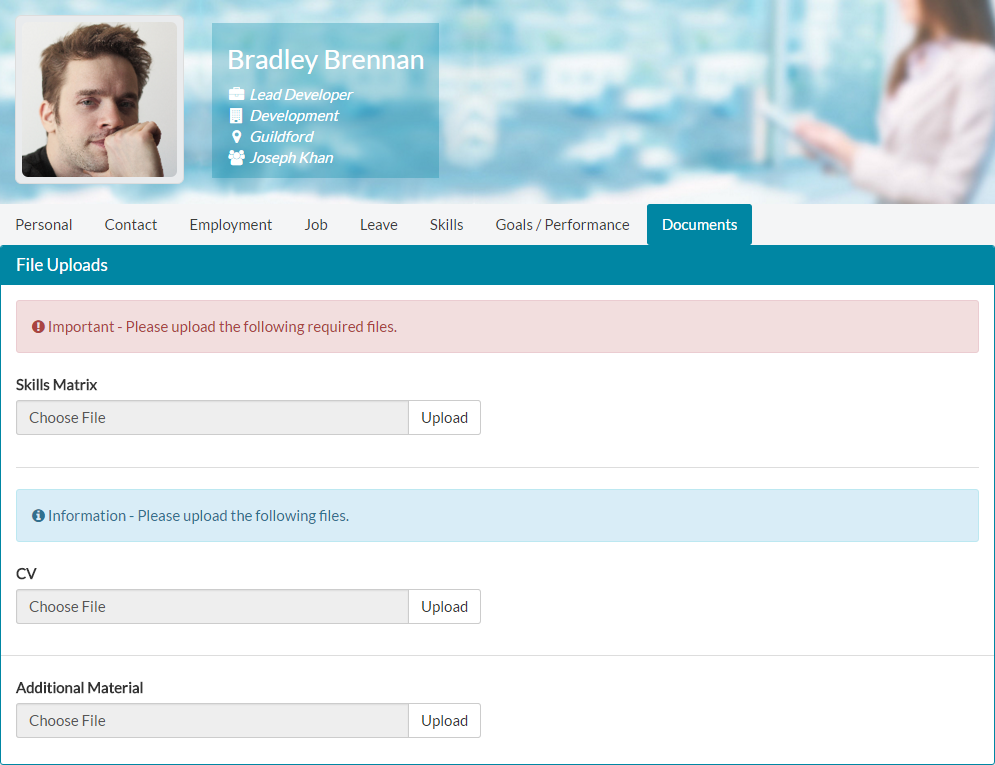
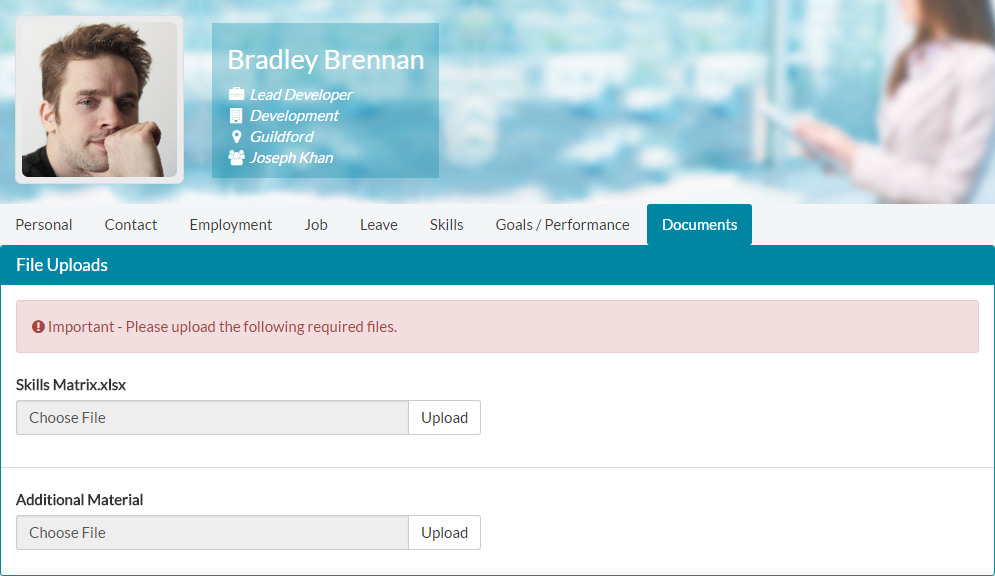
- In the example above, we can see that Bradley is required to upload a Skills Matrix document, which has been added and marked as required by an HR/Customer administrator for his organisation.
- We can also see, that an HR/Customer administrator has added a document type for CV, but not marked this as required. Bradley could and perhaps should upload this, but as they have not marked it as required, it isn’t crucial that he does.
- Lastly, Bradley can upload Additional Material. This gives him a chance to upload any documents he feels relate to his employment, that he wishes to be available against his employee record. Only Bradley, his line manager and Hr/Customer admins can see the documents under Bradley’s employee record.
Uploading Documents
- To upload a document, which could be a required or additional document, first go to My Details and click on the Documents tab.
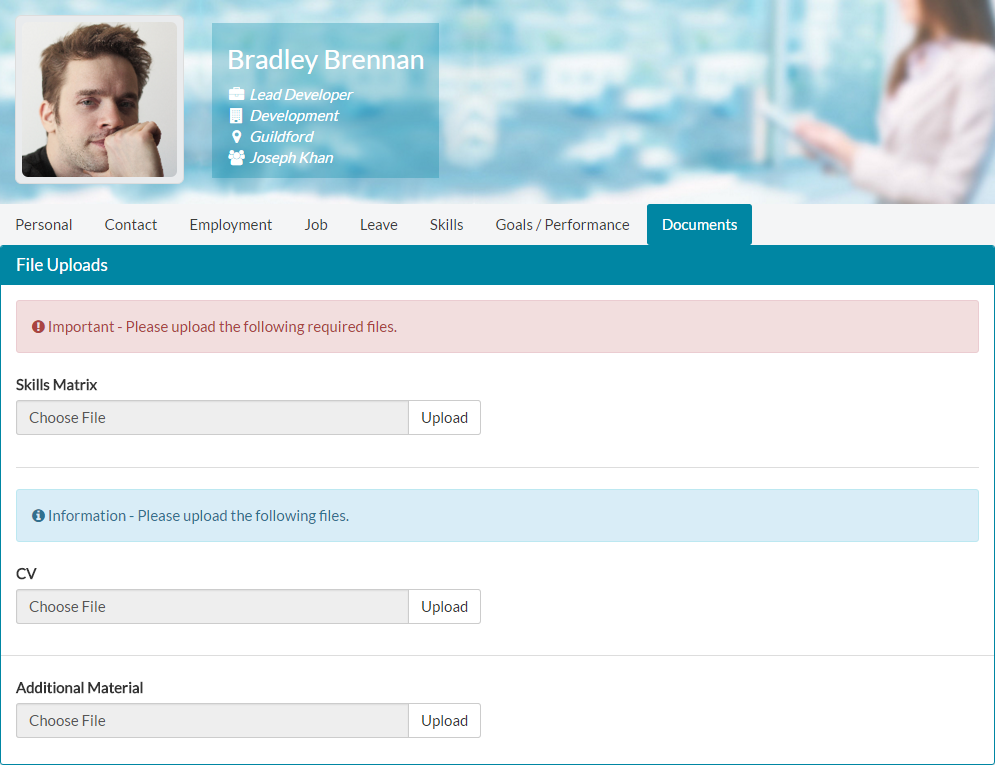
- As you can see, Bradley is required to upload a Skills Matrix document.
- Click upload next to any required, information or additional material document areas, which will load the open file dialogue window.

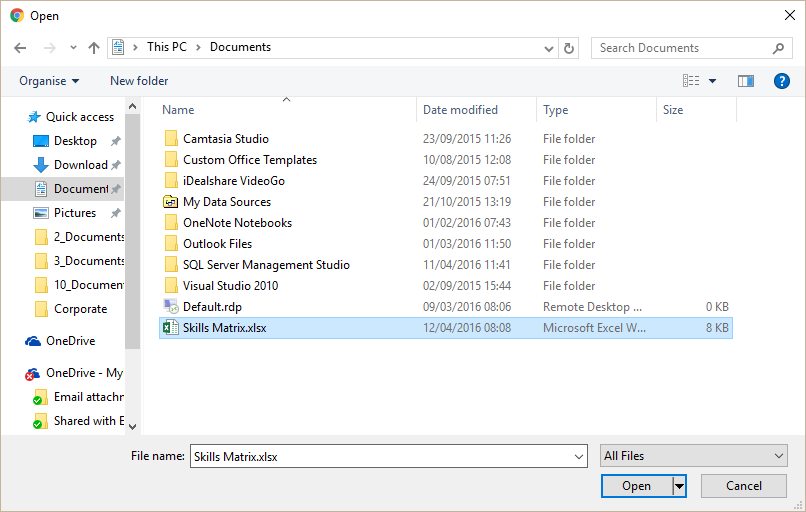
- Locate and select the file to be uploaded, before clicking open.
- The file will be uploaded and shown in the documents section, as shown below.

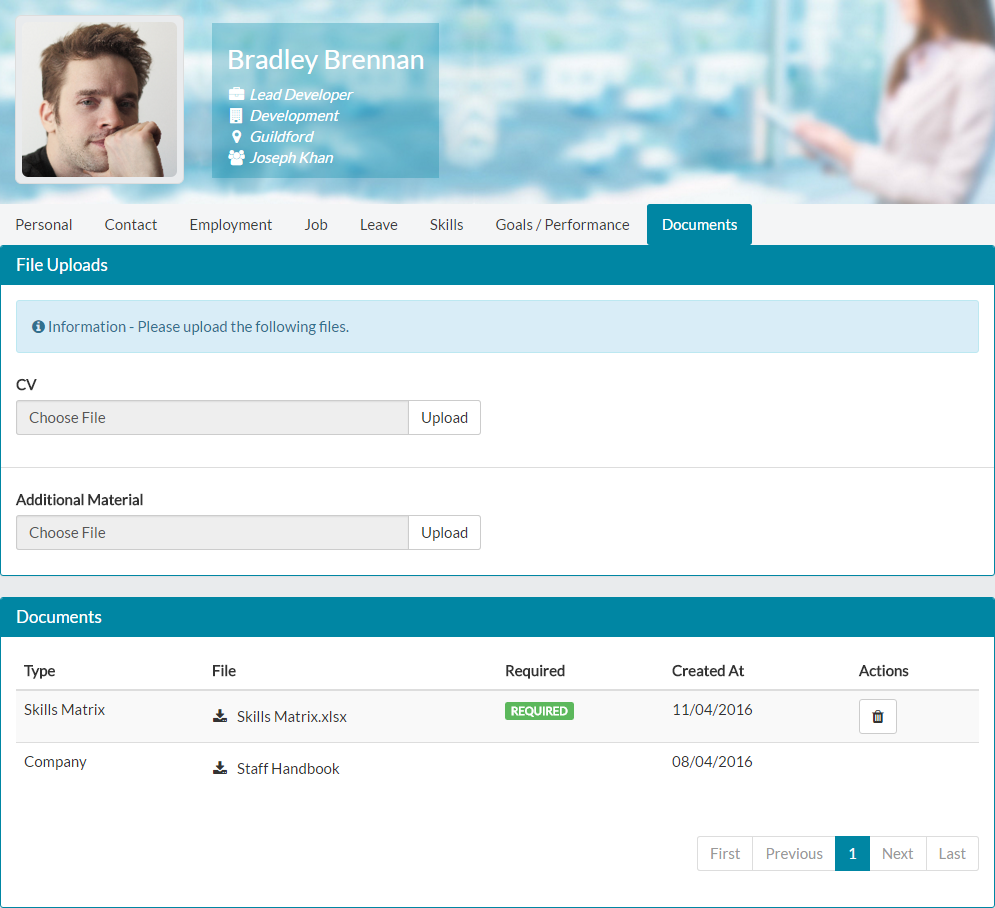
- As you can see, Bradley’s newly uploaded Skills Matrix has been uploaded as a required field and available for download under his documents section.
- The same process applies to uploading the corresponding file for CV in this example, as well as additional material.
- Once files have been uploaded for each, these are added to the documents area and labelled with the type of document they are, such as Additional Material, CV, Skills Matrix and Company. The company document has been added and applied by an HR administrator to all employees.

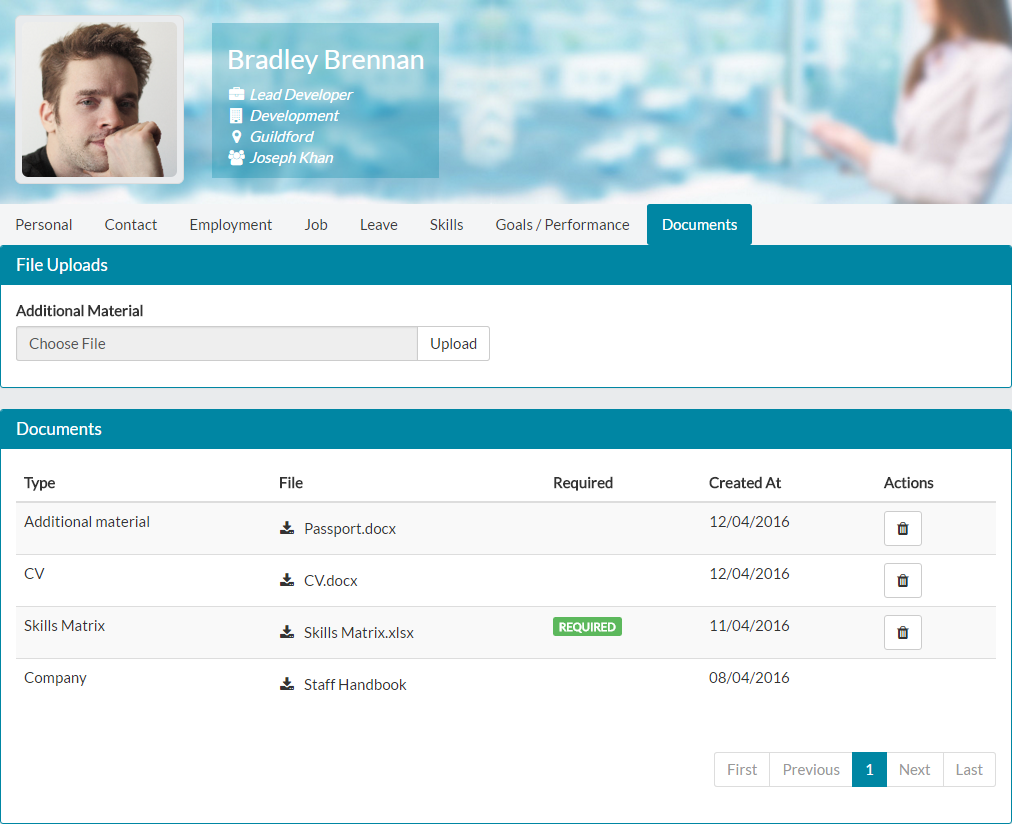
- Documents can be deleted at any time, using the trash can icon next to the document, as shown above.
- When deleting a required document, the document upload will again become available and show that you are required to upload this document.

Was this article helpful?
That’s Great!
Thank you for your feedback
Sorry! We couldn't be helpful
Thank you for your feedback
Feedback sent
We appreciate your effort and will try to fix the article