Applies to: All Employees, Team Leaders/Managers and HR/Customer Administrators
Some tasks are created and added automatically, from required actions you may need to complete. Examples of these are notifications to complete your performance review or for managers, approving leave requests.
You can however, add your own tasks as reminders. These could be private personal tasks or tasks relating to some work you are due to complete.
- To add a task, you can click the Add Task panel under the Personal section of your dashboard. This takes you directly to the new ‘Task Details’ page.


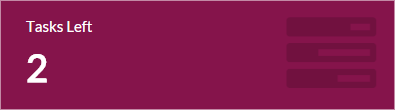
- You could also click the Tasks Left panel under the Personal section of the dashboard.

- Lastly, you could also click Tasks on the side menu.

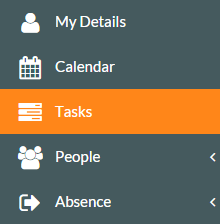
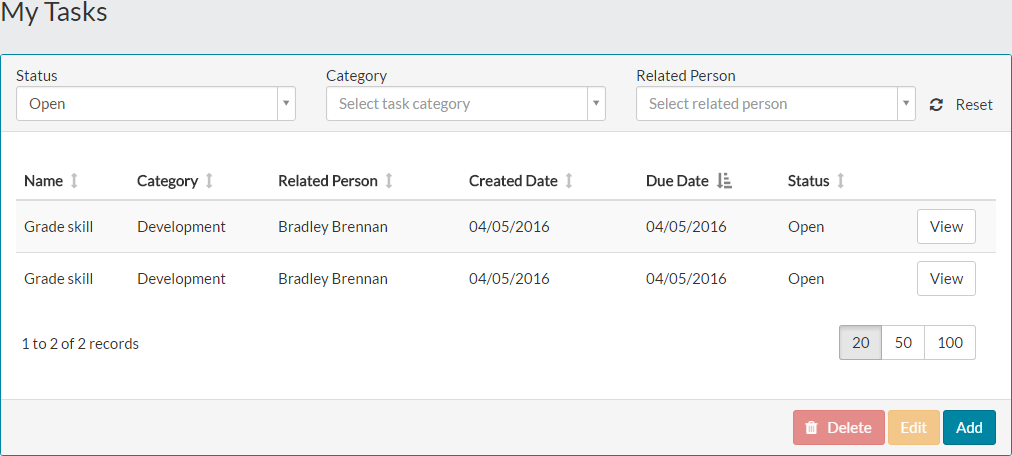
- Clicking either Tasks on the side menu or the Tasks Left dashboard panel, will both take you to the My Tasks page, where you can click the add button at the bottom of the page, to load the new Task Details page.

- Using one of the methods mentioned to add a task, the new Task Details page is opened.

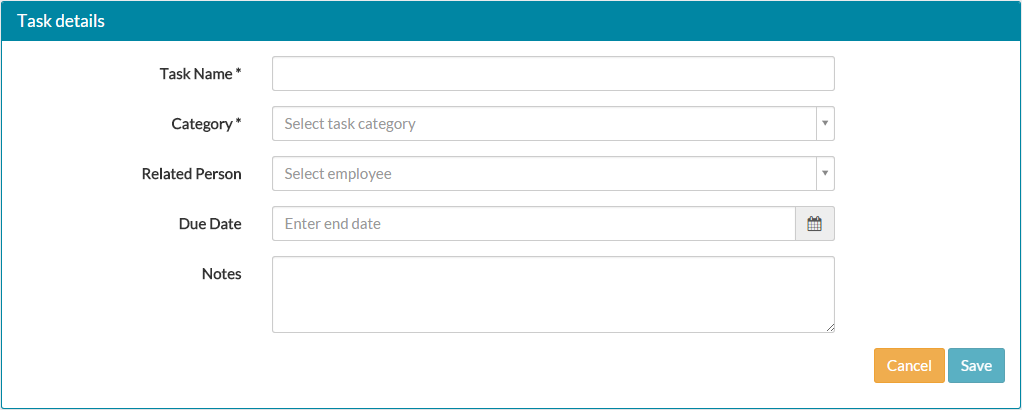
- Enter a name for your task, which could relate to either a business or personal task.
- Select a category from the category drop-down menu, which ties in to the name you have given your task.
- The related person drop-down menu allows you to select a colleague to associate with the task. This is purely for your reference and the selected employee does not receive or see this task. An example might be a business task to handover some project work to Alex Dyer, before you go on leave.
- Add a due date to the task, for when the task needs to be completed. You will receive a task notification within MyPeople, when the task is due.
- The notes field can be used for any additional information you may need when completing the task.
- A completed Task Details form will look similar to the one shown below.


- Click save and you will be returned to My Tasks, were you can see your new task has been added.

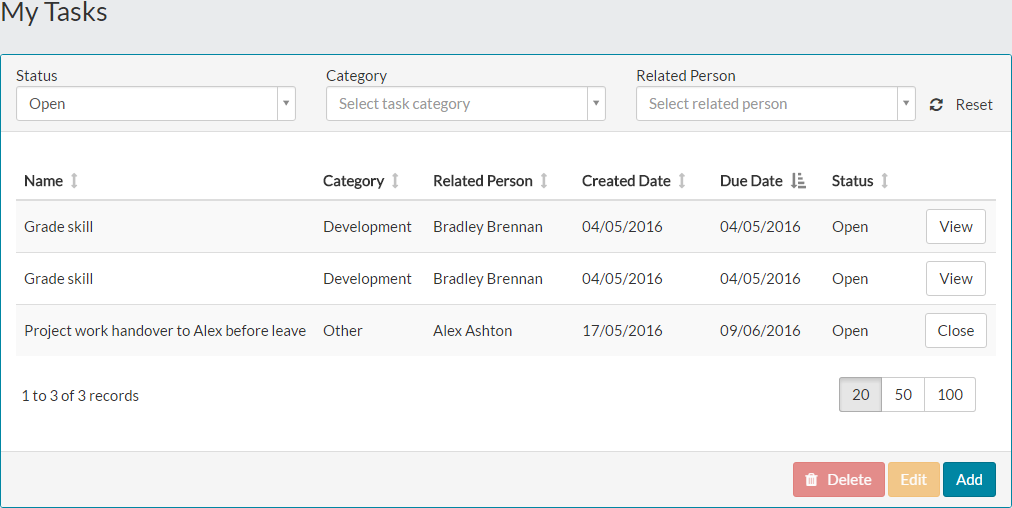
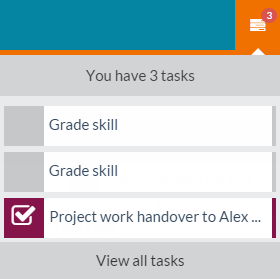
- If the task is still open when the due date has been reached, you’ll also see it as a task notification on the portal top bar.


- Expanding the task notification area, shows the newly added task when the due date has been reached.

Was this article helpful?
That’s Great!
Thank you for your feedback
Sorry! We couldn't be helpful
Thank you for your feedback
Feedback sent
We appreciate your effort and will try to fix the article