Goals
Goals are normally set on a top-down basis, starting with company goals, then team/manager goals and finally, employee goals. This allows for the goals of an employee to be linked to the goals of their team/manager, who could have their goals linked to the company goals.
This is known as the S.M.A.R.T (Specific, Measurable, Achievable/Attainable, Results oriented/Realistic/Relevant, Time bound) framework for setting goals, which is a widely adopted standard.
Adding Goals
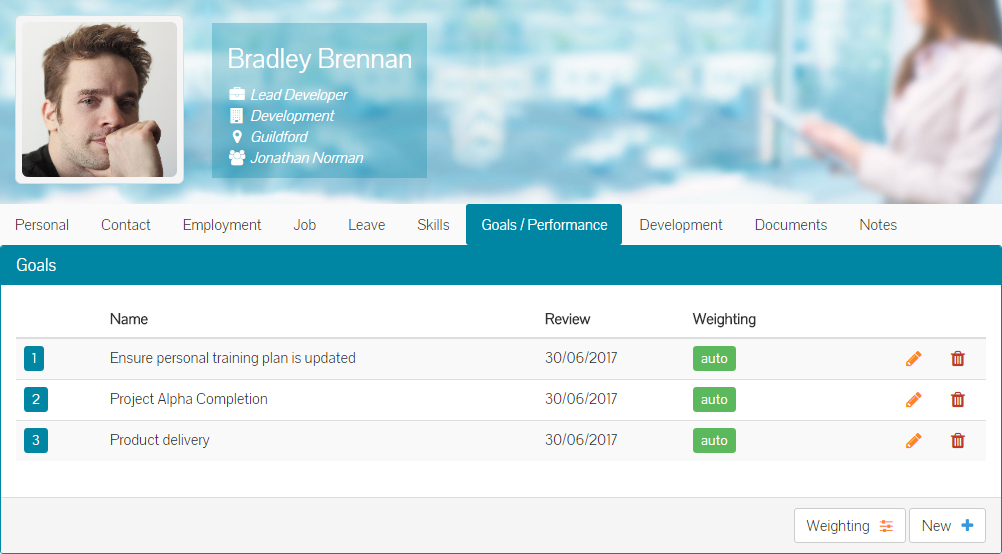
As a manager viewing the employee record of one of your team members, click the Goals/Performance tab of their record, shown below.
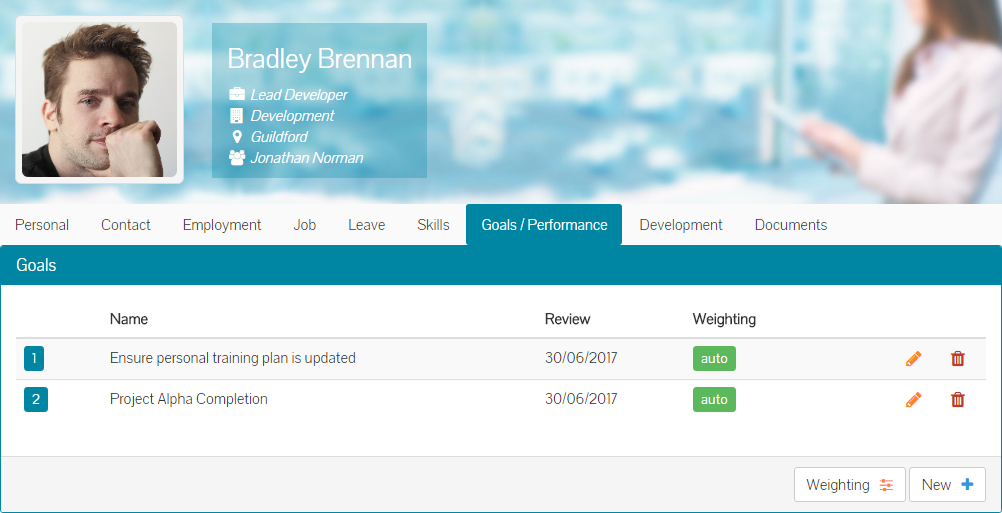
As you can see in the goals section, you have the option to add a new goal.
Click the New button to start adding a goal, which loads the ‘Goal Management’ form on screen.
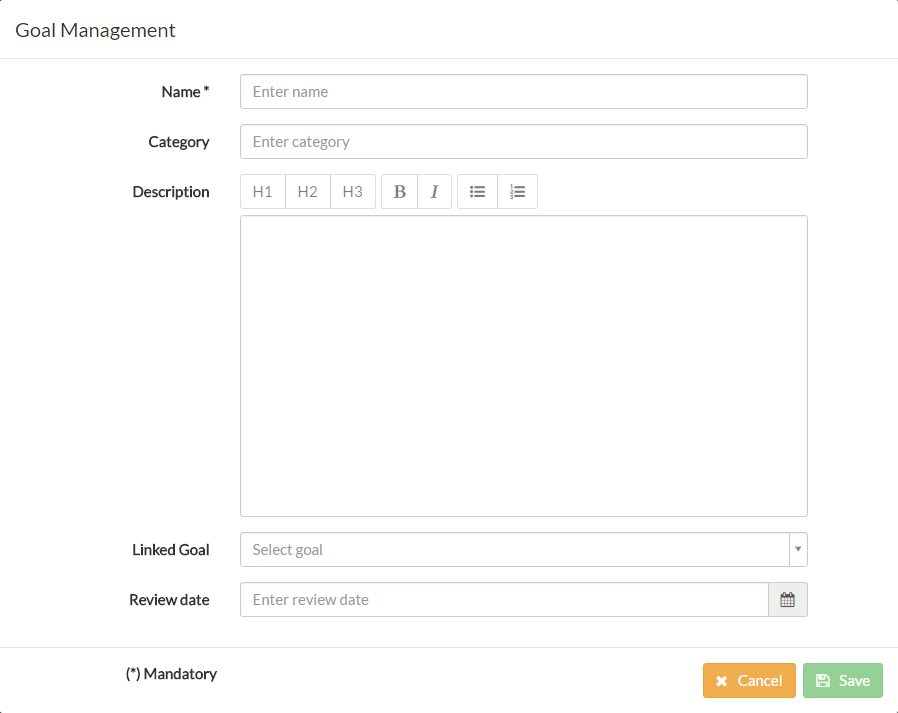
Enter a name for the goal, which is a required field.
Optionally, you can enter a category for the goal. This for example, could be a category of ‘Sales’ for a goal that is something similar to ‘Meet personal new business target’. You could then have other goals under another category, such as a Personal
Development category, for which a goal of ‘Ensure personal training plan is updated’ is added.
Optionally enter a description of the goal if further information is needed, using the description formatting tools available to increase font size, make them bold/italic, bulleted or numbered.
On the linked goals drop-down menu, you can select one of your own goals to link to.
In this example, Alex is creating a goal for Bradley, which measures that company product delivery time scales are met. Alex then links this goal to his own product delivery goal, which was added by Alex’s manager Gavin.
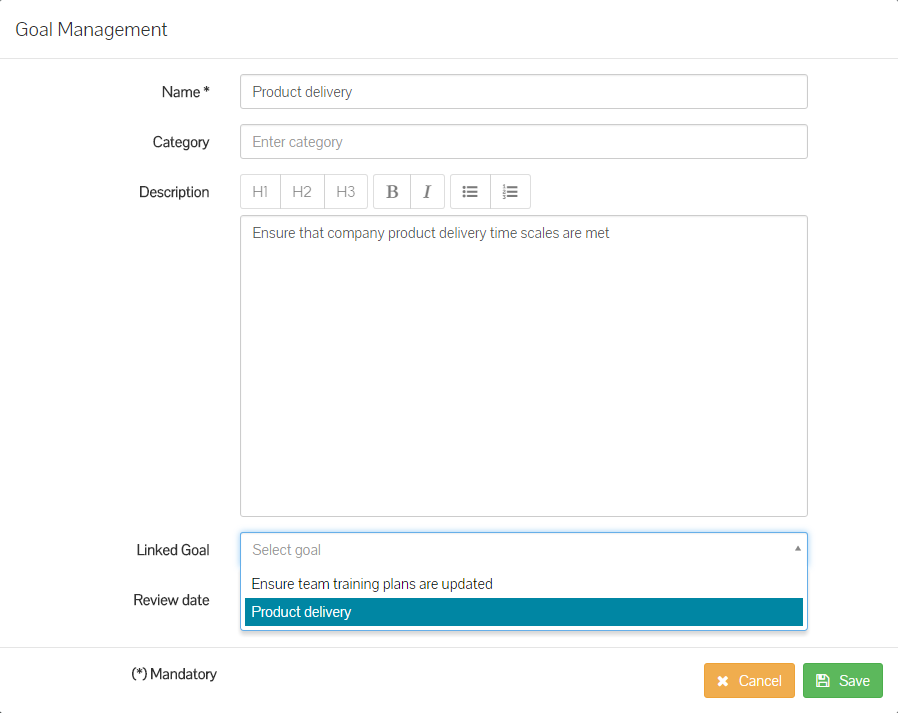
You are not required to link a goal to one of your own goals, which could be true if you are setting a specific goal for this employee. An example of this could be a goal for the employee to complete a training course or certification, outside of any of your own goals.
Select a review date, which could be the date of the next scheduled performance review, but depending on what the particular goals is, you may need or want to review this sooner and outside of the standard performance review schedule.
A completed Goal Management form will look like the below example.
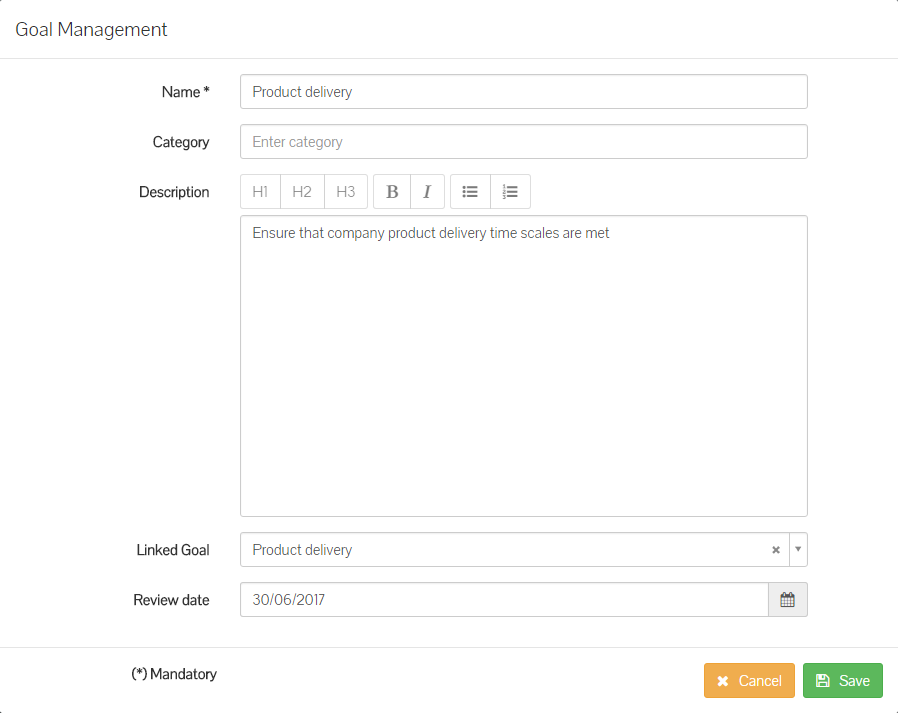
Click save and the new goal will be added to the employee record.
Both Bradley and Bradley’s manager Alex, are then able to see the goal under the Goals/Performance tab of Bradley’s employee record.
Complete the same steps for any additional goals to be added for your team member.
Goal Weighting
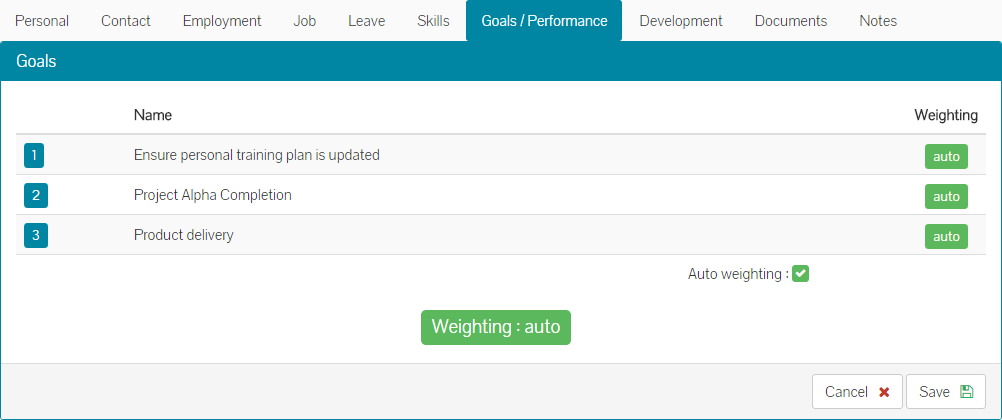
You will notice, that after you have added goals for an employee, the goals are set to use auto weighting.
If your organisation has advised that goal weighting should be used, you can change this to apply different weights, to different goals. We recommend first adding all goals before applying weighting.
Click on the Weighting button at the bottom of the goals section, within an employee record.
Within the goal weighting view, you will notice the weighting is currently set to auto. Un-tick the auto-weighting option, to display manual weighting for the goals.
You can add a percentage to each goal, giving a higher percentage to goals that are a larger part of the role your team member undertakes.
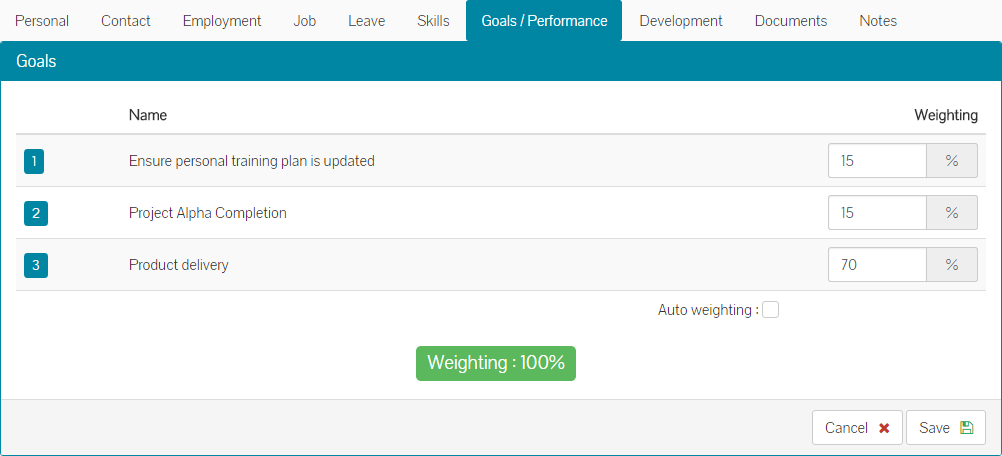
At the end of any adjustments, this must equal 100%.
Please however consider, that heavier weighted goals count for a greater percentage of a performance review score. For example, if you add a goal with a weight of 90%, but unfortunately your employee marks their score low against this goal for any reason during their review, this will mean that their remaining performance review score will be against the remaining 10% of goals. Even if they marked their scores with the highest score against a goal with 10%, the overall performance score could still be low.
You can also tick the checkbox for auto weighting, which distributes the percentages across all goals evenly and automatically. When scoring your performance review, everything has an even weight and outcome.
Depending on whether you use manual or automated weighting, the employee goals are then set and will be available during the next performance review, for them to mark their performance against each.
Was this article helpful?
That’s Great!
Thank you for your feedback
Sorry! We couldn't be helpful
Thank you for your feedback
Feedback sent
We appreciate your effort and will try to fix the article