Applies to: Team Leaders/Line Managers/Supervisors
Performance reviews are scheduled as per your company policies and by your HR administrator or team.
Using the S.M.A.R.T method of goals and performance, it is recommended that you complete your own employee performance review, before completing the supervisor review of your team members. This is simply so that you can link any goals you set for each team member, to new goals you have been set.
You will receive a notification (email, task or internal communication) for any of the following review configurations, based on your role:
Role: Employee
- Employee & Supervisor Review: Notified to complete your employee review, which will be submitted to your line manager/supervisor.
- Peer Review – If you have been selected as a peer, to review another employee. This is anonymous.
Role: Line Manager / Team Leader
- Employee & Supervisor Review: Notified to complete your employee review, which will be submitted to your line manager/supervisor.
- Employee & Supervisor Review: Notified to complete the supervisor section of a completed employee review for one of, or all your team members.
- Supervisor Only Review: Notified to complete a supervisor review for one of, or all your team members.
- Peer Review: Notified if you have been selected as a peer, to review another employee. This is anonymous.
Role: Administrator
- Employee & Supervisor Review: Notified to complete your employee review, which will be submitted to your line manager/supervisor.
- Employee & Supervisor Review: Notified to complete the supervisor section of a completed employee review for one of, or all your team members.
- Supervisor Only Review: Notified to complete a supervisor review for one of, or all your team members.
- Peer Review: Notified if you have been selected as a peer, to review another employee. This is anonymous.
Completing a Line Manager / Supervisor Review of an Employee
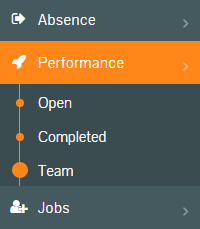
- Using one of the notifications received, or by selecting Performance from the side menu, followed by the Team sub-menu, find the employee review to be completed.
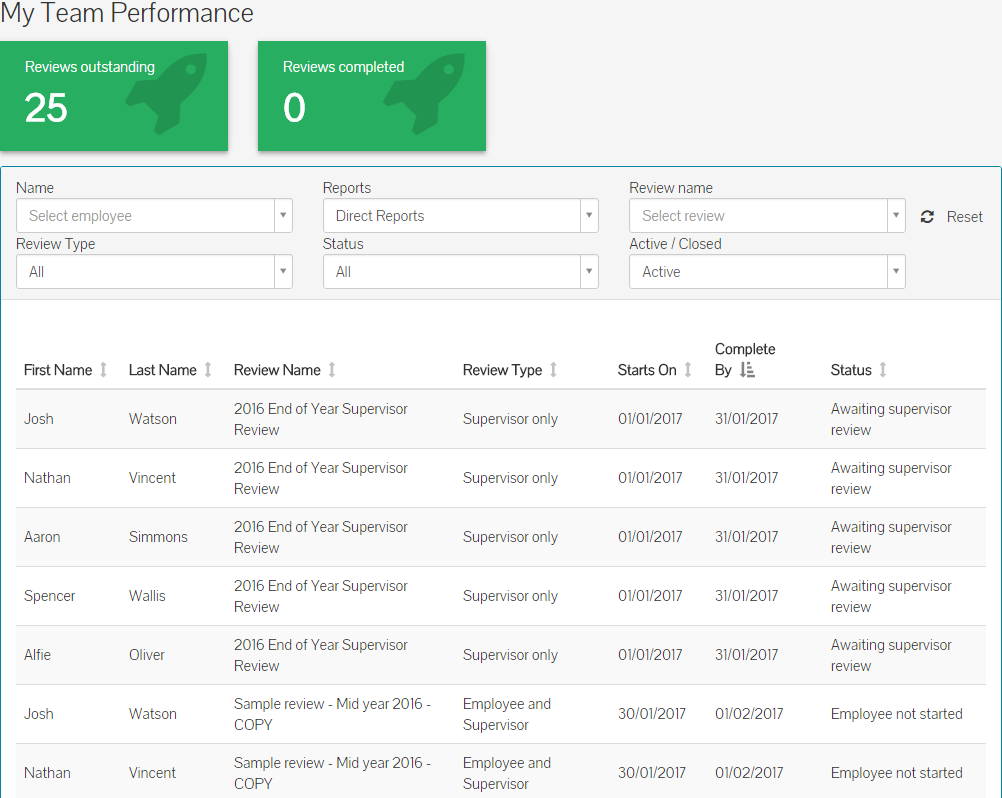
- With the My Team Performance table, you’ll see a list of reviews for your team, that need to be completed by you.
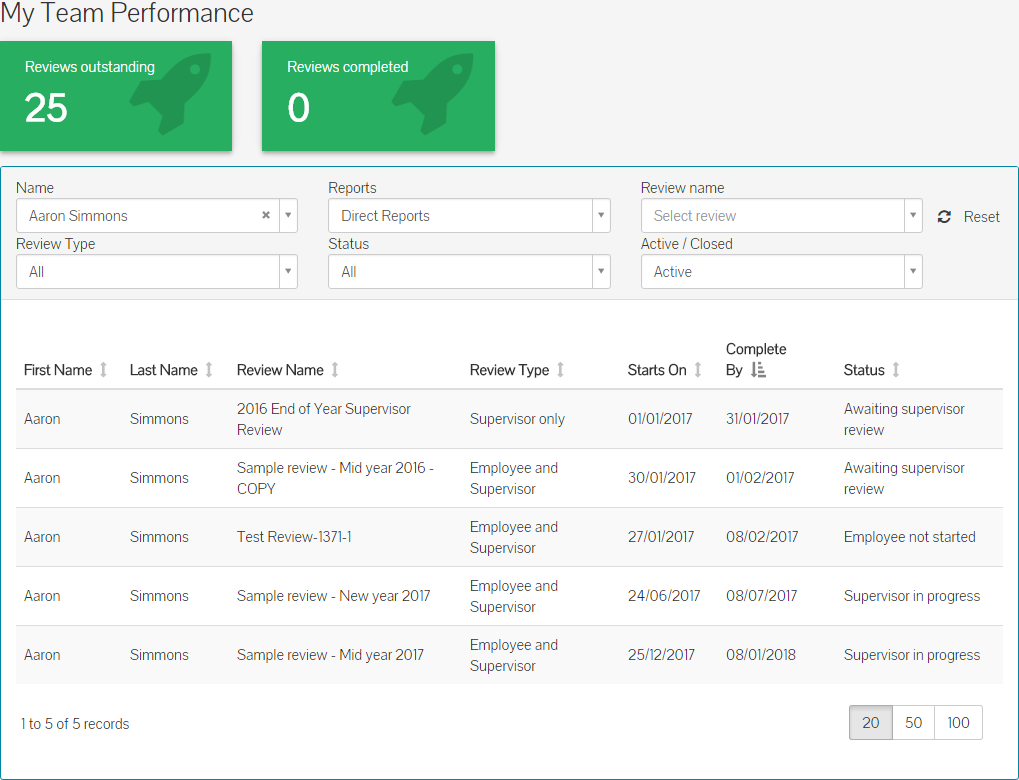
- You can use the filters of the table, to filter the table on specific review types, names or employee names. The example below has been filtered by Employee Name – Aaron Simmons.
- After finding the review you’re about to complete, click on the review with the table, to start the supervisor review of the selected employee.
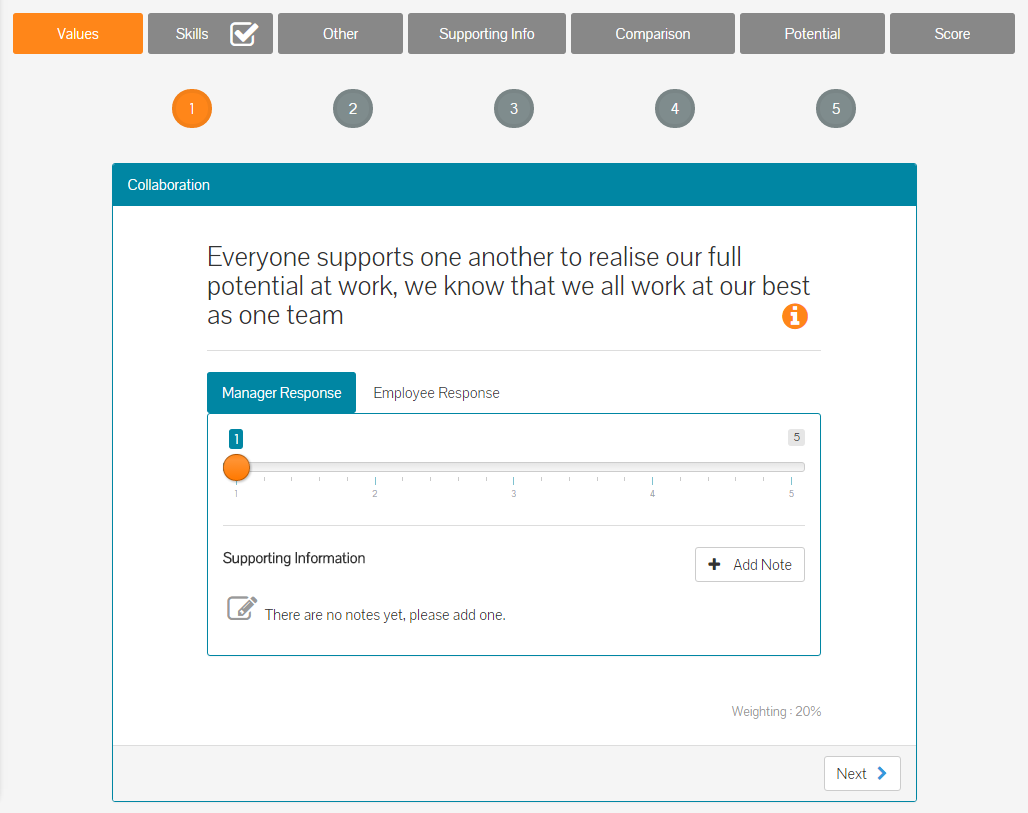
- The tabs within the review shown below, could possibly be a lot different to what you could see on reviews you are seeing, but the review structure and method of answering questions, will be similar, if not the same.
Responding to Review Questions
- Depending on how the performance review has been configured, you see one of five methods of answering review questions.
- These methods are: Dropdown List, List, Numeric Slider, Options and Text Slider. Examples of which, are shown below.
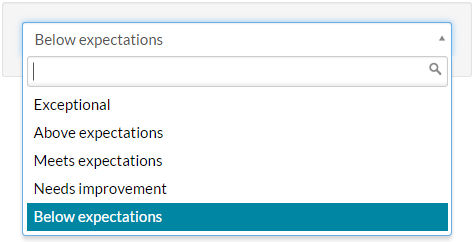 Dropdown List.
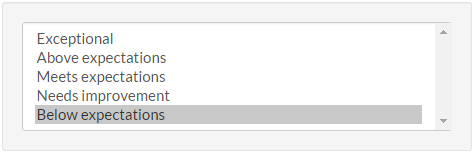 List.
List.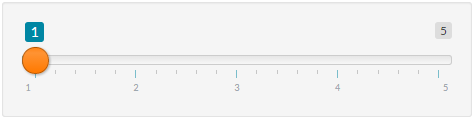 Numeric Slider.
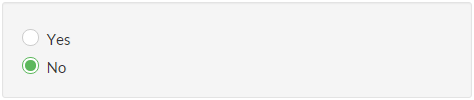 Options.
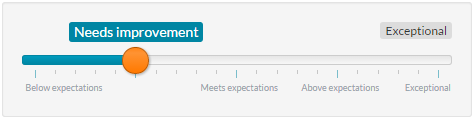 Text Slider.
Line Manager / Supervisor Review of an Employee - Completing
- Using one of the response types above, you can score the first question of the performance review for the selected employee, based on how you feel their performance has been, against that question/subject.
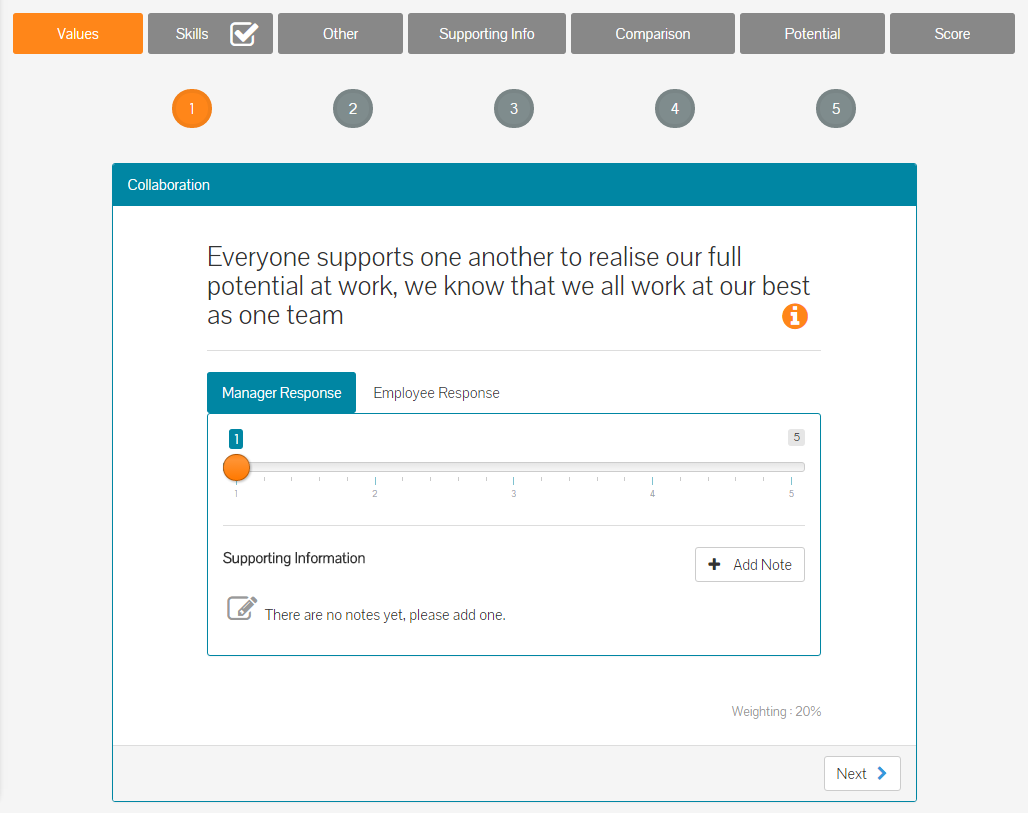
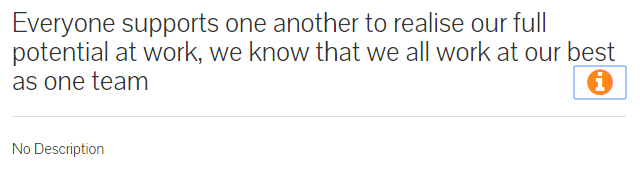
- By clicking the orange and white information icon to the right, you can expand the goal to see any related or corresponding information your manager may have added. It could also read ‘No Description’ if nothing has been added. This will look like the below example.
- You’ll notice that you are currently on the Manager Response section for the question. By clicking on Employee Response, you can review what the selected employee gave as their answer for this question, when completing their performance review.
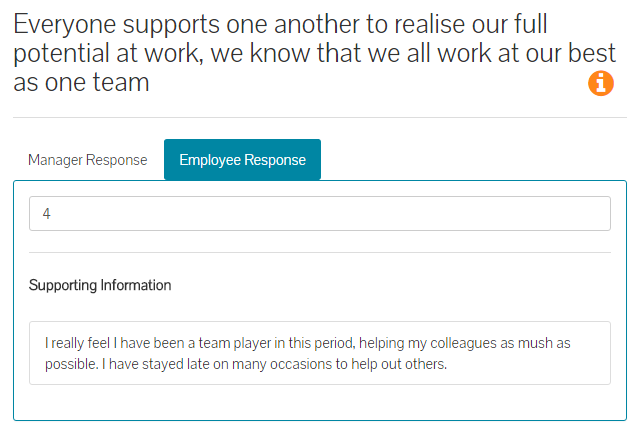
- As you can see, if your team member included any supporting information, you can see this and factor it in, to the score you give as a manager, for this review question.
- Click back to the ‘Manager Response’ tab and select a response to this question using the response control, to give your assessment of your team member for this review question. By default, the manager response is set to the same response that the employee has given.
- You can also choose to add a note, to explain to your team member as to why you have measured their achievement of this question/goal the way you have. This is however, not required.
- To add a note, click the ‘Add Note’ button and type it the message details if the text field that is then displayed.
- Notes have a 1000-character maximum length, but should you wish to add more than this, simply click add a note again, to add more supporting information.
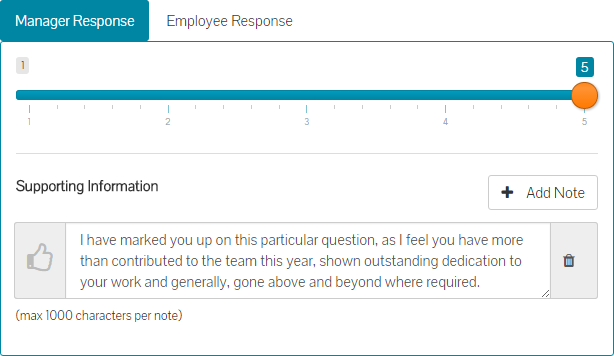
- Finally, if you do add a note, you’ll notice the thumbs up icon next to the notes field.

- You can click the icon, which will turn it green. This is kudos for your team member against this question/goal. This will be reported on at a later stage.
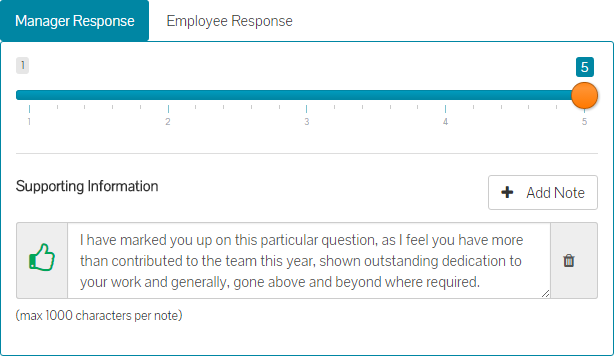
- Once you have selected your response from the dropdown and possibly added a note with kudos, click next to move on to the next question/goal and complete a similar action to review employee performance.
- Clicking next on the final question/goal, will move you on to the next tab on the review page.
- Each tab between up to the Supporting Info tab, will adopt a similar approach to answering questions relating to that section, albeit with the possibility of using a different response type from the earlier list of five styles.
Supporting Info
- On the Supporting Info tab, you can add some information regarding the review or your team member’s performance for the period being reviewed. Although this section has a 1000-character maximum, this is a good opportunity for you to provide your team member with some more information about your responses and overall review of their performance.
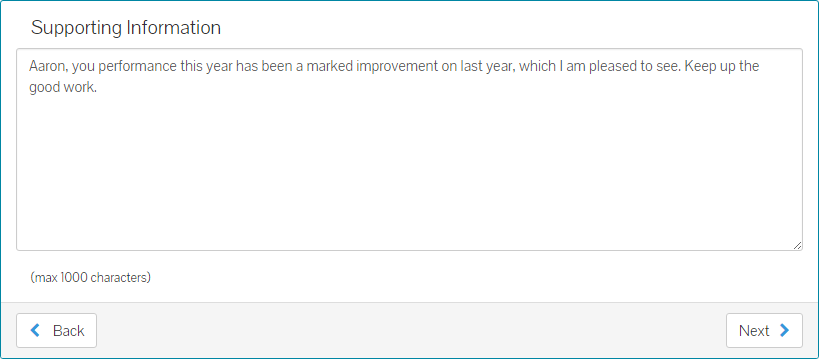
- After adding any additional supporting information, click next to move on to the Comparison tab.
Comparison
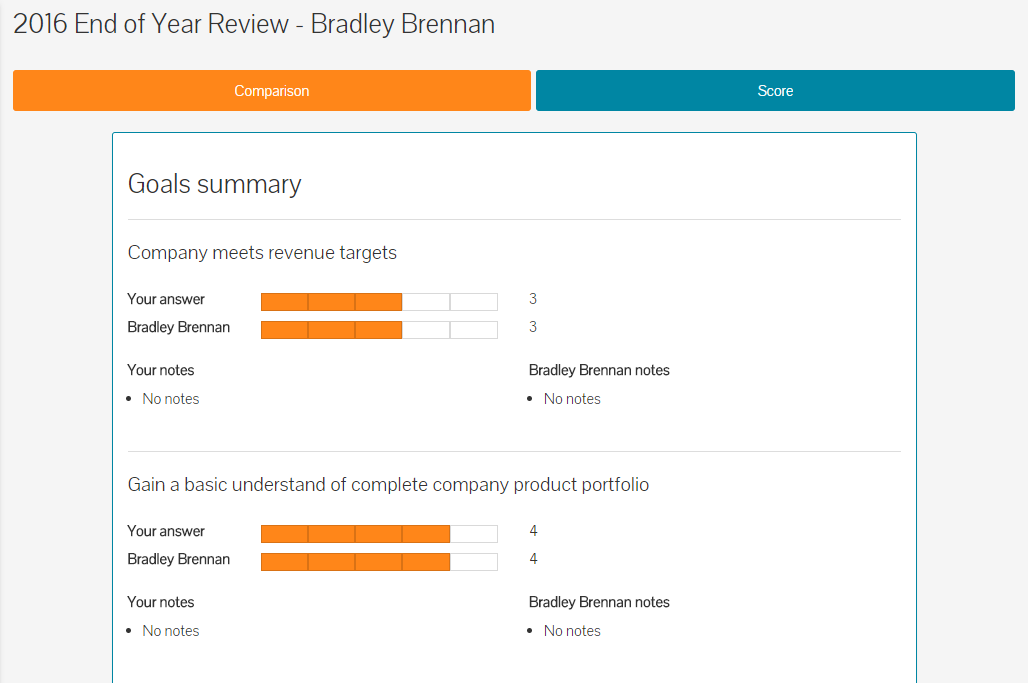
- The ‘Comparison’ tab, shows the any differences between employee score and your score and any notes added.
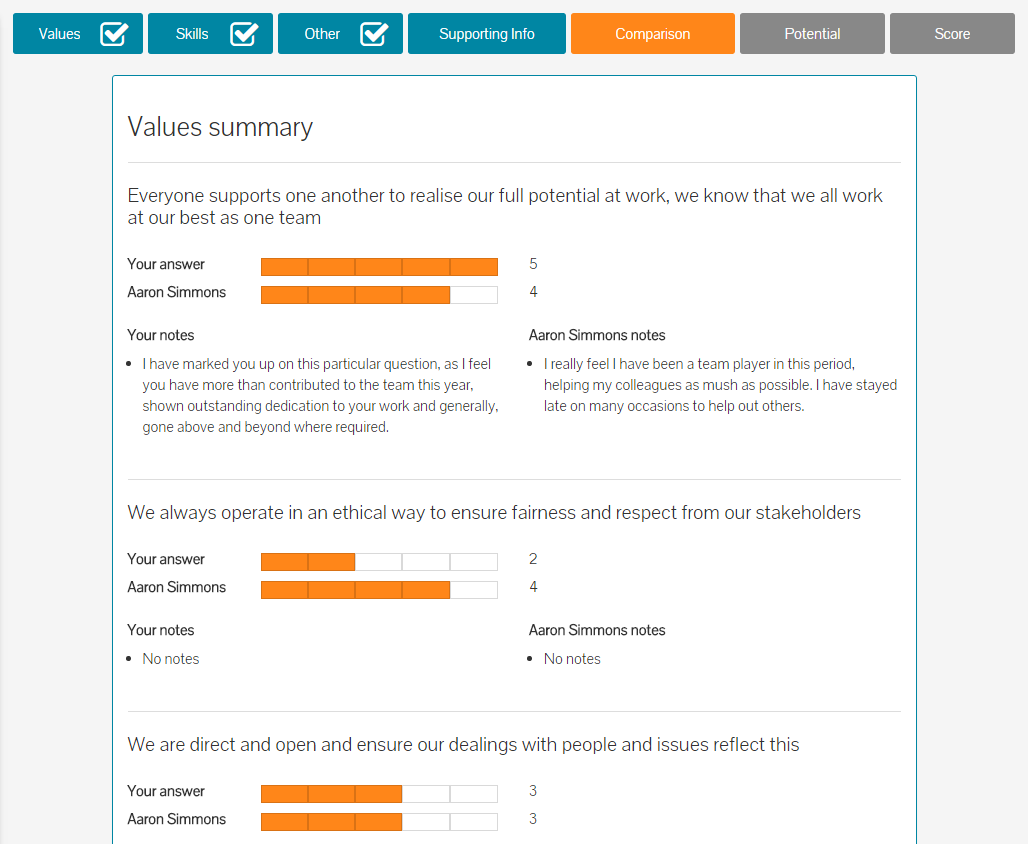
- The Summary page also shows any additional notes you have added per question, as shown above, as well as the Supporting Info you added for the overall review, if any, shown below.
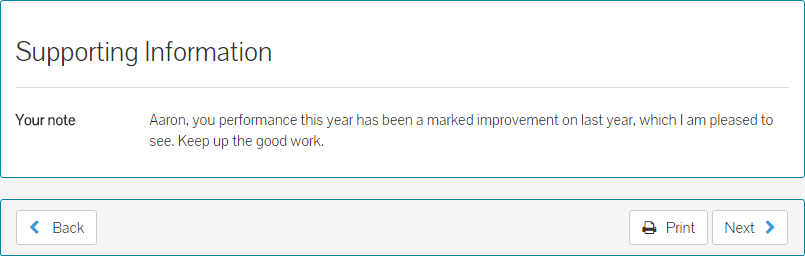
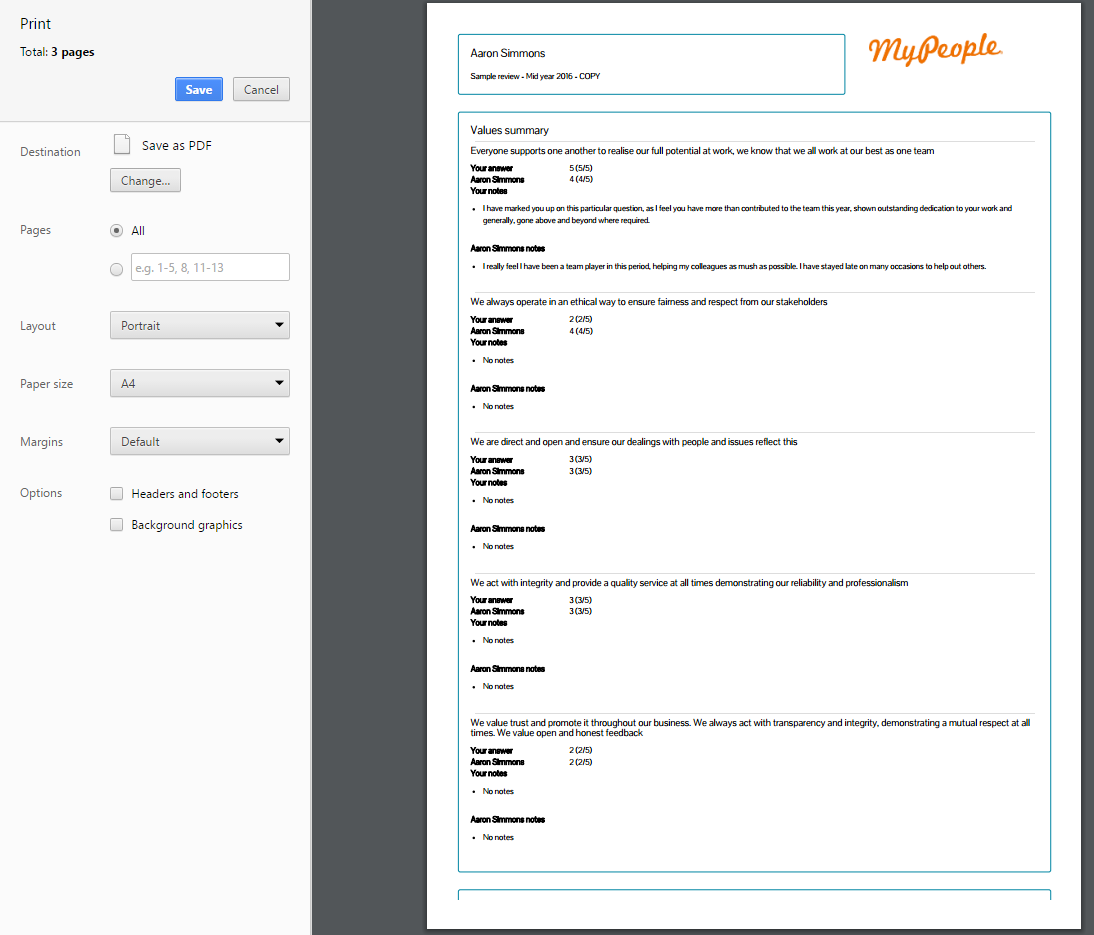
- At this stage, you can print the review, should you wish to keep a hard copy or have been asked to print this.
- Click print and this will open the printer dialogue box, for you to select the appropriate printing device to print from.
- Click next to move on to the Potential tab, if included. Otherwise, clicking next will take you directly to the Score tab, detailed later in this guide.
Potential (if included)
- You may or may not be using Potential within your reviews, which is something your company and HR policies will drive, who will no doubt give guidance on this.
- Potential measures Hard Skills, Soft Skills and Motivation and these are measured alongside performance scores, to find your talented team members as well as those who may need some guidance or mentoring.
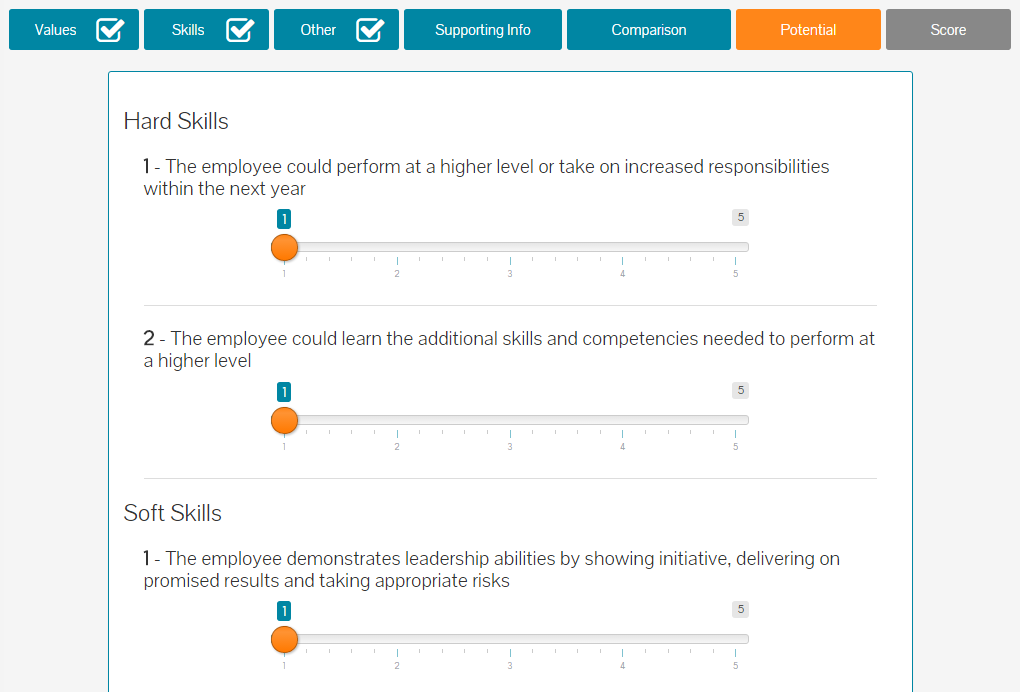
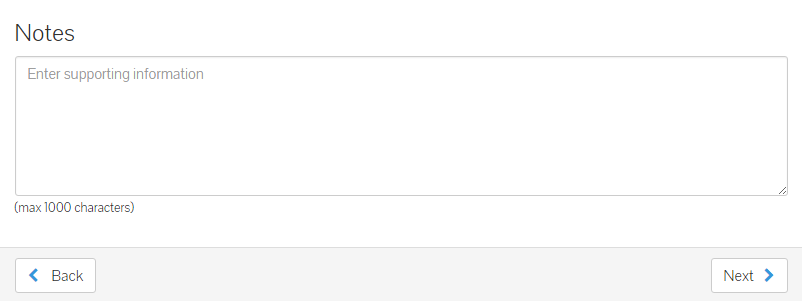
- At the bottom of the potential tab, you can add notes as to why you have marked the potential scores as you have.
- If you do not see the Potential tab as part of your manager review, it will simply mean that for this or any other review, Potential isn’t being measured and has been omitted by your company/HR administrators.
- Click next to move on to the Score tab.
Score
- The Score tab will display the employee performance score and your score against each section of the review, as well as the score you have given for potential, if included.
- It will also display the previous review scores, should your team member have completed a previous review within MyPeople.
- The Score tab will look like the example below.
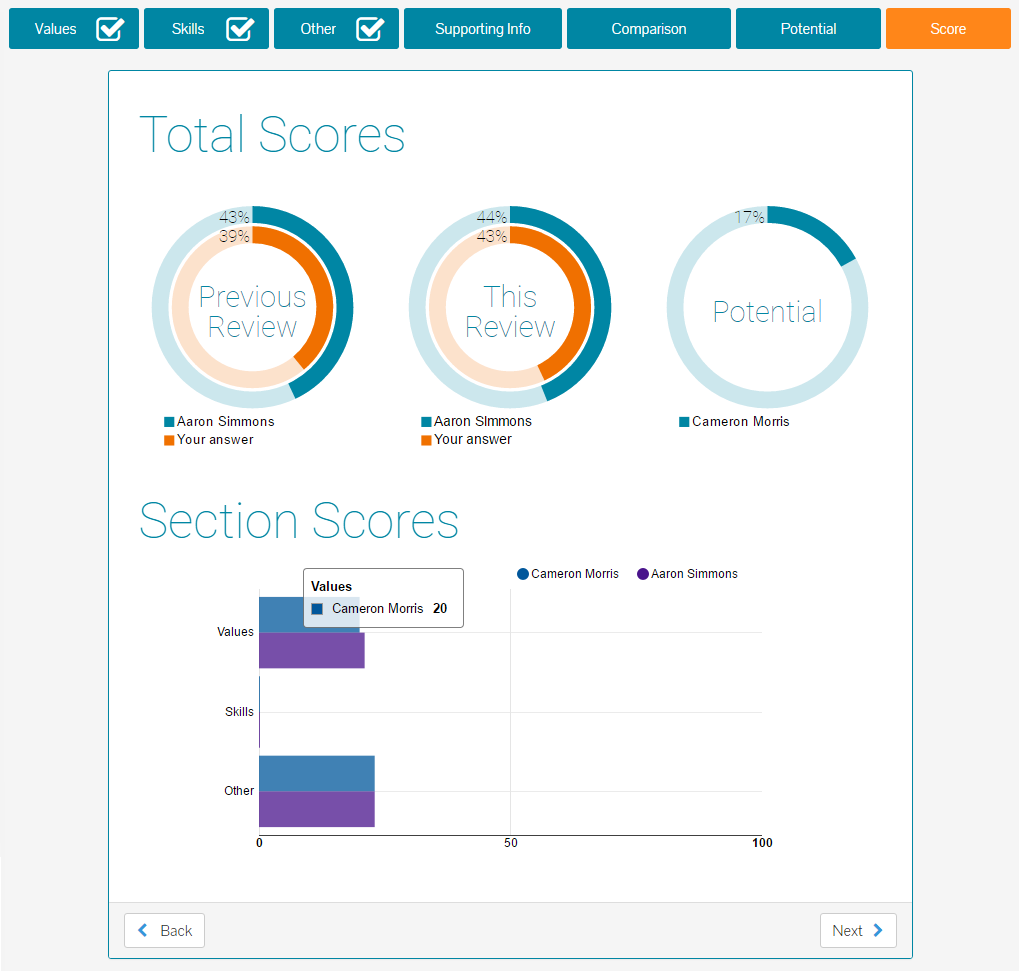
- At this stage, you’ll either see an option to Complete Review, or click next, if Next Goals has been included.
- If you have the option to Complete Review on the score tab, the review will now be marked as completed.
Next Goals
- Should the performance review include next goals, this gives you the perfect opportunity to set the goals for your team member, for the next period.
- If your team member had previous goals, these will be displayed.
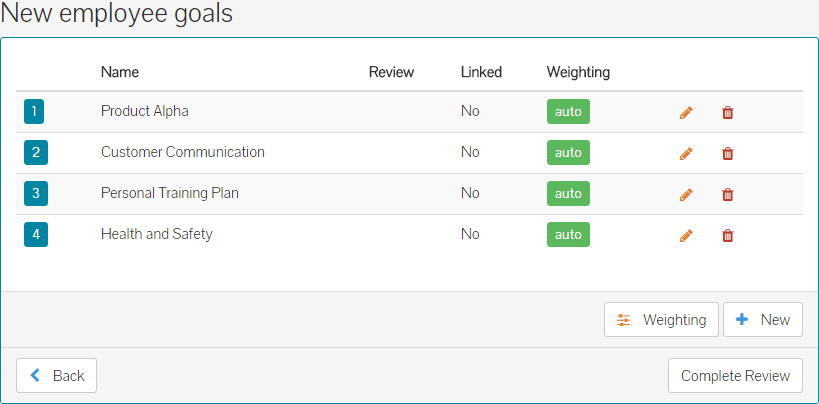
- With previous goals listed, you can choose to remove them, edit them, or leave them as they are.
- If you choose to edit one or all existing goals, click the pencil icon next to the goal itself. This loads the goal management form.
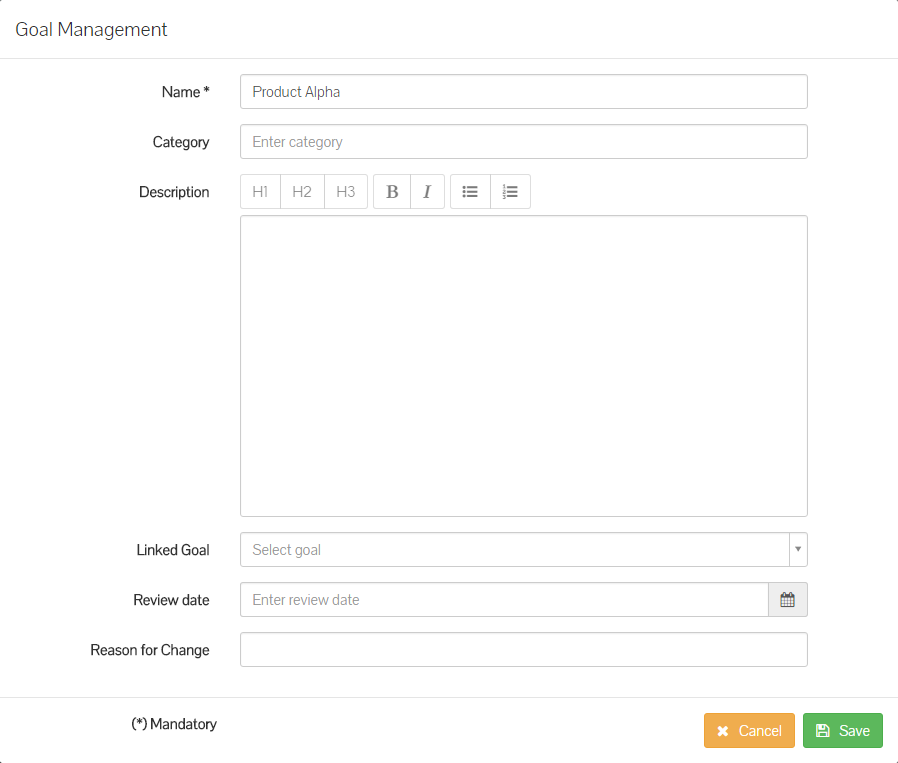
- Make the required changes to the goal you’re editing and click save.
- The goals will be updated on the next goals table.
- Continue to remove, edit or add new goals as required. If you choose to add a new goal, the goal management form will load like you are editing a goal, albeit entirely blank.
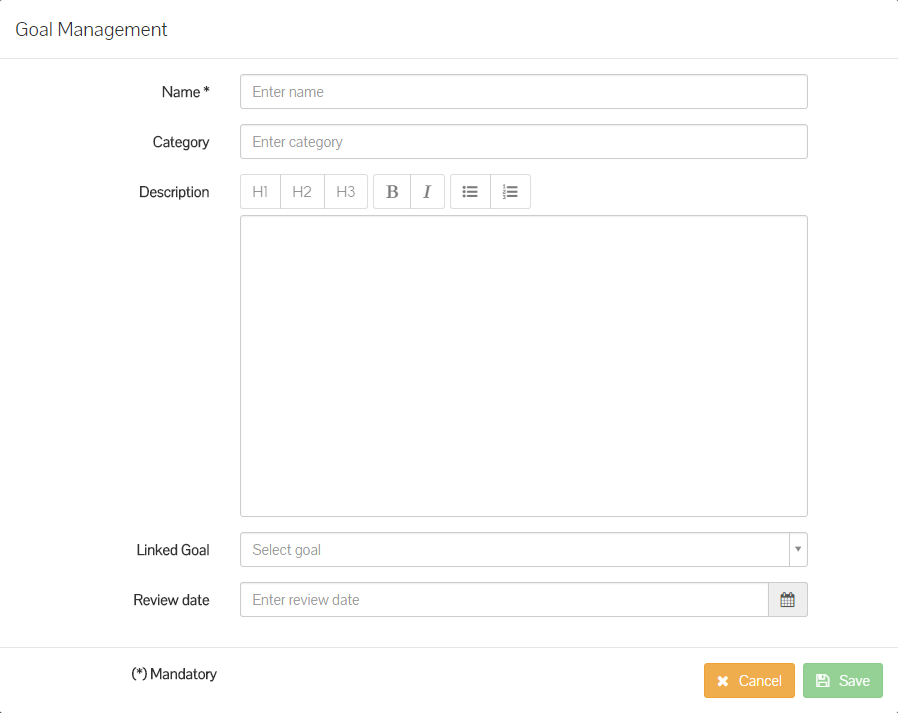
- If you or your company are using goal weighting and have added new goals or want to change the weighting for the existing goals, click on the Weighting button on the next goals page.
- After clicking on the ‘Weighting’ button, the weighting adjustment controls are shown. By default, the weighting is set to auto.
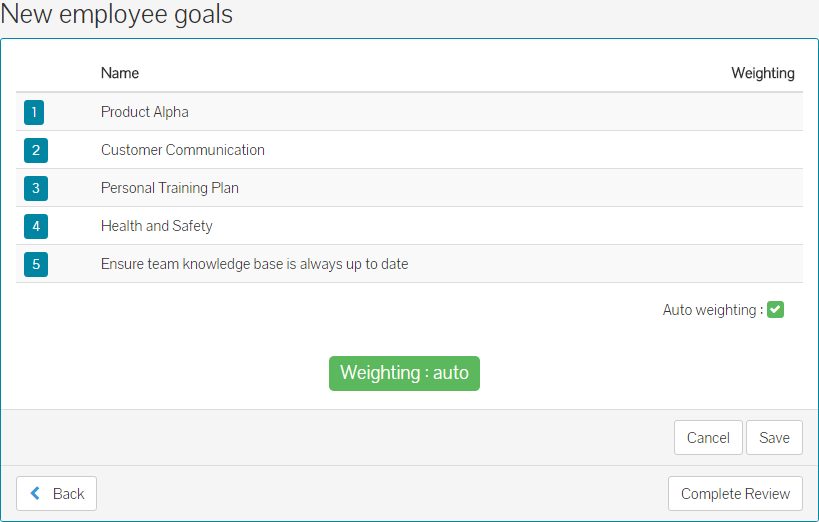
- Remove the tick from the auto weighting checkbox, to manually configure weighting for each goal, ensuring the total always reaches 100%.
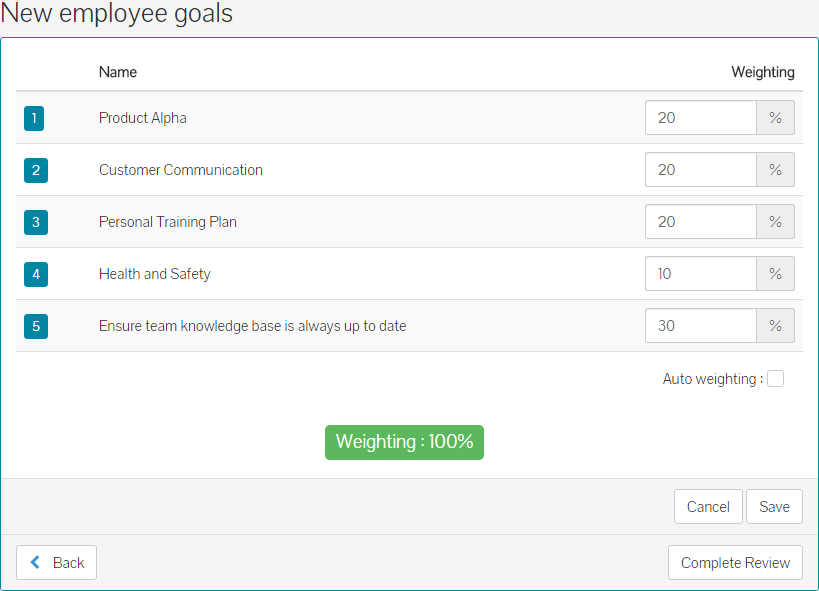
- Click save to save any adjustments to weighting, or re-populate the auto-weighting checkbox, to set this back to auto (evenly distributed) weighting.
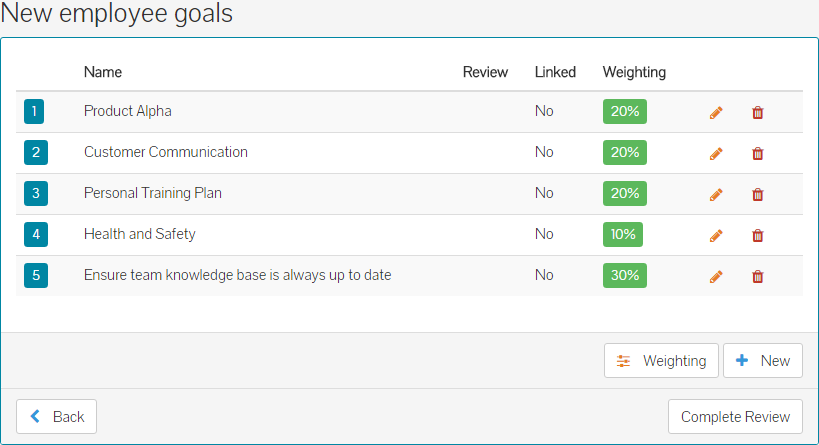
- Please note, heavier weighted goals will result in very different performance review scores. For example, an employee scoring high on an automatically distributed weighting pattern, will result in less of the overall review score, compared to that of an employee scoring high for a heavier weighted goal, which will result in a higher score on the review. Similarly, employees scoring low against a heavier weighted goal, will result in a lower overall score than those scoring low against a section with automatic weighting.
- Once complete, you’ll have the option to Complete Review at the bottom of the screen, which will finish this review process.
- Should you need to re-visit this review at any stage, you can do so by clicking on the Performance side menu, following by the Team sub-menu.
- Using the table filters provided, you can find the review you wish to reference.
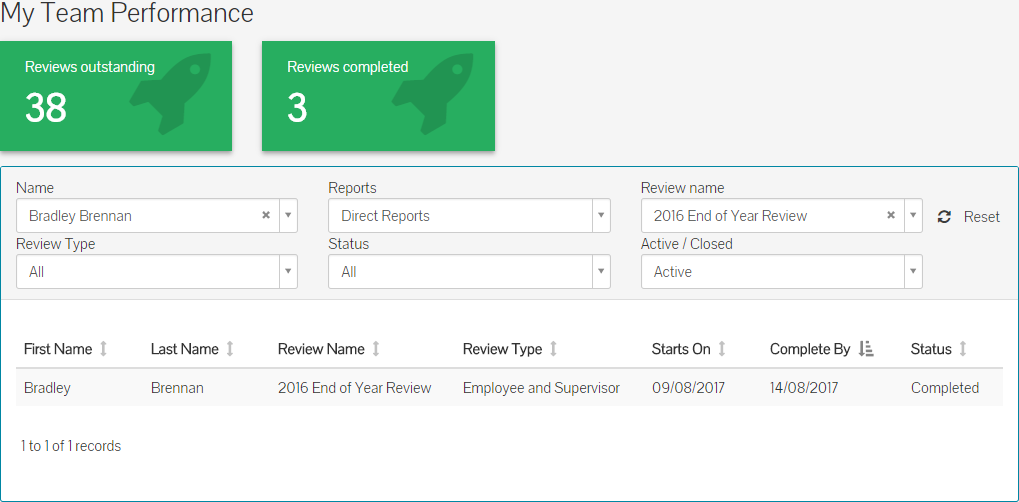
- Click on the review and you’ll be able to review the Comparison and Score pages.
- Should you need to, you’ll also be able to Print and Download this review, at the bottom of the comparison page.
Was this article helpful?
That’s Great!
Thank you for your feedback
Sorry! We couldn't be helpful
Thank you for your feedback
Feedback sent
We appreciate your effort and will try to fix the article