Applies to: Team Leaders/Line Managers/Supervisors and HR/Customer Administrators
As an administrator or supervisor of a team, you may at times need to check the status of a review, the progress an employee has made with their review, or re-open / close a review.
Viewing the Status of Reviews (Administrator)
As an administrator, you can view all reviews within the organisation. This includes viewing the status of the review, as well as the employee progress.
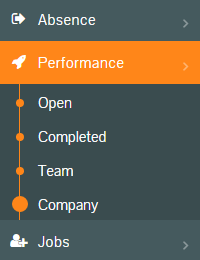
- Logged in as an administrator, click on Performance from the side menu, followed by the Company sub-menu, to display a list of all the company reviews within the system.
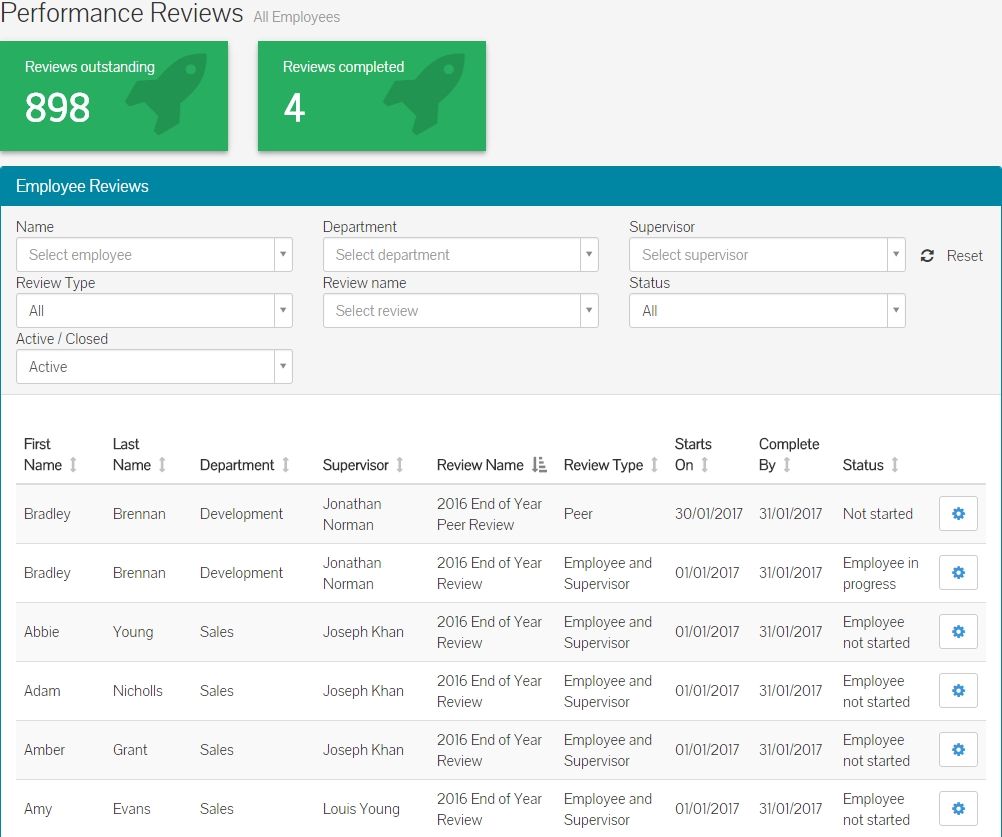
- You can see that the Performance Reviews (All Employees) screen shows the Review Name, Review Type and the ‘Starts On’ and ‘Complete By’ dates.
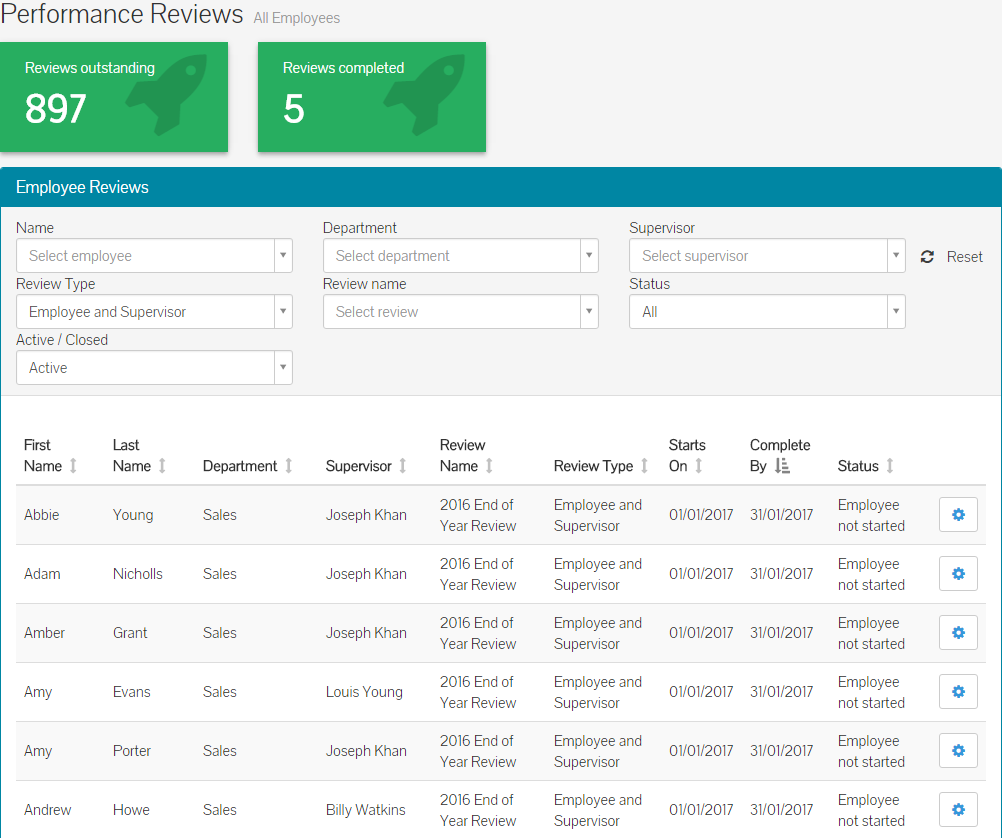
- You can use the table filters to quickly find the review you need to open. For example, by selecting a review type and review status, you can quickly find Employee & Supervisor reviews, for example.
- The table itself, contains information regarding the overall status of the review, which could be enough to know what stage a review is at.
- After filtering, you may want to look a bit further into the status of a review, and by clicking on the corresponding review row, within the table, you can open the review admin screen.

- As you can see, this review admin page gives you an overall status of the review, the participants included and the open and complete controls, as well as showing a breakdown of the individual questions in the review, and their status for each participant.
- From here, you could use the status of the review to chase an employee or supervisor, or confirm that the review is taking place as expected.
- If you’re the supervisor of an employee as well as holding the administrator system role, clicking on a review for one of your employees, will result in a slightly different outcome.
- By clicking on a review from the Performance Reviews – All Employees table, for a member of your team, you will be taken in to the review, rather than seeing the review admin screen.
- Rather than adopting the same method, as above, click on the blue cog icon on the table row, which will load the review admin screen.
Viewing the Status of Reviews (Team Leader / Manager / Supervisor)
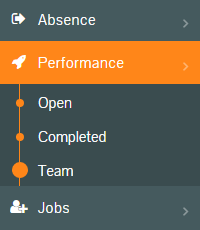
- If you’re the team leader / manager / supervisor of an employee and want to check the status of a review, click on Performance on the side menu, as well as the Team sub menu.
- This will load the My Team Performance screen and table of reviews for your team.
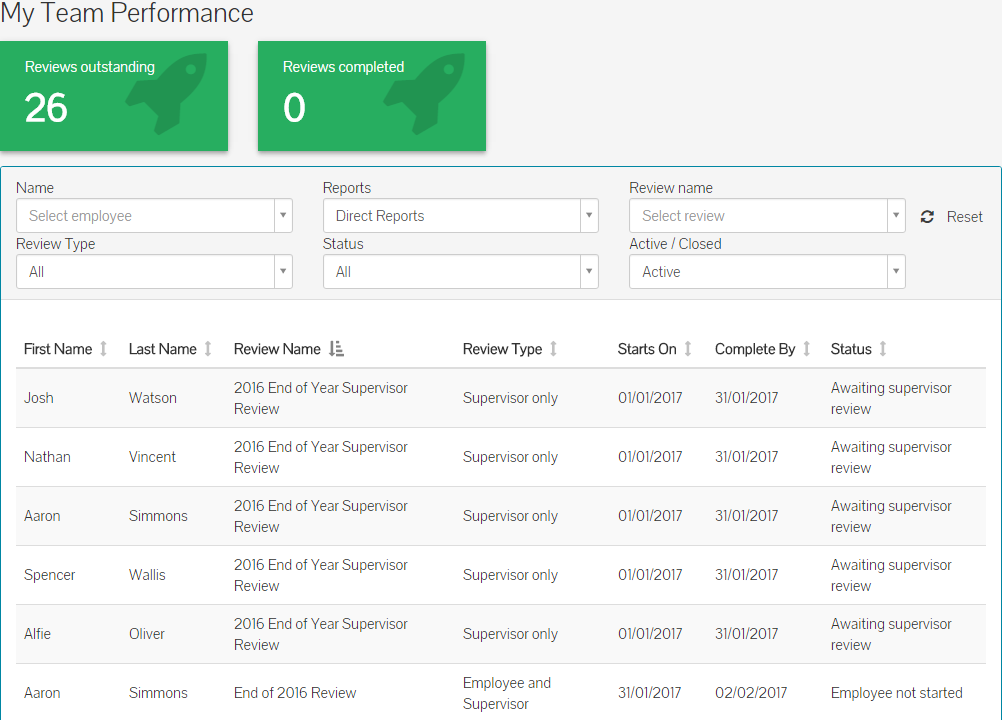
- You can use the table filters to quickly find the review you need to open. For example, by selecting a review type and review status, you can quickly find Employee & Supervisor reviews, for example.
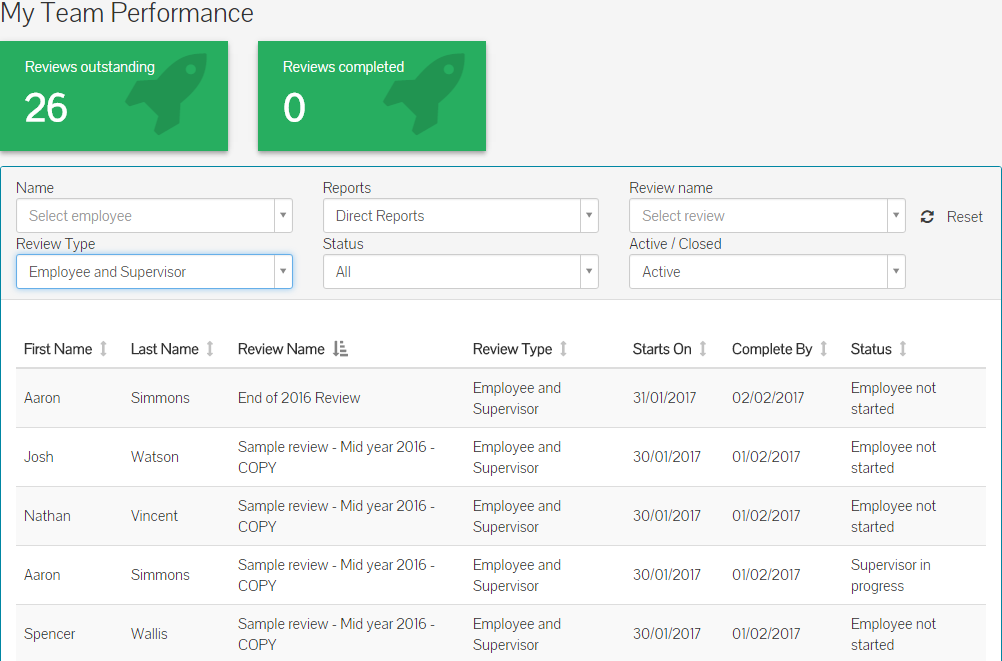
- The table itself, contains information regarding the overall status of the review, which could be enough to know what stage a review is at.
- After filtering, you may want to look a bit further into the status of a review.
- If the review is currently in the ‘awaiting supervisor review’, or ‘supervisor in progress’, clicking on the review from the table will take you into the review, to complete your supervisor actions.
- If the review is in either ‘employee not started’ or the ‘employee in progress’ stage, clicking on the review from the table of reviews, will take you to the review admin screen, whereby you can view exactly what stage the review is at.
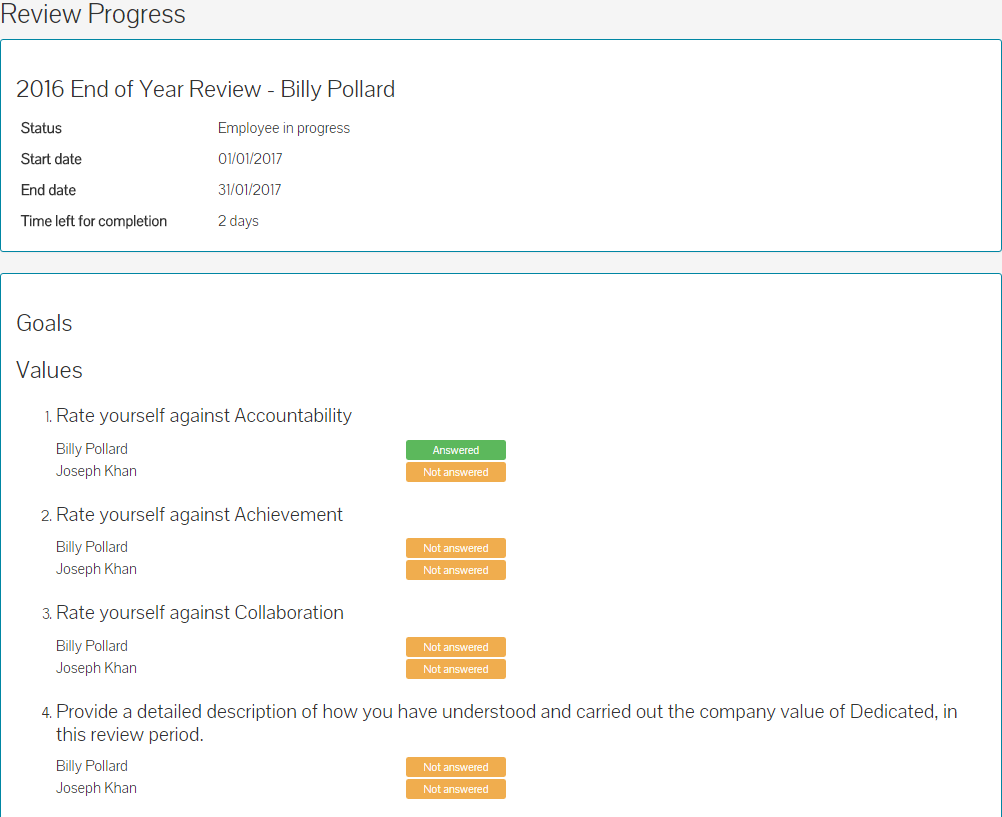
- As you can see above, Billy has currently answered the first value related question within the review.
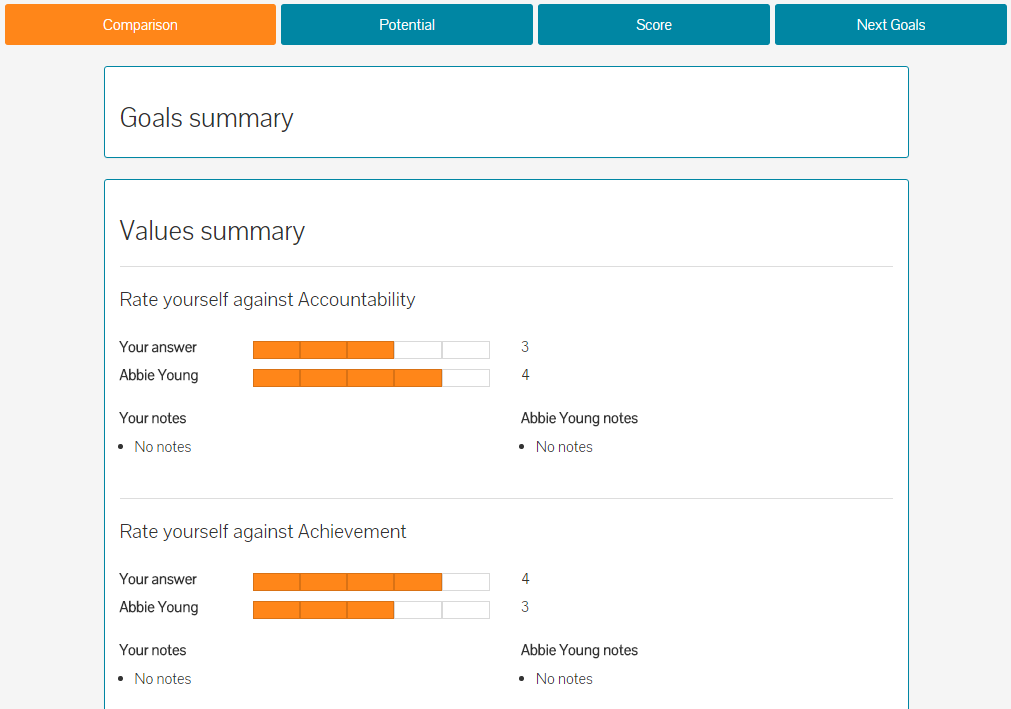
- If the review is currently marked as ‘completed’, clicking the review from within the table will take you to a review comparison page, whereby you can view the review scores that both you and your team member gave, as well as being able to print or download this review.
Was this article helpful?
That’s Great!
Thank you for your feedback
Sorry! We couldn't be helpful
Thank you for your feedback
Feedback sent
We appreciate your effort and will try to fix the article