Applies to: Team Leaders/Managers
When a member of staff requests holiday, special and/or maternity/paternity leave, or records sick leave, an email and task notification is generated for their team leader/manager to approve the leave request.
However, in some cases due to other team members being on leave, you may need to decline the leave request from time to time.
There are two stages to the approval or declining process, which are the notification of the request and the approval/declining stage.
These methods apply to all leave types, which are holiday, sickness, special leave and maternity/paternity.
Notification of Request
- When a request for leave is made by one of your team, you’ll receive an email, task and task notification for the approval process.
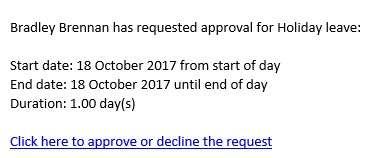
- The email notification will look like the example below and includes details of the leave requested, as well as a link to approve the leave.
- The task notification will also show the leave request awaiting approval.

- Click the task notification icon, to display the task notification menu.
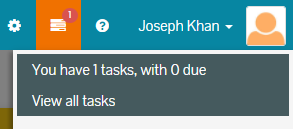
- If a task is due (for leave approvals, this will be that the first day of leave has either been reached, or was in the past) this will show as a due task, like the below example.

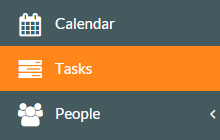
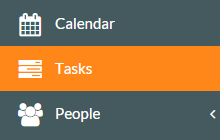
- You can also pick up the leave approval task, by clicking on the Tasks side menu shown below.
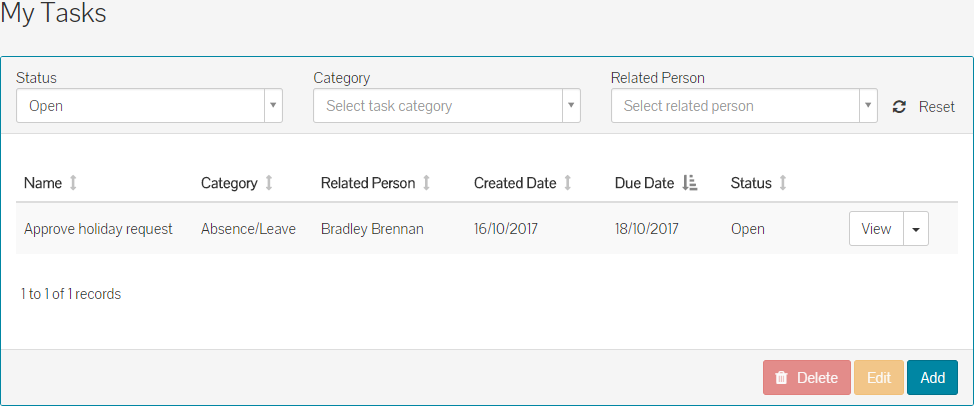
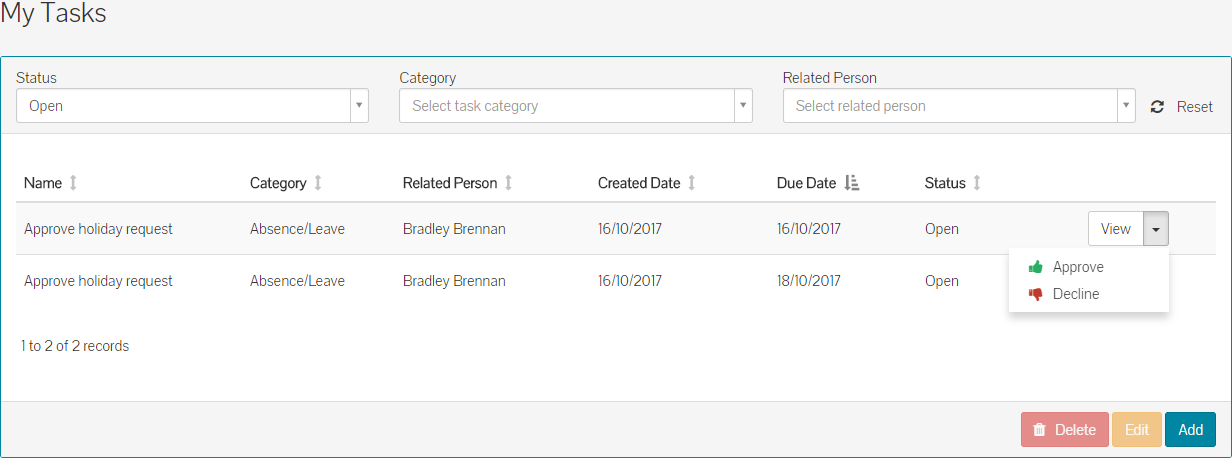
- This will show all your open tasks, including any leave request from your team members.
Approving Leave Request – from email notification
- Approving or declining the leave from the email notification, is as simple as clicking the link within the email.
- Clicking the link will either display the leave request directly if you are already logged in, or after you log in.
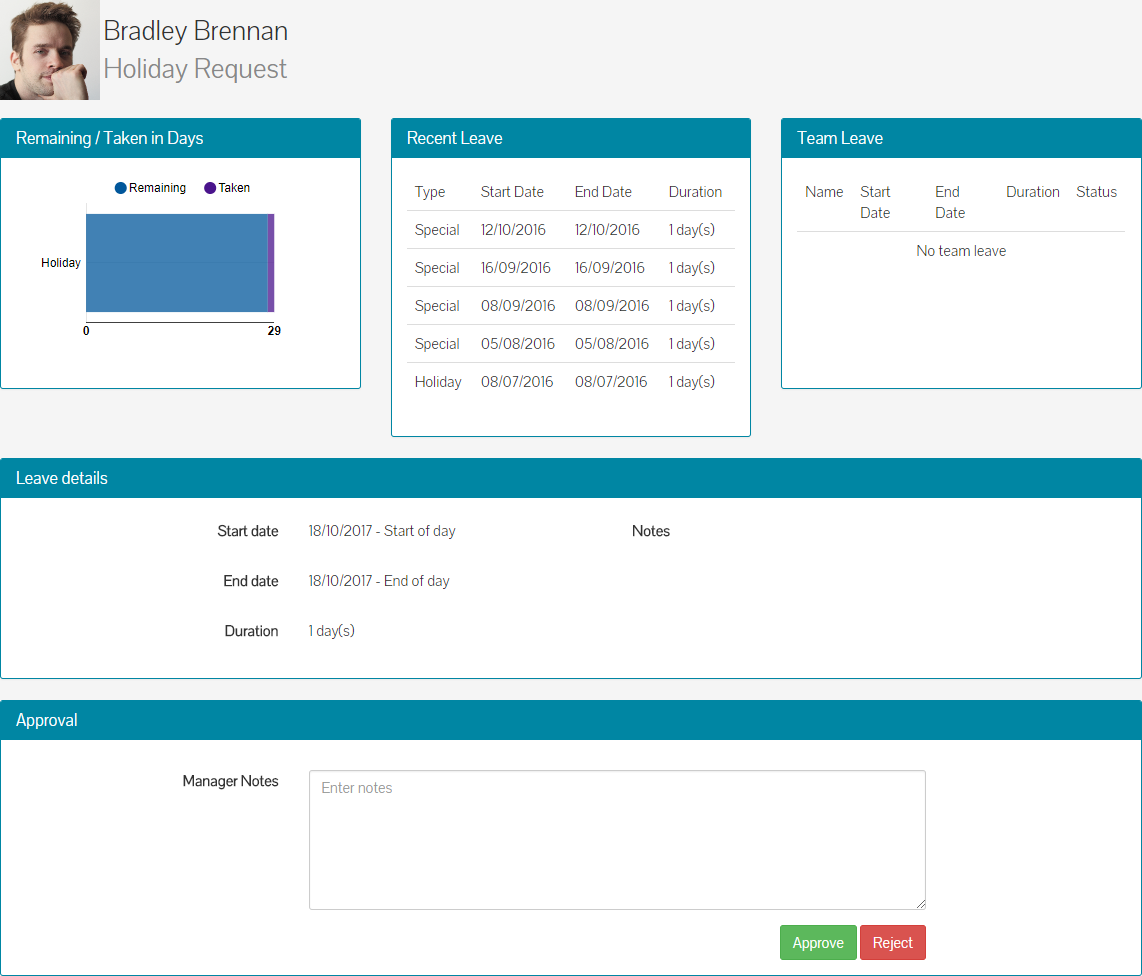
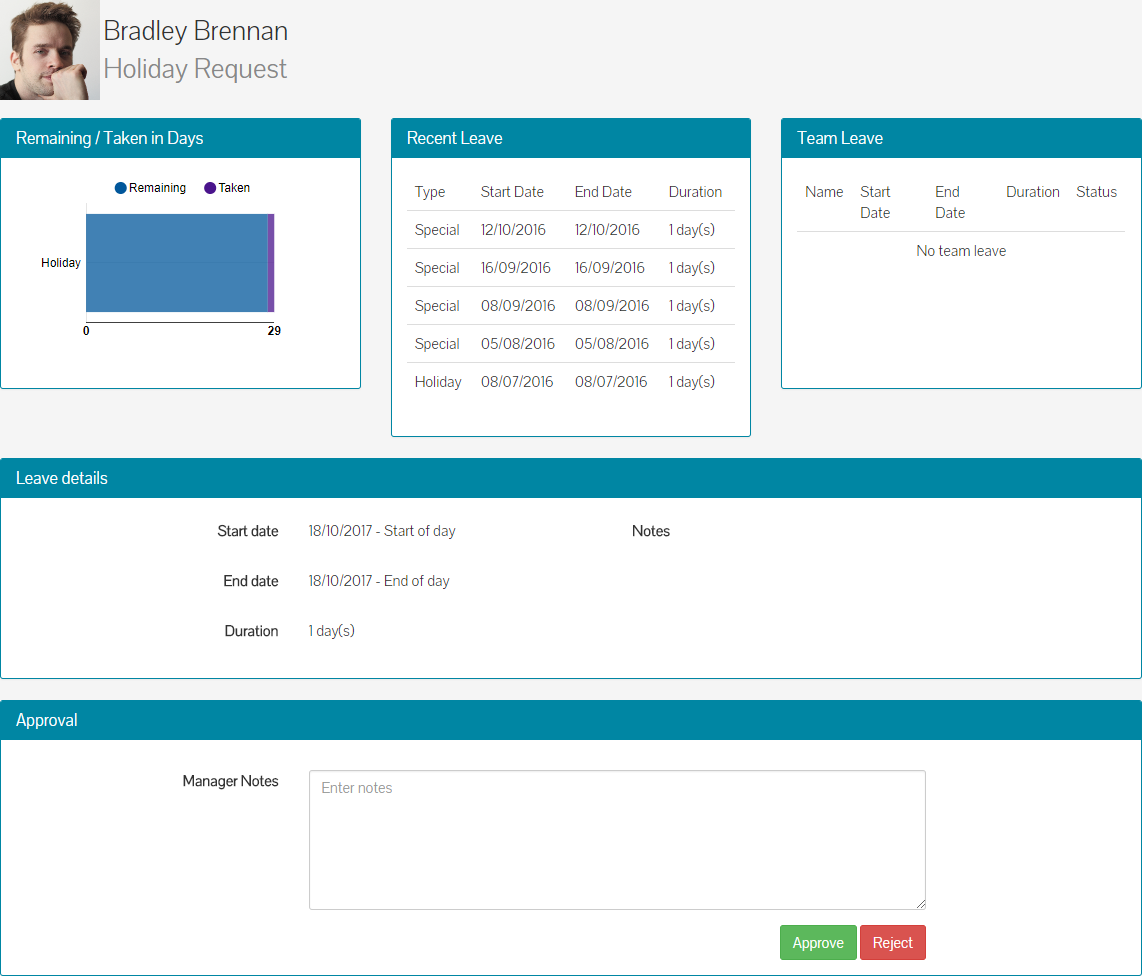
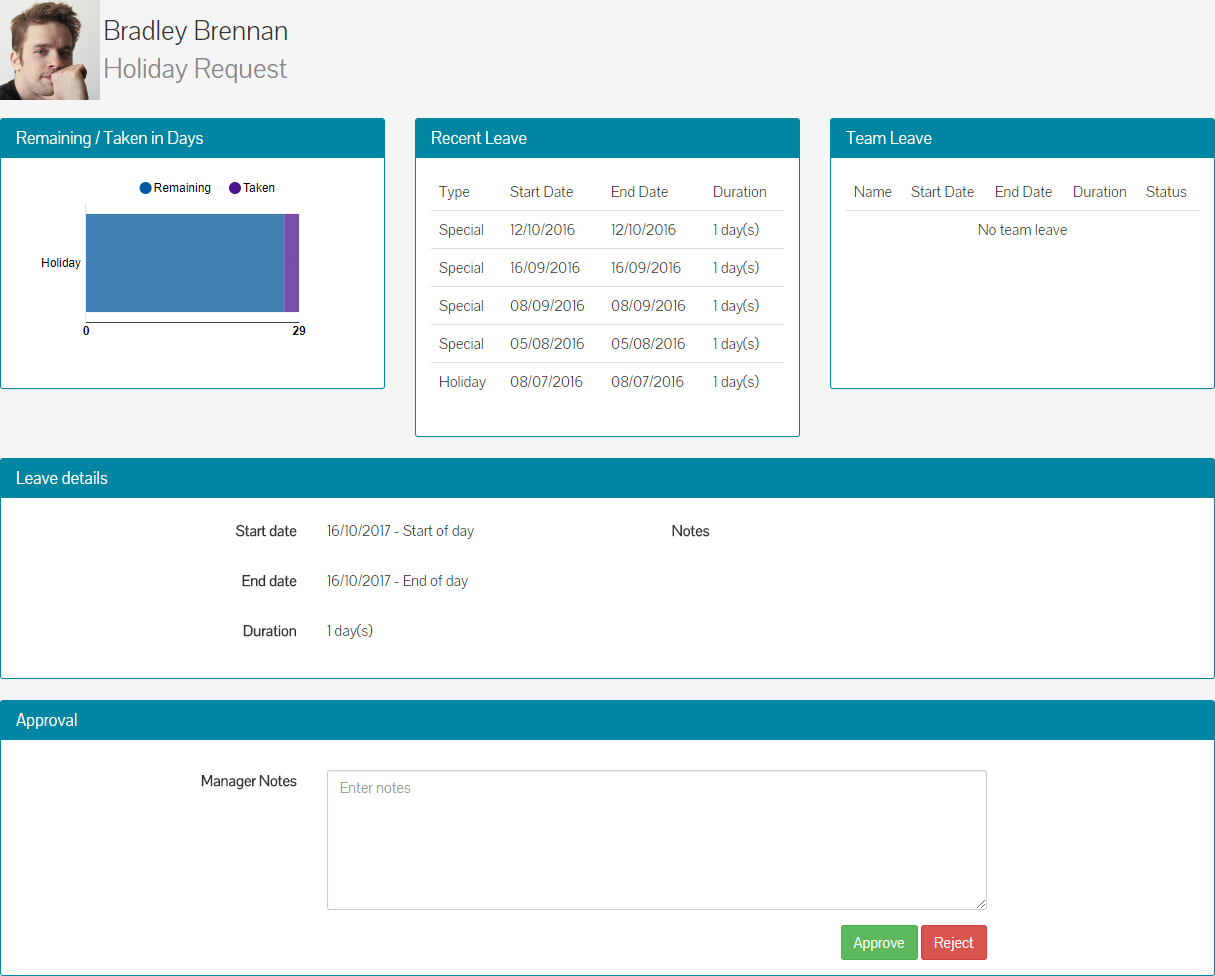
- On the leave request screen, you can see various information panels. These info panels cover:
a) Holiday remaining and taken for the requestor.
b) Recent leave taken by the requestor.
c) Team leave – showing other members of your team on leave or due on leave at a similar time.
d) The leave request details
e) Manager Notes section – you could use this to explain why you may have had to decline this request, which will be seen by the requester in the email they receive after this process. - Approve or Reject this leave request, based on your team plans and possibly using the Team Leave information panel as a reference.
Approving Leave Request – from task notification
- If the first day of the leave request has been reached, or was in the past, you’ll be able to click on the ‘Approve holiday request’ task from the task notification menu.

- This will display the task details page shown below.
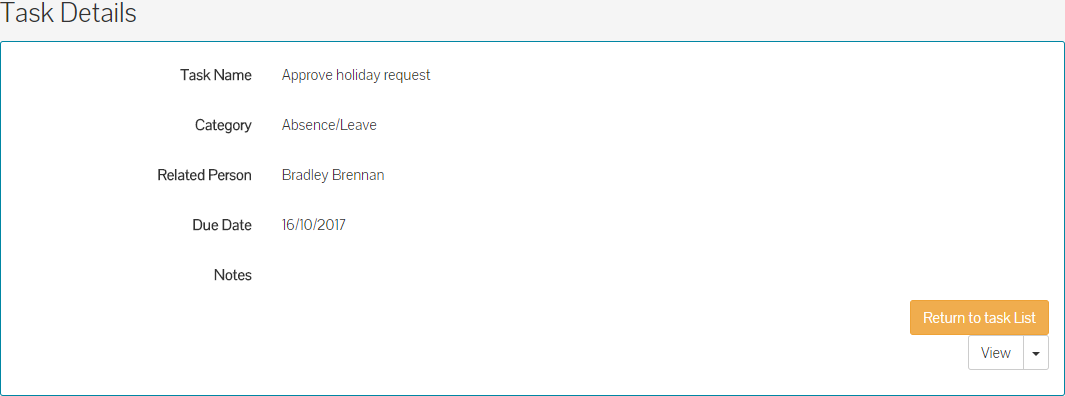
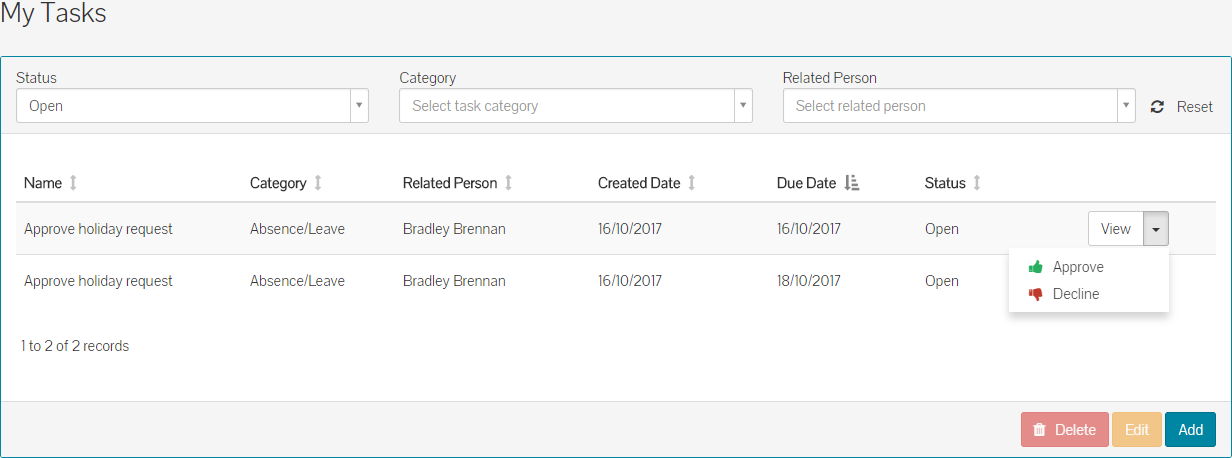
- From here, you can use the dropdown menu to view the request details, or approve/reject the leave quickly.
- Alternatively, if the leave request is for a future date, this will not show as a due task, so you’d either need to click on View All Tasks from the notification menu, or click on Tasks on the side menu.
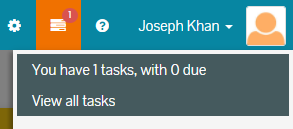 Task notification showing 1 task to be completed, with a future due date.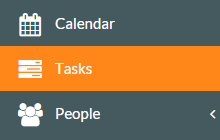
Tasks side menu. - Clicking on either View All Tasks from the notification menu or Tasks on the side menu, will show your open tasks.

- You can click the View dropdown menu from the Tasks table, to view the leave request.
- Alternatively, if you’re happy with the details of the leave and don’t require the further information that the request details page above can give, you can use the drop-down menu on the Tasks page, to approve or decline the leave.
Approving Leave Request – from My Tasks
- Click on Tasks on the side menu.
- The My Tasks page will load and you’ll see the leave request in your task list.
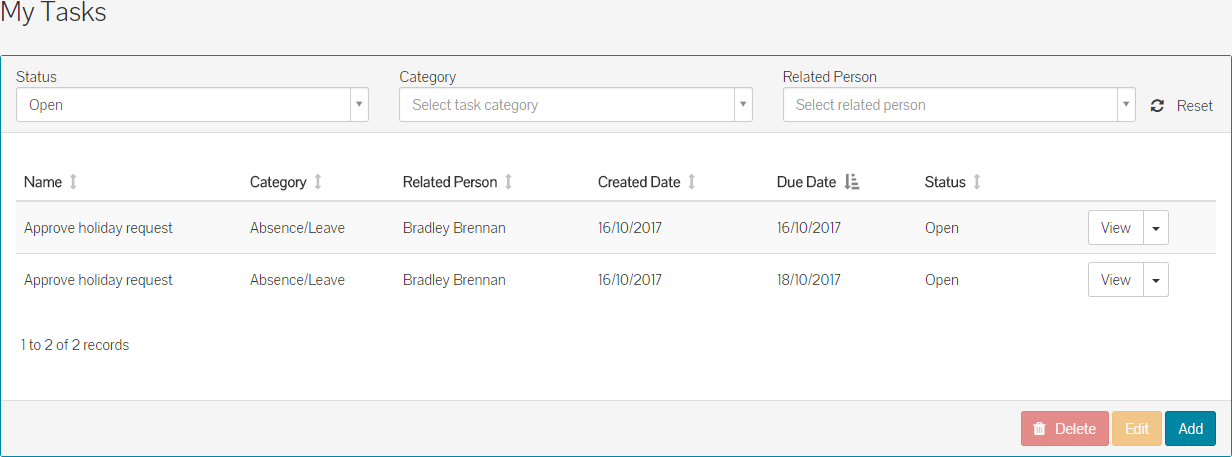
- You can click on the View button to load the request details page.
- Alternatively, if you’re happy with the details of the leave and don’t require the further information that the request details page above can give, you can use the drop-down menu on the Tasks page, to approve or decline the leave.
Absence - Team Requests
- One final place where you can view and approve/decline leave for your team, is via Absence on the side menu.
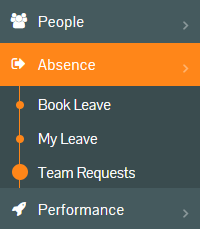
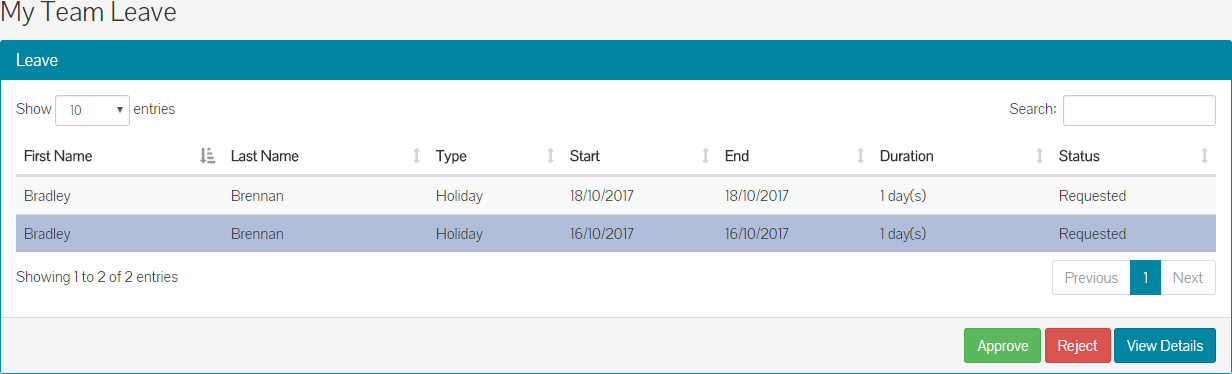
- Clicking on Absence to expand the sub-menu, then clicking Team Requests will display the ‘My Team Leave’ table.
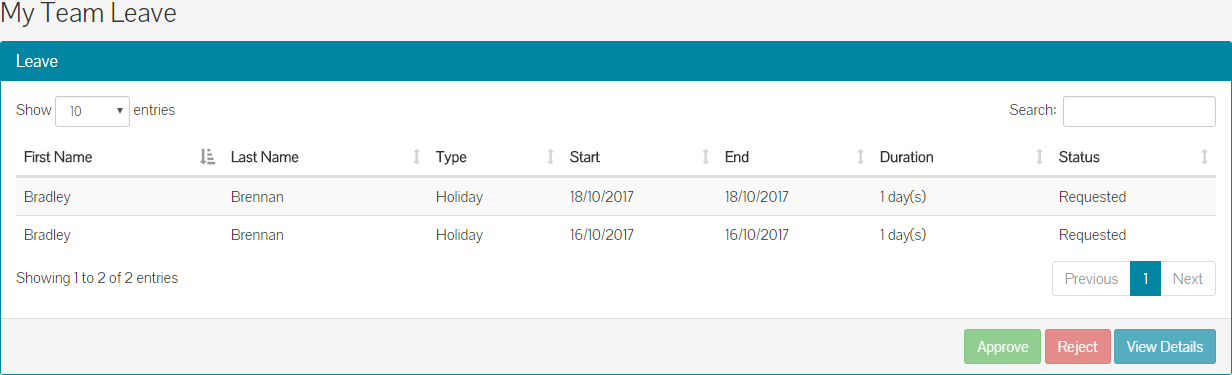
- Selecting one of the rows to highlight it as shown above, you can again view the request details page for more information, or approve/decline the leave using the corresponding buttons.
- Using any of the approval methods above, will result in the requestor receiving an email to advise them whether the leave has been approved or declined.
Was this article helpful?
That’s Great!
Thank you for your feedback
Sorry! We couldn't be helpful
Thank you for your feedback
Feedback sent
We appreciate your effort and will try to fix the article