Applies to: All Employees, Team Leaders/Managers and HR/Customer Administrators
When booking leave, there are two stages. You first submit your leave request, which is emailed to your team leader/manager, who then goes through the approval process.
There are two places where you can request your leave, which are from the Book Leave dashboard panel, or the Leave tab of your My Details page. Book Leave dashboard panel.
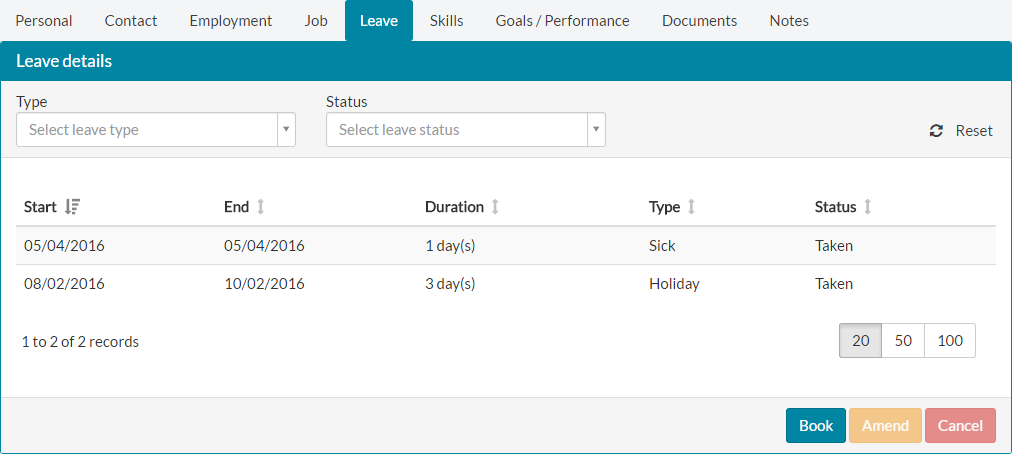 Leave tab under My Details.
- Clicking either the Book Leave dashboard panel or the blue book button the Leave tab of My Details will take you to the leave type screen, shown below.
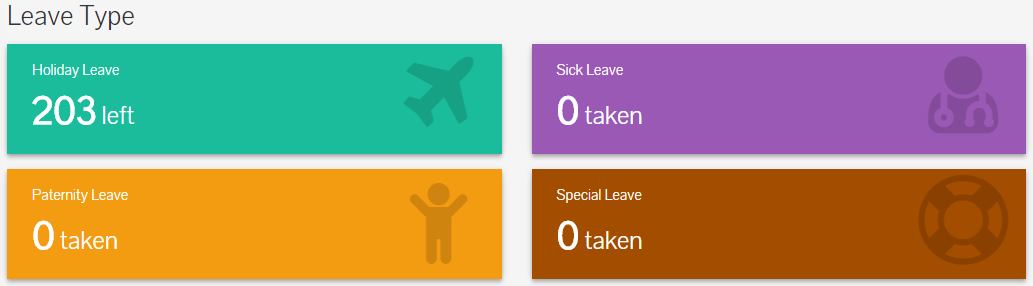
- Click the Paternity Leave panel, which also shows you the number of paternity leave days already taken.
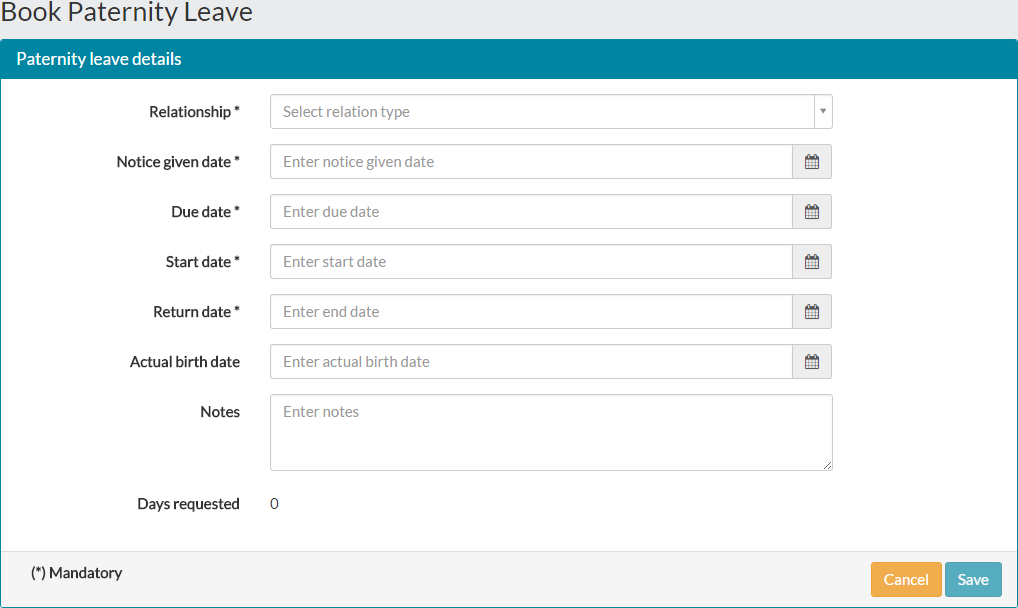
- The Book Paternity Leave page will open, allowing you to enter your paternity leave details.

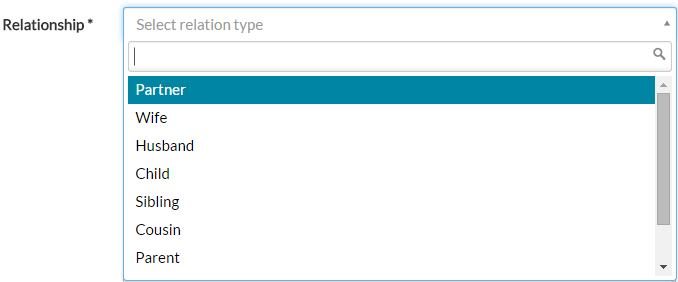
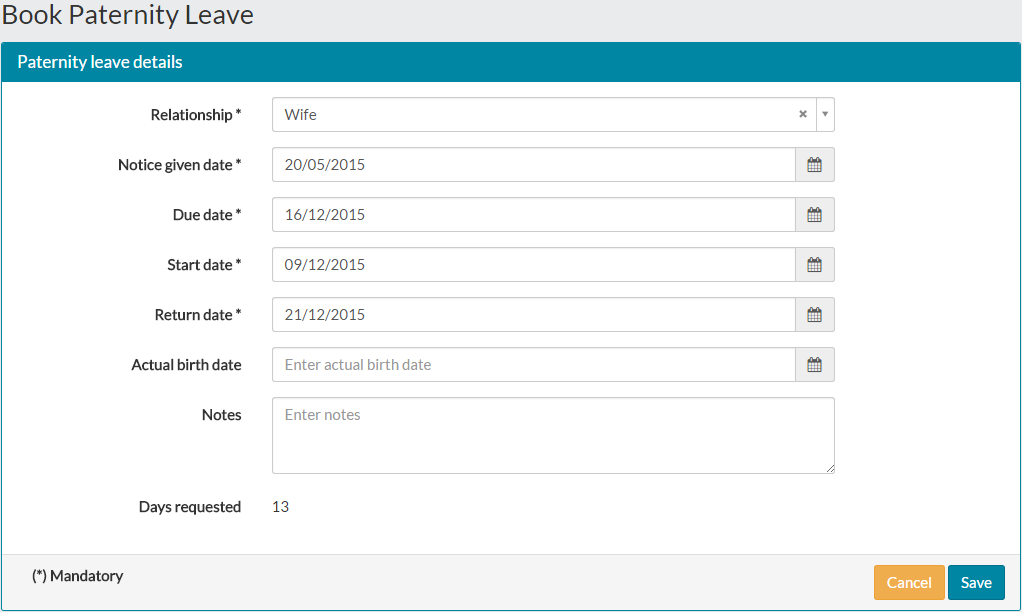
- From the Relationship drop-down menu, select the relationship of the person giving birth.

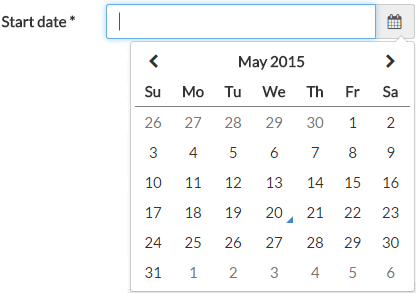
- Any of the date fields above, can either be manually entered in the DD/MM/YYYY format or by selecting it from the calendar, by first clicking on the calendar icon shown below.


- After clicking the calendar icon, you can select the dates from the calendar.

- Enter the required date fields for your paternity leave, marked by the * symbol.
- For the actual birth date field, you are not required to enter this date at this time.
- There is a Notes section, where you can type information about your leave for your manager, but this field is not required.
- Ensuring you have entered valid dates and times, the number of days requested will calculate the number of days you are about to request for paternity leave.
- A completed paternity leave request, will look similar to the example below.

- Click save and your request will be sent to your team leader/manager, who will receive an email and task notification to approve the leave request.
Was this article helpful?
That’s Great!
Thank you for your feedback
Sorry! We couldn't be helpful
Thank you for your feedback
Feedback sent
We appreciate your effort and will try to fix the article