Applies to: All employees
Under the Company view of the Calendar, you’ll be able to see leave for people within the entire organisation. As you’d expect, at times this can become quite a crowded view. The department, team or colleague views, as well as filtering by week or day then become extremely useful filters.
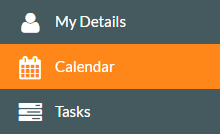
- To access the calendar, click on the Calendar side menu, shown below.

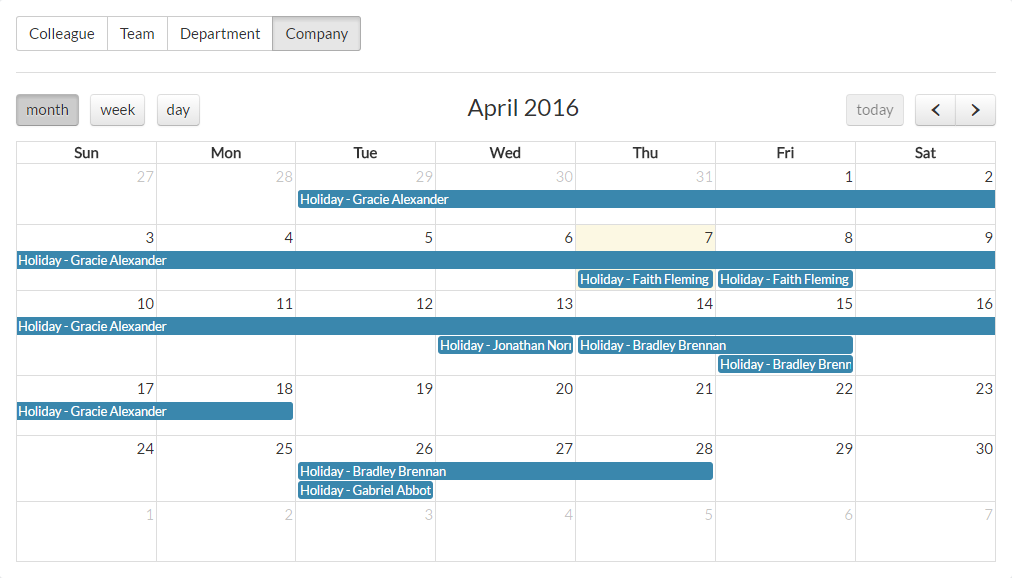
- The Calendar will load, starting with the Colleague view as a default, showing the current month and highlighting the current day in yellow.
- Click Company, which will display the current month and any leave booked throughout your organisation.

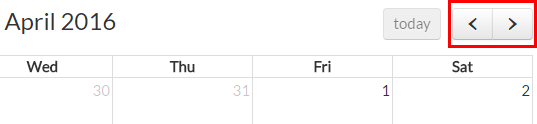
- You can use the backward and forward controls shown below, to browse back to the previous months and forward to future months.

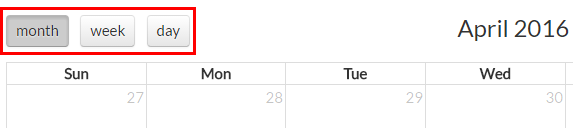
- You can display the calendar by month, week or day, by using the corresponding controls shown below.

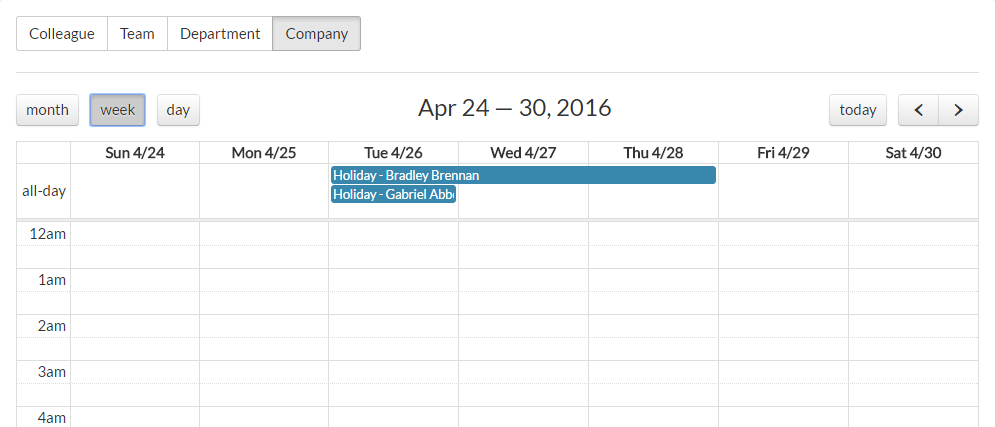
- By default, the month view is shown. Selecting the week view shows the corresponding week and any entries for that week, similar to the below example.

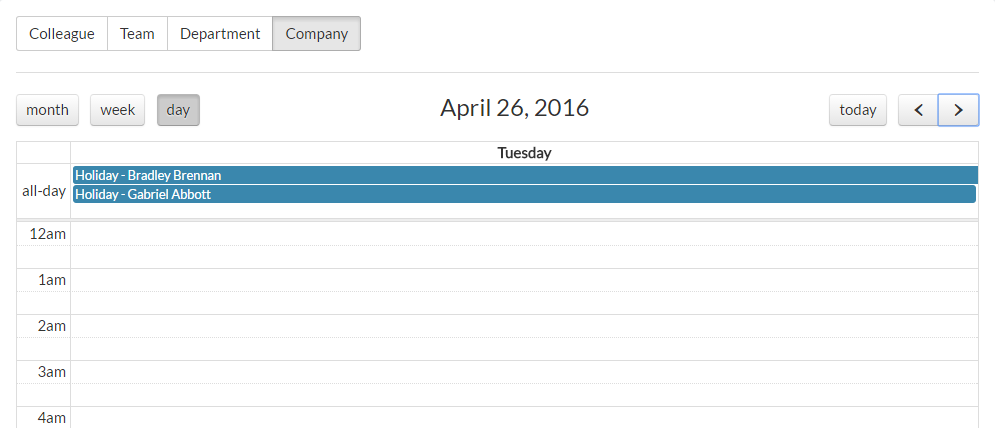
- Selecting the day view shows the selected day and any leave during that day, similar to the example below.

- Colleague, Team and Department calendar views are covered in the related articles below.
Related Articles:
- Calendar - Overview
- Calendar - Colleague View
- Calendar - Team View
- Calendar - Department View
Was this article helpful?
That’s Great!
Thank you for your feedback
Sorry! We couldn't be helpful
Thank you for your feedback
Feedback sent
We appreciate your effort and will try to fix the article